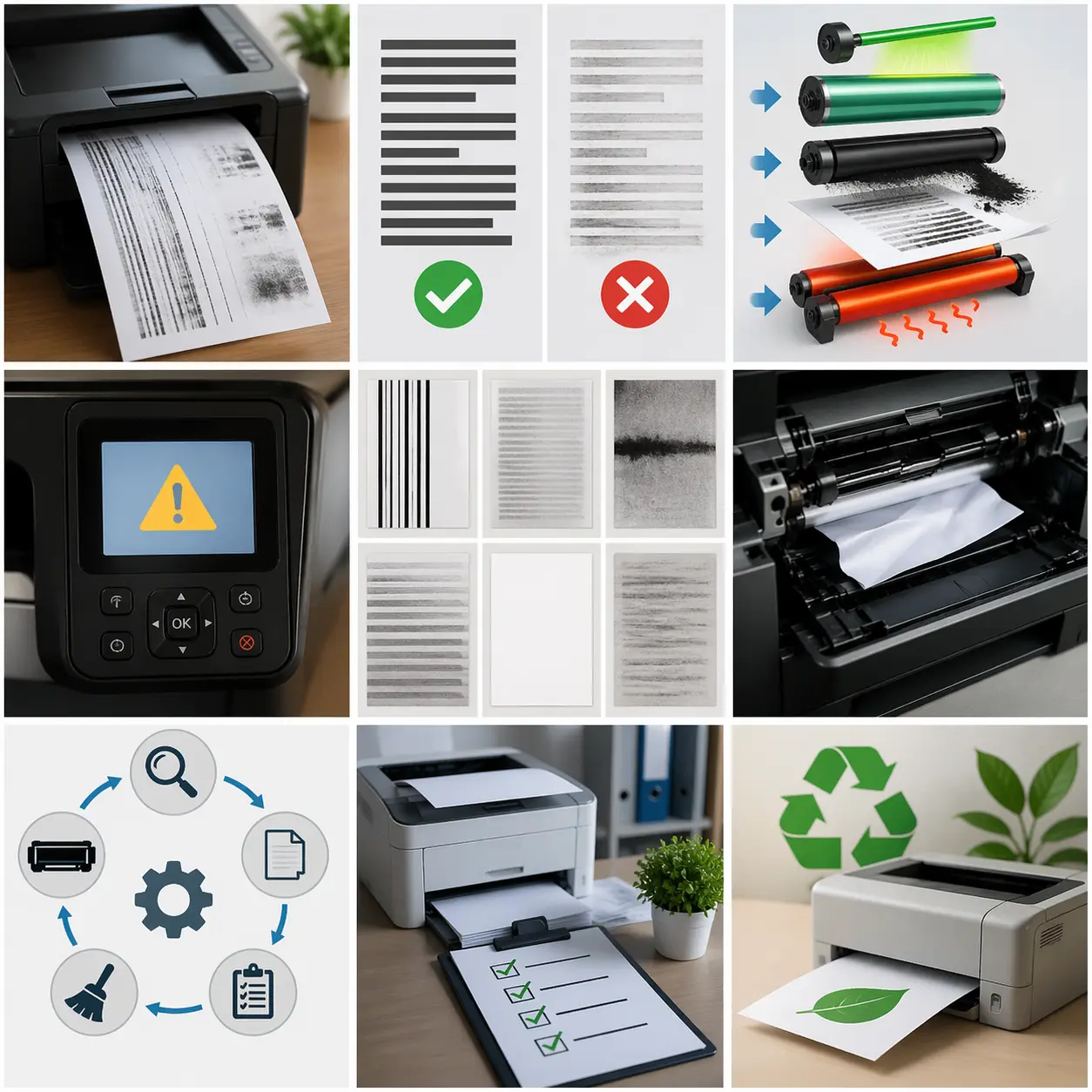
You expect your laser printer to give clean, sharp pages every time. But then one day… something feels off. Lines appear, pages look dirty, or the printer suddenly stops cooperating. It’s frustrating—I’ve been there too, pressing print again, hoping it magically fixes itself. Spoiler: it usually doesn’t.
These kinds of laser printing problems are more common than people think. Sometimes it’s just a low toner cartridge; other times it could be a small issue inside the laser system, like dust buildup or a worn roller. The real problem? Most people don’t know what’s actually causing it, and many guides online just throw technical terms at you without really helping.
I’ve seen people buy a new printer and run into the same issue within weeks. It’s not always about the brand—even a good HP machine can act up. That’s where a bit of simple troubleshooting makes all the difference.
The good news is, most of these laser printing problems are easy to fix once you understand what’s going on. You don’t need to be an expert. You just need clear steps and a little patience. That’s exactly what this guide will give you.
What Are Laser Printer Printing Problems? (Simple Explanation)
Laser printer problems are issues that stop your printer from producing clean and sharp pages. Instead of smooth text, you may see lines, faded print, a smudge, or even blank pages. These are called print defects, and they can happen in any printer, even a new one.
From my experience, many users think their printer is “bad” when this happens. But most of the time, it’s something small—like a wrong printer setting, dust inside the printer, or low-quality toner. It feels annoying, especially when you need urgent printing, I won’t lie.
These common laser printer problems are actually very normal. Offices face them daily, and that’s why printer-related issues make up a big part of IT support calls. So yes, it’s common, not unusual.
How Laser Printing Works (In Simple Words)
A laser printer works differently from an inkjet printer. It uses powder toner instead of liquid ink.
Here’s the simple process:
- A laser draws the image on the drum unit
- Toner sticks to that image
- Paper passes through the printer
- The fuser heats everything and sticks the toner to the page
Now here’s where problems start:
- If the fuser is weak, you may see a smear or toner rubbing off
- If the drum is dirty, lines or marks appear
- If toner spreads unevenly, print quality drops
(Some people think it’s a print head issue, but laser printers don’t use a print head at all.)
Why Problems Happen Even in Good Printers
This part honestly frustrates many users—and I understand why.
Even a strong HP LaserJet or other laser printer can develop issues over time. It’s not always about the brand. It’s about usage and care.
Common reasons include:
| Cause | What It Leads To |
| Cheap toner cartridge | Poor print quality and errors |
| Worn parts like the fuser | Blockages and uneven prints |
| Worn parts like fuser | Fading or smudging |
| Wrong printer setting | Light or dark prints |
| Low-quality paper | Paper jams and defects |
I’ve seen people try to save a little money on toner, but later spend much more on repairs. That’s something I always feel slightly frustrated about—because it’s avoidable.
Quick Signs Your Printer Has an Issue
If your printer is having trouble, you’ll usually notice these signs:
- Lines or streaks on pages
- Faded or weak print
- A visible smudge on paper
- Toner rubbing off after printing (fuser issue)
- Strange noise from your laser printer
- Uneven or messy output
These signs are your early warning. And trust me, fixing them early makes everything easier and cheaper in the long run.
How to Identify Laser Printer Printing Problems (Quick Diagnosis Guide)
When a laser printer starts acting strange, most people panic and don’t know where to start. I’ve seen this many times, especially in offices where people just want to quickly try to print and move on. But here’s the truth—if you know what to look for, you can find the issue in minutes.
This section helps you quickly identify laser printer problems without confusion. Think of it like a simple “symptom check” before fixing anything.
Lines or Streaks on Prints
If you see a streak or vertical lines on your page, something is wrong inside the printing system.
Common causes:
- Dirty or worn drum unit
- Low or uneven printer toner
- Dust inside the laser jet mechanism
I’ve personally seen this happen a lot with b&w laser printers in small offices. People ignore early signs, then suddenly the print becomes unreadable.
Sometimes you will also notice white lines cutting through text. That usually means the toner is not spreading evenly. A quick fix can be to gently replace the toner or clean internal parts.
Dirty or Smudged Pages
If your page looks messy or has a faded print, this is usually a heating issue.
Possible reasons:
- Weak fuser unit
- The wrong type of paper was used
- Dust buildup on rollers
In HP color or color laser printers, this issue becomes more visible because colors mix unevenly.
I once saw an office waste almost an hour daily because of this. Turns out the paper quality was the problem—not the machine. Small things, big impact.
Faded or Light Printing
When text looks too light or weak, the printer is not applying enough toner.
You may notice:
- A soft or faded print
- Missing areas in text
- Uneven darkness
Fix ideas:
- Check toner levels
- Adjust printer settings
- Replace the toner if needed
Honestly, many people forget this step and keep blaming the machine. But sometimes you just need to replace the toner, and things go back to normal.
Blank Pages
If your printer outputs empty pages, that feels scary—but don’t worry too much.
Possible causes:
- Empty or faulty printer toner
- Incorrect firmware or driver issue
- Blocked internal transfer path
I always tell users: before calling a technician, first check your printer basics. You’ll be surprised how often it’s something simple.
Paper Jams
Even though modern printers are better, paper jams still happen.
Common reasons:
- Wrong paper size
- Overfilled paper tray
- Low-quality sheets
One mistake I see often: people use random paper types without checking the recommended settings. That small mistake leads to repeated printer issues.
Strange Noises
If your printer starts making clicking or grinding sounds, stop and check your printer immediately.
It may indicate:
- Worn rollers
- Misaligned internal parts
- Something stuck inside
I’ve always felt this is one of the most ignored warning signs. People think “it will go away,” but it usually gets worse.
Quick Checklist to Find Your Problem
Here is a simple visual chart-style guide to help you identify the issue fast:
| Symptom | Likely Cause | Quick Action |
| Replace the toner or clean the drum | Toner or drum issue | Change paper or check the fuser |
| Dirty or smudged pages | Fuser or paper type issue | Inspect or call a technician |
| Faded print | Low toner | Replace the toner |
| Blank pages | Cartridge or firmware issue | Reset or replace toner |
| Paper jams | Paper tray or paper type | Fix alignment and paper type |
| Strange noise | Internal blockage | Inspect or call technician |
This kind of simple breakdown helps even beginners understand what is going wrong. I’ve used this method myself when training support staff—it saves a lot of time and confusion.
And honestly, that’s the goal here: help you fix laser printer problems without stress, without guessing, and without wasting money on unnecessary repairs.
Common Laser Printer Printing Problems and Their Fixes
When a laser printer starts giving trouble, it usually doesn’t fail at first. It shows small signs—slow prints, weak text, or strange marks. I’ve worked with many office setups and, honestly, most people ignore these early signs until the problem becomes worse. That’s where frustration begins.
Let’s break down the most common laser printer problems and how to fix them in a simple way.
Paper Jams (Most Common Issue)
Paper jams are one of the most annoying laser printer problems, especially in busy offices. You try to print something important, and suddenly the paper gets stuck. I’ve seen this happen many times, and honestly, it slows everything down.
Causes and Easy Fixes
Paper jams usually happen because of small mistakes, not big failures.
Common reasons:
- Wrong paper type or heavy paper weight
- Overfilled paper tray
- Dust or worn rollers inside the printer
- Using damp paper
In many cases, users don’t check paper quality, which leads to repeated issues.
Easy fixes:
- Always use the correct paper type
- Do not overload the paper tray
- Fan the paper before loading
- Clean the rollers inside the printer carefully
A simple habit like using proper paper can save a lot of frustration.
Streaks or Lines on Prints
Seeing a streak or lines across your page is a clear warning that something inside the printer is not working smoothly. It may look small at first, but it can affect your entire document quality.
Causes and Step-by-Step Fix
These laser printer problems usually come from toner or drum issues.
Common causes:
- Low toner or uneven toner powder
- Dirty or damaged drum unit
- Dust inside the printer system
- Worn rollers
Fix steps:
- Remove and gently shake the toner cartridge
- Clean the inside of the printer carefully
- Check the drum condition and replace the drum if needed
- Run a test print after cleaning
I’ve seen offices ignore early streaks and later face full print failure. Fixing it early always saves time.
Dirty Pages or Smudges
A smudge or dirty page feels frustrating because you expect clean output, especially in office work.
Causes and Cleaning Tips
This problem usually happens when the toner does not settle properly on the paper.
Common causes:
- Weak or dirty fusers
- Wrong paper type
- Excess toner buildup inside the printer
Fix tips:
- Clean internal printer parts gently
- Use good-quality paper only
- Avoid low-grade printing sheets
- Check toner alignment
Sometimes, it’s just bad paper causing the issue. I always feel a bit annoyed when people ignore this simple fact.
Faded or Light Printing
When prints come out light or faded, the text looks weak and sometimes hard to read. It usually makes users think something serious is wrong with the printer. In most cases, this is just a toner or setting issue in a laser printer.
Causes and Quick Fix
- Low toner or an old cartridge
- Wrong printer settings (draft or low density mode)
- Uneven toner distribution inside the printer
Fix steps:
- Replace the toner if it is low or expired
- Adjust print settings to normal or darker mode
- Check print density and increase it if needed
- Use a new toner cartridge if the output stays weak
Most of the time, fixing toner or settings brings print quality back quickly without any major repair.
Blank Pages Printing
When your printer starts giving completely blank pages, it can feel serious and even a bit stressful. Many users think the printer has stopped working, but in most laser printer problems, this issue is actually simple. It usually means the toner is not transferring onto the paper correctly.
Causes and Solutions
This issue is often not a major hardware failure and can be fixed with basic checks.
Common causes:
- Empty or faulty toner cartridge
- Driver or firmware issue
- Blocked toner flow inside the printer
Fix:
- Install replacement cartridges or a new toner cartridge
- Update printer firmware
- Run basic troubleshooting steps and restart the printer
In many cases, users skip simple checks and worry too early. But honestly, most blank page issues get fixed without needing a technician.
Toner Not Sticking Properly
When toner does not stick properly, the print looks uneven and sometimes rubs off easily after printing. This issue can be confusing because the printer still runs normally. It usually points to a heating or transfer problem inside a laser printer.
Fuser-Related Issues Explained
Inside the printer, fusers heat the toner powder and press it onto the paper so it becomes permanent. If this part is weak or damaged, the toner does not bond properly with the page.
Common signs:
- Text rubs off easily after printing
- Uneven or weak print output
- Poor results even after changing the toner
Fix:
- Check or replace the fuser unit
- Use the correct paper type for your printer
- Let the printer warm up before heavy printing
This issue often appears in heavy-use machines, and ignoring it usually makes print quality worse over time.
Real-Life Laser Printing Problems (What Users Actually Experience)
In real life, laser printer problems don’t always start with a full breakdown. Most of the time, the printer looks fine… then suddenly it doesn’t. I’ve seen this happen in offices, schools, and even small home setups. And honestly, it frustrates people because the machine gives no warning.
Printer Works Fine, Then Suddenly Prints Bad
Sometimes a laser printer works perfectly in the morning, and by afternoon, the prints start looking weak or messy. This sudden change usually confuses users because nothing “big” seems wrong.
In many cases, it happens due to toner levels dropping without notice or the printer switching to draft or economy mode. Even a small change in settings can affect output.
I’ve seen office staff panic here, thinking the machine is broken, when it’s just a setting or supply issue. It’s one of those moments where a quick check saves a lot of stress.
Problems After Changing Toner Cartridge
This is a very common situation. The printer starts acting strangely right after installing a new toner cartridge. Users expect improvement, but instead they see poor print quality.
Often, the issue comes from:
- Incorrect installation
- Low-quality toner replacement
- Misalignment inside the printer system
Inside some commercial printers, parts like developer units also need proper calibration after replacement. I honestly don’t like how often cheap cartridges create problems. It feels like saving a little money leads to more trouble later.
Issue Only on One Side of the Page
Sometimes the print looks perfect on one side but faded or uneven on the other. This is a tricky one because users assume the whole printer is failing.
In reality, it is often linked to:
- Uneven paper handling
- Dirty rollers
- Poor alignment of toner distribution
Even how you place the paper you use in the tray matters. If it is not aligned properly with the paper guides, the print can come out uneven.
This is more common in black and other mid-range machines used heavily in offices.
Problem Happens Occasionally
Some users say their printer works fine most of the time, but suddenly the issue appears and disappears. That inconsistency is very frustrating.
This can be caused by:
- Fluctuating toner flow
- Temporary overheating when the printer heats the toner
- Dust is affecting internal sensors
Sometimes, switching between CMYK color modes or changing print settings can also trigger inconsistency.
I’ve seen this in offices where people ignore maintenance for months. The printer starts behaving unpredictably, and everyone blames the machine instead of routine care.
Good text, but Poor Image Quality
In some cases, text prints perfectly, but images look dull or incorrect. This is common in both home and office printers.
Possible reasons include:
- Incorrect color calibration
- Low-quality image processing
- Issues in paper handling or print settings
In laser printers, especially advanced models used in commercial printers, color balance matters a lot. Even a small mismatch in CMYK settings can affect results.
It’s strange but true—your text can look sharp while images fail. That’s why proper setup matters more than most people think.
Why Laser Printer Problems Happen (Hidden Causes Explained)
Most people think laser printer problems come suddenly without warning. But in real use, there is always a hidden cause. The printer slowly shows signs, but users often miss them until the output gets bad.
And honestly, this is where frustration starts. Everything looks fine, but the prints become weak, uneven, or messy.
Low-Quality or Third-Party Toner
One of the biggest hidden causes is using cheap or third-party toner. It may seem like a money-saving choice, but it often creates poor print quality and uneven output.
When toner is not made properly, it affects toner bonding, so the powder does not stick well to the paper. You may see light text or random marks.
I’ve seen this many times with brands like Lexmark and other office printers. People try to save a little, but later they spend more on repairs. It’s one of those things that always frustrates me in this field.
Poor Quality Paper
Paper quality plays a much bigger role than people think. Using incorrect paper or very cheap sheets can cause printing issues.
If the paper is too thin or rough, it can lead to poor output, especially near the bottom of the page. Even the paper setting in the printer matters a lot.
A simple truth I always tell users: if the paper is bad, the print will never be perfect.
Dust and Dirt Build-Up Inside Printer
Over time, dust collects inside printer parts. This is normal, but when it builds up too much, it starts affecting print quality.
Dust can disturb rollers and the fuser or drum system, leading to faded prints or streaks. In many cases, you can fix this by carefully using a soft cloth and gently manually cleaning accessible areas.
I’ve personally seen printers come back to life just after a simple cleaning. It’s small work, but it makes a big difference.
Outdated Drivers or Firmware
Sometimes the problem is not physical—it’s software.
Old drivers or outdated firmware can cause printing errors, slow performance, or poor quality output. Many users ignore updates, which honestly creates unnecessary problems.
It’s always better to check the user manual or the manufacturer’s website and keep things updated. Small updates can fix issues that look big on the surface.
Lack of Regular Maintenance
This is the most common reason behind many printing issues, and I’ll be honest—it’s also the most ignored.
People use printers daily but rarely maintain them. Over time, rollers wear out, dust builds up, and performance drops.
Basic maintenance includes checking toner, cleaning parts, and making sure settings are correct. When done regularly, the printer stays stable and lasts much longer.
Step-by-Step Troubleshooting System (Fix Any Printer Problem)
When laser printer problems happen, most people feel confused and rush to fix everything at once. I’ve seen this many times in offices, and honestly, it creates more stress than solutions. The truth is simple: if you follow a clear order, you can fix most issues without a technician.
This system works for a reliable printer, whether it is a monochrome laser or a color laserjet used in daily office work.
Step 1: Identify the Problem
Before touching anything, first understand what is actually wrong. Don’t guess—look carefully at the output.
Check if:
- Print is faded or broken
- A ghost line appears across the page
- The color looks wrong in a color printer
- The first print is fine, but the later pages fail
Sometimes users panic too early. I always say, slow down first. Even in my experience as a printer support guide, this step alone solves half the confusion.
Step 2: Check Toner and Cartridge
Now move to the printer needs section—toner and cartridge.
Open the printer and check:
- Toner level (is it empty or low?)
- Cartridge installation
- Any leakage of toner powder
If needed, gently shake the cartridge so the toner spreads evenly. Many times, uneven toner causes poor output or weak color, like missing cyan in prints.
In some cases, simply replacing the cartridge fixes everything. I’ve seen users avoid this step, and honestly, it just wastes time.
Step 3: Inspect Paper and Tray
This step is often ignored, but it causes many printing failures.
Check:
- Is the paper loaded one sheet at a time or overfilled?
- Is the tray aligned properly?
- Is the paper quality correct for your machine?
If the paper does not move smoothly through the printer, it can cause jams or uneven printing. I have even seen a color printer fail because of the wrong paper type. Small mistake, big frustration.
Step 4: Clean Internal Parts Safely
Dust inside the printer is a silent problem. It slowly affects print quality.
Carefully:
- Open the printer and check dust buildup
- Gently clean using safe tools
- Avoid touching sensitive parts directly
If you notice toner marks or uneven transfer of ink onto the paper, cleaning may help.
This step is important for both color laserjet and monochrome laser printers. I always feel a bit proud here, because simple cleaning often saves expensive repairs.
Step 5: Run Printer Self-Test
Now test the printer.
Run a self-test page and observe:
- Is the print clean or still faulty?
- Does error repeat in patterns?
- Is the alignment correct?
This step gives you a clear visual chart of what is wrong. I like this step because it removes guesswork completely. If the output is still bad, the issue is deeper and may need advanced checks.
Step 6: Reset or Update Printer
Sometimes the issue is not hardware—it is a system error.
Try:
- Resetting printer settings
- Updating firmware
- Checking software compatibility
Even a small update can fix strange issues that look serious at first. I’ve seen printers act “broken” just because the firmware was outdated. It always surprises people.
Simple Troubleshooting Checklist
| Step | What to Check |
| Identify Problem | Look for print issues like ghost lines or fading |
| Toner Check | Print the test page and analyze output |
| Paper Check | Paper type, loading method, tray alignment |
| Clean Printer | Remove dust inside carefully |
| Self-Test | Print the test page and analyze the output |
| Reset/Update | Fix software or firmware issues |
When to Fix vs When to Replace Parts
In real life, laser printer problems don’t always mean something serious is broken. Most of the time, the issue starts small, and you can fix it with basic care if you catch it early. I’ve honestly seen people rush to a technician when a simple check or small part change would have solved the issue. It feels unnecessary, especially when the fix was right in front of them.
What really matters is understanding what your printer is asking for. Sometimes it just needs cleaning, sometimes a part is worn out, and sometimes the machine has simply reached the point where fixing it again doesn’t make sense anymore.
| Problem Area | Signs You Notice | What You Should Do |
| Cleaning needed | Light dust, small marks, minor print issues | Replace the toner cartridge |
| Toner cartridge | Very light print, missing text, empty warning | Replace the drum unit |
| Drum unit | Frequent breakdowns, high repair costs, old machine | Repair or replace the fuser |
| Fuser issue | Text rubs off, weak bonding, faded output | Consider replacing the printer |
| Overall printer condition | Frequent breakdowns, high repair cost, old machine | Repeated lines, uneven print, poor quality, even after toner change |
How to Prevent Laser Printer Printing Problems?
Preventing laser printer problems is much easier than fixing them later. I’ve seen this many times in real office work—small habits can keep a printer running smoothly for years, while ignoring them leads to constant issues. And honestly, I feel a bit frustrated when people skip basic care and then blame the machine.
Let’s keep this simple and practical so anyone can follow it.
Use High-Quality Paper
A good paper makes a big difference in print quality. When people use cheap or wrong paper, printers struggle to feed it properly, and the output becomes uneven. I’ve seen cases where a perfectly fine printer looked “broken” just because of poor paper choice.
Always match the paper with your printer’s needs. It helps avoid jams, smudges, and weak prints.
Avoid Cheap Toner Cartridges
Low-quality toner is one of the biggest hidden causes of print issues. It may look cheaper at first, but it often leads to faded output and inconsistent printing. I’ve seen users try to save money here, but later spend more on repairs. That part always bothers me a little.
A good cartridge keeps the print stable and protects the internal parts of the printer.
Clean Your Printer Regularly
Dust slowly builds up inside any printer, even if you don’t see it. Over time, it affects rollers, sensors, and print quality. I usually recommend a simple cleaning routine every few weeks.
A soft cloth can help remove dust from accessible areas. This small habit can prevent many common issues before they even start.
Store Paper Properly
Paper may look simple, but it reacts to moisture and temperature. If it absorbs moisture, it becomes soft and causes feeding issues. I’ve seen printers struggle just because paper was stored in a damp place.
Keep paper in a dry, clean area. Always use fresh sheets for better results.
Keep Software Updated
Printer software and firmware updates are often ignored, but they play a big role in performance. Old software can cause slow printing or random errors. I always suggest checking updates when something feels off.
Updating keeps the printer stable and improves compatibility with your system.
Don’t Let Toner Run Completely Empty
Letting the toner finish is a common mistake. It can lead to uneven prints and even damage internal parts over time. I’ve seen printers start acting strange simply because toner was used until the very last drop. Replace toner early to keep print quality consistent and avoid sudden breakdowns.
Laser Printing Problems in Offices (Cost & Productivity Impact)
In offices, laser printer problems are not just small technical issues. They slow down work, increase costs, and create stress during busy hours. I’ve seen teams lose valuable time just because a printer stopped working at the wrong moment. It may look like a small issue, but it affects the whole workflow more than people realize.
Key Factors
- Printer downtime slows employee work and creates delays in daily tasks. Even a few minutes of waiting can break focus and disturb the entire workflow.
- Poor print quality leads to repeated printing, which wastes both paper and toner. Over time, this quietly increases office expenses.
- Frequent printer errors increase IT support calls and interrupt important work. IT staff end up spending time on basic issues instead of important tasks.
- Low-quality supplies like cheap toner or paper cause repeated printing problems. This leads to inconsistent results and more printer failures.
- Lack of regular maintenance allows small issues to grow into bigger problems. Dust and worn parts slowly reduce printer performance.
- Unexpected printer breakdowns create pressure during urgent deadlines. Work slows down, and employees feel stressed.
Security Risks in Laser Printers
Many people don’t think about security when using a printer, but modern laser printer problems are not only about paper or toner. I’ve seen office setups where printers were connected to the network but never secured. It looks harmless, but honestly, it can create serious risks if ignored. Printers store data, and that data can be exposed if the device is not protected properly.
This is one area where I feel a bit concerned. People focus on speed and cost, but forget that printers are also connected devices, just like computers.
How Printers Can Be Hacked
- Printers connected to Wi-Fi or office networks can be accessed by outsiders if not protected. This allows sensitive documents to be exposed without anyone noticing.
- Some printers store temporary print data, which can be retrieved if the device is not secured. This becomes a hidden risk in shared office environments.
- Outdated firmware makes it easier for attackers to enter the system and misuse printer access. Many users never update it, which increases vulnerability.
Common Security Mistakes
- Using the default passwords that come with the printer. This is one of the easiest ways for unauthorized access.
- Leaving printers connected to open networks without restrictions. It makes the device visible to anyone nearby.
- Ignoring firmware updates and security patches. This allows known issues to stay active in the system.
- Not monitoring print logs in shared office setups. It becomes hard to track who printed what.
How to Secure Your Printer
- Set a strong password instead of keeping the default settings. This simple step blocks most unwanted access.
- Keep printer firmware updated to close security gaps. It improves overall protection and stability.
- Limit network access so only trusted devices can use the printer. This reduces exposure in busy office environments.
- Regularly check print activity in shared systems. It helps identify unusual usage early.
Printer security is often ignored, but in my experience, it is just as important as fixing hardware issues. A little attention here protects both data and trust, especially in workplaces where sensitive documents are printed every day.
Health & Environmental Issues of Laser Printing
Most people only think about paper or toner when dealing with laser printer problems, but printing also affects air quality and the environment. In real offices, printers often run for hours, and people don’t notice what is released into the air. It may seem small, but over time it can matter for both health and surroundings.
Printer Emissions and Air Quality
- Laser printers release tiny particles into the air during printing. You cannot see them, but they stay in the room.
- In closed offices, these particles can slowly reduce indoor air quality.
- I’ve noticed this mostly in busy workplaces where printers are used all day without ventilation.
Health Effects of Long-Term Exposure
- Long exposure may cause mild eye, throat, or breathing irritation.
- People near printers for long hours may feel discomfort without knowing the cause.
- Good airflow and printer placement can reduce these effects.
Eco-Friendly Printing Tips
- Print on both sides to save paper and reduce waste.
- Turn off the printer when not in use to save energy.
- Use recycled paper when possible.
- Keep the printer clean, so it runs efficiently and wastes less toner.
Conclusion
Laser printer problems are usually not serious or complicated. Most of them start from small issues like toner, paper, dust, or incorrect settings. Once you understand these basic causes, you can fix many problems yourself without stress or extra cost.
From real experience, I’ve noticed people often worry too quickly, but the solution is usually simple. Regular cleaning, using the right paper, and checking toner on time can keep the printer running smoothly for a long time. It also saves time and avoids unnecessary frustration.
In the end, a printer works well when it is cared for properly. A little attention and routine maintenance can keep it giving clear and reliable prints every day.
Frequently Asked Questions
What are the best toner cartridges compatible with a laser printer?
The best toner cartridge is the one made for your exact printer model or a trusted OEM brand like HP, Brother, or Canon. Always check compatibility in your printer manual before buying to avoid print issues.
Why are my laser prints coming out faded?
Faded prints usually happen because the toner is low, the cartridge is old, or the print settings are set too light. Sometimes dirty internal parts can also affect print quality.
How can I fix paper jams in a laser printer?
Turn off the printer and gently remove the stuck paper without tearing it. Then check the paper tray, rollers, and make sure you are using the correct paper size and type.
Is it better to repair or replace a printer?
If the repair cost is low, fixing it makes sense. But if the printer is old or repairs are expensive, replacing it is usually the smarter choice.
Can low-quality toner damage a printer?
Yes, low-quality toner can affect print quality and put extra stress on internal parts. Over time, it may even cause uneven printing or damage the drum system.

Willis C. Mathes
I’m Willis C. Mathes With hands-on experience and technical knowledge of printers, I dive deep into printer reviews, troubleshooting, and tips, ensuring you get the most out of your printing investment.