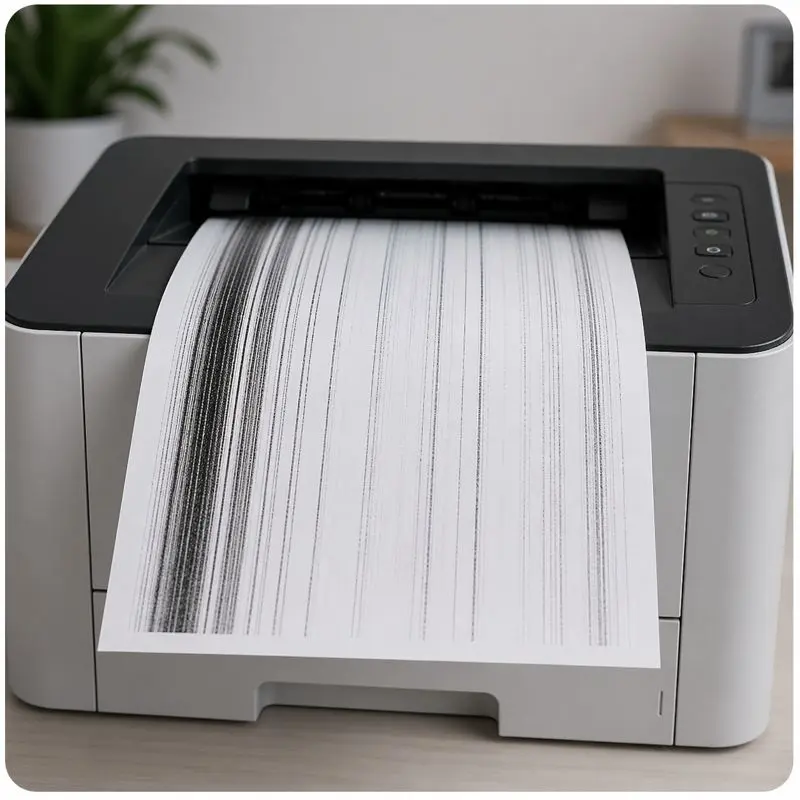
When your laser printer starts showing streaks, it usually means something is affecting how toner is applied to the page. You may see black lines, faded areas, or uneven printing lines, which can make your print look damaged or unprofessional. These issues are commonly known as laser printer printing streaks.
In most cases, this problem is not serious. A dirty or worn toner cartridge, a weak drum unit, or dust on the internal roller is often the real reason behind these streaks. Even humidity or low-quality paper can affect print quality.
The good thing is that you don’t always need a repair shop. Many laser printer streaks can be fixed with simple cleaning or by replacing one part instead of the whole machine.
Understanding the type of streak helps you quickly find the right fix without wasting time or money.
Types of Laser Printer Streaks (And What They Mean)
When a laser printer starts printing badly, the first thing most people notice is a streak on the page. I’ve seen this many times in offices, and honestly, it always confuses. People panic, assume the machine is dead, and sometimes even rush to replace parts that don’t need replacing. That’s a mistake I wish I could stop happening everywhere.
But here’s the truth: different streaks on laser printer pages mean different problems. If you understand the pattern, you can quickly narrow down the issue and resolve the issue without wasting money.
Let’s break it down in a very simple way.
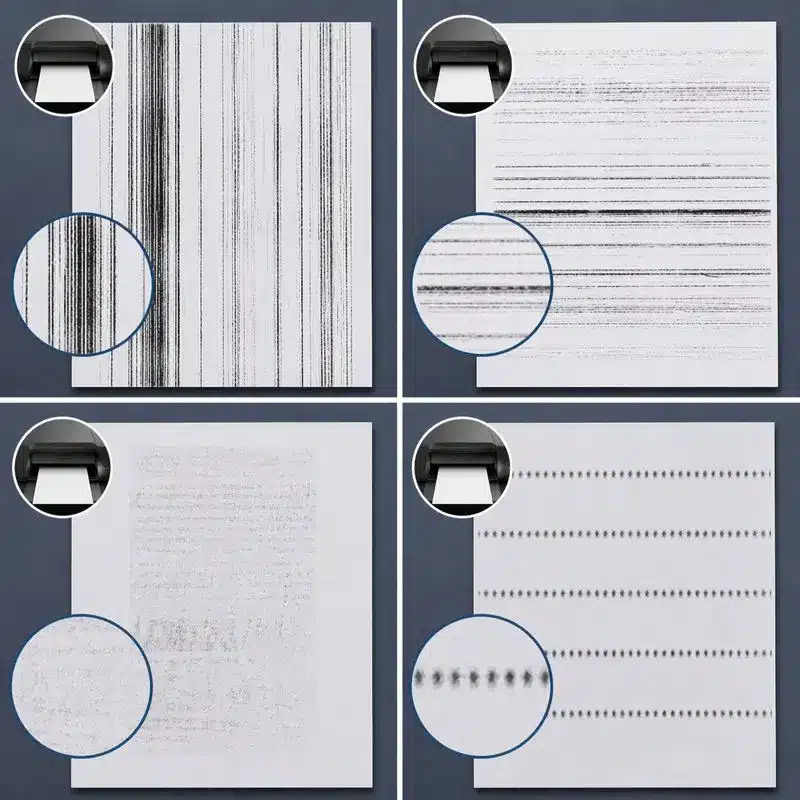
Vertical Black Streaks
A vertical black streak runs from top to bottom of the page. It is one of the most common problems in a laser printer, and I’ll be honest—it often scares users the most.
In most cases, this happens because:
- The drum is dirty or damaged
- The toner cartridge is leaking or uneven
- Dust is stuck on the corona wire
Sometimes, I’ve seen users try random fixes without checking the basics first. It frustrates me a little because a simple cleaning cycle or basic inspection could save time.
A proper troubleshooting step here is to gently clean the drum using a soft, lint-free cloth. If the problem persists, then you may need to replace the drum.
One real example: I once saw a school printer showing strong vertical lines on every page. The issue was just toner dust stuck inside the cartridge area. A simple wipe with isopropyl alcohol on a swab fixed it completely. No expensive repair needed.
Horizontal Streaks
Horizontal streaks go across the page from left to right. These are usually linked to internal movement parts inside the laser printer, especially the fuser or roller system.
Common reasons include:
- Uneven heat from the fuser
- Dirty or worn roller
- Paper feed inconsistency
What I personally don’t like is when people ignore this and keep printing. That can make the smudge worse over time.
If you want a basic fix, check the paper path and make sure nothing is blocking it. In some cases, light isopropyl alcohol cleaning around accessible rollers helps, but always be careful. If the heat system in the fuser is damaged, cleaning won’t fully solve it.
Faded or Light Streaks
This type looks like weak or broken print areas. The text looks incomplete, and parts of the page look “light.”
This usually happens because:
- Low toner inside the toner cartridge
- Uneven toner spread
- Weak pressure from the drum
Sometimes humidity makes toner clump, which leads to poor print quality. I’ve seen users blame the printer, but the real issue is often storage.
A quick fix is to gently shake the toner cartridge and test again. If the fading continues and starts to persist, it may be time to inspect or replace the drum.
Repeating Marks or Patterns
This one is very interesting and honestly a bit technical—but I’ll keep it simple.
If you see the same streak repeating at equal distances down the page, it usually means one part inside the laser printer is damaged and rotating with the same defect again and again.
Most common causes:
- Damaged drum surface
- Worn roller
- Residue stuck inside the printing path
This is where proper troubleshooting matters. The repeating pattern helps identify which part is failing. It’s almost like the printer is “showing you the problem” if you look carefully.
I’ve always believed good maintenance can prevent this. A regular wipe with a lint-free cloth and proper cleaning habits can reduce these issues a lot.
Each type of laser printer, with black streaks or faded marks, tells a different story. Once you understand that, fixing the problem becomes much easier—and you don’t fall into the trap of random replacements or unnecessary repairs.
Quick Diagnosis: What Your Streak Pattern Says About the Problem
When laser printer streaks appear, most people get confused and start guessing. I’ve seen this many times, and honestly, it leads to unnecessary repairs. People replace parts without even understanding the real issue inside the printer. That’s something I don’t like about the industry—quick selling instead of proper explanation.
But here’s the truth: your streaks on your laser printer are actually giving you clues. If you read the pattern correctly, you can quickly understand what is going wrong. This is where proper troubleshooting becomes powerful.
Let’s break it down in a simple step-by-step way so even a beginner can understand.
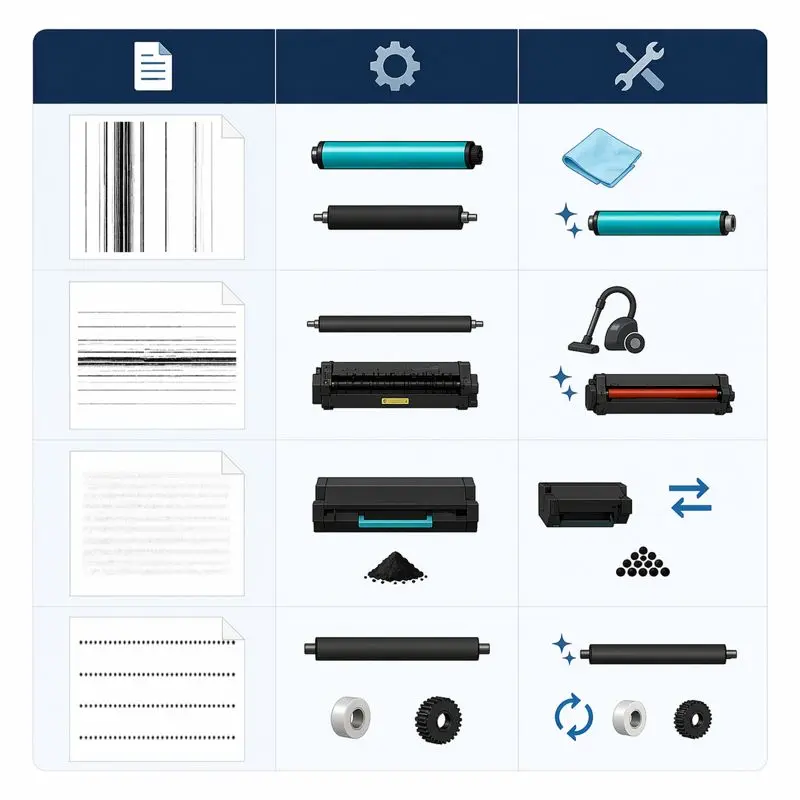
Vertical lines → Drum or toner issue
If you see vertical black lines or straight vertical lines, or streaks, the issue is usually inside the printing core of the laser printer.
Most common causes:
- Damaged or dirty drum
- Faulty toner cartridge problems
- Dust or residue inside the printer system
In real life, I once checked an office printer where users were complaining nonstop about laser printer streaks. They thought the machine was broken. But it turned out the toner cartridge problems were simple—toner was leaking slightly and creating streaks and vertical marks.
A proper fix for a laser printer step here is to remove the cartridge, check for leakage, and gently clean the drum area. Small care can make a big difference.
Repeating marks → Drum or roller defect
If the same pattern keeps repeating down the page, it usually points to a rotating part issue.
This happens because:
- The drum has a scratch or mark
- A worn roller inside the printer is repeating pressure points
This type of defect feels very frustrating. I remember a case where a school printer kept printing the same dark mark again and again. Teachers were annoyed because it ruined worksheets. The issue was a worn roller—simple but ignored for weeks.
Here, cleaning won’t always help. You may need to inspect inside the printer and check if the drum needs replacement.
Toner rubs off → Fuser problem
If the printed text smudges when you touch it, the problem is often the fuser.
The fuser uses heat to bond toner onto paper. When it fails, toner sits loosely and causes smudging.
Common signs:
- Smudged text
- Light horizontal lines
- Poor bonding of toner
This is one of those issues that people misunderstand a lot. I’ve seen users blame the toner cartridge problems, but the real issue is heat failure.
A careful inspection inside the printer is needed here. Sometimes the fuser is dirty, sometimes it is weak. Either way, this directly affects print output.
Faded print → Toner or humidity issue
If your pages look light, uneven, or faded, it usually comes from toner or environmental issues.
Common causes:
- Low toner in the toner cartridge problems
- Moisture affecting toner quality
- Weak distribution inside the printer
This is very common in humid areas. I’ve personally seen printers in storage rooms where humidity caused weak print output. People thought the printer was dying, but it was just environmental damage.
A simple check of the cartridge can often improve results. If the problem continues, cleaning or replacing parts may be needed to prevent laser printer issues from getting worse.
Quick Understanding Table
| Pattern You See | What It Means |
| Vertical lines or streaks | Drum or toner issue |
| Repeating marks | Drum or roller defect |
| Toner rubs off | Fuser problem |
| Faded print | Toner or humidity issue |
Main Causes of Laser Printer Printing Streaks
When streaks appear on your laser printer, people often panic and start guessing the problem. I understand that feeling. I’ve seen office workers get stressed because a simple print job suddenly shows vertical black lines or faded output. But in most cases, the issue is not random. There are clear causes behind laser printer streaks, and once you understand them, it becomes much easier to fix laser printer problems without wasting money or time.
Let’s go through the real causes simply and honestly.
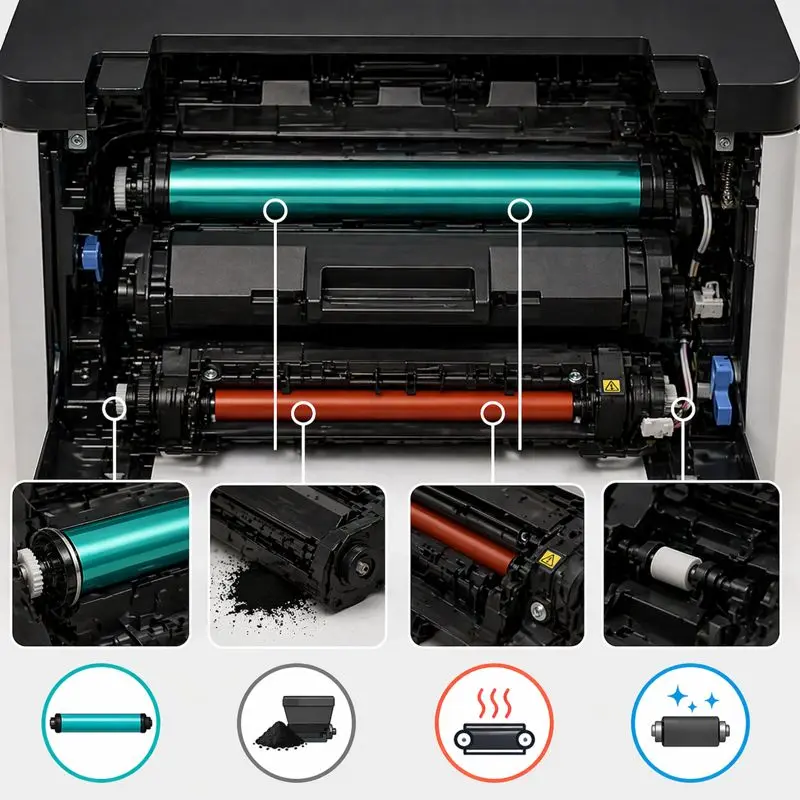
Dirty or Damaged Drum Unit
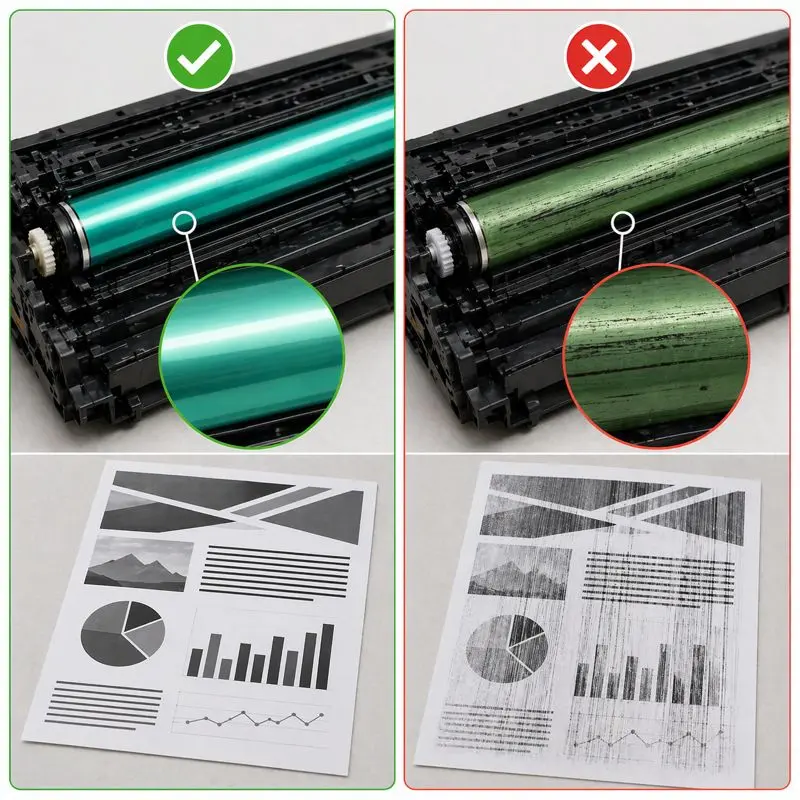
The drum unit is one of the most important parts inside the printer. It transfers toner onto the paper, and when it gets dirty or scratched, it directly affects print output.
Common signs:
- Strong vertical lines or streaks
- Repeating marks on pages
- Uneven print areas
A dirty drum is actually one of the most common printer toner cartridge problems, and honestly, I get a bit frustrated when people ignore it and keep printing for weeks. That only makes things worse.
I once checked a small office printer where employees complained about constant laser printer streaks. They were ready to replace the whole machine. But the issue was simple dust on the drum. A careful cleaning solved it.
A gentle step-by-step cleaning process or replacing the drum when needed can quickly bring back normal printing. This is also one of the best ways to prevent laser printer damage in the long run.
Toner Cartridge Problems
The toner cartridge is another major reason behind printing issues. When it is low, old, or damaged, it can cause uneven printing and weak output.
Common problems include:
- Faded text
- Patchy print areas
- Streaks and vertical marks
I’ve seen many users blame everything except the cartridge. That’s one of my pet peeves in this industry—quick assumptions without checking basics.
A faulty cartridge can also create printer toner cartridge problems like leaking powder or uneven toner distribution. This often leads to visible laser printer streaks across the page.
A simple removal, gentle shaking, or replacement usually solves the issue. Always check this first before assuming a bigger fault.
Fuser Unit Issues
The fuser unit uses heat and pressure to bond toner to paper. If it is not working properly, the print will not stick correctly.
Signs of fuser issues:
- Smudged text
- Weak bonding of toner
- Light horizontal lines on pages
This is one of those problems that people often misunderstand. I’ve seen cases where users thought it was a cartridge issue, but the real problem was a heat failure inside the printer system.
Inside the printer, the fuser works under high temperature, so wear and tear are normal. If it becomes weak, you may need professional service to resolve it properly.
Transfer Roller or Corona Wire Dirt
The transfer system helps move toner from the drum to the paper. If it gets dirty, the print becomes uneven.
Common causes:
- Dust on the roller
- Dirty or weak corona wire
- Poor toner transfer
This can lead to weak printing or uneven dark areas. Sometimes users ignore this because it is not visible easily, but it plays a big role in print quality.
A light cleaning can help, but deep internal issues may require servicing. I always advise caution here because aggressive cleaning inside the printer can cause more harm than good.
Low-Quality or Damp Paper
Paper might look simple, but it affects everything.
If paper is:
- Damp
- Low quality
- Dusty or rough
Then you may see poor print output and unexpected horizontal lines or faded areas.
I’ve personally seen offices store paper near windows or in humid rooms. Later, they complain about laser printer streaks and blame the machine. But honestly, the paper was the real problem.
Good-quality dry paper helps toner stick properly and improves overall print performance.
How to Fix Laser Printer Streaks? (Step-by-Step)
When laser printer streaks start showing on your printed pages, most people feel stressed. I’ve seen it many times in real office environments, especially with models like HP LaserJet and LaserJet Pro MFP. People assume something big is broken, but honestly, in most cases, the issue is simple and can be solved at home.
What I don’t like—and I’ll say this honestly—is when service providers instantly suggest expensive repairs without proper checking. That creates confusion and unnecessary cost for users. In real practice, most lines are caused by basic maintenance issues, not major damage.
Let’s go through a clear step-by-step guide so you can safely understand and fix laser printer streak problems without guessing.
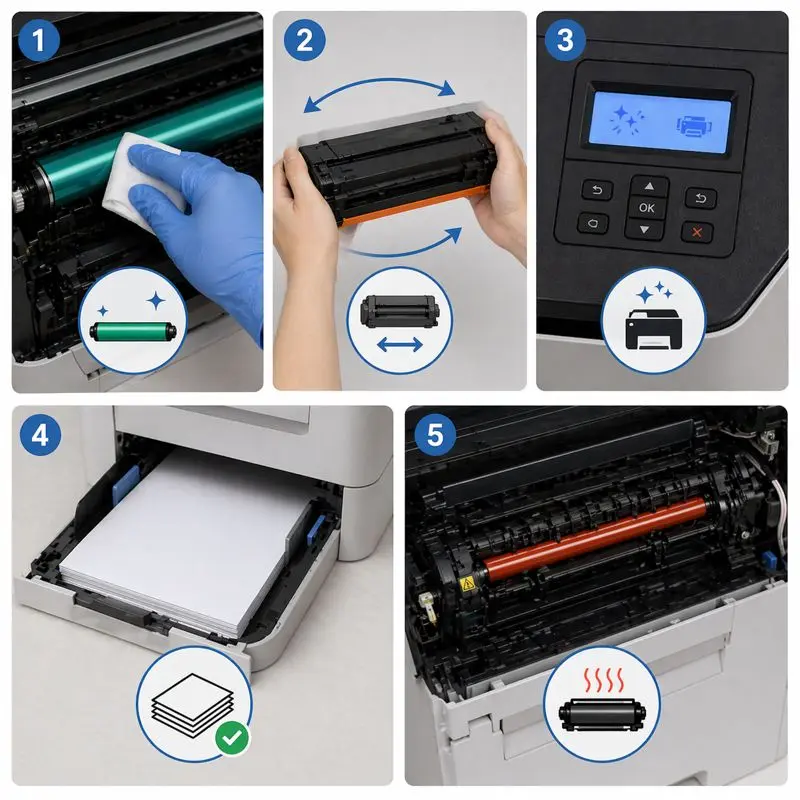
Step 1 – Clean the Drum Unit
The drum unit is one of the most sensitive parts inside a laser printer. When dust or toner sticks to it, streaks usually appear very clearly on pages.
You may notice:
- Dark printing black marks
- Repeating vertical patterns
- Uneven output on printed pages
Now here’s a simple truth from experience: I’ve seen many cases where users panic, but the issue was just dust. A careful cleaning of the drum unit process can often solve it.
Use a soft, dry cloth. Do not press too hard. If needed, a light wipe helps remove toner dust. This simple action often immediately reduces laser printer streaking issues.
And yes, I always remind people—handle the drum gently. It is delicate, and rough cleaning can make things worse.
Step 2 – Check and Shake Toner Cartridge
The toner cartridge is another common source of problems, especially in HP LaserJet printers.
When toner inside settles unevenly, you may see:
- Light or faded print
- Patchy areas
- Recurring laser printer marks
A simple trick I’ve used many times in real troubleshooting is gently shaking the cartridge side-to-side. It redistributes toner and improves print output instantly in many cases.
But here’s a small frustration I have: many users ignore cartridge condition completely and blame the machine. In reality, printer toner inside the cartridge plays a huge role in print quality.
If shaking does not help, replacement may be needed.
Step 3 – Run Printer Cleaning Mode
Most modern printers, like the LaserJet Pro MFP, have a built-in cleaning function.
This internal process:
- Clears dust buildup
- Improves toner flow
- Helps stabilize print quality
When you run this feature, the printer performs a controlled cleaning cycle inside its system.
From my experience, this step is often skipped by users, which is a mistake. It’s simple, fast, and safe.
After running it, check your output. Many lines appear lighter or disappear completely after this step.
Step 4 – Replace or Check Paper
This step is often underestimated, and I honestly find it a bit frustrating in the industry—people always blame machines first, not paper quality.
If you use low-grade or damp paper, you may see:
- Uneven print
- Weak areas
- Strange streaks on your laser printer
Always use high-quality paper. It improves toner bonding and gives smoother results.
Also, store paper in a dry place. Moisture can affect print performance badly and create recurring laser printer issues that keep coming back.
In many real cases I’ve seen, simply switching paper solved the issue without touching the machine.
Step 5 – Inspect the Fuser
The fuser is the part that melts toner and fixes it on paper. If it is not working properly, the print quality drops quickly.
Signs of fuser problems:
- Smudging on pages
- Weak bonding of toner
- Uneven output on printed pages
This is one area where I always advise caution. The fuser works with heat, so you should not try deep repairs without experience.
If the fuser is weak or damaged, cleaning alone will not help. Replacement may be required.
A technician usually checks this when other steps fail.
Final Practical Insight
If you follow these steps properly, you can solve most laser printer streaks at home without stress. I’ve personally seen office users save time and money just by doing basic checks instead of rushing into repairs.
And honestly, that’s what good maintenance is about—simple care, not complicated fixes.
If you maintain your printer regularly, use high-quality paper, and clean basic parts, you can avoid most lines in the future and keep your printer running smoothly for years.
When to Clean vs When to Replace Printer Parts
When a laser printer starts showing print problems, people often get confused. I’ve seen this many times in real work situations, and honestly, most users either clean too much or replace parts too early. Both mistakes waste money. The right approach is simple: first check if cleaning works, and if not, then think about replacement.
Let’s break it down in a clear way.
When Cleaning Is Enough
Cleaning is enough when the problem is small and caused by dust or light buildup inside the machine.
You can clean when:
- Light streaks appear on pages
- Print looks slightly uneven
- Dust is visible on parts
In many cases, simple cleaning fixes the issue without any replacement. For example, I once checked an HP Color LaserJet Pro where users thought the machine was damaged. But it was just dust inside the roller area. A gentle wipe with a dry cloth solved it quickly.
You can also carefully use a cotton swab for small areas, but always be gentle. Harsh cleaning can damage parts instead of helping.
Cleaning works best when:
- Dirt is the main problem
- Parts are still in good condition
- The issue is not repeating again and again
When to Replace the Drum
The drum should be replaced when cleaning no longer helps.
Signs include:
- Strong or repeated streaks
- Dark marks that keep coming back
- Print quality keeps getting worse
At this stage, the drum often cannot be cleaned anymore. I’ve personally seen cases where users keep trying again and again, but the damage stays because the surface is worn out.
If inspecting the drum shows scratches or wear, it usually means it needs to be replaced. Continuing to use it will only make print issues worse.
When to Replace a Toner Cartridge
The toner cartridge should be replaced when print quality drops, even after cleaning.
Look for:
- Faded or patchy prints
- Uneven ink distribution
- Repeated marks on pages
Sometimes the issue comes from poor-quality refills or third-party cartridges. I’ve seen users try cheaper options, but it often leads to more printing problems later. That’s one of my frustrations in this industry—short-term savings, long-term trouble.
If the toner inside the cartridge is old or damaged, it simply needs to be replaced for stable results.
When Repair Is Not Worth It
Sometimes, repair is not the best option. I say this honestly because I care about user outcomes, not just fixing machines.
Repair may not be worth it when:
- Multiple parts are failing
- The fuser is damaged and affects heat transfer
- Costs become higher than the printer’s value
In some cases, technicians may suggest replacing the fuser, especially when toner does not bond properly. If problems continue even after that, replacing the printer becomes a smarter choice.
I’ve seen users spend too much on old machines when a simple replacement would have saved both time and stress.
How to Prevent Streaks on a Laser Printer?
Preventing laser printer streaks is much easier than fixing them later. Most problems don’t come suddenly—they build up from dust, poor handling, or low-quality supplies. I’ve seen many users spend money on repairs when simple care could have avoided everything. Honestly, that’s one of the most common issues in printer maintenance.
If you take small steps regularly, you can keep your printer stable and avoid most print problems.
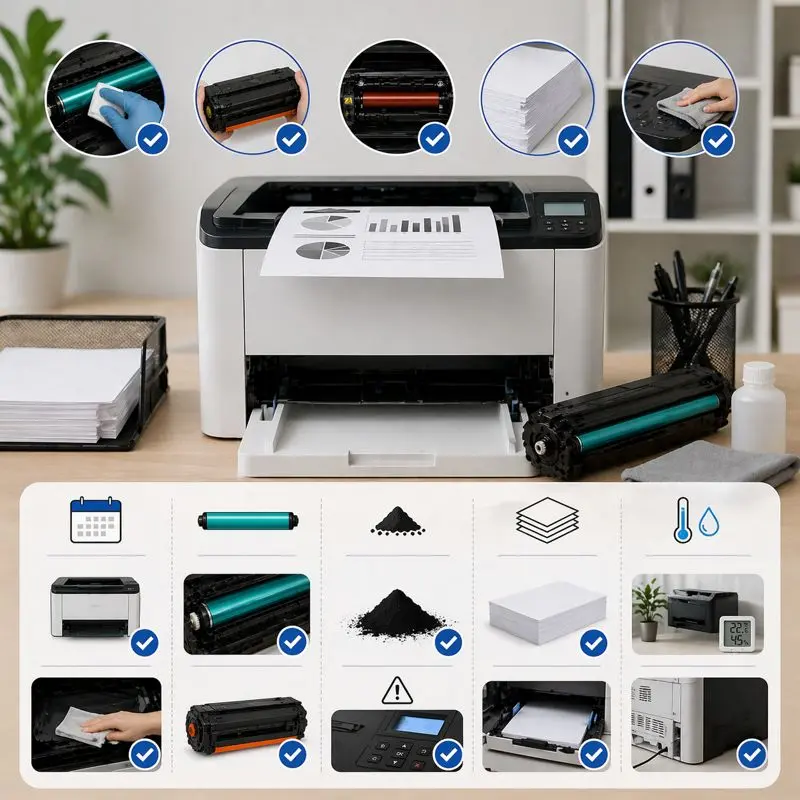
Clean Printer Regularly
Regular cleaning is the first and most important habit. Dust is a major reason behind printer toner cartridge problems and weak print quality.
Simple tasks include:
- Lightly clean the glass inside the scanner area
- Keeping the printer head clean
- Removing dust from accessible parts
Sometimes issues are also caused by dirt inside or even a dirty corona wire. A basic printer cleaning routine helps you avoid most of these problems.
Store Paper Properly
Paper quality matters more than people think. If the paper becomes damp, it can cause uneven printing and streaks.
Always:
- Store paper in a dry place
- Keep it away from moisture
- Make sure it stays free from dust
Poor storage often leads to poor print results, even if the printer is fine.
Use Quality Toner and Paper
Cheap toner or low-quality paper often leads to recurring issues.
Good materials:
- Improve print stability
- Reduce streaks
- Protect internal parts
Using quality supplies also helps maintain long-term performance.
Avoid Using Old Toner
Old toner can clump and cause uneven printing. In many cases, the best solution is simple: put in a new cartridge. If the toner is too old, cleaning won’t help much, and print issues will continue.
Follow Regular Maintenance
Basic maintenance keeps your printer healthy. It doesn’t need to be complicated.
You should:
- Check the drum
- Clean internal parts occasionally
- Inspect rollers and toner condition
Technicians usually start by trying to diagnose the issue and find the root cause before repairing anything.
Understanding the root cause early helps you avoid bigger problems later.
Conclusion
At the end of the day, most laser printer streak problems are not serious. I’ve seen many users think their printer model is broken, but usually the issue is something simple inside the drum and toner, or even the wrong paper type.
Sometimes, the toner fails to transfer properly just because one part of the toner is old or not sitting properly. I remember cases where people were ready to replace a new printer, but the real fix was just basic checking and cleaning.
If you notice streaks in copies or scans, don’t rush. Take a calm look first. Honestly, here’s how to fix it in most cases: check the toner, look at the drum, and make sure everything inside is clean and properly placed.
Once you understand this simple process, printer issues become much less stressful and easier to handle.
Frequently Asked Questions
Can streaks damage my printer?
No, streaks do not directly damage the printer. But if you ignore them for a long time, it can increase wear on the drum and toner system, leading to bigger print quality problems later.
Why are streaks only on one side?
When streaks appear on only one side, it usually means one area of the drum or roller is dirty or worn. Sometimes uneven toner flow also causes this issue. Many people think the whole printer is faulty, but in reality, it is often just one small part causing the problem.
How to fix streaks in printing?
Start with simple checks. Clean the drum area and inspect the toner cartridge first because most streaks come from dust or low toner. If the problem stays, then a worn part inside the printer may need attention or replacement. Usually, you don’t need a full repair if you catch it early.
How do I get rid of streaks on my HP laser printer?
Begin by running the printer’s cleaning function and checking the toner cartridge properly. Then gently clean accessible areas inside the printer to remove dust. If streaks still continue, the drum or toner may need to be replaced to fully solve the issue.
Why is my printer printing in streaks when the ink is full?
Even if the ink or toner is full, streaks can still appear because the print head or nozzles may be clogged, or there could be dust on the drum or inside parts. In laser printers, a dirty or worn toner cartridge or fuser can also cause lines. It’s usually a cleaning or part issue, not ink level.

Willis C. Mathes
I’m Willis C. Mathes With hands-on experience and technical knowledge of printers, I dive deep into printer reviews, troubleshooting, and tips, ensuring you get the most out of your printing investment.