
A laser printer is supposed to give clean, sharp pages every time you hit print, so it’s honestly frustrating when it suddenly starts printing dirty pages. Instead of clean text, you may notice black spots, gray shading, streaks, or toner smudges that make prints look messy and unprofessional.
I’ve seen this happen so many times, and I understand why people get worried. The first thought is usually, “Is my printer broken?” But in most cases, it’s not that serious at all. A laser printer depends on a few key parts like toner, drum, rollers, and the fuser working together smoothly, and when even one of them gets dirty or worn out, the print starts looking bad.
Sometimes it’s just old or leaking toner, other times a worn drum or dirty roller is the real issue. I’ll be honest, it’s a bit annoying because something so small can mess up the whole print quality. Even things like damp paper or a humid room can quietly cause dirty pages, which most people don’t even think about.
What I don’t like seeing is people replacing the whole printer when the issue could have been fixed easily with a simple cleaning or part check. That’s just wasted money and unnecessary stress.
The good news is that once you understand what these print signs actually mean, fixing the problem becomes much easier. And that’s exactly what I’m going to help you figure out in this guide, step by step, in a simple way.
Common Signs of Laser Printer Printing Dirty Pages (What It Means)
When a laser printer starts printing dirty pages, it usually doesn’t happen suddenly. It first shows small warning signs that most people ignore. I’ve seen this many times in real printer troubleshooting, and honestly, this is where most users go wrong. They don’t understand the early signs, so a small issue inside the printer turns into a bigger repair.
A laser printer works through toner, drum unit, rollers, corona wire, and the fuser. When any of these parts start failing or get dirty, the print starts showing visible problems on the page.

Black Spots or Repeating Marks
Black spots or repeating marks usually point to a problem with the drum unit or toner cartridge. The drum unit rotates in a fixed cycle, so if it gets scratched or worn, it keeps printing the same mark again and again.
Sometimes a leaking toner cartridge also causes this issue. I’ve seen cases where a small toner leak spreads inside the printer and damages other parts, which is very frustrating because it could have been avoided with early cleaning or replacement. In HP LaserJet printers, this issue is often linked with a weak drum unit or low-quality toner.
Gray or Shadowy Background
A gray background on the page usually means toner is spreading where it shouldn’t. This happens when the drum unit loses strength or when the corona wire is dirty and cannot charge the drum properly.
In Brother printer models, humidity also plays a role. I’ve noticed that when the environment is damp, toner does not settle properly, which leads to dull and dirty-looking prints. It’s a small detail, but it makes a big difference in print quality.
Smudged or Easily Rubbed Toner
If the printed text smears when you touch it, the issue is usually the fuser. The fuser’s job is to heat and bond the toner to the paper. When it doesn’t heat properly, the toner stays loose and causes smears.
Sometimes people try printing blank pages to fix it temporarily, but that doesn’t solve the real issue. If this keeps happening, the fuser or toner quality is usually the real cause.
Lines, Streaks, or Ghosting Effects
Lines or streaks on the page often mean the drum unit is damaged or something inside the printer is dirty. Ghosting happens when faint images repeat because leftover toner is not properly cleared.
A light cleaning of the corona wire can sometimes help. I’ve done this using isopropyl alcohol, but I always remind people to be very careful inside the printer because one mistake can make the problem worse instead of better.
Dirt on the Back Side of Paper
If the back side of the paper is dirty, it usually means toner is leaking, or rollers inside the printer are dirty. These rollers pick up loose toner and transfer it again, which causes unwanted marks.
This issue is common in older printers or in machines that haven’t been cleaned regularly. I personally feel this is one of the most ignored problems, and it slowly damages print quality over time.
Table: Common Signs, Causes, and Fixes
| Sign on Page | Possible Cause | Simple Fix |
| Black spots or repeating marks | Worn drum unit or leaking toner cartridge | Replace the drum unit or check the toner cartridge |
| Gray or shadowy background | Weak drum unit or dirty corona wire | Clean the corona wire or replace the drum unit |
| Smudged toner | Fuser not heating properly | Check the fuser or toner quality |
| Lines or streaks | Dirty drum or internal buildup | Clean the inside of the printer carefully |
| Dirt on the back of the page | Dirty rollers or toner leak | Clean rollers and the inside of the printer |
Quick Fix: How to Fix Laser Printer Dirty Pages in 2 Minutes
When a laser printer starts showing dirty pages, it feels stressful at first. I get it. You expect clean output, but instead you see smudges on paper or random marks on every page. In most cases, you don’t need deep troubleshooting right away. A few quick checks can already help you fix the issue or at least reduce the problem.
I’ve worked around many printers, and honestly, I feel a bit frustrated when users skip simple fixes and jump straight to expensive repairs. So try these first.
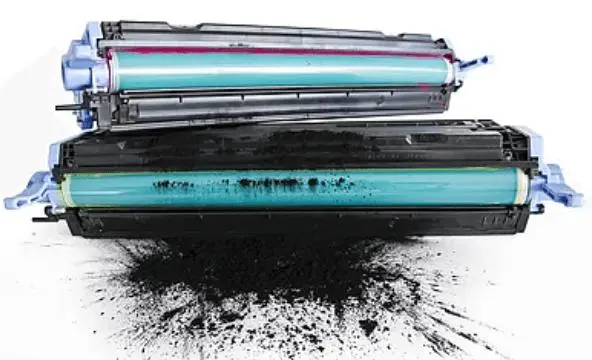
Print Blank Pages to Remove Excess Toner
Start by printing a few blank pages. This helps move stuck toner inside the system and can reduce light smudges or uneven toner on the page.
Sometimes old toner inside the printer spreads unevenly, especially if the printer has not been used for a while. This simple step can help stabilize the flow without opening anything inside the printer.
Remove and Gently Shake the Toner Cartridge
Next, take out the toner cartridge and gently shake it side to side. This helps redistribute toner that may have settled unevenly.
Be careful here. I’ve seen people damage cartridges just because they were rushing. If the toner cartridge is already old, this step may only help temporarily. In that case, replacing the cartridge is the better option.
Check and Replace Paper if Needed
This step is often ignored, but it really matters. Damp or low-quality paper can easily cause print problems.
If the paper absorbs moisture, it affects how toner sticks to it, leading to dirty output or light smudges on the paper. Try switching to fresh, dry paper and test again. Also, check printer settings or firmware paper type settings because wrong settings can affect print quality.
Do a Quick Internal Cleaning (Safe Method)
Open the printer carefully and clean visible dust using a lint-free cloth. Do not press hard or touch sensitive parts inside the printer.
Dust, old toner, or slight leakage inside the printer can slowly build up and affect printing. I’ve seen many cases where simple cleaning helped improve results quickly.
If needed, you can lightly use isopropyl alcohol on external surfaces only, but avoid sensitive areas unless you know what you are doing.
| Step | What It Fixes | Result |
| Print blank pages | Loose or stuck toner | Reduces light smudges |
| Shake the toner cartridge | Uneven toner flow | Improves print balance |
| Change paper | Moisture or quality issue | Stops dirty output |
| Clean the inside of the printer | Dust and buildup | Improves overall print quality |
Main Causes of Laser Printer Printing Dirty Pages
When a laser printer starts printing dirty pages, most people think something big is broken. But in real use, I’ve noticed it is usually a small issue inside one or two parts. It’s frustrating when users replace the entire printer without checking simple causes first. A laser printer depends on the toner, drum, fuser, and rollers working together. If even one part fails, print quality drops quickly.
Let’s break it down simply and practically.
Toner Cartridge Problems (Leaks, Low or Poor Quality)
The toner cartridge is one of the most common reasons for dirty pages. When the toner becomes old or low, it does not spread evenly on the paper. Sometimes there is even a small toner spill inside the cartridge, which creates random marks or light smudges on paper.
In my experience, cheap or refilled toner often causes more problems than it solves. I’ve seen users get annoyed when prints come out faded or messy, and later they find out the cartridge was the issue all along.
Common signs include:
- Faded or uneven print
- Random black dots
- Light smudging across the page
If this happens often, replacing the cartridge is usually the simplest fix.
Drum Unit Issues (Worn or Damaged Drum)
The drum unit is a very sensitive part. It carries toner onto the page, so even a small scratch on the drum surface can affect print quality. I’ve seen this many times in both HP laser and Brother HL printers.
When the drum gets old, it starts repeating marks or creating lines on every page. Some users try changing the drum late, and by then, the print quality is already very poor.
You may notice:
- Repeated marks on pages
- Dark lines or faded sections
- Uneven toner distribution
Sometimes people confuse this with toner issues, but changing the drum often fixed the problem in many cases I’ve handled.
Fuser Assembly Problems (Toner Not Bonding Properly)
The fuser is the part that heats and sticks toner to the paper. If it fails, the toner stays loose and causes smudges or rubbing issues.
This is one of those problems that users often ignore until it gets worse. I’ve even seen situations where a simple cleaning did not help, and they had to replace the fuser completely.
When the fuser is weak:
- Toner rubs off easily
- Pages feel dusty or smudged
- Print looks dull or incomplete
In such cases, you may need to replace the fuser to fix the problem properly.
Dirty Rollers or Internal Printer Parts
Inside every laser printer, some rollers move paper through the system. If these rollers get dirty, they pick up toner dust and spread it on the page again.
This issue develops slowly and often goes unnoticed, and users don’t notice it early. Regular roller cleaning can prevent many issues.
Simple signs include:
- Dirty marks on edges
- Uneven paper feeding
- Light streaks during printing
A basic cleaning kit or roller cleaning method can often fix this without replacing parts.
Wrong Paper Type or Damp Paper
Paper plays a bigger role than most people think. If the paper is damp or of low quality, the toner does not stick properly. I’ve seen users blame the printer when the real issue was the paper sitting in a humid room.
Factors that affect this:
- Damp paper
- Wrong thickness setting
- Low-quality sheets
Even a simple change in paper type can improve print quality immediately.
Environmental Factors (Humidity & Temperature)
The environment is often ignored, but it really matters. High humidity can affect toner and cause uneven printing. Low humidity can create static issues inside the printer.
Here is a simple factor list:
- High humidity causes toner clumping
- Dusty rooms increase internal buildup
- Temperature changes affect fuser performance
- Poor storage can damage toner quality
I’ve seen printers in clean environments work perfectly for years, while others in dusty or humid places constantly struggle.
Problem vs Cause vs Fix (Easy Table for Quick Help)
When a laser printer starts printing dirty pages, most people feel confused at first. I’ve seen this many times while troubleshooting printers, and honestly, I understand the frustration. You expect clean pages, but instead you see marks, smudges, or faded areas. The good thing is, if you match the problem with the real cause, you can often fix it without stress or expensive repair.
Here is a simple guide to help you understand what is actually going wrong inside your printer.
| Problem on Page | Likely Cause | Simple Fix |
| Black spots or repeating marks | dirt on the drum or a damaged drum unit | clean inside carefully, or replace the drum unit |
| Faded or uneven print | excess toner or weak toner units | changing the toner or checking the toner condition |
| Smudged print that rubs off | fuser not heating properly | Duplex check or service the fuser system |
| Ghost images or faint repeats | excess toner or toner leakage | clean the system and check the toner cartridge |
| Dark or dirty background | toner leakage or old toner buildup | replaced the toner cartridge |
| Uneven printing on duplex pages | dirty rollers or paper feeding issue | roller cleaning and paper path check |
In simple words, a ghost effect or repeated marks usually come from excess toner or toner leakage inside the printer. Black spots often point to a dirty or damaged drum unit, while smudges show that the fuser is not heating properly.
From my experience, most issues start small and get worse when ignored. A quick clean inside the printer and basic checking can often fix the problem before it becomes serious.
Complete Troubleshooting Guide (Step-by-Step for Beginners)
When a laser printer starts printing dirty pages, I always tell people not to panic. I’ve worked on many all-in-one printers, and honestly, most issues look worse than they are. The key is simple: don’t guess, just follow the steps one by one. This helps you find the real cause instead of wasting money on unnecessary replacement parts.
Let’s go step by step, simply.
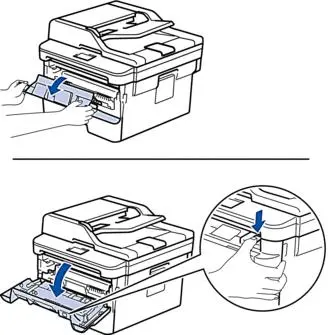
Step 1 – Identify the Print Pattern
First, look carefully at what the page is showing. This is the most important step in troubleshooting, and I’m a bit surprised how many people skip it.
Ask yourself:
- Are there black dots repeating?
- Is the page faded in the middle?
- Do you see smudges or streaks?
Each pattern tells a different story. For example, repeated marks often indicate a drum or charge roller issue, while random smudges can indicate toner issues or dirt on the transfer roller.
I always say this: the printer is already “talking” to you through the page, you just need to read it.
Step 2 – Check the Toner Cartridge First
Now check the toner cartridge. This is the most common cause I see in real cases. Sometimes the toner is running low, or the toner inside is not spreading evenly.
If the cartridge is near empty or showing poor print quality, try replacing it. In many cases, I’ve seen users fix the issue simply by replacing the toner cartridge rather than buying expensive parts.
Also, make sure the cartridge is properly installed. A slightly loose cartridge can easily create print issues.
Step 3 – Inspect the Drum Unit
Next, check the drum unit. This part is very sensitive and directly affects print quality. If it gets scratched or worn, it can cause repeating marks or faded areas.
I’ve seen people ignore the drum until print quality becomes very bad, and then they regret it because replacement becomes the only option.
Look for:
- Scratches on the drum surface
- Uneven print areas
- Repeating marks on every page
If needed, try replacing the drum unit. It often resolves the issue quickly when toner is not the real problem.
Step 4 – Check the Fuser (Smudge Test)
Now comes the fuser. This part heats and sticks toner to the paper. If it is not working properly, you will notice smudges or toner that rubs off easily.
A simple test is to print and gently touch the page. If toner smears, the fuser is likely weak or failing.
In some cases, calibration settings inside the printer can help slightly, but if the fuser is damaged, you may need to replace it.
I know this is the part users fear, but ignoring it only makes printing worse over time.
Step 5 – Clean Internal Components Safely
Finally, do a safe internal cleaning. Open the printer carefully and remove dust using a damp cloth or lint-free cloth. Be gentle here—no rough cleaning inside.
Check key parts like:
- Charge roller
- Green roller
- Transfer roller
Dust buildup on these parts can affect printing and cause uneven toner spread.
If you notice parts are very worn, don’t hesitate to try replacing them with proper replacement parts instead of forcing them to work.
Quick Reality Check (From Experience)
From my experience in printer troubleshooting, I’ve seen many users rush to fix the wrong part. That’s why this step-by-step method matters. Start simple, then go deeper.
And yes, sometimes the toner is running low, sometimes it’s just dirt, and sometimes calibration settings inside the printer are slightly off. But if you follow these steps calmly, you can usually fix the issue without stress or unnecessary cost.
That’s what good troubleshooting is really about.
How to Clean a Laser Printer Safely (Without Damage)
Cleaning a laser printer is one of those things people avoid, and I understand why. It looks technical, and many users are scared they might damage something. But honestly, from my experience as someone who has seen many cases in repair work, most problems happen because people never clean their printer at all. Dust and old toner slowly build up inside and start causing print issues like smudges or faded output. Sometimes this buildup even leads to toner spreading in the middle of the page or uneven printing.
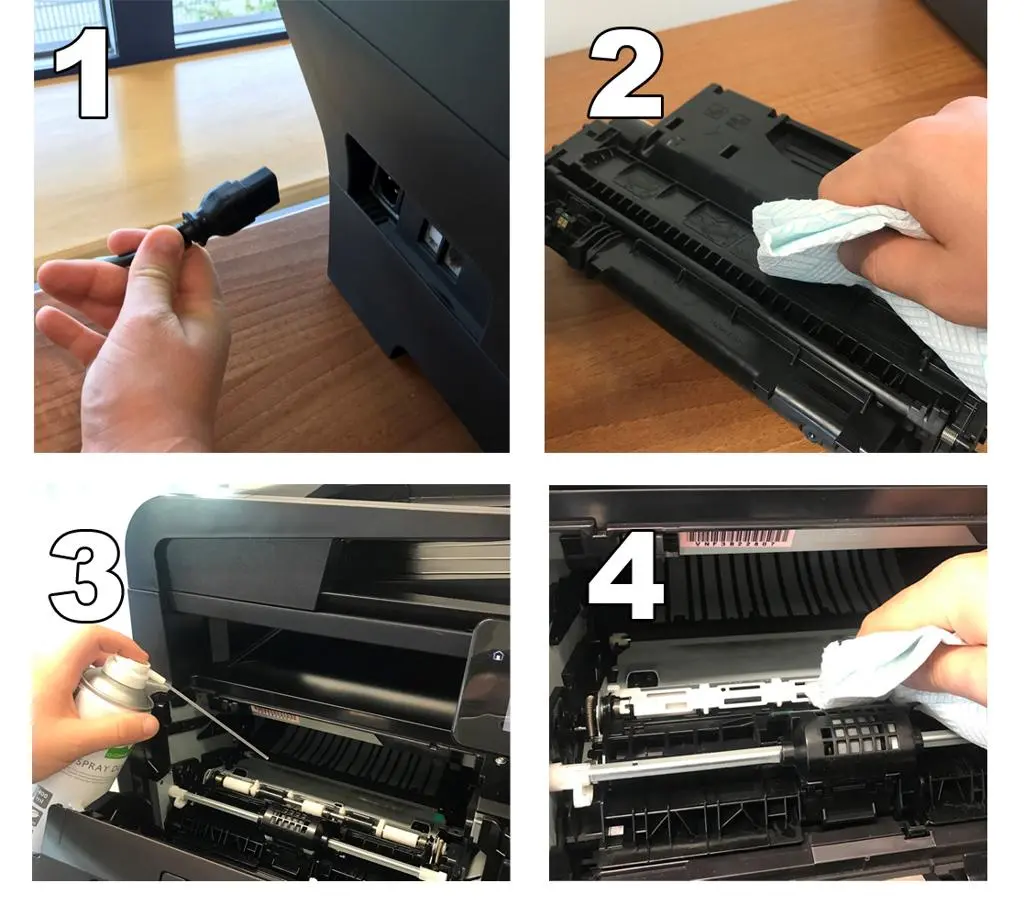
Let’s keep this simple and safe so you can handle it without stress.
Tools You Need for Cleaning
Before you start, gather a few basic tools. You don’t need anything fancy.
- Soft lint-free cloth
- Cleaning tab for light internal cleaning
- Small brush for dust
- Isopropyl alcohol (small amount, optional)
I always tell users this: don’t overthink it. A proper cleaning kit is enough for most home and office printers.
In many cases, whether it is a Brother laser printer or a Samsung laser printer, basic cleaning alone helps reduce print issues caused by dust or old toner buildup.
What You Should Never Touch (Important Warning)
Now listen carefully here. I’ve seen many users make mistakes because they rushed into cleaning. Inside a printer, there are sensitive parts like the drum and fuser or drum system. If you touch them directly, you can easily damage print quality instead of fixing it.
Never touch:
- Drum surface directly
- Heating area inside the fuser unit
- Electrical parts near the toner area
I’ve even seen a printer technician get frustrated because a simple cleaning mistake ended up causing more damage. That’s why I always say: if you are unsure, stop and think before touching anything.
Also, if the toner is causing the issue, do not rub it aggressively. It can spread and make things worse instead of helping fix smudges.
Safe Cleaning Steps (Beginner-Friendly)
First, turn off the printer and unplug it. This is simple but very important.
Open the printer and gently remove dust using a lint-free cloth. Do not press hard. If there is stuck toner, lightly wipe it instead of rubbing.
You can use a small amount of isopropyl alcohol on the cloth for stubborn dirt, but never apply it directly inside the printer.
Clean slowly around rollers and visible areas. This helps reduce smudges and improves print quality.
If the issue is deeper, like fuser or drum problems, cleaning may not fully fix it, and you may need repair or replacement.
How to Prevent Dirty Pages in Laser Printers (Pro Tips)
Preventing dirty pages in a laser printer is much easier than fixing them later. I’ve seen many users ignore small maintenance habits, and honestly, that’s where most print problems start. A little care can save you from smudges, faded prints, and unnecessary repair costs.
Use High-Quality Toner and Paper
The quality of toner and paper plays a big role in print results. Cheap toner often spreads unevenly and causes smudges or light streaks on pages. Low-quality paper can also absorb moisture, which affects how toner sticks.
From my experience, this is one of the most common reasons behind dirty print issues. Good toner and clean, dry paper always give more stable results and protect internal parts like the drum and fuser.
Keep Printer in a Clean, Dry Environment
Where you place your printer really matters. Dusty or humid areas slowly affect print quality over time. Even a small amount of dust inside the printer can cause uneven printing or marks on pages.
I’ve seen printers placed near windows or in damp rooms develop issues much faster. A clean, dry environment helps the printer run smoothly and reduces long-term damage.
Run Regular Cleaning Cycles
Most modern printers come with a built-in cleaning option. Using it regularly helps remove extra toner and keeps internal parts clean. It also helps reduce light smudges and improves overall print stability.
In many cases, I’ve seen users fix minor print issues just by running a cleaning cycle without any repair work. It’s a simple step, but often ignored.
Replace Parts at the Right Time
Every printer part has a lifespan. If you delay replacement, small issues can turn into bigger problems. Toner, drum, and fuser are the most important parts to monitor.
| Part | When to Replace | Warning Signs |
| Toner | When print becomes faint | Light or uneven text |
| Drum | When marks or streaks appear | Repeating lines or spots |
| Fuser | When toner smears easily | Print rubs off paper |
I’ve personally seen users avoid replacing parts to save money, but in the long run, it leads to more damage and higher repair costs.
If you follow these simple habits, most dirty page problems can be avoided easily. A little care goes a long way in keeping your printer working clean and smooth.
When to Replace Parts Instead of Cleaning
At some point, cleaning is not enough for a laser printer. I’ve seen many users keep cleaning again and again, hoping the problem will disappear, but the real issue is actually worn-out parts. And honestly, this is where many people waste time and money. As someone who has worked with printer troubleshooting, I can say clearly—knowing when to replace parts saves you a lot of frustration.
Let’s break it down in a simple way.
When to Replace the Toner Cartridge
The toner cartridge is usually the first part that needs attention. If your prints start looking faint, uneven, or patchy, the toner may be running low or losing quality.
I’ve seen users ignore this and keep printing, thinking the printer is the problem. But often, it’s just old toner causing the issue. If shaking or basic cleaning does not help, it’s time to replace it.
Also, low-quality toner can create repeat problems, so I always recommend using reliable supplies for stable results.
Signs Your Drum Unit Needs Replacement
The drum unit is one of the most sensitive parts in a laser printer. It directly affects how the image appears on paper. If it gets worn or scratched, print quality drops quickly.
Common signs include:
- Repeating black marks on pages
- Lines or streaks appearing in the same place
- Uneven or faded print areas
I’ve seen this many times in both home and office setups, and people often confuse it with toner issues. But when these signs appear repeatedly, replacing the drum unit is usually the only proper
When the Fuser Is Failing
The fuser is the part that melts toner onto paper. If it stops working properly, the toner does not stick well and may smudge or rub off easily.
This is one of those issues that really annoys users. You print something important, and it comes out messy. From experience, I’ve seen people try everything—cleaning, changing toner—but nothing works until the fuser is checked.
If prints feel wet, smudge easily, or look uneven, the fuser is likely failing and needs attention.
Repair vs Replace (Cost Decision Guide)
Now here’s the real question many users face: should you repair or replace the part? I’ll be honest, this depends on cost and condition.
| Situation | Best Choice | Reason |
| Toner is low or faded | Replace cartridge | Quick and cost-effective fix |
| Drum has marks or scratches | Replace the drum unit | Cleaning won’t fix physical damage |
| Fuser is smudging prints | Repair or replace the fuser | Depends on wear level |
I’ve seen users delay replacement just to save money, but that often leads to worse print quality and more damage. In my opinion, timely replacement is smarter than repeated temporary fixes.
Conclusion
A laser printer showing dirty pages can feel like a serious issue at first. I’ve seen many users get worried and even think the whole printer is damaged. But in real troubleshooting, it’s usually something small like toner quality, drum wear, or dust inside the printer.
What matters most is how you respond in the beginning. If you ignore early signs, the print quality keeps getting worse. But if you check step by step, the problem becomes much easier to handle. Sometimes, a simple cleaning inside the printer is enough. Other times, changing the toner cartridge or drum unit solves it completely.
I always say this based on experience: don’t rush into big repairs or replace the printer too quickly. Just slow down a bit, look at the print pattern, and understand what the page is trying to show you. That small habit can save a lot of money and frustration.
At the end of the day, a laser printer works well when it gets basic care. A little cleaning, timely replacement of parts, and proper use can keep your prints clean and sharp for a long time.
Frequently Asked Questions
Why is my laser printer printing black lines?
Black lines usually show up when the drum unit is worn out, or there is dust and toner buildup inside the printer. Sometimes, a small scratch on the drum surface or uneven toner flow can also create these lines. It usually means one internal part is not working properly.
Can dirty pages damage my printer?
Yes, if you ignore the issue for a long time. Dust, toner leakage, or a weak part can slowly spread inside the printer and affect other components. Over time, this can reduce print quality and may lead to bigger repair costs.
How often should I clean my laser printer?
For normal use, cleaning every few weeks is usually enough. If you print a lot, especially in an office, then more regular cleaning helps prevent dust and toner buildup that can affect print quality.
Why does my laser printer print dirty pages on one side only?
This often happens when one side of the drum or roller is more worn or dirty than the other. It can also be due to uneven toner distribution. Over time, this creates dirty or faded print on just one side of the page.

Willis C. Mathes
I’m Willis C. Mathes With hands-on experience and technical knowledge of printers, I dive deep into printer reviews, troubleshooting, and tips, ensuring you get the most out of your printing investment.