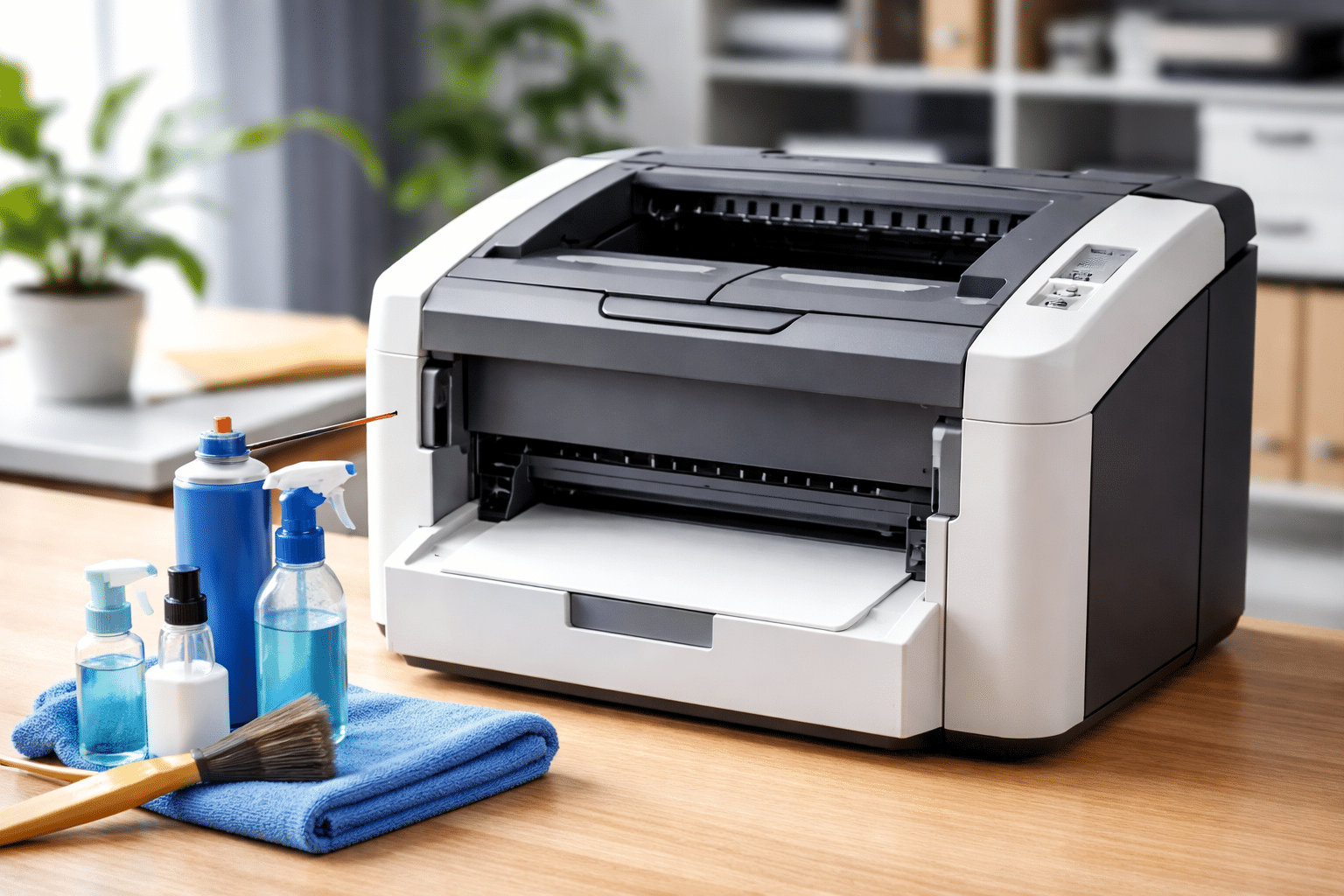
How to clean a laser printer? A laser printer usually works quietly in the background until one day it doesn’t. The prints start coming out with streaks, faded text, or strange black marks, and that’s when most people start worrying. I’ve seen it happen a lot, and honestly, it’s a bit annoying because the first thought is always, “My printer is broken.”
But in most cases, it’s nothing serious. It’s just dust, leftover toner, or simple dirt building up inside the printer over time.
A laser printer depends on parts like toner, drum unit, rollers, and the fuser to give clean prints. When even one of these gets dirty, the print quality drops quickly. The frustrating part is that it can look like a major issue, even when it’s just basic cleaning needed.
The good news is—you don’t always need a technician. With a little care and the right steps, you can clean your printer at home and get it printing properly again without stress.
Why Cleaning Your Laser Printer Is More Important Than You Think?
A laser printer is one of those machines people only notice when something goes wrong. I’ve worked around printers long enough to see this pattern again and again. People ignore cleaning until the printer starts acting strangely. Then panic starts.
But here’s the truth that many users don’t like hearing: a printer doesn’t fail suddenly. It slowly collects dust, toner, and debris inside, and that buildup quietly affects performance.
A laser printer depends on small internal components working together. When toner spills or dust settles inside the printer, it starts affecting how smoothly everything runs. I honestly get a bit frustrated when I see users being told to “just replace the printer” when simple cleaning could have fixed it.
Hidden Costs of Poor Printer Maintenance
Most people think cleaning a printer is just about looks or cleanliness. But in reality, it affects money, time, and daily workflow.
When a printer is not maintained, toner starts wasting inside the system. A toner cartridge that should last weeks may finish early because excess toner spreads inside the printer instead of staying where it should.
Here’s something many offices don’t calculate properly: small printing issues turn into repeated printing. One bad print leads to another try, and another. It doesn’t feel like a big loss in the moment, but it builds up.
And honestly, this is something I find annoying in many workplaces—they spend money replacing parts but skip basic cleaning that could prevent the issue in the first place.
Even a simple toner vacuum or soft cloth cleaning inside the printer can reduce waste and protect internal components like the drum unit and roller.
How Dirty Printers Affect Print Quality and Performance?
When a laser printer gets dirty, the first thing users notice is the print quality dropping. Text may look faded, or you might see black lines or uneven shading.
This happens when excess toner builds up on the drum surface or inside the printer. The roller may also lose grip, causing uneven paper feeding. Sometimes a smear appears on the page, and users think the toner cartridge is bad, but it’s often just dirt inside the printer.
A dirty fuser can also cause problems. Since it uses heat to bond toner to paper, even a small buildup can affect output.
From my experience, most “printer is broken” complaints are actually cleaning issues. That’s the part that surprises people the most.
Regular cleaning with a soft cloth, and in some cases a small amount of isopropyl alcohol, can restore normal performance and improve print quality without replacing parts.
Real Data: Time, Money, and Productivity Loss from Printer Issues
Now let’s talk about something many users don’t think about—time loss.
Studies in office environments show that printer-related issues take a surprising amount of work time. Employees often spend minutes fixing jams, reprinting pages, or waiting for support. When you add it up across weeks and months, it becomes a serious productivity drain.
One major issue is that a single laser printer problem can interrupt multiple people in an office. That means delays spread quickly, not just for one user.
From an industry perspective, printer maintenance and toner-related issues can take up a noticeable share of IT support time. That’s not just technical talk—it’s real lost work hours.
I’ve always felt a bit frustrated seeing this happen because most of it is preventable. A simple cleaning routine using a cloth, checking internal components, and removing excess toner could avoid many of these disruptions.
And yes, even something as small as a properly used toner cartridge or occasional cleaning inside the printer makes a real difference over time.
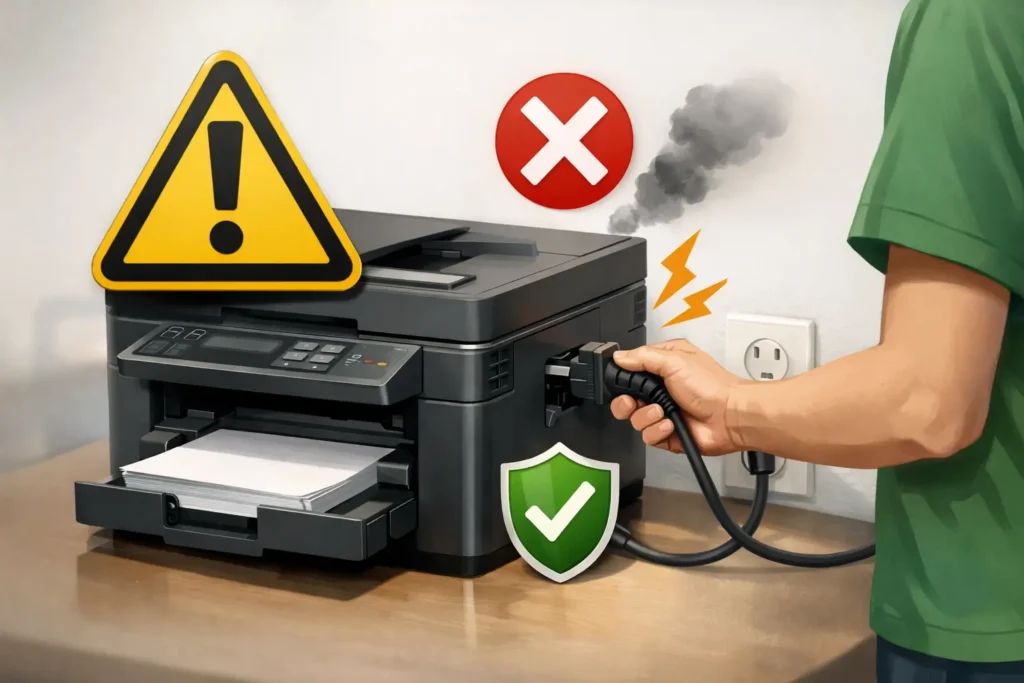
Safety Tips Before You Start Cleaning a Laser Printer
Before you even touch a laser printer, you need to slow down a little. I know most people want quick results, but this is the step where care really matters. I’ve seen too many cases where people rushed in and made things worse. Honestly, it’s one of my biggest pet peeves in printer maintenance—no patience at the start, then regret later.
When you clean the printer properly, you protect both the machine and yourself. Whether it’s an HP Color LaserJet or a Brother printer, the inside parts are sensitive, and toner dust can spread easily if you are careless.
A good laser printer cleaning routine always starts with safety first, not tools or speed.
Why Toner Dust Can Be Harmful?
Inside a laser printer, there are very fine toner particles. These are extremely light and can float in the air when disturbed. If you are not careful while you clean the printer, these toner particles can spread around your workspace.
Now, I’m not trying to scare you, but I’ve seen people wipe inside a printer without thinking and end up with toner everywhere. It’s messy and annoying to clean afterward.
When toner spreads, it can also cause a smudge on surfaces and even affect air quality in a closed room. That’s why professionals always handle printer toner carefully during laser printer cleaning.
Simple rule: avoid shaking things too much inside the printer, and never rush.
What You Should NEVER Do (Important Mistakes)
Let me be very clear here—some mistakes can damage a printer permanently. I’ve seen users try shortcuts, and then they end up replacing parts that didn’t need replacement in the first place.
Here are things you should never do while you clean the printer:
- Never use water inside the printer
- Never touch the drum surface directly
- Never force parts out of place
- Never use strong chemicals that are not meant for electronics
- Never use a regular vacuum carelessly inside the printer
One more thing I feel strongly about: don’t assume more force means better cleaning. It doesn’t. In fact, it often damages the roller and internal components.
Even when you think, “I should just replace the toner and clean everything fast,” pause for a second. Careful cleaning always works better than rushed cleaning.
Safe Handling of Toner Cartridges and Internal Parts
Now let’s talk about handling parts safely. This is where most beginners feel a bit nervous, and that’s okay.
When you remove a toner cartridge, hold it gently and keep it level. Don’t shake it too much unless you are trying to evenly distribute toner inside it. If needed, use an activated toner cloth to wipe light dust from the surface.
If you see buildup inside the printer, use a soft cloth or a cotton swab to gently clean small areas. This is especially useful around tight spots where toner collects.
Some printers, like a Brother printer or HP Color LaserJet, have slightly different layouts, but the basic care is the same. Be gentle with everything you touch.
Also, if you are doing laser printer cleaning regularly, you’ll notice better print quality and fewer issues like smudge marks or uneven prints.
When done right, even simple cleaning of the drum or carefully cleaning the rollers can make a huge difference.
And here’s something I always remind people—good maintenance is not about fixing problems only. It’s about preventing them before they start.
What You’ll Need to Clean a Laser Printer (With Simple Explanation)
Before you start any laser printer cleaning, you need the right tools. And I’ll be honest, I’ve seen people try to clean a printer with random things from home, and it usually ends badly. It feels like a small job, but inside a printer, there’s toner and dust that need careful handling.
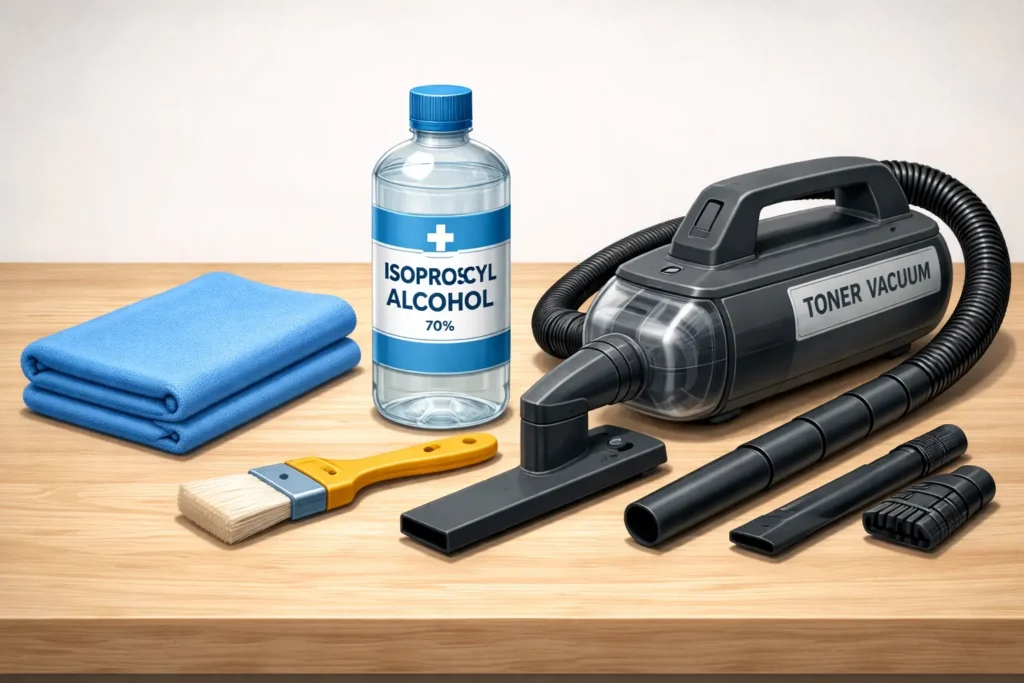
So let’s keep it simple. If you want to clean the printer safely and get good print quality, these tools are enough. No need to overthink it.
| Tool | Why You Need It | Safe Use |
| Microfiber cloth | Removes dust without scratching | Safe for most internal parts |
| Isopropyl alcohol | Helps remove toner stains | Use lightly, not in excess |
| Toner vacuum | Removes loose toner safely | Use only for deep cleaning |
| Soft brush | Clears tight corners | Gentle cleaning only |
I always say this with a bit of pride—good cleaning is not about using many tools, it’s about using the right ones.
Microfiber Cloth vs Regular Cloth
A microfiber cloth works best when you clean rollers or sensitive parts inside a laser printer. It picks up dust without scratching anything.
A regular cloth may look fine, but it often leaves small fibers behind. Those fibers mix with toner and dust, which can later cause smudge marks on prints. I’ve seen this mistake many times, and it always creates frustration.
For printers like an HP laser printer or home office models, microfiber cloth is the safer and smarter choice.
Simple rule: a soft cloth is always better.
Why Isopropyl Alcohol Is Recommended
Isopropyl alcohol is used because it dries quickly and does not leave moisture behind. When cleaning toner or internal parts, water can damage sensitive areas inside the printer.
That’s why technicians prefer it during printer toner cleaning instead of regular liquids.
But don’t overuse it. I’ve seen people soak a cloth and start wiping everything, which is not safe.
Use a small amount, gently, and always follow the printer’s manual or manufacturer’s instructions. Skipping instructions often leads to avoidable damage.
What Is a Toner Vacuum (And Do You Really Need It?)
A toner vacuum is a special tool made to safely remove loose toner from inside a printer. A normal vacuum is not the same and can spread toner instead of cleaning it.
Do you always need one? Not really.
For home use, a cloth and simple steps are usually enough. But in offices with heavy use, a toner vacuum helps with deep cleaning.
| Situation | Toner Vacuum Needed? |
| Home printer | No |
| Light cleaning | No |
| Office use | Yes |
| Deep cleaning | Recommended |
If used incorrectly, you can get toner spread everywhere, which many technicians call a “toner buzz.” So start simple and only use advanced tools when necessary.
Step-by-Step Guide: How to Clean a Laser Printer Properly
Now we come to the most important part. This is where most people either fix their printer… or accidentally make things worse. I’ve seen both situations many times, and honestly, it usually depends on how carefully they follow the process.
A laser printer looks simple from the outside, but inside it has sensitive parts where even small toner buildup or dust can affect print quality. So we need to go slowly and follow proper steps.
Let’s break it down in an easy way.
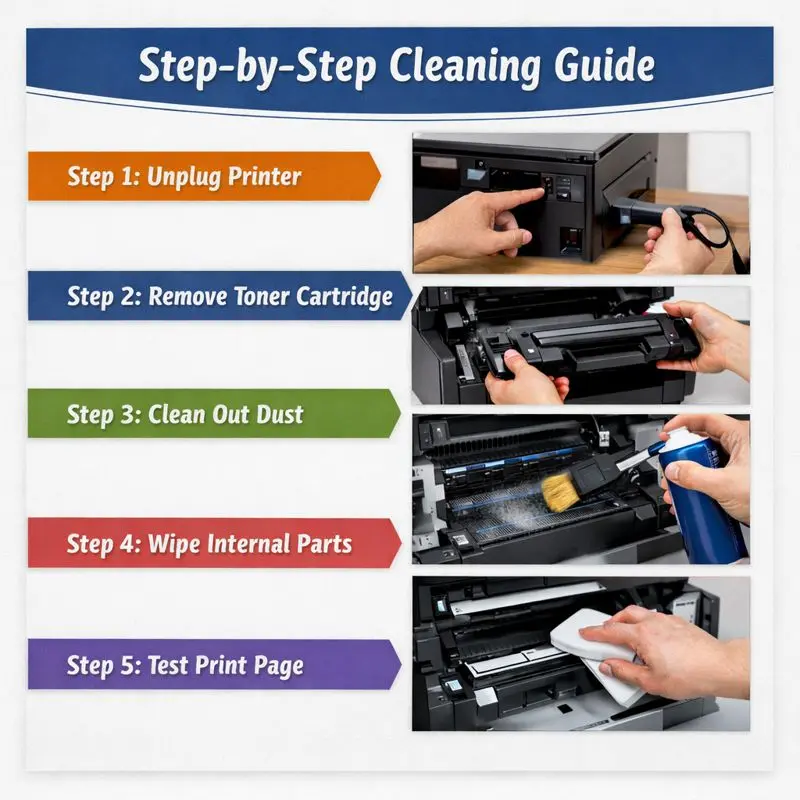
Step 1: Turn Off and Unplug the Printer
First of all, always turn the printer off and unplug it.
- Switch it off properly
- Remove the power cable
- Wait a few minutes if it was recently used
This is important because the inside part of a laser printer (especially the fuser area) can stay hot for a while. I’ve seen people ignore this step, and honestly, that’s where mistakes and accidents usually happen.
Just take a moment here. Safety first, always.
Step 2: Remove Toner Cartridge Carefully
Now open the printer and gently take out the toner cartridge.
Hold it carefully and try not to shake it too much. Place it on a clean surface so it doesn’t get dirty.
If there is toner buildup around the area, don’t rush to clean it immediately. First, remove the cartridge slowly and avoid touching any internal parts.
A lot of users damage their printer here just by being careless for a few seconds.
Step 3: Clean Loose Toner and Dust Inside
Inside the printer, you will usually see some dust or loose toner. This is completely normal, especially if the printer is used regularly.
You can use:
| Tool | Purpose |
| Duster | Light dust removal |
| Aerosol spray duster | Blow out loose toner safely |
| Soft cloth | Wipe visible toner spots |
Now gently clean inside the printer. Don’t press or push anything. The goal is to remove loose toner, not spread it further.
I’ve seen people try to clean too fast and end up making the printer messier. Slow is always better here.
Step 4: Wipe Internal Surfaces Gently
Now take a lint-free cloth and clean the inside surfaces slowly.
- Lightly moisten the cloth if needed
- Wipe gently, don’t rub hard
- Focus on areas with visible dirt or toner marks
If you see toner buildup near parts like the drum area, be extra careful. These parts are sensitive and affect how your printer works.
Some people think harder cleaning means better cleaning… but that’s actually a mistake I see too often.
Just gentle wiping is enough in most cases.
Step 5: Reassemble and Test Print
Now, carefully put everything back in place.
Before closing the printer, quickly check:
- The toner cartridge is fitted properly
- Nothing is left loose inside
- The internal area looks clean
Turn the printer back on and print a test page.
If everything is done correctly, you’ll usually notice better print quality right away. Cleaner text, fewer marks, and smoother output.
And honestly, this is the part I like most—seeing a printer come back to life with just simple cleaning. It feels satisfying because most problems don’t actually need expensive repair… just proper care.
How to Clean Laser Printer Streaks and Print Quality Problems
Streaks on a print page can be really frustrating. I’ve seen people get upset because they think their laser printer is damaged for good. But in most cases, it’s not a big failure. It’s just dirt, toner buildup, or uneven contact inside the printer.
The good news is that many print quality issues can be fixed with proper cleaning if you know where to look and what to do. Let’s break it down in a simple way.
Why Your Laser Printer Leaves Streaks or Marks
When a laser printer starts leaving lines, marks, or faded areas, it usually means something inside is not clean or not working smoothly.
Most of the time, the issue comes from toner sticking where it shouldn’t. Sometimes dust collects on internal surfaces, and that affects how the image transfers onto paper. I’ve honestly seen users panic here, thinking the printer is broken, when it just needed basic cleaning.
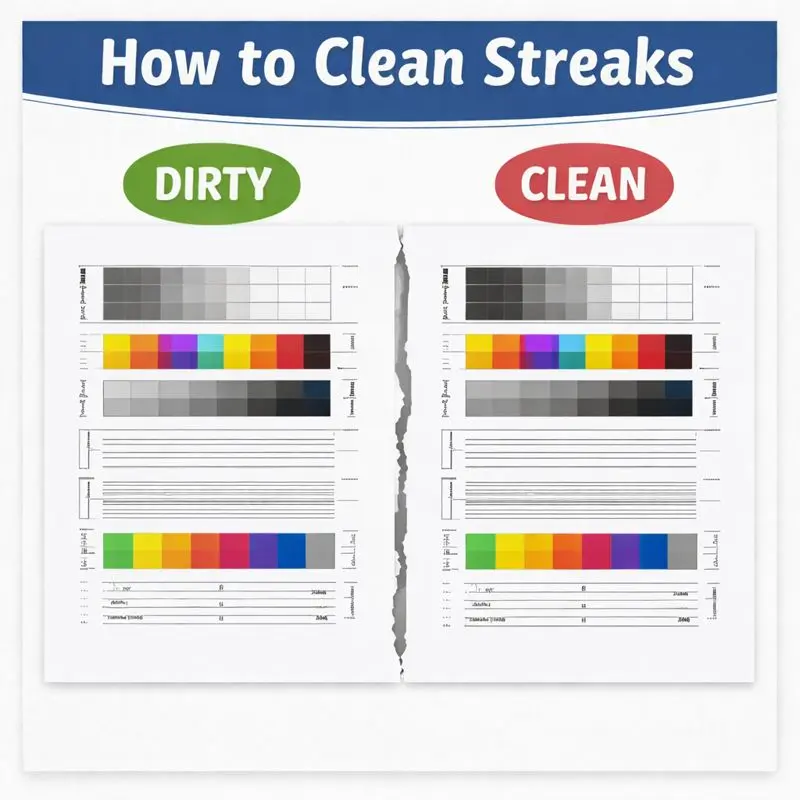
Common reasons include:
- Dust or damage inside the printer
- Toner buildup on key parts
- Dirty or worn roller
- Improper use of the correct paper
Even small issues can affect print quality and smooth paper feeding. That’s why regular care matters more than people think.
And yes, I get a bit frustrated when I see printers replaced too early when simple cleaning could fix everything.
Cleaning the Drum to Fix Streaks
The drum is one of the most important parts of a laser printer. It helps transfer toner onto the paper, so even a small issue here can create streaks.
To fix this:
- Carefully open the printer following the user manual
- Remove the toner and access the drum unit
- Gently wipe the drum surface with a soft cloth (never press hard)
The key here is gentle cleaning. I’ve seen people use excessive pressure, and that causes long-term damage. That’s something you really want to avoid.
If you notice toner buildup on the drum, clean it slowly and carefully. Do not rush this step. A damaged drum often leads to permanent print quality issues.
Cleaning Rollers to Prevent Smudging
Rollers are responsible for pulling paper through the printer. If they get dirty, the paper won’t move smoothly, and you may see smudges or uneven printing.
To maintain smooth paper feeding:
- Clean rollers with a slightly damp cloth
- Make sure no dust or toner is left behind
- Allow them to dry before using the printer again
If the rollers are too dirty, they can also cause paper jams. I’ve seen this happen in offices where the printer is used heavily but rarely cleaned. It’s a small issue that turns into daily frustration.
Keeping rollers clean helps the printer maintain smooth performance and improves overall output.
When Cleaning Doesn’t Fix the Problem
Sometimes, even after proper cleaning, streaks still appear. And this is the part where many users feel confused or disappointed.
In such cases, the problem may be deeper:
- The fusers may be worn out
- Internal components may be damaged
- The drum unit may need replacement
- The toner itself may be faulty
At this stage, it’s better to stop and check the printer manual or get help from a technician. I always say this honestly—forcing repairs when you’re unsure can lead to long-term damage.
Also, make sure you are using the correct paper and good-quality toner. Cheap supplies often create repeat problems that no cleaning can fully fix.
Sometimes, it’s not about cleaning more… it’s about knowing when the machine needs professional care.
And I’ll be real with you—I’ve seen many printers saved just because someone stopped, checked properly, and didn’t rush into replacing parts.
How to Clean Specific Parts of a Laser Printer (Deep Cleaning Guide)
Basic cleaning is helpful, but sometimes you need to go a bit deeper. This is where many people feel unsure, and honestly, I understand why. A laser printer has different parts, and each one needs a slightly different approach.
I’ve seen users either avoid this completely or go too aggressive and damage something. Both are problems. The right way is simple, careful, and patient cleaning.
Let’s go part by part so it’s easy to follow.
Cleaning the Toner Cartridge Safely
The toner cartridge is one of the most handled parts, but also one of the most sensitive.
When cleaning it:
- Remove it gently and keep it level
- Use a soft cloth to wipe the outer surface
- Do not open or shake it too much
Sometimes people try to “fix” the cartridge by opening it, and that usually creates a mess. I’ve seen toner spill everywhere, and trust me, that’s not fun to clean.
If the cartridge looks worn out or prints are still poor, it’s better to replace it instead of forcing a fix.
How to Clean the Imaging Drum Without Damage?
The imaging drum plays a key role in print quality. Even small marks can affect how your prints look.
To clean it safely:
- Access the drum carefully through the printer
- Use a clean, soft cloth
- Wipe gently without pressing
This is very important—never touch the drum with force. I’ve seen people press too hard, thinking they are cleaning better, but that actually damages the surface.
If the drum is scratched or worn, cleaning won’t fix it. In that case, replacement is the only solution.
Cleaning Rollers to Avoid Paper Jams
Rollers are responsible for moving paper smoothly through the printer. When they get dirty, paper jams start happening more often.
To clean rollers:
- Use a slightly damp cloth
- Rotate the rollers slowly while cleaning
- Remove dust and dirt carefully
This is one of those small tasks that makes a big difference. Clean rollers help avoid jams and keep printing smooth.
I’ve seen offices struggle daily with paper jams, and most of the time, it’s just dirty rollers. It’s a simple fix, but often ignored.
How to Clean the Fuser Unit (With Caution)
The fuser unit is a very important part of a laser printer. It uses heat to bond toner onto the paper.
Now here’s where I want to be very honest—this part is not for rough handling.
If you try to clean it:
- Make sure the printer is completely cool
- Use a soft, dry cloth
- Do not apply pressure
The fuser is delicate and expensive. I’ve seen people damage it while trying to clean too aggressively, and that leads to costly repairs.
In many cases, light cleaning is okay, but deep cleaning should be done carefully or avoided.
When You Should NOT Touch the Fuser
There are times when you should leave the fuser alone:
- If the printer was recently used and still hot
- If you are not sure how to access it safely
- If there are electrical or heating issues
In these cases, it’s better to call a technician. Trying to fix it yourself can cause more damage than good.
Cleaning Transfer Roller and Corona Wire (Advanced Tip)
These parts are often ignored, but they play a big role in print quality.
- The transfer roller helps move the image onto paper
- The corona wire controls the charge used in printing
To clean them:
- Use a very soft cloth or a proper cleaning tool
- Avoid direct contact if possible
- Follow the printer manual carefully
I’ll be honest, this is more of an advanced step. If you’re not confident, it’s okay to skip it or get help.
But when done correctly, cleaning these parts can improve print clarity and reduce common issues.
And this is something I genuinely appreciate—when users take the time to clean properly instead of rushing. It shows care, and in the long run, it keeps the printer working much better.
Laser Printer Cleaning Page: What It Is and How to Use It
Not many people talk about this, and honestly, that surprises me. Most modern laser printers already have a built-in way to clean themselves, but users either don’t know about it or ignore it.
I’ve seen people open the printer and start cleaning everything manually, while the printer itself had a simple cleaning feature ready to use. It’s one of those small things that makes a big difference.
If you want to effectively clean your printer without touching too many internal parts, this feature can really help.
What Is a Printer Cleaning Page?
A printer cleaning page is a built-in function that helps remove toner buildup and dirt from inside the printer during the printing process.
When you run it, the printer feeds a special page through the system. This process helps clear small particles like loose toner, dust, or even dirt on the drum.
Think of it like a quick internal cleanup without opening the machine.
It doesn’t replace full cleaning, but it helps maintain a high-quality laser output and keeps things running smoothly. I’ve personally seen this fix light marks and minor print issues without doing anything else.
Some models even use a toner cleaner system during this process to improve results.
How to Run a Cleaning Page on Your Printer?
Running a cleaning page is simple, but steps may vary slightly depending on your printer model. Still, most follow similar easy steps.
Here’s a general guide:
- Go to your printer settings menu
- Look for “Maintenance” or “Cleaning” option
- Select “Cleaning Page” or similar
- Follow on-screen instructions
Some printers may ask you to load a blank sheet or a special page. Others will do everything automatically.
If you are unsure, check your printer manual. It always gives the exact method for your model.
One thing I want to mention—avoid using compressed air or an aerosol spry duster right after running this feature. Let the printer complete its process first.
Also, if you notice leftover toner, you can gently clean the back area using a lint free cloth or disposable cloth, but only if needed.
When You Should Use This Feature
You don’t need to run this feature all the time, but it’s very useful in certain situations.
You should use it when:
- You notice light streaks or small marks on prints
- Print quality starts getting slightly worse
- After you replace toner or install a new cartridge
- When you suspect minor toner buildup inside
This feature works best for small issues, not major problems.
| Situation | Use Cleaning Page? |
| Light streaks or marks | Yes |
| After replacing the toner | Yes |
| Minor toner buildup | Yes |
| Heavy damage or dirt | No |
If the issue is serious, like damage to internal parts such as the transfer belt or corona, this feature won’t solve it. In those cases, manual cleaning or help from a printer technician is the better choice.
It’s a simple tool, but when used at the right time, it can save you a lot of effort.
Mistakes to Avoid When Cleaning a Laser Printer
Cleaning a laser printer is not hard, but doing it the wrong way can cause more damage than dirt itself. I’ve honestly seen people try to “fix” their printer quickly and end up making the problem worse. It’s a bit frustrating because most of these mistakes are very common and easy to avoid. A laser printer has sensitive parts, and careless cleaning can lead to costly repairs. If you avoid these mistakes, you can keep your printer safe and working smoothly for a long time.
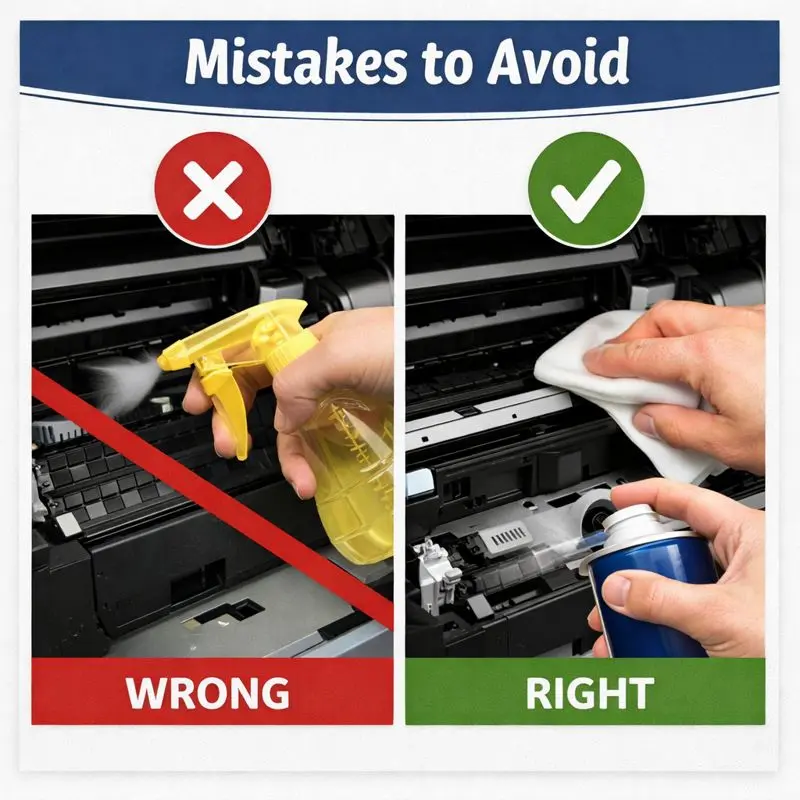
| Mistake | What Happens | Better Approach |
| Using a regular vacuum | Spreads toner dust into the air and inside parts | Use a proper toner vacuum or soft cloth |
| Using too much liquid | Can damage internal parts and cause moisture issues | Use a slightly damp cloth only |
| Touching sensitive parts without knowledge | Can damage parts like drum or rollers | Handle only visible and safe areas |
| Cleaning while printer is hot | Risk of burns and damage to heated parts | Always let the printer cool down first |
Avoiding these simple mistakes can save your printer from serious damage. I’ve seen printers fail just because of one wrong step, and honestly, it’s always preventable with a little care.
How Often Should You Clean a Laser Printer?
Cleaning a laser printer is not something you need to do every day, but ignoring it for too long can cause problems. I’ve seen printers work perfectly for months and then suddenly start giving issues just because they weren’t cleaned on time. A simple routine keeps print quality good and helps the printer last longer.
Cleaning Based on Usage (Home vs Office)
How often you clean depends on how much you use your printer. A home printer usually needs cleaning every few months, while office printers need it more often because of heavy use. I always suggest checking it regularly instead of waiting for problems to appear.
- Home use: every 3–6 months
- Office use: every 1–2 months
- Heavy usage needs more frequent cleaning
Recommended Cleaning After Toner Replacement
It’s a smart habit to clean your printer after changing the toner. When you replace it, small dust or leftover toner can stay inside and affect printing.
- Clean after installing new toner
- Remove leftover dust or toner
- Helps maintain smooth print output
Signs Your Printer Needs Immediate Cleaning
Sometimes your printer gives clear warning signs. I’ve seen people ignore these and later face bigger issues, which honestly could have been avoided.
- Faded or uneven prints
- Streaks or lines on pages
- Paper jams or slow feeding
- Sudden drop in print quality
Ignoring these signs can lead to more serious problems, so it’s always better to clean early.
When to Clean It Yourself vs Call a Professional
Cleaning a laser printer can be simple if the issue is small, but not every problem should be handled at home. I’ve seen people confidently try to fix everything themselves, and sometimes it works perfectly… but other times it leads to bigger damage. That’s what makes this part important—you need to understand when to stop and when to get help. Basic dust or light print issues are usually safe to handle, but deeper internal problems need proper experience. I always feel a bit frustrated when users ignore warning signs and try to force repairs, because it often ends up costing more later.
| Situation | What You Should Do | Risk Level | Cost |
| Light dust or minor print issues | Clean it yourself | Low | Low |
| Slow printing or small paper jams | DIY basic cleaning | Low | Low |
| Fuser or drum damage | Call technician | High | Medium–High |
| Repeated jams or heating issues | Professional service needed | Very High | High |
| Internal electrical fault | Do not attempt repair | Critical | Very High |
Knowing the difference between simple cleaning and real repair helps protect your printer and save money. Sometimes the smartest choice is not doing more—but knowing when to stop.
Extra Maintenance Tips to Keep Your Laser Printer Like New
A laser printer can last for years if you treat it properly. I’ve seen printers run smoothly for a long time just because the user followed small maintenance habits. On the other hand, I’ve also seen printers fail early because of neglect, and honestly, that always feels avoidable. A little care goes a long way. These simple tips are not complicated, but they really help keep your printer in good shape and protect print quality over time.
Proper Storage and Environment
Where you keep your printer matters more than most people think. Dust, heat, and moisture can slowly damage internal parts.
- Keep the printer in a clean, dust-free area
- Avoid direct sunlight or heat sources
- Do not place it near windows or wet areas
- Keep it on a stable surface
A clean environment reduces dust buildup inside the printer and helps it work smoothly for longer.
Using Quality Paper and Toner
Low-quality supplies often create more problems than people expect. I’ve seen users complain about print issues, but the real cause was cheap toner or rough paper.
- Use good-quality paper to avoid jams
- Choose reliable toner brands
- Avoid very cheap or unknown cartridges
- Replace toner when print starts fading
Good materials help maintain stable printing and protect internal parts from extra wear.
Simple Habits That Extend Printer Lifespan
Small habits make a big difference over time. I’ve personally noticed that printers last much longer when users stay consistent with basic care.
- Clean the printer regularly, not only when it breaks
- Do not overload the paper tray
- Turn off the printer when not in use
- Handle toner and parts carefully during use
These simple steps reduce stress on the machine and keep it running smoothly. Honestly, it always feels good when a printer works for years without major issues—it shows the user actually cared for it.
Conclusion
Cleaning a laser printer is not a hard job, but it does need a little care and patience. Most printing problems like streaks, faded text, or paper jams don’t happen suddenly. They build up slowly because of dust, toner buildup, or small mistakes in maintenance. I’ve seen many people worry that their printer is damaged when, in reality, it just needed proper cleaning at the right time.
The truth is simple—if you clean it regularly and avoid rough handling, your printer can stay in good condition for years. And yes, I’ll be honest, it always feels a bit satisfying when a printer starts working like new again after a proper clean.
Just remember, don’t wait for big problems. Take small steps early, and your printer will take care of your work without stress.
Frequently Asked Questions
Can I clean a laser printer without removing the toner?
Yes, for light cleaning, you can. But for proper cleaning, removing the toner helps you reach dust and buildup inside more safely.
Why is my printer still printing dirty after cleaning?
This usually happens when toner or dust is still stuck inside, or a part like the drum or rollers needs deeper cleaning or replacement.
Is compressed air safe for laser printers?
It is not fully recommended. It can push toner deeper inside and spread dust instead of removing it.
How long does laser printer cleaning take?
Basic cleaning usually takes 10–20 minutes. Deep cleaning can take 30–45 minutes, depending on the printer’s condition.
Does regular cleaning improve print quality long-term?
Yes, regular cleaning helps maintain smooth printing, reduces streaks, and keeps overall print quality stable for a longer time.

Willis C. Mathes
I’m Willis C. Mathes With hands-on experience and technical knowledge of printers, I dive deep into printer reviews, troubleshooting, and tips, ensuring you get the most out of your printing investment.