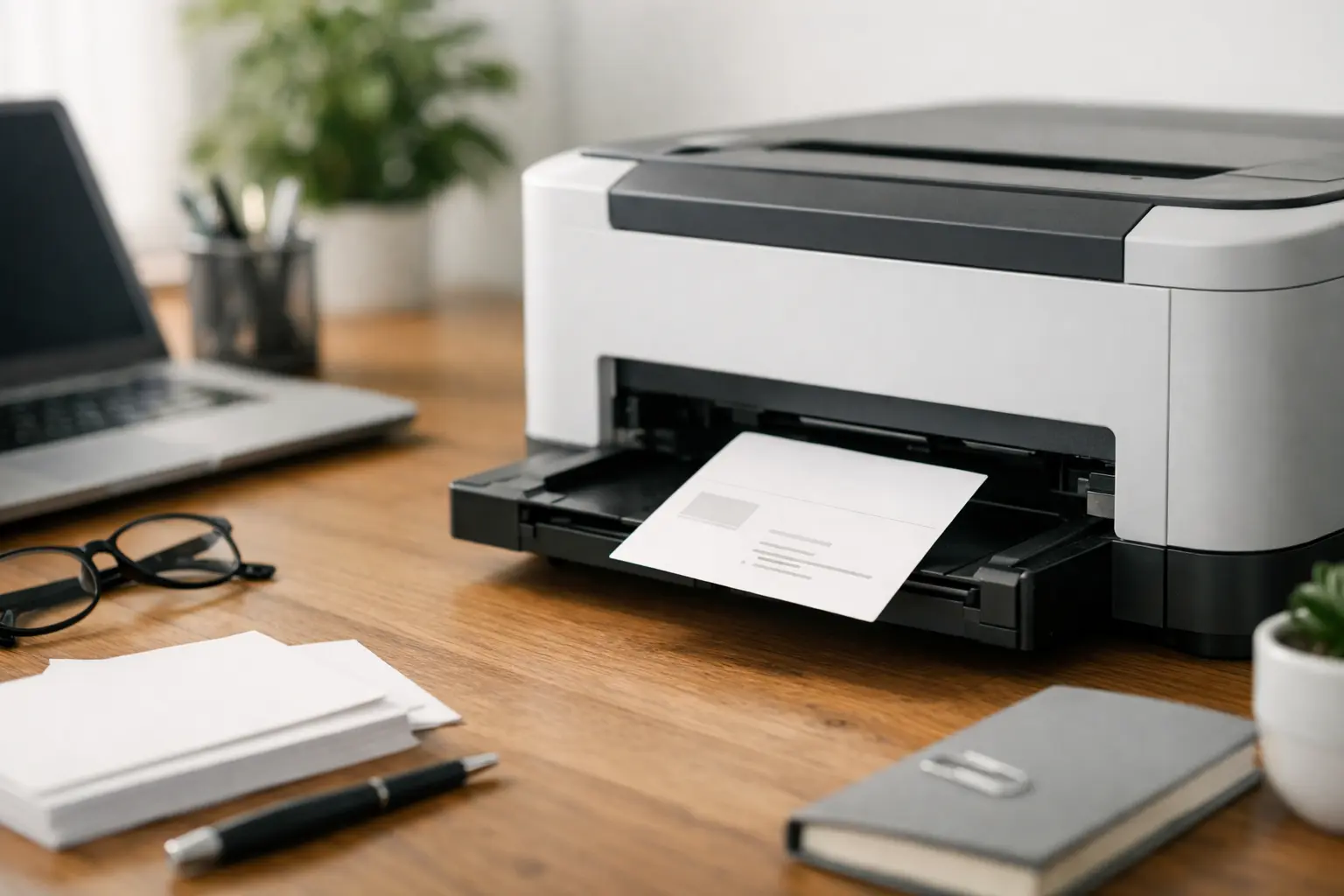
Can Laser Printers Print on Cardstock? Printing on thick paper sounds easy until your laser printer jams or your cardstock comes out bent, faded, or just plain messy. I’ve dealt with this myself, and honestly, it’s frustrating—especially when you waste good paper and still don’t get the result you expected.
So let’s make it simple and clear. Yes, a laser printer can print on cardstock, but it doesn’t always work the same for every printer. It depends on the GSM (paper thickness), the paper type, and how your laser printer handles heat and pressure. Some printers handle cardstock really well, while others struggle, jam, or even get damaged if the paper is too thick.
The good news is, once you understand a few basics, printing on cardstock becomes much easier and safer. In this guide, I’ll walk you through what actually works, what to avoid, and how to get clean, professional results without putting your printer at risk.
Can Laser Printers Print on Cardstock? Quick Answer
Yes, a laser printer can print on cardstock, but only when the GSM is within your printer’s limits, and the printer settings are correctly adjusted. If you choose the right paper type and use proper feeding, the laser process with toner can give clean, sharp results. I’ve seen it work really well for things like invitation cards and simple business cards—but only when everything is set right.
When it works, the print looks smooth with no smudge or jam, and the paper passes through easily. But when it fails, it’s usually because the cardstock is too thick or the settings are wrong, and that’s where problems start. Honestly, this is where many people get frustrated—because one small mistake can ruin both the print and your mood.
How Laser Printers Work with Cardstock?
A laser printer for cardstock works differently from an inkjet printer. It uses toner (powder), heat, and pressure to stick the design onto the paper. The laser draws the image, and then a hot fuser melts the toner onto the cardstock. Unlike inkjet, the color does not soak in—it sits on top. That’s why smooth paper gives better print quality, while rough texture can cause uneven results.
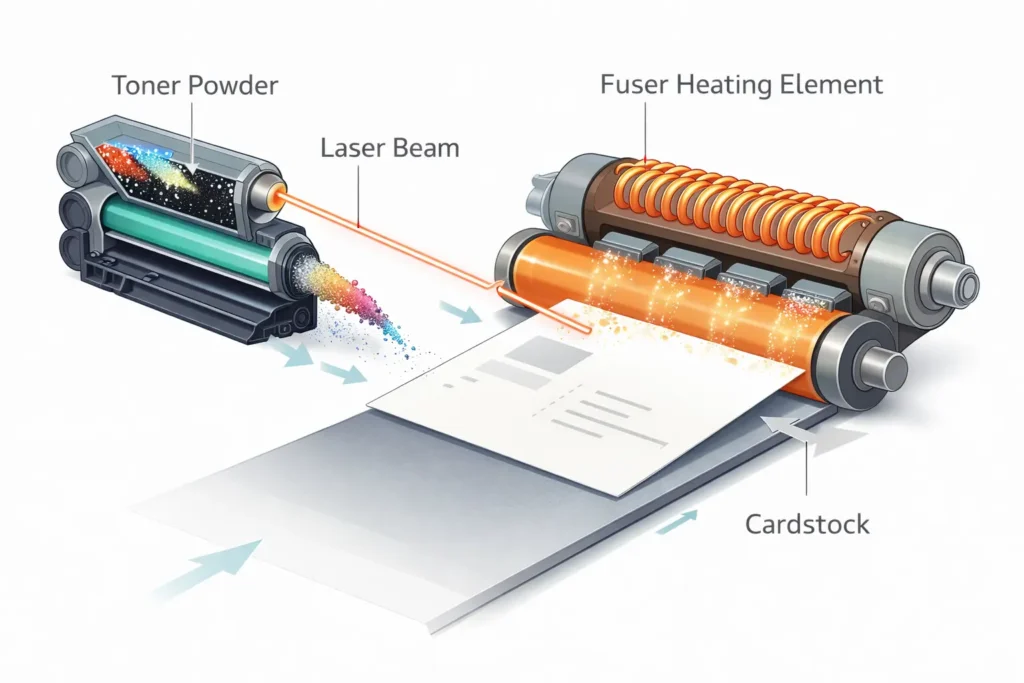
Thick cardstock printing needs more heat and pressure because of its higher paper weight. If the printer does not support it, the toner may not stick properly, or the paper can get stuck. I’ve seen this happen a lot, and honestly, it’s frustrating when people ignore compatibility and blame the printer. Using a copier-friendly sheet and the manual feed tray helps the paper pass straight, which reduces problems. This is why some business cards and greeting cards turn out great, while others fail if the setup is wrong.
Role of toner, heat, and fuser unit
A laser printer for cardstock uses toner instead of liquid ink. The laser creates the image, and then heat from the fuser melts the toner onto the cardstock. Unlike an inkjet printer, the color does not soak into the paper—it stays on top. That’s why smooth sheets give better print quality, while rough texture can cause uneven prints. Many people miss this point and then blame the printer, which is a bit frustrating to see.
Why does thick cardstock need more heat and pressure?
Thick paper has more paper weight, so it needs extra heat and pressure to hold the toner properly. If your printer or copier does not support it, the print may fade, or the paper may get stuck. I’ve seen people try heavy cardstock without checking compatibility, and it rarely ends well. Using the manual feed helps because it gives a straight path, which is safer for cardstock printing. When everything is set right, you can get clean results for things like business cards and even greeting cards, but the setup really matters.
Cardstock GSM Guide (Safe, Risky & Unsupported Range)
Choosing the right cardstock is where most people either get great results… or run into problems. I’ve seen people blame their home printer, but the real issue is often the thickness of the paper. The printing process in a laser machine depends a lot on GSM (paper weight), and if you ignore that, things go wrong fast. So before you pick any cardstock or printer paper, it’s important to understand what your printer can actually handle.
Safe GSM range for laser printers
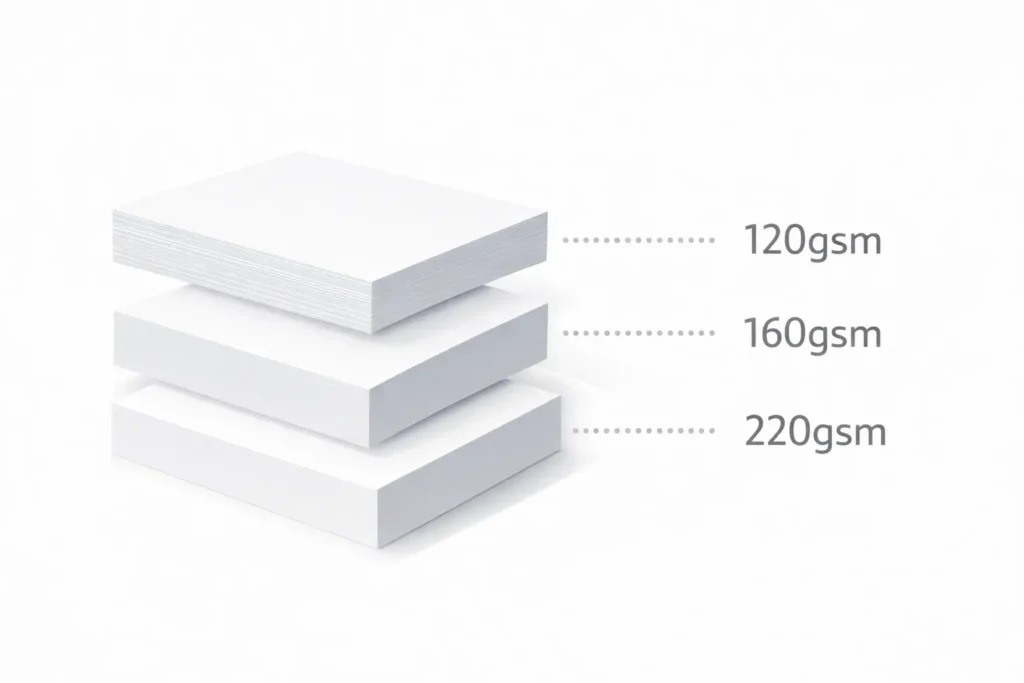
Most standard printers work best with 120–160 gsm. This range is safe for almost every home printer and even basic office machines. The paper path stays smooth, and the toner sticks well without causing stress on the printer.
If you’re printing simple documents, light cardstock paper, or even basic cards, this range gives clean results. It’s not too thick, not too thin—just balanced. Honestly, if you’re new and unsure, this is the safest place to start.
Borderline GSM range (may work with adjustments)
The 160–220 gsm range is where things get a bit tricky. Some printers can handle it, especially a good cardstock printer or color laser, but others may struggle.
This is where you need to choose the right cardstock carefully. Using the correct tray and a straight paper path can make a big difference. I’ve seen people get great results here for cards and designs—but only after a few failed tries. It works, but you have to be careful.
High GSM range (risk of jams or damage)
Once you go above 220 gsm, you’re dealing with thick cardstock, and not every printer is built for it. This is where jams, slow feeding, or even damage can happen.
This part honestly frustrates me a bit—many brands don’t clearly tell users their limits. People try heavy paper, and suddenly the printer stops working properly. If your machine isn’t designed for heavy card stock, it’s better to avoid this range or use a professional color laser or office-grade machine.
Quick GSM compatibility overview table
| GSM Range | Category | What to Expect |
| 120–160 gsm | Safe | Smooth printing, no stress on the printer |
| 160–220 gsm | Borderline | Works with proper setup and care |
| 220+ gsm | High Risk | Possible jams or printer damage |
A simple rule I always follow: don’t push your printer beyond its limit. When you match the right cardstock with your printer, everything feels easy. When you don’t… well, that’s when frustration starts.
Color Laser Printers That Can Print on Cardstock
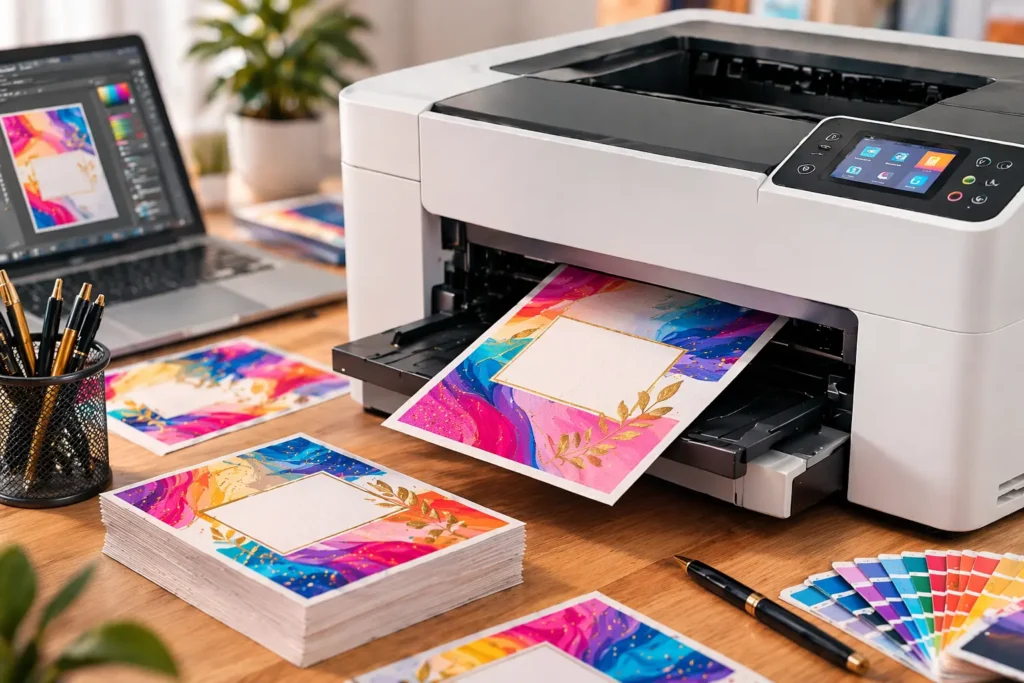
If you are planning cardstock projects, a color laser printer can give solid results—but only if you choose the right machine. I’ve seen many people get frustrated here (and honestly, I understand why). They buy a basic all-in-one printer, try thicker paper, and then face paper jams or dull prints. The truth is simple: not every printer is built for laser printing on heavy material. The internal rollers and heat system matter a lot.
Key features to look for (rear feed, high GSM support)
When choosing a printer, don’t rush. I always say this because I’ve seen too many wasted purchases. A good LaserJet or office all-in-one should clearly support heavy paper and higher GSM levels.
Here are the most important features to check:
- Rear or straight paper path (reduces bending and jams)
- GSM supports at least 160–220+
- Manual or bypass tray for thicker paper
- Strong fuser unit for heat stability
- Clear “cardstock compatible” label in specs
How color laser printers behave on thick cardstock
A color laser printer behaves differently compared to an ink-based system. Instead of soaking ink, it uses toner and heat. This gives sharp text and decent graphics, especially for laser printing on smooth sheets.
On thicker paper, the printer slows down a bit because it needs more pressure and heat. Sometimes it works perfectly, and sometimes you’ll notice slight feed hesitation. That’s normal for many machines, especially mid-range LaserJet models.
I personally like how clean the output looks when everything is set correctly. For professional printing, it still feels reliable and consistent—even if it’s not perfect for every design style.
Common color printing limitations on cardstock
Now let’s talk honestly (because people don’t like hearing this later). Color printing on cardstock has a few limits, and ignoring them leads to disappointment.
Common issues include:
- Slight fading on very thick sheets
- Uneven toner on textured surfaces
- Slower feeding with heavy paper
- Occasional paper jams if the tray is overloaded
Limitation vs Cause Table
| Issue | Reason |
| Faded colors | Toner sits on the surface, not absorbed |
| Paper jams | Wrong feed path or thick material |
| Slow printing | Extra heat is needed for thicker paper |
| Uneven print | Rough texture or low-quality cardstock |
Compared to an inkjet printer, laser systems are more stable for text-heavy work, but they can lose a bit of color richness. I’ve seen this especially in business cards or design-heavy prints. Still, for most cardstock projects, the results are more than usable if you set things up correctly.
In simple words, a good color laser printer can handle cardstock well—but only when you respect its limits. Choose the right machine, use proper settings, and don’t force thicker paper into a system that isn’t designed for it. That’s where most problems start, and honestly, that’s the part many users overlook.
Can Cardstock Damage a Laser Printer?
This is one of the most common questions people ask, and I understand why. A laser printer is not cheap, so nobody wants to damage it just by trying to print on cardstock. The good news is simple: cardstock does not automatically damage your printer. But if you ignore limits, it can create real problems. I’ve seen it happen too many times, and honestly, it’s avoidable. The key is knowing your printer’s paper path, limits, and proper handling.
Risks like paper jams and fuser wear
The biggest issue with cardstock printing is paper jams. Thick paper moves differently inside the machine, especially if the printer’s paper path is not straight. A curved path puts pressure on the sheet, and that’s where jams start. I’ve had moments where users force “cardstock” into the wrong tray, and then everything stops working properly. It’s frustrating, especially when a simple check could have avoided it.
Another concern is the fuser. The fuser uses heat to melt toner, and over time, heavy use with thick paper like 80 lb cardstock can increase wear. Not instantly, but slowly. This is why selecting the appropriate cardstock matters so much. If the load is too heavy for your machine, it will struggle.
Does frequent cardstock use reduce printer life?
Yes, but only if you misuse it. The damage does not come from occasional use. It comes when people ignore the printing capabilities of their machine.
Different types of printer models handle cardstock differently. A basic home machine is not the same as a commercial printer. If you keep pushing thick sheets without checking limits, you may shorten the printer’s life.
But here’s the truth—I’ve also seen many printers handle cardstock for years without any issue. The difference is always in selecting the right cardstock and respecting the machine’s limits. When used correctly, it’s safe. When forced, it becomes risky.
Expert tips to avoid printer damage
From my experience working with printing systems, small habits make a big difference. If you follow these, your printer will stay safe and stable.
- Always use a straight paper path when available
- Avoid overloading thick sheets in one go
- Check if your printer supports cardstock printing before starting
- Use the manual feed instead of the main tray for heavy sheets
- Clean rollers regularly to avoid buildup
Safety & Compatibility Table
| Factor | Safe Practice | Risky Practice |
| Paper path | Straight paper path | Curved internal path |
| Cardstock weight | Up to 80 lb cardstock (if supported) | Exceeding printer limits |
| Feeding method | Manual feed | Full tray overload |
| Printer type | Heavy-duty laser printer | Basic home printer |
One thing I always tell people (and I feel strongly about this): don’t assume all printers are the same. A laser printer is not magic. It has limits. When people ignore that, they end up blaming the machine unfairly. And that’s where I feel a bit frustrated because the problem is often just a wrong setup, not bad equipment.
In short, cardstock is safe when you respect your printer. It only becomes a problem when you push it beyond what it was designed for.
Laser vs Inkjet for Cardstock Printing
Choosing between a laser printer and an inkjet printer for cardstock types is not always simple. I’ve seen people get confused here a lot. One friend once bought an inkjet expecting perfect results on thick sheets, and honestly… it didn’t go well. The printer kept smudging. So let’s break this down in a clear, real-world way so you can choose the right option without wasting money or paper.
Print quality comparison
When it comes to cardstock printing, the result depends a lot on the printer type. A laser printer uses toner that sits on top of the paper, so it gives sharp and clean text. This works well on most cardstock types, especially for simple designs like labels or invitations. If you set it properly, even an HP Color LaserJet Pro can give very stable output on heavier sheets.
An inkjet printer works differently. It sprays liquid ink that soaks into the paper like normal printer paper. On light sheets, this looks nice, but on thick cardstock, it can sometimes cause smudging or uneven colors. I’ve seen people get frustrated here because they expect perfect results, but the ink on the paper behaves differently on heavy material.
Cost and speed difference
A laser printer is usually faster and more efficient for bulk work. It prints quickly without slowing down much, which is great when handling large weights and thicknesses of cardstock. It also uses toner that lasts longer, so running costs stay lower over time.
An inkjet printer is slower, and the ink runs out faster. This makes it less practical for regular cardstock up to 90 lb or heavy printing jobs. In real use, people often don’t realize how quickly ink costs add up, and that’s where frustration starts.
Which is better for business use?
For business work, a laser printer is usually the better choice. It handles thicker sheets better when you adjust the paper guides correctly and use the right paper tray. Many users also prefer a printer that can handle heavier grams per square meter without jams.
An inkjet can still work for photo-heavy designs, but for clean text, speed, and reliable results, laser printing is more stable. If you want consistent results for invitations, labels, or office work, a laser printer is the safer option overall.
Best Types of Cardstock for Laser Printing
Not all cardstock works the same, and this is where many people get confused. I’ve seen users pick any thick stock they find and expect perfect results. Then they wonder why the print looks dull or the paper jams. The truth is simple: the type of cardstock matters just as much as the printing equipment you use. If you want clean results, you need to understand what actually works best for laser printers to print tasks.
Matte cardstock (most recommended)
Matte cardstock is the safest and most reliable choice for most laser printing jobs. It has a smooth, non-shiny surface that helps toner stick properly without issues. This is why many people consider it the best printer option for everyday use, like invitations or labels.
I personally like Matte because it just behaves well. No drama, no surprises. The toner sits neatly on the surface, and the result looks clean and professional. Even when regular paper might fail to give a premium feel, matte cardstock does the job nicely.
If you are unsure where to start, honestly, this is where you should begin. It helps you find the perfect balance between quality and ease of use.
Glossy cardstock (limited compatibility)
Glossy cardstock looks attractive, but it can be tricky. The shiny coating sometimes prevents toner from sticking properly. That’s why some prints may appear faded or uneven.
I’ve seen people get excited about glossy sheets, expecting high-end results, but then end up disappointed. The surface behaves differently, especially when using standard printing equipment. In some cases, even duplex printing settings can struggle with consistent output.
This type is better for simple designs or short-run projects. It can work, but only if your printer supports it well and you use the manual feed correctly to avoid slipping or jams.
Smooth vs textured cardstock differences
Smooth cardstock is usually the safest choice for most users. The toner stays evenly on the surface, which gives better clarity and sharper results. It works well with most paper size settings and reduces printing issues.
Textured cardstock, on the other hand, adds a premium feel but can cause uneven print results. The toner may not spread evenly, especially if the texture is too deep. I’ve seen cases where prints looked slightly patchy, which can be frustrating after spending money on good material.
Quick Comparison Table
| Type | Print Quality | Compatibility | Best Use |
| Matte | High and stable | Excellent | Invitations, labels |
| Glossy | Medium (can vary) | Limited | Decorative prints |
| Smooth | Very good | High | General printing |
| Textured | Mixed | Moderate | Premium designs |
In simple terms, if you want safe and reliable results, matte and smooth cardstock are your best friends. Glossy and textured materials can look beautiful, but they need more care and the right printing equipment to avoid problems.
And one more thing I always tell people (a bit of experience here): don’t force fancy paper if your printer isn’t ready for it. Even the inkjet ink style printers behave differently, and what works on one machine may fail on another. So take it slow, test first, and you’ll avoid a lot of frustration later.
Common Problems When Printing on Cardstock (And Fixes)
Printing on heavy stock sounds simple, but in real use, things don’t always go smoothly. I’ve worked with many users who get excited about cardstock printing, then suddenly face issues that stop everything. It can be frustrating, especially when you just want clean text and graphics for things like invitations or premium business cards. Let’s only fix the most common problems.
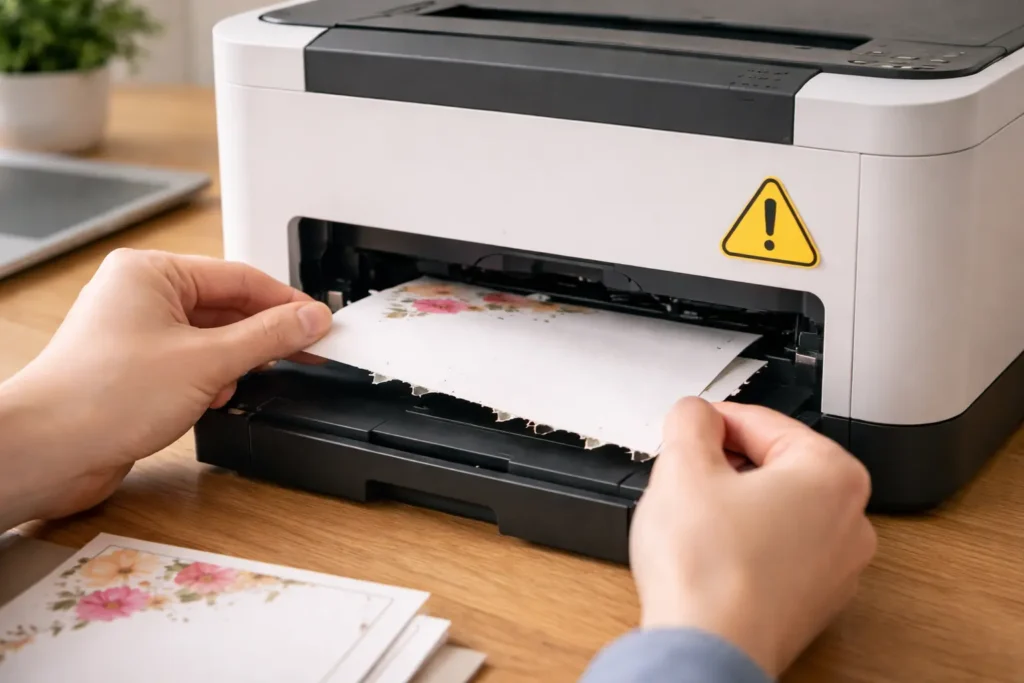
Paper jams and feeding issues
This is the number one problem. A laser printer struggles when the paper path is not smooth or when the sheet is too thick. Heavy paper, like 240 gsm or even 270 gsm, can easily get stuck if it is not handled correctly.
Most jams happen when people load too many sheets or use the wrong tray. The safest method is to use the bypass tray or manual single-sheet feed. This gives the printer better control over thick paper movement.
I always tell people (and I get a bit serious here): don’t force paper into the machine. It only leads to frustration and wasted sheets.
Smudging or weak toner sticking
Sometimes the print comes out faded, or the toner rubs off easily. This usually happens when the paper surface is too smooth or not designed for toner bonding.
Laser printers rely on heat to stick toner, so if the balance is off, the result suffers. Even color accuracy can drop on the wrong surface. I’ve seen users blame the printer, but often it’s just the wrong cardstock choice.
For better results, choose paper designed for laser use and avoid very coated sheets unless your printer supports them. A smudge-resistant finish helps a lot in getting clean results for text and graphics work.
Curling or bending after printing
This issue happens when thick paper heats unevenly inside the printer. Sheets like 100 lb or heavy cardstock printing materials may curl at the edges after printing.
It doesn’t always mean something is wrong with your printer. It’s usually a natural reaction to heat. Still, it can be annoying when you want flat, professional output.
To reduce curling:
- Let the sheets cool before stacking
- Print one sheet at a time if needed
- Avoid overloading thick paper types
I like to think of this as the “resting phase” of printing. The paper just needs a moment to settle.
Wrong settings are causing print failure
This is the hidden problem most people miss. Incorrect settings are the real reason behind many failed prints. If the printer is set to regular paper instead of cardstock, the output will suffer.
Using the right paper mode helps control heat and speed. Many modern printers even allow you to adjust settings based on cardstock printing needs. For example, selecting a heavier setting helps when working with 270 gsm or thicker sheets.
Here’s a quick guide:
| Problem | Likely Cause | Simple Fix |
| Paper jam | Wrong tray or thick sheet | Use a bypass tray or a manual feed |
| Smudging | Wrong paper type | Select cardstock mode |
| Curling | Heat imbalance | Print one sheet at a time |
| Weak print | Wrong settings | Adjust paper settings |
Real-Life Uses of Cardstock Printing
Cardstock is not just thick paper. It is used to make printed items look stronger, cleaner, and more professional-quality. When used with the right laser printer, it can turn simple designs into something that feels premium and long-lasting. Many people choose it because it gives better results than normal paper in both personal and business work.
Business cards and branding materials
One of the most popular uses of cardstock is for business cards. A thick card creates a strong first impression, while thin paper can feel cheap. This is why businesses prefer cardstock for personal and professional branding.
Most cards are printed on around 220gsm cardstock because it gives the right balance between strength and print quality. Even printers like the MFC-L3780CDW can handle it well if you choose the correct type selection and feed settings.
From experience, I’ve noticed something simple but important—people trust a business more when the card feels solid in their hand. That small detail really matters in real life.
Invitations and greeting cards
Cardstock is also widely used for invitations like weddings, birthdays, and special events. The thickness gives a premium feel that normal paper cannot match.
I’ve seen many people get excited when they receive a well-printed invitation—it just feels more meaningful. That is why cardstock is often used for greeting cards and event designs. It adds emotion, not just print.
Certificates and official documents
Certificates need to look official and last a long time. Cardstock helps achieve that because it is stronger than standard paper. It reduces tearing and keeps the document looking neat for years.
Compared to standard paper, cardstock gives a more serious and professional look, especially for awards, school certificates, and official recognition documents.
Product labels and packaging
Small businesses often use cardstock for product labels and packaging inserts. It improves presentation and makes the product feel more premium in the customer’s hand.
Even a simple design printed on cardstock can change how customers see a brand. Clean printing without bending or damage gives a stronger impression of quality and care.
Common Mistakes to Avoid When Printing Cardstock
Printing on cardstock sounds simple, but I’ve seen many people struggle with it. And honestly, most problems are not because of the printer—they happen because of small mistakes that could be avoided. When you understand these issues, your results become much smoother and more reliable.
Using unsupported GSM paper
One of the biggest mistakes is using cardstock that is too thick for the printer. Every printer has a limit for paper weight, and ignoring it causes trouble. If the GSM is too high, the printer may struggle to pull the sheet properly or even stop working during printing.
I’ve seen people force thick paper in, hoping it will work. It rarely does. It often leads to uneven prints or paper getting stuck halfway. The simple truth is: always match the cardstock with what your printer can actually handle.
Ignoring printer settings
Another common issue is skipping printer settings. Many users forget to change the paper type before printing. This affects heat, speed, and toner placement. When settings are wrong, the print may come out faded or uneven.
I’ll be honest here—it frustrates me when people ignore this step because it takes only a few seconds to fix. A small change in settings can completely improve the final result.
Using the wrong paper tray or feed method
Not all trays are designed for thick paper. If you use the wrong one, the cardstock may bend or jam inside the printer. This is one of the main reasons people face printing failures.
The correct feed method ensures the paper moves straight and smoothly. When users overlook this, they often think the printer is faulty, but it’s usually just the wrong setup. A simple adjustment here saves a lot of frustration.
Overloading the printer
Trying to print too many sheets at once is another mistake. Cardstock is heavy, and printers are not built to handle bulk loading of thick paper. Overloading can cause jams or uneven feeding.
From experience, I always suggest printing slowly and in small batches. It keeps the process stable and reduces stress on the machine.
Conclusion
Printing on cardstock is not complicated once you understand how it works. Most problems people face come from small mistakes like wrong settings, heavy paper choices, or rushing the process. I’ve seen this many times, and honestly, it’s usually not the printer that fails—it’s the setup.
The good thing is, once you learn the right way, everything becomes much easier. Choosing the correct GSM, using the proper tray, and respecting your printer’s limits can completely change your results. You start getting clean, sharp prints without stress or waste.
So if you ever feel stuck, don’t get frustrated. Just slow down, check your settings, and try again. With a little care, even simple printers can produce really good cardstock results.
Frequently Asked Questions
Can all laser printers handle cardstock?
No, not all laser printers can handle cardstock. It depends on the printer model and its supported GSM range.
What GSM is too thick for laser printers?
Anything above 220–250 GSM is usually too thick for most home laser printers and may cause issues.
Why does my cardstock keep jamming?
Jams happen due to a wrong paper tray, thick paper, or incorrect settings for cardstock use.
Do I need a special printer for cardstock?
Not always, but a printer that supports high GSM and has a straight paper path works much better.
Is cardstock safe for long-term printer use?
Yes, if used within limits. Overusing very thick paper can slowly increase wear on printer parts.

Willis C. Mathes
I’m Willis C. Mathes With hands-on experience and technical knowledge of printers, I dive deep into printer reviews, troubleshooting, and tips, ensuring you get the most out of your printing investment.