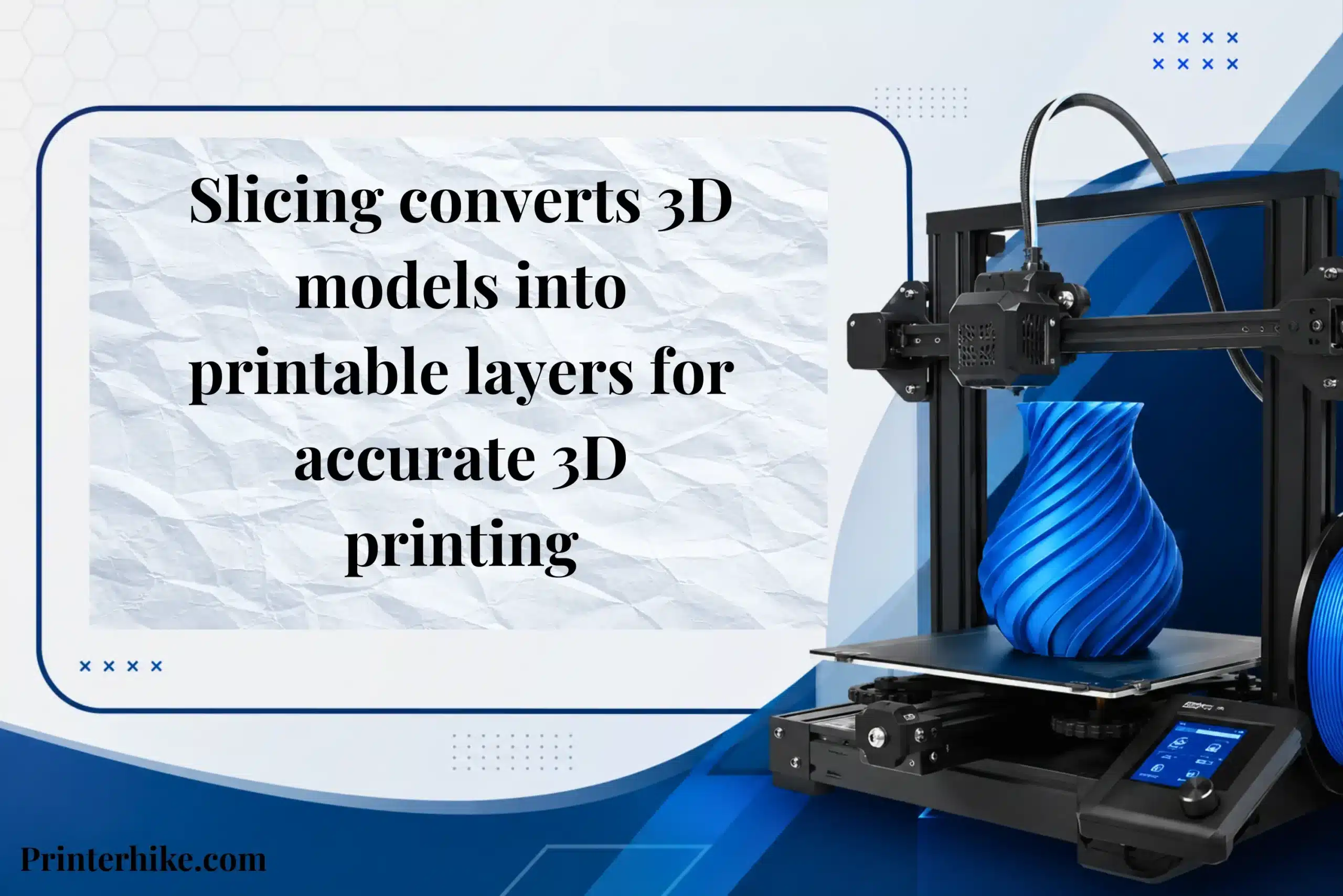
What is slicing in 3D printing? It is the process of turning a digital 3D model into printable instructions that a 3D printer can understand. A slicer, or slicing software, divides the model into thin layers and creates a G-code file that tells the printer how to build the object layer by layer.
In simple words, a 3D printer cannot print a design directly from an STL file. It first needs slicing software to set things like layer height, infill, print speed, support placement, and filament usage. These settings have a direct impact on print quality, strength, material use, and printing time.
In reality, this is the step many beginners overlook. I have seen people blame their 3D printer for failed prints when the real issue was incorrect slicer settings. Even a high-quality 3D model can fail if the slicing process is not set up correctly.
Modern slicer programs like Cura and PrusaSlicer make the process much easier, but learning the basics still helps you create smoother, stronger, and cleaner 3D prints while reducing wasted material.
Understanding Slicing in 3D Printing
Slicing is the process of preparing a digital file for a 3D printer. A slicer program like Cura takes an STL design and divides it into hundreds of thin layers. After that, it creates a G-code file that tells the nozzle how to print the object step by step.
This process plays a major role in FDM printing because settings like print speed, infill density, and support placement directly affect the final result. A poorly sliced file can cause rough surfaces, weak sections, layer shifting, or even failed prints. In many cases, the issue comes from slicer settings rather than the printer itself.
Proper slicing improves print accuracy, reduces filament waste, and helps the printer handle difficult areas like overhangs more effectively.
Simple Definition of Slicing
Slicing means dividing a 3D model into printable layers. The slicer creates instructions that guide the nozzle during the printing process. It also manages settings such as layer height, material flow, and support generation.
In simple terms, slicing converts a digital model into a printable format that the machine can read and follow correctly.
How Slicing Converts a 3D Model Into G-code?
When you import an STL file into Cura or another slicer, the software studies the shape and turns it into G-code instructions.
The G-code controls nozzle movement, printing paths, temperature settings, and support creation. For example, if a model contains a large overhang, the slicer may generate support structures to keep the print stable during production.
Why Slicing Is Required Before Printing?
A 3D printer cannot understand a standard design file on its own. It requires detailed instructions for every movement and layer. Slicing transforms the model into a format the printer can process accurately.
This step also improves print performance by adjusting settings for different materials and model shapes. Correct slicing usually produces cleaner surfaces, stronger parts, and fewer printing errors.
How Slicer Software Works in 3D Printing
Slicer software plays an important role in turning a 3D design into printable instructions. Programs like Cura and Simplify3D prepare the model before the printing process begins. The software analyzes the shape, dimensions, walls, and internal structure to ensure the printer can build the object correctly layer by layer.
It also allows users to adjust settings such as infill density, extrusion width, supports, and raft options based on the design requirements. Small changes in these settings can greatly affect print quality, strength, material usage, and printing time.
Importing the STL File
The first step is importing the STL file into the slicer software. This file contains the shape of the model but does not include the instructions needed for printing.
After loading the file, the slicer displays the model on a virtual print bed. Users can resize, rotate, or reposition the object before printing starts. Proper placement helps improve stability and reduces the risk of printing issues.
Creating Printable Layers
Once the model is prepared, the slicer converts the 3D design into thin printable layers. The printer then builds these layers one at a time during the printing process.
At this stage, the software also calculates wall thickness, infill settings, support placement, and raft options when necessary. For example, tall models or designs with large overhangs may require additional supports to maintain balance while printing.
Generating the G-code File
After all settings are finalized, the slicer generates the G-code file. This file contains detailed printer instructions, including movement paths, temperature settings, and material extrusion commands.
The G-code guides the printer through the entire printing process from start to finish. Without it, the machine would not know how to move, where to print, or how much material to extrude.
Step-by-Step 3D Printing Slicing Process
The slicing stage is one of the most important parts of 3D printing. It converts a digital model into instructions that the printer can follow accurately. Slicing software prepares the object by analyzing its shape, dimensions, material requirements, and printing configuration before generating the final G-code file.
In simple terms, slicing in 3D printing transforms a digital design into machine-readable data. This process improves layer accuracy, print stability, and overall output quality. Whether you are using FDM or SLA technology, correct slicer configuration can reduce material waste, shorten setup time, and prevent common printing errors.
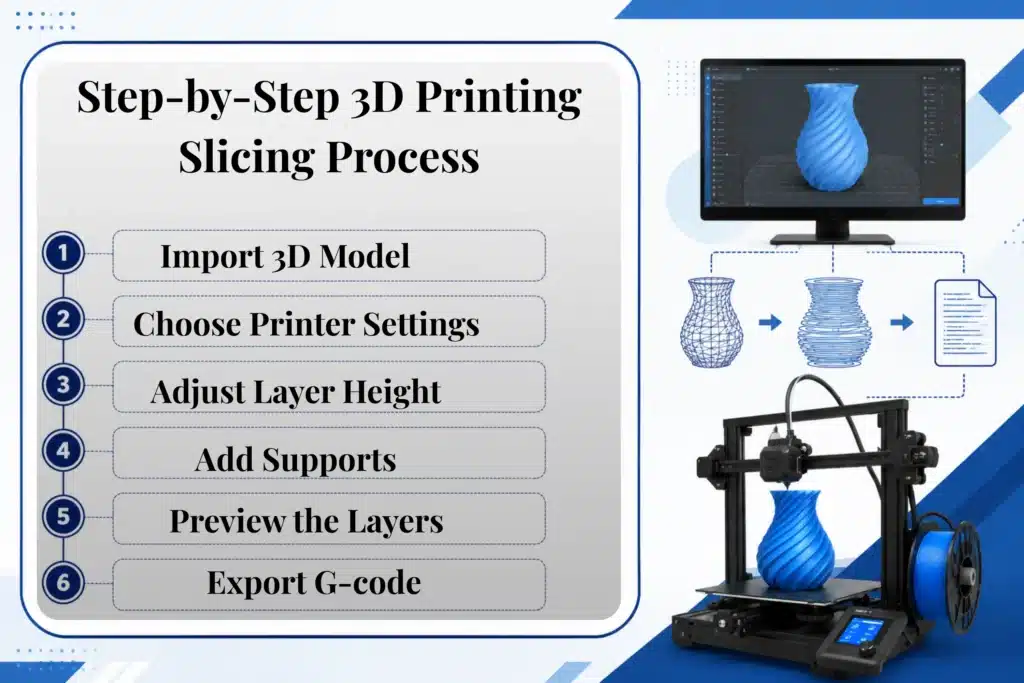
Import the 3D Model
The first step is importing the design file into the slicer program. Most users work with STL files because they are widely supported in the 3D printing industry.
After the upload is complete, the software places the model on a virtual print surface. Users can scale, rotate, or reposition the object before continuing. Correct alignment helps maintain balance and improves final print accuracy.
Choose Printer and Material Settings
The next step is selecting the correct printer profile and material configuration inside the slicer. Different machines and filaments require unique temperature, cooling, and speed values.
For instance, PLA filament and resin materials use completely different printing settings. Using the wrong configuration may cause weak layers, surface defects, or unsuccessful prints. Careful setup at this stage usually improves consistency and print reliability.
Adjust Layer Height and Infill
The slicer then divides the digital object into thin horizontal sections for printing. During this phase, users adjust layer height and infill percentages based on the project requirements.
Smaller layer heights generally produce finer detail, while larger values can decrease production time. Infill settings determine the internal strength of the object. Decorative items often need lower infill, while mechanical or functional components usually require stronger internal structures.
| Setting | Function |
|---|---|
| Layer Height | Controls detail and surface finish |
| Infill Density | Determines internal strength |
| Wall Thickness | Increases structural durability |
| Print Speed | Affects precision and stability |
Add Supports if Needed
Some designs include steep overhangs or suspended sections that cannot print correctly without additional support. In these cases, the slicer automatically generates support structures beneath those areas.
Supports are especially important for detailed models, complex angles, and elevated features. Without proper reinforcement, unsupported sections may shift or collapse during the printing process.
Preview the Layers
Before exporting the final file, the slicer provides a layer preview. This view allows users to inspect print paths, support placement, and internal patterns before printing begins.
Checking the preview helps identify problems early, such as missing supports, incorrect infill, or unnecessary material usage. Fixing these issues before printing can save both time and filament.
Export the G-code for Printing
After reviewing all settings, the slicer generates the final G-code file. This file contains detailed printer commands, including movement paths, temperature values, extrusion flow, and speed instructions.
The printer follows these commands layer by layer to create the final object accurately on the build plate. Without G-code, the machine cannot understand how to produce the design correctly.
Important Slicing Settings Explained
Slicer settings have a direct impact on how a 3D printed object looks and performs after production. These configurations create the instructions that guide the printer during every stage of the printing process. In FDM printing, incorrect adjustments can weaken the structure, reduce surface quality, or cause printing defects.
Most slicing programs allow users to control movement speed, internal density, support generation, and build plate attachment. Proper configuration improves print accuracy, material efficiency, and structural durability across different model types.
| Setting | Function |
|---|---|
| Layer Height | Controls surface detail |
| Infill Density | Determines internal strength |
| Print Speed | Affects print precision |
| Supports | Stabilizes complex areas |
| Wall Thickness | Improves outer durability |
| Bed Adhesion | Keeps the model attached to the platform |
Layer Height
Layer height controls the thickness of each printed section. Before printing begins, the slicer separates the model into multiple horizontal layers.
Lower layer heights usually create finer detail and cleaner surface texture. Higher values can shorten production time but may reduce visual quality. Display pieces often use thinner layers for a more polished appearance.
Infill Density
Infill density determines how much material fills the inside of the object. Lower percentages reduce filament usage, while higher values increase structural strength.
Lightweight decorative items may only require minimal internal filling. Functional components or mechanical parts generally perform better with denser internal support patterns.
Print Speed
Print speed controls how fast the printer head moves while producing the model. Higher speeds can decrease printing time, but excessive movement rates may reduce accuracy and surface consistency.
Balanced speed settings usually provide better dimensional accuracy and more reliable layer bonding, especially for detailed objects.
Support Structures
Support structures are temporary additions that hold steep angles, bridges, and suspended sections during the printing process.
These supports help maintain shape stability until the upper portions of the model are fully completed. Complex geometries and large overhangs often require additional reinforcement for successful printing.
Wall Thickness
Wall thickness controls the strength and durability of the outer shell. Increased wall thickness generally creates stronger, more impact-resistant parts.
Thin outer layers can reduce material consumption, but they may also lower durability under pressure or repeated use.
Bed Adhesion Settings
Bed adhesion settings help the model remain firmly attached to the print bed during the early stages of production. Features such as rafts, brims, and skirts improve stability and reduce corner lifting.
Strong platform adhesion is important because many printing failures begin when the first layers shift or separate from the build surface.
How Slicing Affects Print Quality and Print Time
Slicing prepares a digital model for 3D printing by converting it into machine-readable instructions. A 3D printer cannot understand a standard design file on its own, so slicing software creates the commands needed for accurate printing.
The slicer controls nozzle movement, material distribution, layer formation, and printing paths. It divides the model into horizontal sections and generates detailed instructions for each stage of production. Even small setting adjustments can influence durability, surface appearance, material consumption, and total production time.
Proper slicer configuration often improves print consistency and reduces common manufacturing issues.
Surface Smoothness and Detail
Layer settings strongly affect the final appearance of a printed object. Thinner layers usually produce finer details, cleaner edges, and improved surface texture.
For example, character models, prototypes, and display pieces often benefit from higher-detail settings. Larger layer values may speed up production, but visible layer lines can reduce visual quality.
Print Strength
Slicer configurations also determine the structural strength of the finished object. Wall thickness, internal patterns, and layer bonding all contribute to durability.
Weak setup choices can create fragile sections that break under pressure or repeated handling. Correct structural settings generally improve stability and long-term performance.
Filament Usage
The slicer calculates how much filament is required during production. Dense internal patterns and thicker outer walls increase material usage, while lighter settings reduce overall consumption.
Balanced material settings are important because extremely low values may weaken the structure, while excessive usage can increase costs without adding significant benefits.
Printing Speed
Production speed depends heavily on slicer adjustments. Faster movement settings can shorten print duration, but excessive speed may reduce dimensional accuracy and layer consistency.
Well-optimized slicing profiles usually create a better balance between efficiency and print precision. Stable configurations also help reduce common printing defects such as uneven layers or poor surface finish.
Best 3D Slicer Software for Beginners
Slicer software prepares a digital 3D model for production by converting the design into printer-readable instructions. The slicing engine separates the object into thin horizontal layers and determines how each section should be printed. Different slicer systems are available for FDM printers, resin machines, and equipment that uses SLS technology.
Selecting the right slicer is important because configuration quality directly affects print precision, production speed, and filament consumption. New users usually benefit from software that offers a simple interface, reliable performance, and straightforward controls.
| Slicer Software | Best For | Difficulty |
|---|---|---|
| Cura | General home printing | Easy |
| PrusaSlicer | Advanced configuration | Medium |
| Bambu Studio | Faster workflow management | Easy |
| Lychee Slicer | Resin model preparation | Easy |
Cura
Cura is one of the most popular slicer applications for entry-level users. It offers a clean dashboard and supports a wide range of 3D printers.
The software simplifies print preparation by organizing settings clearly and allowing quick model adjustments. It is commonly used for FDM printing projects because of its accessibility and broad hardware support.
PrusaSlicer
PrusaSlicer provides more advanced configuration tools while maintaining an easy learning curve for newer users.
The program handles detailed models efficiently and includes features that improve layer control, material management, and print accuracy for complex designs.
Bambu Studio
Bambu Studio focuses on workflow optimization and faster project preparation. The software helps users organize print settings more efficiently and reduces unnecessary setup steps.
Its interface is designed to improve productivity during additive manufacturing tasks, especially for users managing multiple print jobs.
Lychee Slicer
Lychee Slicer is mainly built for resin-based printing systems. It includes tools for support placement, model orientation, and detailed layer preparation.
For highly detailed resin projects, the software often provides a more organized workflow compared to many traditional resin slicer programs.
FDM vs Resin Slicing Differences
FDM and resin printers use different slicing approaches because both technologies create models in different ways. FDM printers melt thermoplastic filament layer by layer, while resin printers use ultraviolet light to cure liquid resin into solid shapes. Slicing software generates printer instructions based on material behavior, print structure, and detail requirements.
The slicer processes settings differently for each printing method, including layer formation, support generation, exposure control, and material flow. FDM printing usually focuses on strength, durability, and functional performance, while resin printing prioritizes fine detail and cleaner surface appearance.
| Feature | FDM Printing | Resin Printing |
|---|---|---|
| Material Type | Thermoplastic filament | Liquid photopolymer resin |
| Production Method | Extruded melted layers | UV curing process |
| Primary Advantage | Structural durability | High-detail output |
| Typical Applications | Functional components | Miniatures and display models |
| Support Configuration | Standard support patterns | Dense support placement |
| Surface Appearance | Visible layer texture | Finer surface finish |
Common Beginner Mistakes When Slicing 3D Models
Many printing problems are caused by incorrect slicer configuration rather than hardware failure. Slicing software generates the instructions that control material placement, movement paths, and layer construction during the printing process. Even minor configuration errors can reduce surface quality, weaken structural performance, or create stability problems.
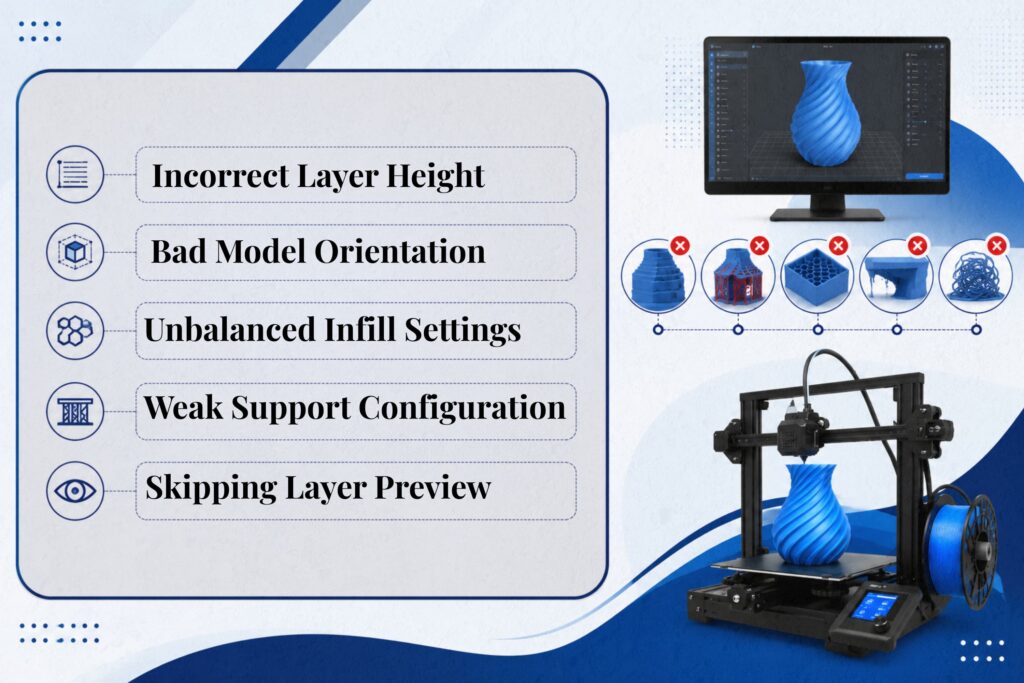
Different printing technologies require different slicing strategies, so models should be prepared carefully before production begins. The slicer automatically calculates supports, internal structures, and movement patterns, but poor configuration choices can still result in unsuccessful prints. Using random online profiles without adjusting settings for a specific printer or material often creates avoidable printing issues.
| Common Mistake | Possible Result |
|---|---|
| Incorrect Layer Height | Poor detail or excessive print time |
| Bad Model Orientation | Weak structure or instability |
| Unbalanced Infill Settings | Material waste or reduced strength |
| Weak Support Configuration | Collapsed sections |
| Skipping Layer Preview | Undetected printing problems |
Incorrect Layer Height
Using unsuitable layer values is one of the most common slicing errors. Larger layers can reduce fine detail, while extremely thin layers may increase production time unnecessarily.
Decorative models often benefit from finer resolution settings, whereas functional parts usually prioritize durability and structural reliability over visual detail.
Bad Model Orientation
Model orientation determines how the object is positioned during production. Incorrect placement can weaken critical sections or generate unnecessary support structures.
The slicer calculates movement paths according to model positioning, so poor alignment may reduce dimensional accuracy and overall print consistency.
Unbalanced Infill Settings
Infill settings control the density of the internal structure. Very low percentages can reduce durability, while extremely dense configurations increase material consumption and production time.
Balanced internal density usually improves strength while maintaining efficient filament usage.
Weak Support Configuration
Support structures stabilize difficult sections during the printing process. Poorly placed supports may allow overhangs or suspended areas to deform before upper layers are completed.
This issue commonly affects detailed geometries, bridges, and complex design features.
Skipping Layer Preview
Many new users ignore the preview stage before exporting the final file. This step is important because the slicer can reveal hidden configuration issues before printing begins.
Preview mode allows users to inspect support placement, wall generation, movement paths, and internal structures before sending the file to the printer.
Signs Your Slicing Settings Are Wrong
Incorrect slicer configuration can create many visible printing problems, even when the printer hardware is functioning correctly. Weak models often result from low internal density, while rough surface texture may come from unsuitable layer settings or unstable movement values. Stringing appears as thin strands of plastic between sections of the object, and visible layer gaps can reduce structural durability.
Some users also experience unusually long production times because of excessive detail settings or inefficient print configurations. In many situations, these problems are caused by incorrect slicer adjustments rather than hardware limitations.
Common Signs of Incorrect Slicing Settings
- Fragile prints that break under light pressure
- Uneven or rough surface texture
- Thin plastic strands between printed areas
- Visible separation between layers
- Excessively long production times
- Reduced detail accuracy
- Irregular or unstable print appearance
Advanced Slicing Features Most Beginners Ignore
Many slicer applications include advanced tools that can improve print precision, reduce filament consumption, and create cleaner final results. New users often skip these features because the settings appear technical or difficult to understand during the early learning stage. However, several advanced slicer options can significantly improve print performance when configured correctly.
Important Advanced Features
- Tree Supports – Branch-style support structures that use less material and are easier to remove from detailed or complex models.
- Adaptive Layer Height – Automatically adjusts layer thickness in different sections of the model to improve detail while reducing production time.
- Vase Mode – Creates hollow prints with a single outer wall, making it useful for lightweight decorative objects.
- Ironing Feature – Adds additional nozzle passes across the top layer to create a cleaner and more refined surface finish.
Best Beginner Slicing Settings for 3D Printing
Many new users face printing issues because they apply random slicer profiles without understanding how the settings affect the final output. Beginner-friendly configurations should prioritize stability, reliable print quality, and consistent performance rather than extreme speed or ultra-fine detail settings.
Balanced slicer adjustments usually provide better learning results and help reduce common printing failures during the early stages of 3D printing.
| Setting | Recommended Starting Value |
|---|---|
| Layer Height | 0.2 mm |
| Print Speed | 40–60 mm/s |
| Infill Density | 15%–20% |
| Supports | Automatic support generation |
Recommended Layer Height
A 0.2 mm layer height is a practical starting point for most entry-level users. It provides a balanced combination of print detail and production speed.
Lower layer values can improve surface detail, while larger settings may reduce production time at the cost of visible layer texture.
Safe Print Speed
Excessive print speed can create unstable layers, reduced accuracy, and inconsistent surface quality. A movement speed between 40 and 60 mm/s generally provides stable and reliable performance for most standard printing projects.
Controlled speed settings usually improve layer bonding and overall print consistency.
Beginner-Friendly Infill Settings
An infill density between 15% and 20% works well for many standard models. This range provides reasonable internal strength without increasing filament usage unnecessarily.
Decorative objects often require lower internal density, while functional or load-bearing parts may need stronger internal support structures.
Easy Support Settings
Automatic support generation is often the simplest option for new users. Supports stabilize difficult sections during production and help prevent deformation in overhanging areas.
Simple designs may not require additional support structures, but angled or suspended features usually benefit from extra reinforcement.
Troubleshooting Common Slicing Problems
Many printing defects are caused by incorrect slicer configuration rather than hardware failure. Fragile models often result from weak structural settings, while difficult support removal usually happens when support spacing is too dense. Some users also experience unnecessarily long production times because of excessive detail configurations. Gaps between layers commonly appear when flow rate or bonding settings are not properly adjusted.
Most of these issues can be corrected through proper slicer optimization without replacing printer components.
| Problem | Common Cause | Recommended Solution |
|---|---|---|
| Fragile Prints | Low wall or infill values | Increase structural settings |
| Difficult Support Removal | Dense support placement | Lower support density |
| Long Production Times | Excessive detail configuration | Use balanced layer settings |
| Gaps Between Layers | Incorrect flow or bonding setup | Adjust flow rate and temperature |
Conclusion
Understanding slicing is one of the most important parts of successful 3D printing. Slicing prepares a digital model for production by generating the instructions a printer follows during the printing process. Proper slicer configuration improves surface finish, structural durability, production efficiency, and material management, while incorrect settings can lead to printing defects and failed projects.
Many new users focus heavily on upgrading printer hardware, but learning how slicing settings work often has a greater impact on final print quality. Settings such as layer height, infill density, support generation, and print speed all influence consistency, detail accuracy, and structural performance.
Modern slicer software has made print preparation much more accessible than in earlier years. With regular testing, careful adjustments, and gradual learning, users can produce cleaner, stronger, and more reliable prints while reducing unnecessary material usage and production time.
Frequently Asked Questions
Which software options are best for slicing 3D models for beginners?
For beginners, popular slicing software includes Ultimaker Cura, PrusaSlicer, and Bambu Studio. These programs are easy to use, offer ready-made print settings, and help new users start printing without complicated setup.
What kind of software is used for 3D print slicing?
3D print slicing uses special slicer software that converts a digital model into printable instructions for a 3D printer. The program creates layers, adjusts print settings, and generates the file needed for the printing process.
Factors to consider when selecting 3D model preparation software
When choosing slicing software, look at ease of use, printer compatibility, print quality controls, and available support features. A good program should also offer stable performance, regular updates, and simple settings for beginners.
How does slicing affect the final quality of a 3D print?
Slicing directly affects surface finish, strength, printing speed, and material usage. Proper layer settings and support placement help produce cleaner prints, while poor settings can lead to weak parts or visible defects.
How does a 3D printer slicing program work?
A slicing program takes a 3D model and divides it into hundreds of thin layers. It then creates machine instructions that guide the printer on movement, speed, temperature, and material placement during printing.

Willis C. Mathes
I’m Willis C. Mathes With hands-on experience and technical knowledge of printers, I dive deep into printer reviews, troubleshooting, and tips, ensuring you get the most out of your printing investment.