If you’ve ever clicked print and nothing happened, you know how frustrating it feels. I’ve been there too—standing next to a stubborn printer, thinking, “Why now?” It usually happens when you’re in a hurry.
The truth is, laser printer issues are very common. About 23% of help desk calls are about printers, underscoring how often people deal with printing problems. Even small issues can waste your time and slow down your work more than you expect.
But here’s the good part—you don’t need to be an expert to fix most printer problems. Many times, it’s something simple like a low toner cartridge, a misaligned paper tray, or a small setting change you didn’t notice. I’ve seen this happen a lot, especially with HP printers, and honestly, it can be annoying when the fix is so simple but hard to spot.
In this guide, you’ll learn how to troubleshoot laser printer issues step by step in a simple way, so you can get your printer working again without stress and save your time.
Why Laser Printer Problems Are So Common (And Why Fixing Them Matters)
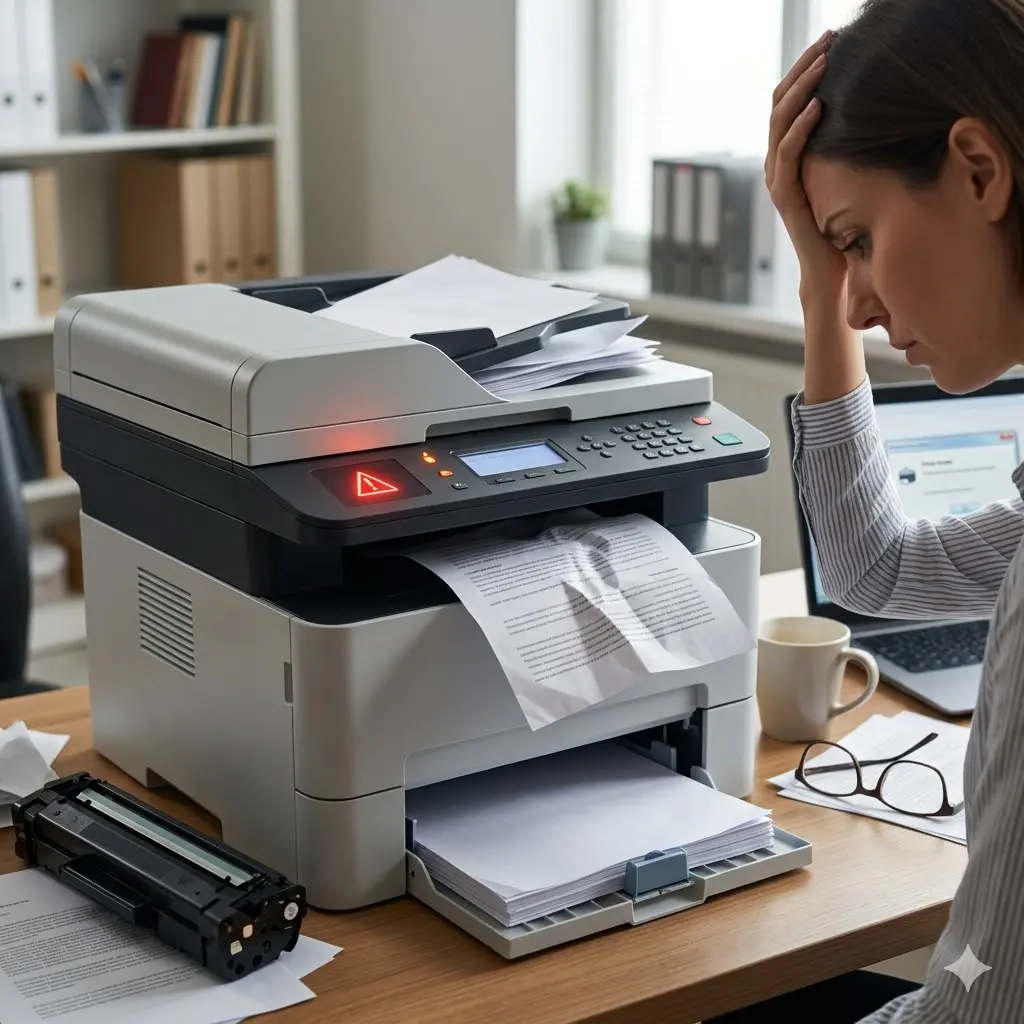
Printer problems happen to almost everyone. One moment your printer is working fine, and the next it suddenly stops. It feels annoying, especially when you are in a hurry and need fast printing.
Around 23% of help desk calls are related to printers, which shows how common laser printer problems really are. Most issues are not serious failures. They are small problems that people ignore until they get worse.
I once helped fix an HP printer in an office that looked completely dead. The issue was just a simple printer error caused by wrong settings. That moment reminded me that most problems are easier than they seem.
The main reasons these problems happen
- Heavy daily printing puts pressure on the machine
- A low or damaged toner cartridge affects output
- Outdated or missing printer drivers cause errors
- Dust and a lack of cleaning lead to printer issues
- Wrong settings trigger printer error messages
- Low-quality paper increases paper jams
- Overuse without breaks reduces printer performance
- Ignored maintenance affects overall print quality
Even brands like Dell and HP printers face these issues because no printer is completely free from wear and tear.
The real problem starts when small faults like slow printing, fading output, or repeated errors are ignored. Over time, they turn into bigger problems that slow down work.
Most laser printer troubleshooting steps are simple when you understand the basics. In many cases, checking a few simple things can save time and effort.
In short, most printer problems and solutions are not complicated. You just need a clear approach and basic troubleshooting steps to fix them quickly.
Start Here: Basic Troubleshooting Laser Printer Steps
When a printer stops working, most people panic first. I get it. I’ve seen offices rush to call printer support or a technician when the issue is actually very small. That’s why I always say—start simple before thinking it’s a big defect in your printer model.
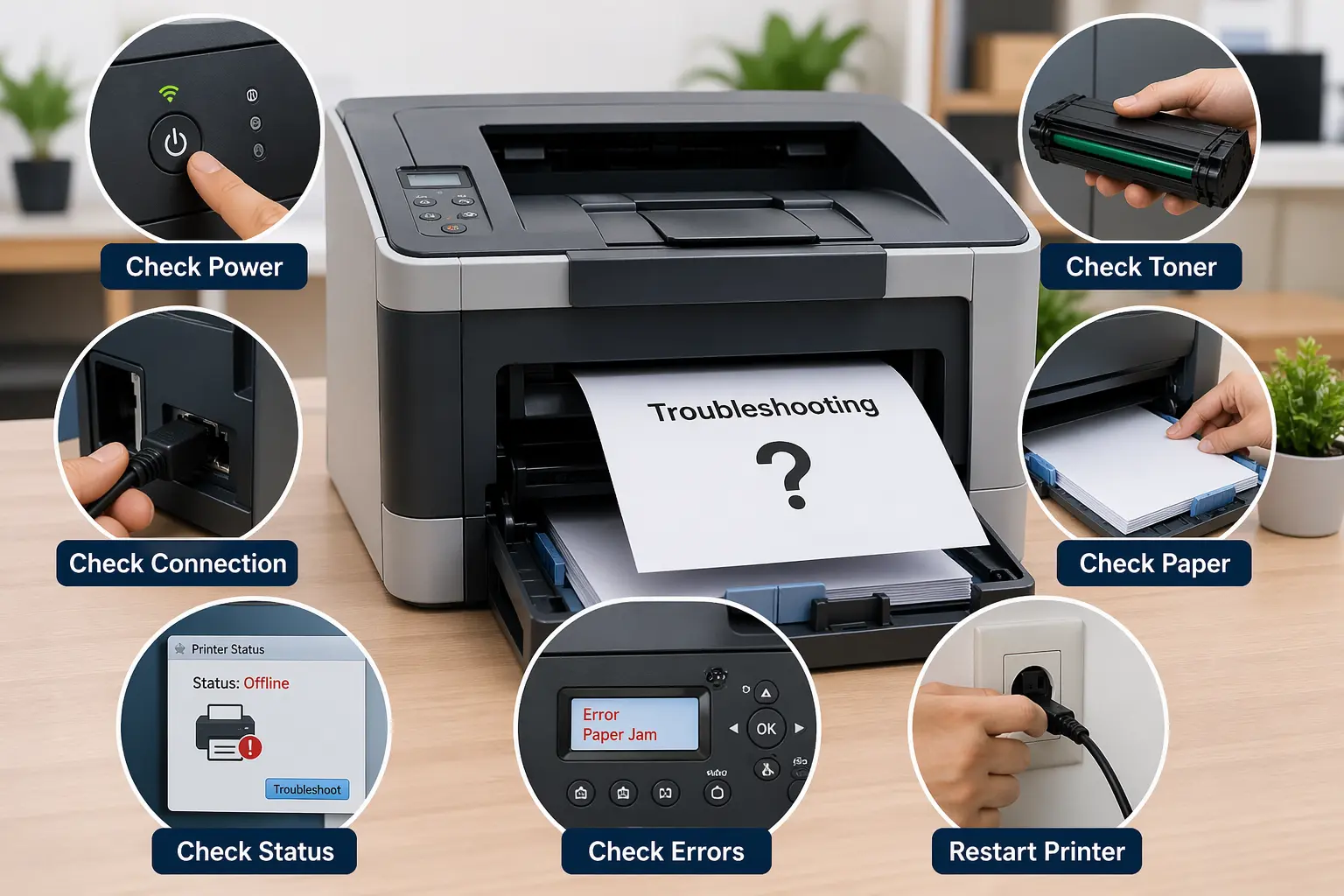
Most common issues come from basic things like power, connection, or paper handling. So let’s go step by step in a very simple way. This is pure basic troubleshooting that works for almost every specific printer, whether it is used at home or in an office.
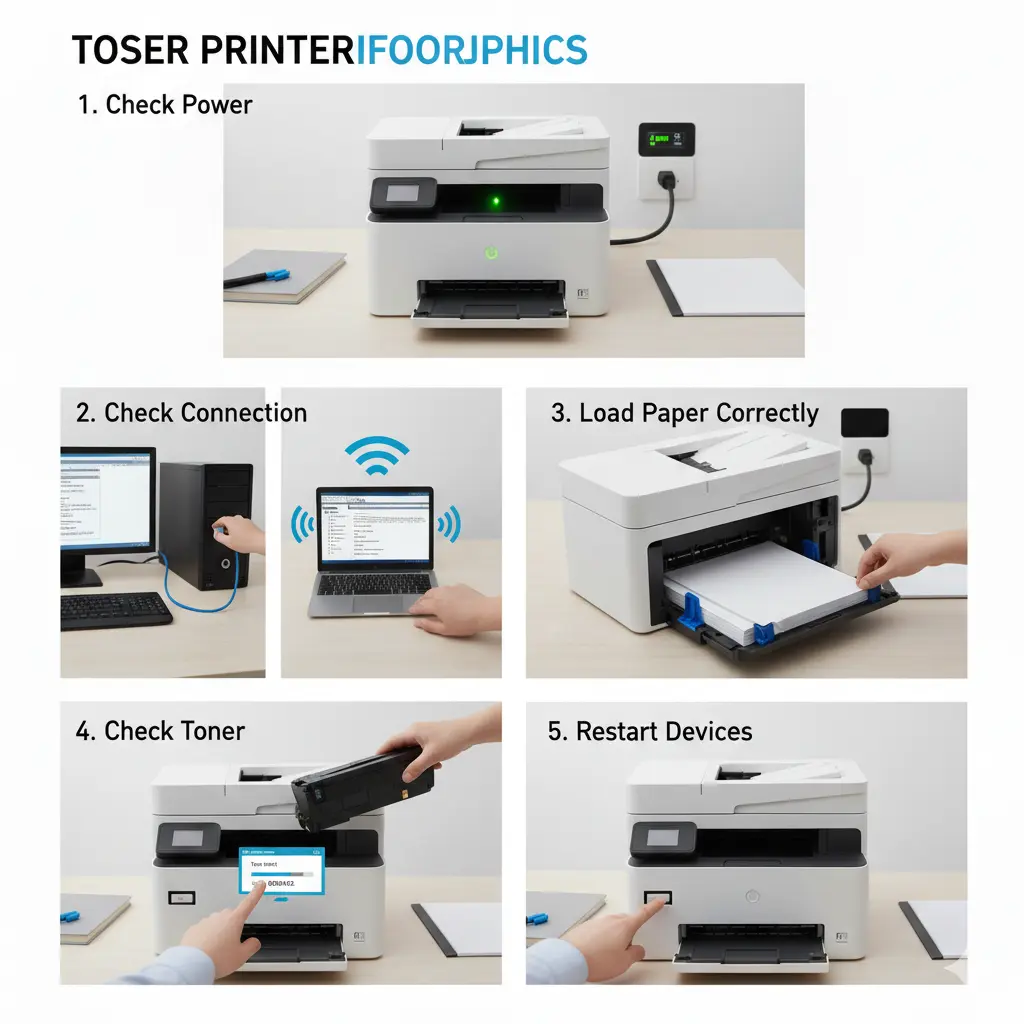
Check Power and Printer Status
First, check if the printer is actually on. I know it sounds too simple, but honestly, this is where many problems start.
Look for:
- Power light ON or OFF
- Any blinking printer error light
- Display messages (if your printer model has a screen)
Sometimes the machine looks dead, but it’s just not getting proper power. I’ve seen this more times than I want to admit, and yes, it can be a bit embarrassing for users.
Check Cable or WiFi Connection
Now check the connection. A print job will not work if the link is broken.
- For a wired printer, check the USB or LAN cable
- For the wireless printer, check the WiFi connection
If the connection drops, the printer simply stops responding. It’s not always a serious issue—just a loose cable or weak signal.
This is one of those common issues that people ignore and assume something big is wrong.
Make sure the paper is loaded correctly
This is another simple but very important step.
Check:
- The paper is placed straight inside the tray
- Paper guides are tight but not too hard
- The paper is not too thick or too thin for the machine
Even small mistakes here can cause skew (crooked printing). I once saw a printer in a small office printing pages sideways just because the paper was not aligned properly. Simple, but annoying.
Also, check the paper weight because using the wrong paper can confuse the feed system.
Check Toner Cartridge Level
Low or empty toner is one of the biggest reasons a printer stops working properly.
- Open the toner section
- Check the toner cartridge level
- Replace it if it is empty or very low
A weak toner can reduce print quality or stop the print job completely. I’ve always found it frustrating when people ignore this and think the whole machine is broken.
Restart the Printer and Computer
Finally, do a full restart.
- Turn off the printer
- Restart your computer
- Turn the printer back on
This clears small system glitches inside the device. Many times, a simple restart fixes everything without needing a technician.
Quick Reality Check
I want to be honest here. Many people jump straight to calling printer support without trying these steps. As someone who has worked with different systems, I can say this clearly—it’s usually not a big issue.
A lot of printer issues come from small setup mistakes, not serious hardware problems. Even a specific printer can act up just because of paper, toner, or a connection.
So before thinking about repair, always start with these steps. It saves time, money, and a lot of stress.
How to Identify What’s Wrong (Quick Diagnosis Guide)
When a printer stops working, most people feel confused. I’ve seen this many times, and honestly, it’s a common moment of panic. But here’s the truth I always share from experience—most general printing issues follow a pattern. You just need to look at the signs carefully instead of guessing.
In many office setups, even a color laser or HP color device shows the same behavior when something goes wrong. So instead of jumping to professional help, first try to understand what your printer is telling you. This quick diagnosis guide helps you think clearly before using the control panel or checking the user guide.
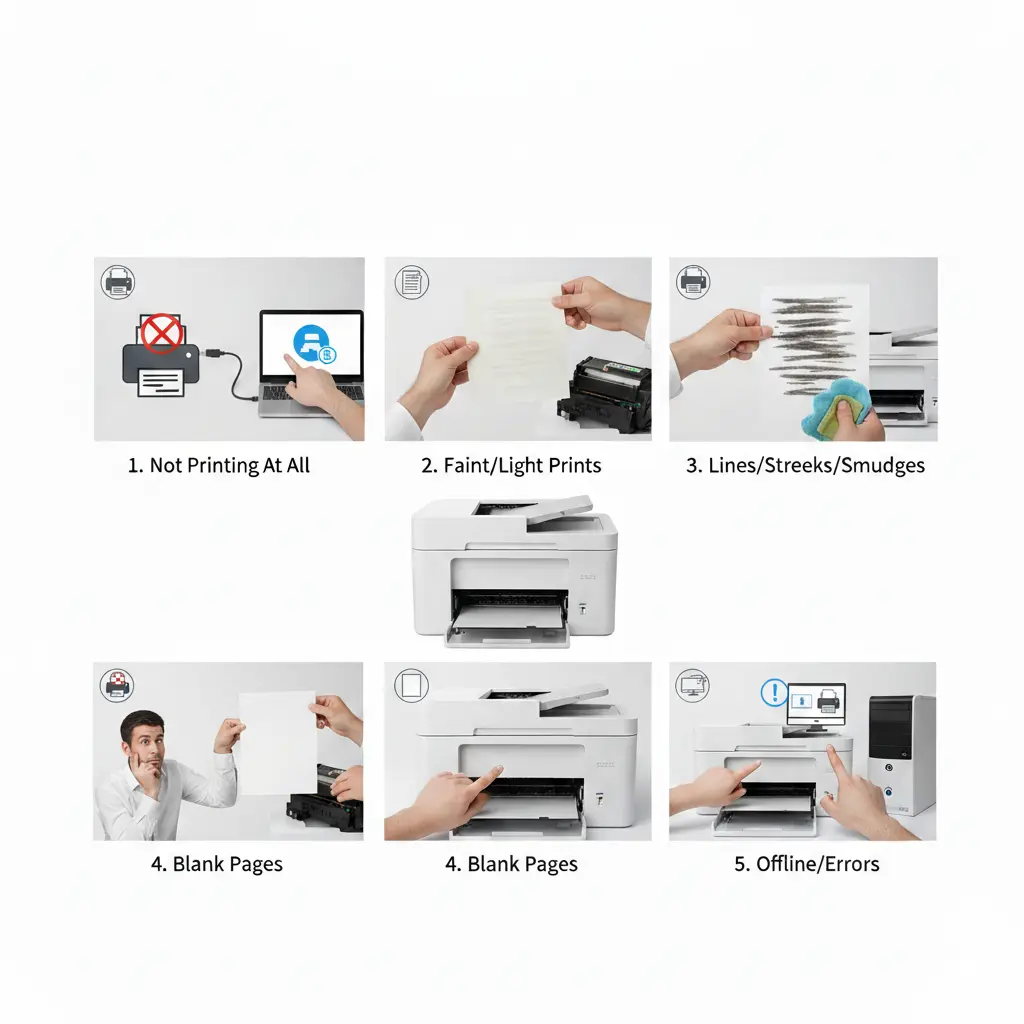
Printer Not Printing at All
If your printer does nothing when you send a print job, don’t worry right away.
Check this:
- If the printer is powered on
- If cables or WiFi have network issues
- If the job is stuck in the queue
If this happens, → check the connection and restart the system
Sometimes, outdated firmware updates or simple compatibility issues also block printing. I’ve seen users think the machine is dead, but it was just a paused queue.
Print Quality Is Faint or Light
This is one of the most annoying print quality issues. I personally dislike it when a document comes out too light—it looks unprofessional.
Look for:
- Low toner in the toner cartridge
- Dirty or aging fuser
- Weak settings in the printer menu
If this happens → check toner and print settings
On HP color or other color laser printers, this often causes faded prints, especially when toner runs low.
Lines, Streaks, or Smudges on Paper
If you see marks or uneven printing, don’t ignore it. A streak on paper usually points to internal dirt or worn parts.
Common causes:
- Dirty roller or drum
- Faulty fuser
- Low-quality toner
If this happens, → clean internal parts and inspect toner
I’ve seen offices panic over this, but most of the time it’s just basic cleaning, not a major failure.
Printer Printing Blank Pages
This one feels scary, I know. You expect output, but the page comes out empty.
Check:
- Empty or damaged cartridge
- Incorrect installation
- Settings in the control panel
If this happens → reinstall cartridge and check settings
Sometimes, even small firmware updates can reset printing behavior. It sounds technical, but it’s usually simple.
Printer Offline or Showing Errors
When your printer shows an offline status or strange messages, don’t rush.
Check:
- WiFi or cable network issues
- Wrong default printer selection
- Error messages on screen
If this happens → reconnect and restart the device
Some printer issues are just communication failures between the computer and the machine. I find it frustrating when people immediately think it needs repair.
Troubleshooting Laser Printer Problems by Symptoms (Detailed Fix Guide)
When a printer stops working, it can feel confusing and a bit stressful. I’ve seen this many times while helping users in offices and homes. The good thing is this—most printer issues don’t come randomly. They always show small signs first. If you understand those signs, fixing becomes much easier.
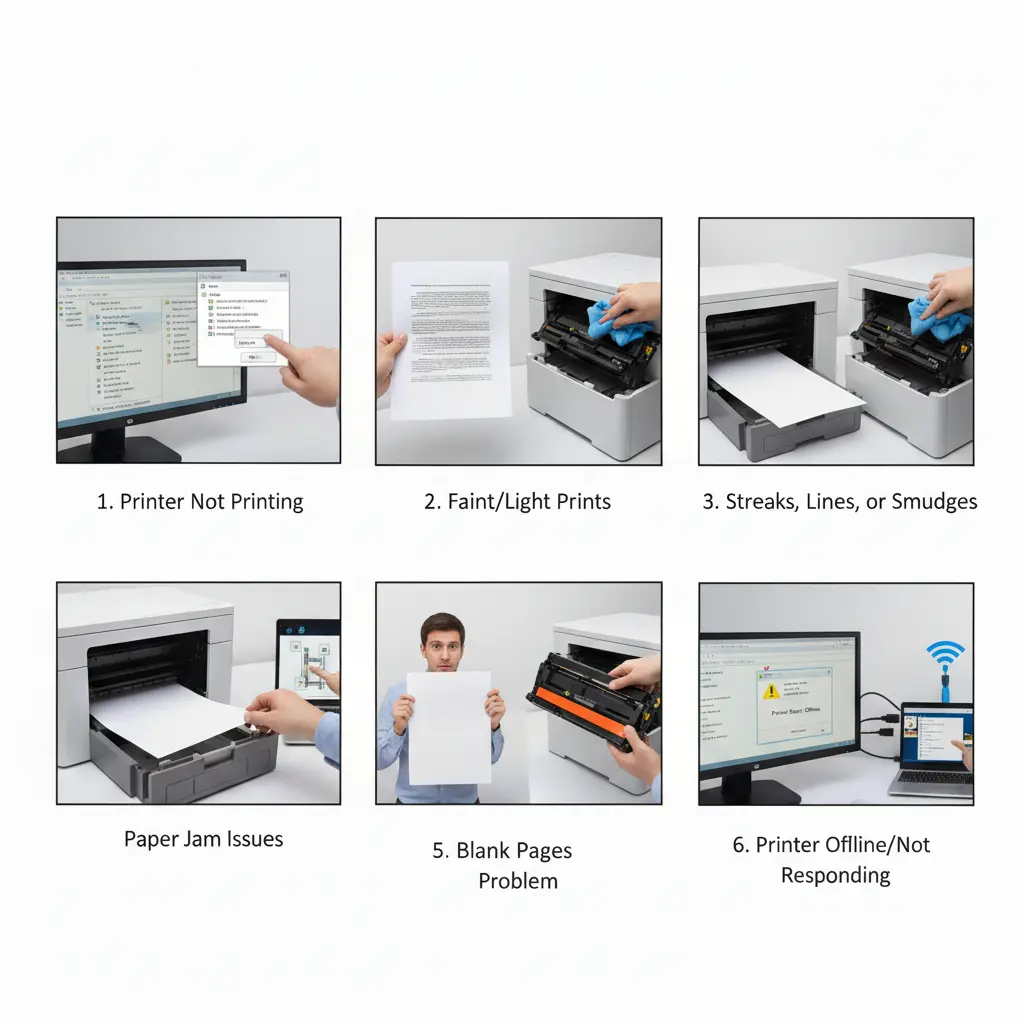
Let’s go step by step.
Printer Not Printing
When you send a print job but nothing comes out, don’t panic. This is one of the most common situations.
Check Print Queue and Settings
Sometimes documents get stuck in the print queue. I’ve seen users click print again and again, but the old job is blocking everything. Clearing the queue often solves it.
Restart Print Spooler
The spooler controls all printing tasks. If it stops working, the printer freezes. Restarting it is a quick fix that works more often than people expect.
Set Correct Default Printer
If your system selects the wrong device, the job goes nowhere. This happens a lot when users switch between multiple printers or setups.
Most of the time, this issue is just a system confusion, not a real defect.
Faint or Light Prints
When prints look weak, it directly affects print quality, and I know how frustrating that feels when you need clean documents.
Low or Empty Toner
The most common reason is a low toner cartridge. When toner runs low, prints start fading slowly.
Toner Not Distributed Evenly
Sometimes toner settles inside the cartridge. Gently shaking it can temporarily improve results.
Worn Drum Unit
The drum transfers toner onto paper. When it wears out, output becomes uneven or weak.
In simple words: if prints look light, start with toner first.
Streaks, Lines, or Smudges
If you see white lines, marks, or streaky prints, it usually means something inside the printer is not clean or working properly.
Dirty Drum or Rollers
Dust or toner buildup can cause image defects on paper. This is very common in older printers.
Fuser Assembly Issues
The fuser melts toner onto paper. If it is weak or dirty, it leaves marks or uneven printing.
Toner Leakage
Sometimes, low-quality or third-party toner can leak and create smudges. This issue looks serious, but it is often just cleaning or toner-related
Paper Jam Issues
A paper jam is one of the most annoying problems. I personally dislike how it always happens when you are in a hurry.
Wrong Paper Type or Size
If the type of paper is too thick or too thin, the printer struggles to pull it correctly.
Worn Feed Rollers
Rollers help move paper inside. When they wear out, paper gets stuck again and again.
Misaligned Paper Tray
Even a small shift in the tray can cause repeated jams. Many users ignore this small detail. Most jams are mechanical, not major damage.
Blank Pages Problem
Getting empty pages feels worrying, but it’s usually simple.
Faulty or Empty Cartridge
If the toner is empty or not installed properly, the printer sends blank pages.
Protective Seal Not Removed
New cartridges often come with a seal that must be removed before use. Many users miss this.
Software or Driver Issue
Old printer drivers or system errors can also cause blank output. Sometimes drivers and utilities need updates to fix it. In most cases, it’s cartridge or setup related, not hardware failure.
Printer Offline or Not Responding
When the printer shows offline, people usually think it is broken. But it is often just a communication problem.
Network Connection Problem
Weak wireless or wired connections can stop communication between the computer and printer.
Driver or Software Error
Missing or broken drivers can block printing completely.
Incorrect Printer Settings
A wrong configuration can send jobs to the wrong device or stop printing entirely. Restarting and checking the connection fixes most cases.
Connection and Driver Issues
When a printer stops responding, most people think it is broken. I’ve seen this reaction many times, and honestly, it’s usually not true. Most of the time, the issue comes from the connection or the software, not the hardware. These are small potential causes that are easy to fix if you stay calm and check step by step.
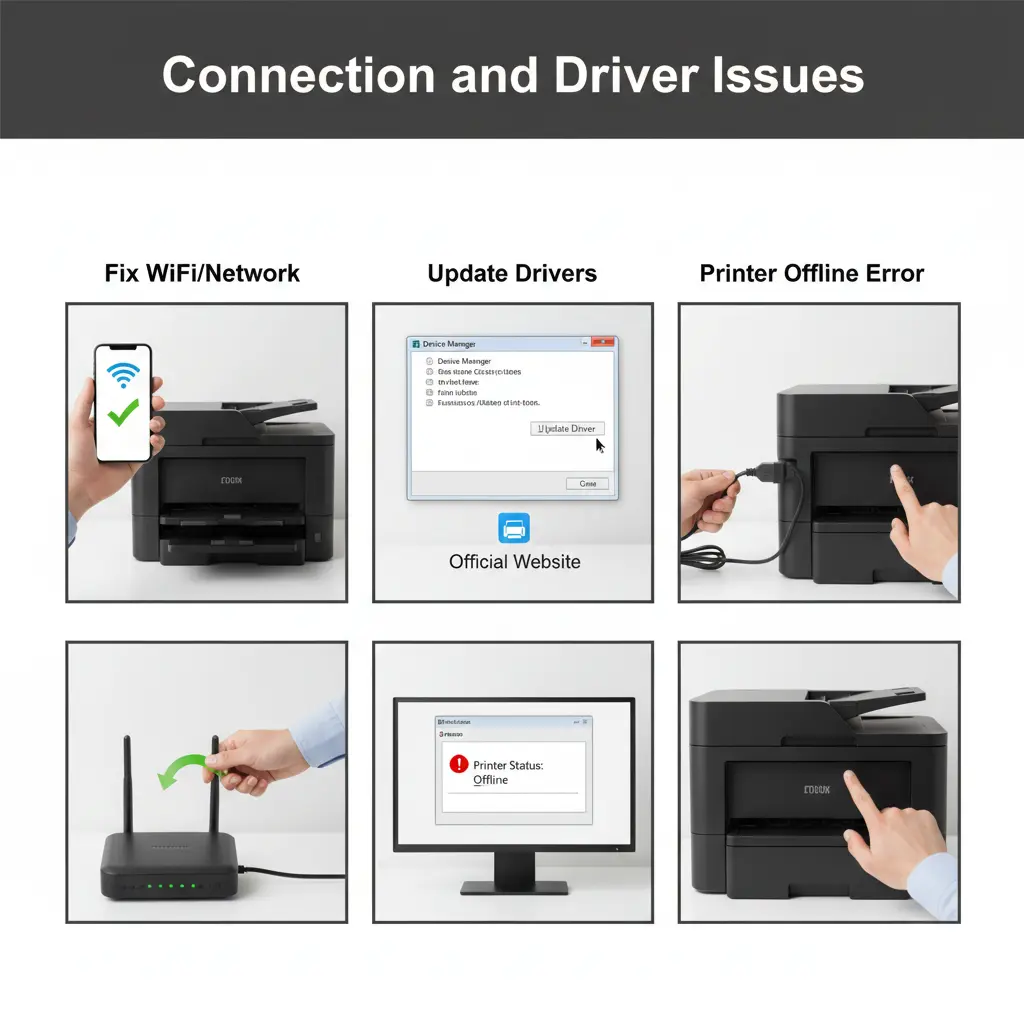
Fix WiFi or Network Connection Problems
A weak or broken connection is one of the most common reasons a printer stops working. I’ve seen offices panic over this, but it’s often just a simple network drop.
Check the basics first:
- Make sure the printer is connected to the correct WiFi
- Restart your router if the signal is weak
- Check if other devices are using the same network
Sometimes a small alert appears on the screen, but users ignore it. That small message usually explains the issue clearly.
Real example: I once helped fix a laser printer in a small office. Everyone thought it was damaged, but it was just disconnected from WiFi.
Update or Reinstall Printer Drivers
Outdated software is another hidden problem. Many users forget that a printer also depends on system files called drivers.
Here’s what usually helps:
- Update printer drivers from the official source
- Remove old drivers if errors continue
- Reinstall fresh software for better performance
I always recommend checking the user manual or official website instead of downloading from unknown sources. I’ve seen people use unsafe files and end up with more issues than before.
Simple tip: if your printer starts showing blurry prints, drivers can sometimes be the reason, not the machine itself.
Fix “Printer Offline” Error Step-by-Step
This is one of the most confusing issues for users. The printer looks fine, but the system shows it as offline.
Try this simple flow:
- Open your system settings
- Check printer status in the control panel
- Make sure the correct device is selected
- Print a test page to confirm the connection
- Restart both the computer and the printer
Sometimes a small error code appears, but users ignore it. That code usually gives a direct clue about the issue.
In my experience, most offline problems are not serious. They are just communication gaps between the system and the device.
Quick Fix vs Serious Problem (Know When to Fix or Get Help)
Sometimes a printer problem looks bigger than it really is. I’ve seen people panic and call support right away, even when the fix was very simple. Other times, they try fixing everything on their own and make it worse. So the real skill is knowing the difference between a quick fix and a serious issue. Honestly, this saves time, money, and a lot of stress.
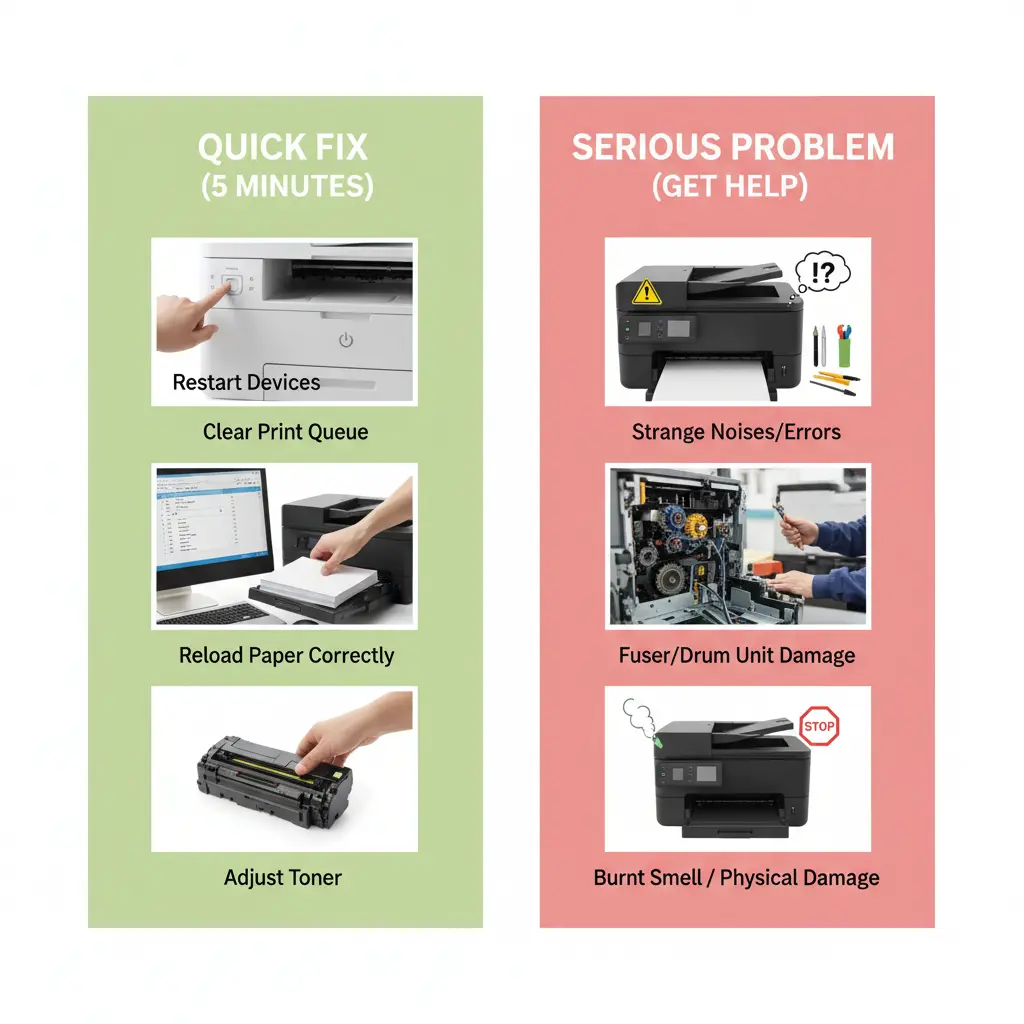
Let’s break it down in a simple way so you can decide what to do next without confusion.
Problems You Can Fix in 5 Minutes
Some printer issues are very small and don’t need expert help. I like these because they are easy and give quick relief when your work is stuck.
Key points:
- Restart the printer and computer if it freezes
- Clear stuck print jobs from the system
- Recheck paper placement in the tray
- Fix simple connection or WiFi drops
- Replace or adjust the toner cartridge if printing looks weak
Most of these happen because of small common issues, not real damage. I’ve fixed many cases where users thought something serious was wrong, but it was just a stuck setting or loose connection.
Problems That Need a Technician
Now here is where you should be careful. Some issues are not meant for trial-and-error fixes. I’ve seen people try everything, and honestly, it sometimes causes more damage.
Key points:
- Strange noises from inside the printer
- Repeated hardware failure even after restarting
- Deep internal parts, like the drum or fuser, are not working
- Continuous error that does not clear
- Physical damage or a burnt smell from the machine
In these cases, it’s better to stop and get help. A trained technician knows how to handle internal parts safely. I always say this with care—don’t force a fix if the problem keeps coming back. It usually means something deeper is wrong.
Sometimes people ignore this and delay help, and I find that really frustrating because it turns a small issue into a bigger one.
Common User Mistakes That Cause Printer Problems
Most printer problems don’t come from machine failure. They come from small user habits that people ignore every day. I’ve seen this many times in real office work, and honestly, it gets a bit frustrating because these issues are 100% avoidable. A printer is a simple machine, but small mistakes can quickly affect print quality, cause jams, or slow down work. If you understand these habits, you can fix many issues before they even start.
Key Factors Behind These Mistakes
- Using low-quality or wrong paper affects feeding and causes jams or uneven printing
- Ignoring low toner warnings leads to faded output and poor toner cartridge performance
- Not cleaning the printer regularly allows dust buildup, which affects rollers and printing flow
- Overloading the paper tray causes misfeeds and increases the chances of paper jams
- Using outdated printer drivers creates communication errors between the system and the device
- Wrong paper size or weight settings can confuse the printer and reduce output quality
- Skipping basic maintenance slowly damages internal parts without users noticing
I’ve personally seen cases where users blamed the machine, but the real issue was just a simple habit. That’s what makes this topic important. A little care can prevent the most common issues and keep your printer running smoothly without stress.
How to Prevent Laser Printer Problems (Easy Maintenance Tips)
A printer works smoothly when you take care of it before problems start. I’ve seen many users ignore basic care and then get frustrated when printing suddenly stops. Honestly, it feels a bit avoidable. Most printer problems don’t appear suddenly—they build up slowly because of small habits. Good maintenance improves print quality, reduces errors, and keeps your printing fast and stable. From my experience working with different setups, simple care always gives the best long-term results.
Key Factors for Preventing Printer Problems
| Maintenance Step | What It Means (Simple Explanation) |
| Use High-Quality Paper and Toner | Good paper and proper toner reduce jams, smudges, and improve overall output quality. Cheap material often causes printer issues. |
| Clean Printer Components Regularly | Dust builds up inside the printer and affects rollers and sensors. Regular cleaning keeps printing smooth and stable. |
| Keep Drivers and Firmware Updated | Updated printer drivers and firmware fix bugs and improve system performance. Old versions often cause errors or slow response. |
| Avoid Overuse and Overheating | Long, continuous printing can heat the machine and reduce its life. Giving breaks keeps the printer safe. |
| Keep the Printer in a Clean Environment | Dusty or humid areas damage internal parts over time. A clean space helps the printer work longer without issues. |
I’ve worked with many users who thought their printer was damaged, but the real issue was simple neglect. It always feels frustrating because these problems are easy to avoid. A little care saves money, reduces stress, and keeps your printing experience smooth and reliable.
Advanced Troubleshooting Laser Printer Issues (For Frequent Problems)
When a printer keeps acting up even after basic fixes, it can feel really frustrating. I’ve seen this many times in offices where users think the machine is broken, but the issue is still simple underneath. Most advanced printer issues come from a few repeat problems that you can understand and handle step by step.
Key Factors for Advanced Printer Issues
| Issue Area | Simple Meaning |
| Fuser Assembly Problems | The fuser is not heating toner properly, causing poor output. |
| Overheating Printers | The printer gets too hot after long printing sessions. |
| Repeated Error Codes | The system keeps showing alerts due to internal or driver issues. |
Fixing Fuser Assembly Problems
The fuser helps melt toner onto paper. If it starts failing, prints may look smudged or weak. I’ve seen users worry a lot here, thinking the whole laser printer is damaged, but often it’s just wear and tear.
In many cases, cleaning can help, but a worn fuser may need replacement. I always suggest checking this part carefully before assuming a bigger fault.
Handling Overheating Printers
A printer can overheat when it runs long printing jobs without breaks. This is common in busy setups.
When it overheats, it may slow down, pause, or stop working for a while. It’s actually a safety feature, not a defect. I know it’s annoying, especially when you’re in a hurry, but giving it rest usually fixes it.
Solving Repeated Error Codes
When a printer keeps showing the same error code, it usually points to a system or driver issue. Sometimes updates or incorrect settings trigger it.
A simple reset or driver reinstall can solve it. But if the error keeps coming back, it’s better to stop guessing and get professional help instead of making it worse.
Laser Printer Security Issues (Hidden Problem Most Users Ignore)
Many people think a printer is just for printing, but I’ve seen in real office setups that it can also be a weak security point. Honestly, this is one of those printer issues users ignore until something goes wrong. If the device is not protected, it can expose data or behave strangely during normal use.
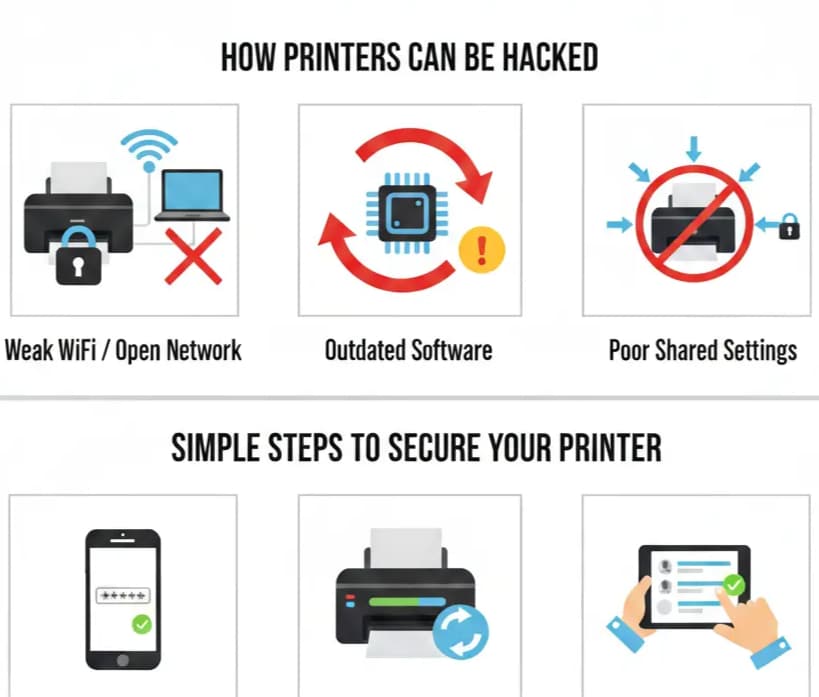
How Printers Can Be Hacked
A printer connected to a network can be accessed if security is weak. This usually happens through:
- Weak WiFi or open network access
- Outdated system or software
- Poorly secured shared print job settings
In some cases, outsiders may send unwanted commands or access stored data. It sounds serious, and yes, it happens when basic safety steps are ignored.
Warning Signs of Security Issues
Look for small changes like:
- Unknown printing activity
- Slow or unusual response
- Settings are changing without permission
These signs often show early problems, but users usually miss them.
Simple Steps to Secure Your Printer
You don’t need complex tools. Just basic care:
- Set a strong network password
- Keep printer firmware updated
- Limit access to trusted users only
- Avoid unknown or third-party tools
When to Replace Your Printer Instead of Repairing It
Sometimes a printer keeps giving repeated problems even after repairs. I’ve seen users spend more on fixing it than the actual value of the machine. In such cases, replacement becomes a smarter choice. If printer issues keep coming back, or printing becomes slow and low quality, it is a clear sign the device is reaching its end. Choosing the right time to upgrade saves money, time, and daily frustration.
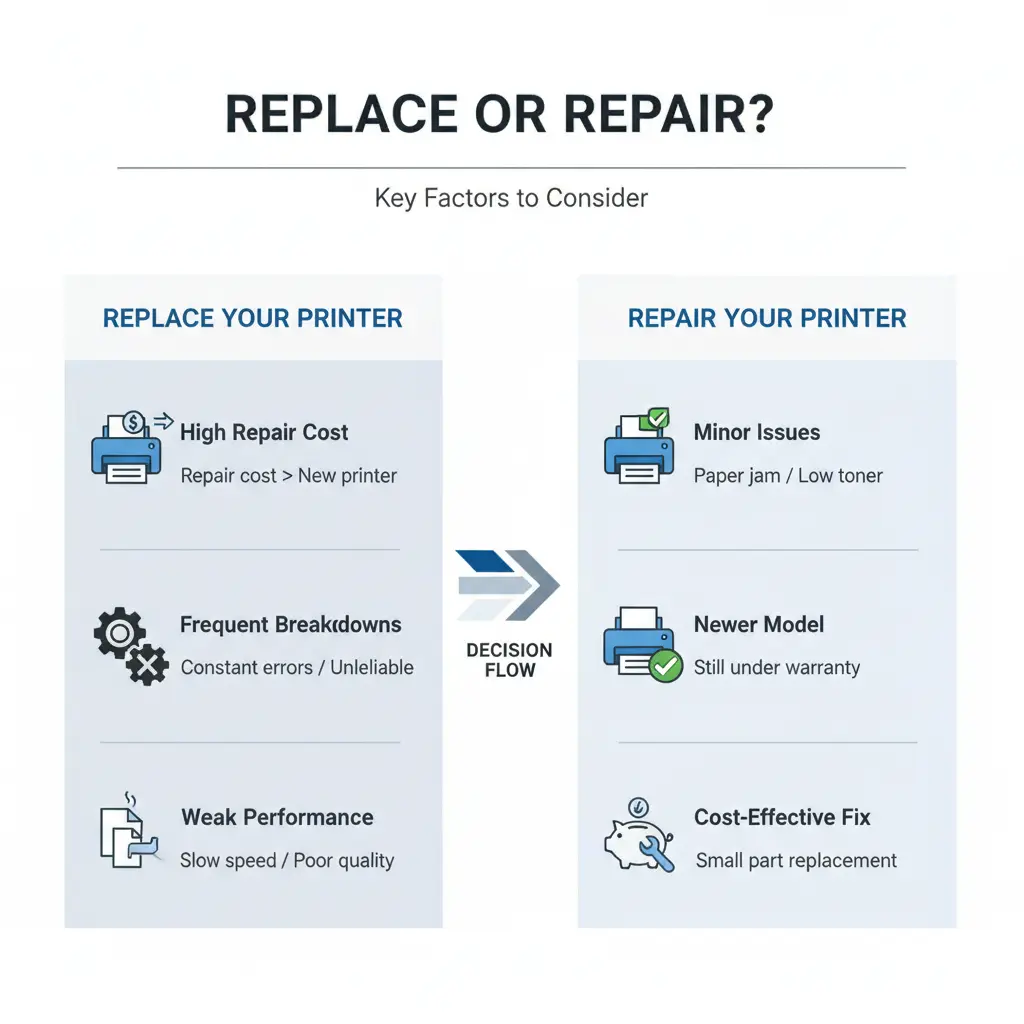
Key Factors to Decide Whether to Replace or Repair
| Situation | What It Means | Simple Action |
| High Repair Cost | The repair cost is close to or more than a new printer | Replace the printer instead of fixing it again |
| Old Printer Signs | Slow printing, repeated errors, poor print quality | Consider upgrading to a new model |
| Frequent Breakdowns | Constant need for technical support or repairs | The machine is no longer reliable |
| Weak Performance | Paper jams, noise, overheating during use | Internal parts are worn out |
| Better Upgrade Benefits | The new printer offers faster speed and fewer issues | Switching improves daily workflow |
Final Thoughts
A printer is a useful tool, but it needs attention when it starts showing problems. I have seen many users ignore small printer issues, thinking they will go away on their own. But honestly, they usually grow bigger with time. Simple care and timely action can keep printing smooth and prevent daily stress.
Sometimes, even after repeated repairs, the same issues keep coming back. In those cases, it becomes more practical to think about replacement instead of spending more money again and again. I always feel a bit frustrated when people keep struggling with an old machine that no longer performs well.
From my experience, a reliable printer saves time, reduces effort, and gives better results. So the smart approach is simple—fix small problems early, but don’t hesitate to upgrade when performance drops too much.
Frequently Asked Questions
What is the best replacement toner cartridge for a laser printer?
The best toner cartridge is the one made for your exact printer model. Original or trusted compatible ones give better print quality and fewer issues. Avoid very cheap third-party options as they can cause printing problems.
Where can I find customer support for laser printer issues?
You can contact official customer support on the brand’s website or helpline. They guide you step by step or suggest a repair if needed. It is the safest and most reliable help.
Why is my laser printer not printing black toner?
This usually happens due to an empty or wrongly installed black toner cartridge. Sometimes, clogged parts or settings also cause it. Checking the toner level and reinstalling often fixes the issue.
How to clear a stubborn paper jam from a laser printer?
First, turn off the printer to avoid damage. Then gently pull the paper out from the tray or back panel. Never force it, because it can tear inside. I’ve seen users make this mistake, and it creates more damage. Always check inside carefully and remove small stuck pieces if needed.
How do I fix a paper jam in a laser printer?
Open the tray and remove the jammed paper slowly. Check rollers and inside areas for stuck bits. If it keeps happening, paper quality or printer parts may be the issue.

Willis C. Mathes
I’m Willis C. Mathes With hands-on experience and technical knowledge of printers, I dive deep into printer reviews, troubleshooting, and tips, ensuring you get the most out of your printing investment.