
When a laser printer is slowing down printing, it usually catches you off guard. One day, everything is fast and smooth, and the next day, you start noticing delays, pauses, and a clear drop in print speed. It feels frustrating, especially when you are in the middle of important work, and the printer refuses to keep up.
I have seen this happen many times in real office setups. People often think the printer is damaged, but in most cases, it is not a serious fault. Simple issues like settings, network problems, or internal processing delays usually cause it.
The reality is that printer issues are more common than people think. In fact, around 23% of IT help desk calls are related to printer problems, which shows how often users face slow printing and performance drops.
The good news is that most slow printing issues can be fixed without technical stress. You just need to understand what is causing the delay and apply the right fix step by step.
Common Reasons Your Laser Printer Is Printing Slowly
When a laser printer is slow, it usually does not happen for just one reason. In my experience working with office setups, I have seen people panic too quickly. They think the printer is broken, but most of the time, it is just small issues adding up.
Let’s break it down in a simple way so you can understand what is really happening when your print speed drops or a print job takes too long.
Slow First Page Out Time (FPOT)
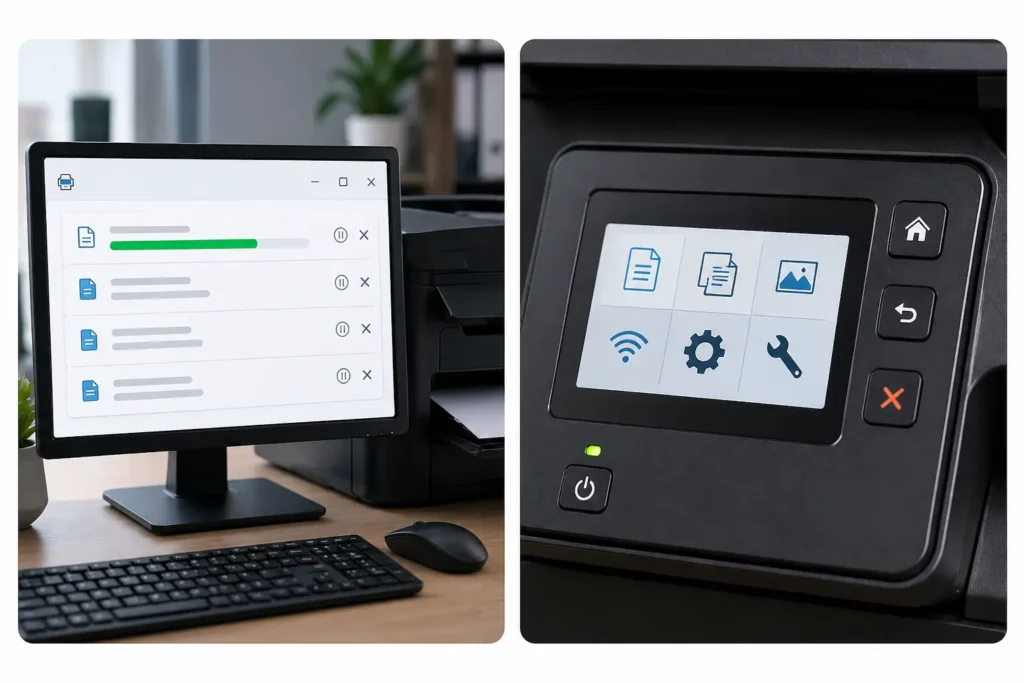
The first-page delay is one of the most common complaints I hear. You press print, and nothing happens for a few seconds… sometimes even longer. That waiting time is called First Page Out Time (FPOT).
In simple words, the printer is getting ready before it starts printing.
A laser printer has to heat its internal parts before it can work properly. If the fuser is warming up slowly or the system is busy, you will notice a clear delay before the first page comes out.
I remember a small office where users kept saying, “Our printer has become slower overnight.” But after checking, it was just a warm-up delay combined with a heavy system load.
Things that increase FPOT:
- Cold start after a long idle time
- Background system processing
- Large print jobs are waiting in the system
- Old internal components are causing a slower response
Sometimes it feels annoying, especially when you are in a hurry. But this is normal behavior for many laser printers, not a fault.
Printing Slows Down Between Pages
Now this is where users get really confused. The printer starts fine, but then suddenly the speed drops in the middle of the print job.
You may see:
- Page 1 prints fast
- Page 2 becomes slower
- Page 3 has a noticeable pause
This often happens due to how the printer processes data. A slow print between pages usually occurs when the printer’s memory struggles to handle the information.
From my hands-on experience, I have seen this happen a lot when users print heavy PDFs or mixed-content files. The printer keeps pausing to “catch up.”
Common reasons:
- Large files with images
- High print quality settings
- Limited printer memory
- Overloaded queue from previous jobs
People often blame the printer immediately, but it is usually a file or settings issue.
Large or Complex Print Jobs
This is a big one, and it affects both home and office users.
When you send a heavy file to a printer, it takes time to process it before printing. A simple text file prints fast, but a design file or PDF with images slows everything down.
A laser printer is powerful, but it still needs time to convert data into printed output.
Things that make print jobs complex:
- High-resolution images
- Multi-page PDFs
- Color-heavy documents
- Mixed layouts (text + graphics)
I once saw a user try to print a 200-page presentation in high-quality mode. The printer did not fail, but the print speed dropped significantly. It looked like the printer was broken, but it was just overloaded.
Simple truth:
More complex file = slower processing = slower printing.
If you want faster printing, simplify the file or reduce settings.
Weak or Unstable Network Connection
This is something people often ignore, but it matters a lot.
If your printer is connected through WiFi and the signal is weak, the printer will struggle to receive data. This creates a visible delay before printing starts or even during printing.
I have seen offices where printers were placed far from routers, and users kept complaining about slow printing every day. When we moved the printer closer, the difference was immediate.
Common network issues:
- Weak WiFi signal
- Too many devices are connected
- The old router is causing slow communication
- Incorrect network settings after an update
Even a small network issue can make the printer feel slow.
A wired connection usually provides better speed and stability.
Quick Comparison Table
| Issue Type | What You Notice | Main Cause |
| FPOT Delay | The printer takes time before starting | Warm-up or system load |
| Between Pages Slowdown | Printing pauses between pages | Memory or file processing |
| Complex Print Jobs | Slow processing time | Heavy files or high quality |
| Network Problem | Random delay or pause | Weak or unstable connection |
Advanced Laser Printer-Specific Causes
Now we go a little deeper. These are the real internal issues that many users and even basic guides miss. When a laser printer is slowing down printing, it is often not just settings or network problems. It is something inside the printer that affects the overall print speed. I have seen this many times in office environments, and honestly, it can be frustrating when people keep changing software while the real issue is hardware. Let’s keep it simple and clear.
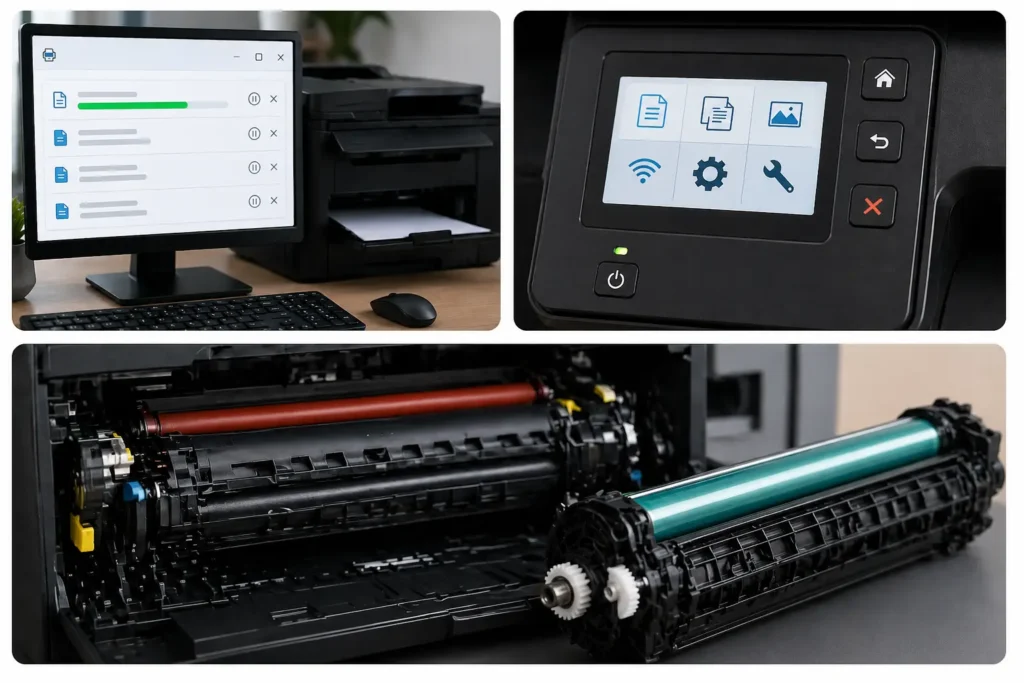
Fuser Unit Warm-Up Delay (20–60 sec delay + aging issue)
The fuser is the heating part of a laser printer. It melts toner onto paper. When it is working well, printing feels smooth. But when it gets old, it starts taking more time to warm up. You may notice: delay before printing starts, slow first page, reduced speed on cold start. Sometimes users think it is a printer driver issue or a software bug, but it is actually a weak fuser. I have seen this in many HP printers where users complained about slow printing, but the real cause was aging hardware. This small part can easily create a visible delay in output.
Worn Drum Unit Affecting Performance
The drum transfers toner onto paper. If it wears out, printing becomes uneven and slower. Common signs: faded print quality, slower processing per page, and random pauses during print jobs. Many people confuse this with cartridge problems, but it is different. I find this mistake very often, and it honestly wastes time. A worn drum reduces efficiency and makes the printer feel slower, even when everything else is fine.
Toner Quality and Density Problems
Toner plays a big role in performance. Low-quality toner can block smooth printing and affect heating inside the printer. What you may notice: inconsistent printing, lower print speed, weak output quality. Even a good printer can slow down if the cartridge is poor. I always tell users, don’t save money on toner if you want stable performance. It is one of the most common reasons for slow output.
Limited Printer Memory (Buffer Overload + Upgrade Impact)
Every printer has internal memory that handles print data. If it is small or overloaded, printing becomes slow. You may notice: long spool delays, jobs stuck in the queue, and slow response during large files. This often happens in offices using network printers or shared systems. A busy print server can also add a delay. Sometimes a simple memory upgrade improves performance a lot. It helps reduce buffering issues and improves overall speed without changing the printer.
Quick Summary Table
| Issue | Main Effect |
| Fuser Delay | Slow start and warm-up delay |
| Drum Wear | Poor quality and reduced speed |
| Toner Issue | Weak output and slow processing |
| Memory Limit | Spool delay and job freezing |
Final Insight
When a laser printer is slowing down printing, the problem is often inside these small components. Most users first check software, but real improvement comes when you understand hardware behavior. In my experience, fixing these issues not only improves print speed but also reduces frustration in daily work.
Why Your Laser Printer Suddenly Became Slow
When a laser printer is slowing down printing, the most confusing part is the sudden change. One day everything works fine, and the next day the printer feels stuck, delayed, and slow in print speed. I have seen this happen many times in offices, and honestly, it always creates stress because no one expects it.
Let’s understand the real reasons simply.
Recent Driver or System Updates
One of the most common hidden reasons is a system change. After software updates, the communication between your computer and printer can change.
Sometimes, printer drivers get reset or replaced automatically. This creates small delays, especially when documents are being sent to the printer.
I remember a case in a small office where everything was working fine, then after a Windows update, the print queue started acting slowly. Nothing was broken—it was just a compatibility issue.
You may notice:
- Printing becomes slower suddenly
- Files take longer to process
- Small adjustments in settings do not help
It feels annoying, I know. But usually, reinstalling or updating drivers fixes it quickly.
Firmware Glitches or Bugs
Firmware is the internal software of the printer. If it becomes outdated or buggy, the printer may behave strangely.
Sometimes a firmware issue can:
- Reduce pages per minute
- Causes delays before printing starts
- Make the printer feel unresponsive
I have seen users blame inkjet vs laser performance differences, but the real issue was outdated firmware.
A simple firmware update can often restore normal printing performance and improve stability.
Network Changes (WiFi Distance / Interference)
Now let’s talk about something very common—network connections.
If your printer uses wireless printing, even small changes in WiFi can affect speed. A weak signal or interference can slow down communication.
You may see:
- Delays before printing starts
- Random pauses during a job
- The printer sometimes disconnects from the system
In some offices, I have seen people place printers too far from the router. Just moving the printer closer can improve performance instantly.
Also, network congestion happens when too many devices use the same WiFi. This creates pressure and slows everything down.
If possible, using a wired connection is more stable. It reduces interruptions and keeps printing smooth.
Stuck or Overloaded Print Queue
This is one of the simplest but most ignored problems.
When too many files are stuck in the system, the print queue becomes overloaded. The printer waits for old jobs before starting new ones.
You may notice:
- Printing starts late
- Jobs stay “pending” for too long
- Random pauses between pages
I once saw a case where a single large file blocked everything for hours. The user thought the printer was damaged, but it was just a stuck job in the queue.
Sometimes, even network congestion can worsen this issue, especially in shared office setups.
Clearing the queue usually solves the problem quickly. It is a small step, but it makes a big difference in print speed.
Quick Step-by-Step Fix to Speed Up Your Laser Printer
When a laser printer is slowing down printing, it can feel stressful, especially when you are in the middle of work. I have seen this many times in offices, and most users think something is seriously wrong. But in reality, it is often a small issue that affects print speed or creates delays in processing.
Let’s go step by step, simply.
Restart Printer and Computer
The first thing I always recommend is a full restart. It sounds basic, but it often works.
A quick reboot clears small system errors, stuck processes, and hidden lag between the computer and printer. Sometimes the system just needs a fresh start to speed things up again.
Do this:
- Turn off the printer
- Restart your computer
- Turn both back on
In many office cases I have seen, this alone improves print performance instantly. It removes temporary glitches without any technical effort.
Adjust Print Settings (Draft Mode, Lower DPI)
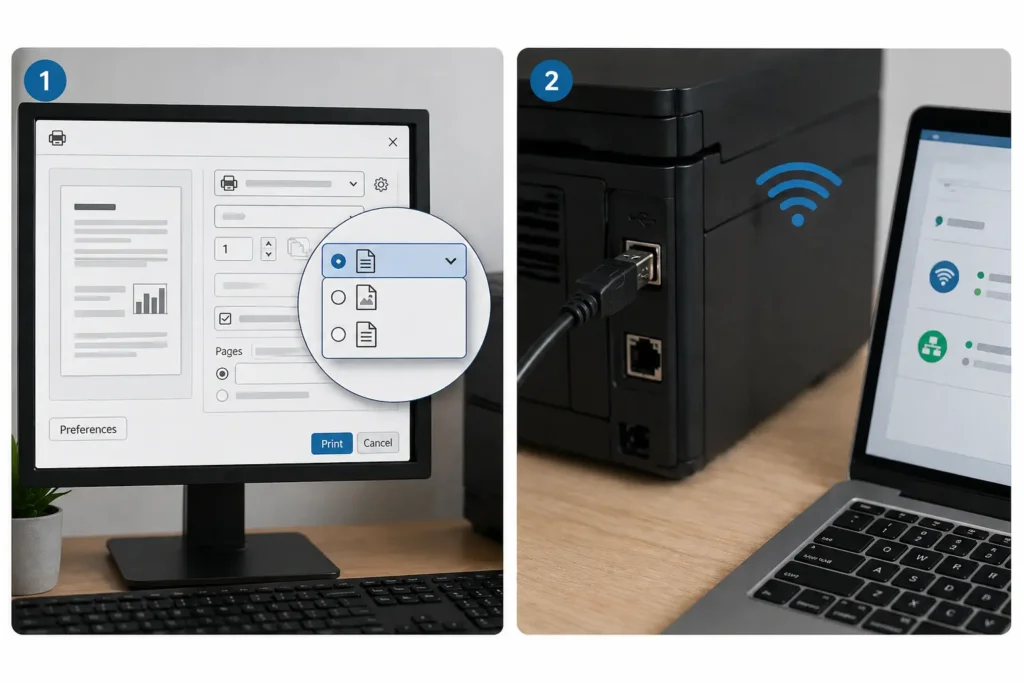
Print settings can slow things down more than people realize. If you are using high-quality settings, the printer has to work harder, which reduces speed.
To improve performance, make small changes:
- Switch to draft mode for normal documents
- Lower DPI for everyday printing
- Use grayscale instead of color when possible
This simple adjustment reduces processing load and helps the printer produce faster output. It is especially useful for daily office documents where great detail is not needed.
Switch from WiFi to USB or Ethernet
Weak WiFi is a common hidden problem. If the signal is unstable or there is interference, printing becomes slow or inconsistent.
Sometimes the printer feels like it is stuck, but the real issue is a communication delay.
To fix it:
- Use a USB cable for direct connection
- Or switch to an Ethernet connection for stability
This is very helpful in shared office setups where multiple users are connected at the same time. A wired connection gives smoother and more reliable print speed.
Clear the Print Spooler Queue
The print spooler is where all print jobs wait before printing. If one file gets stuck, everything slows down.
You may notice:
- Printing does not start
- Jobs stay in waiting mode
- Pages come out very slowly
To fix it:
- Open Control Panel
- Go to printer settings
- Clear all pending jobs
This removes hidden clogs in the system and allows new jobs to process normally. It is one of the fastest ways to fix slow printing issues.
Update or Reinstall Printer Drivers
Old or outdated drivers are another common reason for slow printing. They can reduce compatibility and affect how fast the printer processes data.
Manufacturers release driver updates to improve stability and fix bugs.
What you should do:
- Install the latest driver from the official website
- Or reinstall drivers if the problem continues
This often improves overall print performance and removes hidden software delays that affect speed.
How Print Settings Can Secretly Slow Down Your Printer
Many users don’t realize this, but print settings can quietly reduce print speed even when the printer is working fine. I have seen this often in office setups where people think the printer is faulty, but the real issue is inside the settings.
Let’s keep it simple and focus on what really matters.
High DPI and Resolution Impact
High DPI means more detail, but it also means slower processing. The printer spends more time processing each page, which reduces consistent speed for normal tasks like everyday documents.
I have seen offices where simple text files are printed slowly just because high-quality mode was always ON.
If you want better performance, lower the DPI for normal printing. It helps the printer optimize speed without affecting readability.
Duplex (Double-Sided) Printing Delay
Duplex printing automatically slows things down because the printer prints on both sides of the paper. The printer must pull the page back in, which adds a natural delay.
This becomes more noticeable when multiple users send print jobs at the same time, affecting the overall workflow.
If speed matters, turn off duplex for routine printing.
Color Printing vs Black Printing Speed
Color printing takes more time because the printer processes multiple toner layers. This reduces overall print speed, especially for large files.
In many offices, people forget this and keep color mode on for simple documents. That small habit slows the whole workflow.
For everyday documents, black printing is faster and more efficient. It helps improve output speed when multiple users are using the printer.
Paper Type and Finishing Options
Paper type also affects speed. Thick or glossy paper needs more heat and processing, so printing becomes slower.
Extra options like layout or finishing can also reduce speed because the printer does more work before printing.
For normal use, standard paper settings work best. They keep performance stable and avoid unnecessary delays.
How to Tell If It’s a Software or Hardware Problem
When a printer prints too slow issue happens, people usually get confused and start guessing. I have seen this many times in real offices, and honestly, it wastes both time and energy. The simple truth is this: you first need to find out whether the problem is software or hardware.
Software issues come from the computer, drivers, or network. Hardware issues come from the parts inside the machine. Once you know the difference, fixing the problem becomes much easier and faster.
Common Software vs Hardware Issues (Simple Comparison)
| Type | What It Means | Simple Signs | Easy Explanation |
| Software Issues | Problem with the drivers or the system | Slow response, stuck spooler, WiFi delays | The computer and printer are not communicating properly. Updating drivers or fixing settings can restore faster print speeds. |
| Hardware Issues | Problem with the printer parts | Faded print, noise, low PPM, slow printing | Internal parts like the drum or rollers are worn out. Cleaning or replacement may be needed to improve speed. |
| Quick Test | Simple check method | One device is slow, others are fine | If only one system is slow, it is a software issue. If all are slow, it is a hardware issue. |
What Is a Normal Printing Speed for a Laser Printer
A normal laser printer speed is measured in pages per minute (PPM), but real performance depends on usage. Home printers are usually slower, while office printers handle more work with better speed. In real situations, actual speed often feels lower than advertised because file size, settings, and system load all affect output.
Even small issues like network delays, heavy documents, or background tasks can reduce performance. Sometimes, even a cleaning cycle or high-quality settings slow things down, whether it’s inkjet or laser devices.
If printing feels slow, simple troubleshooting steps or quick printing solutions can help improve results. In older systems, it may also be smart to consider upgrading.
Key Factors Affecting Printing Speed
- Large or image-heavy files
- High print quality settings
- Weak network or connection issues
- Multiple users are sending jobs at the same time
- Maintenance or ink/toner condition
- Older hardware performance
Advanced Fixes If Your Laser Printer Is Still Slow
When a laser printer is still slow, even after basic fixes, it usually means the issue is deeper inside the system or hardware. I have seen this many times in office setups—people keep restarting and changing settings, but nothing really improves. At this stage, you need more advanced steps that actually target the real cause of the delay.
Let’s keep it simple and practical.
Reset Printer to Factory Settings
A factory reset clears hidden settings, wrong configurations, and software glitches stored inside the printer. Sometimes these small settings build up over time and quietly reduce performance.
I have seen printers act slow for weeks, and users try everything—until a reset fixes it in minutes. It feels almost surprising, honestly.
This step gives the printer a fresh start and often restores normal speed.
Upgrade Printer Memory (RAM)
Printer memory controls how fast it can handle large or complex files. If memory is low, the printer struggles and becomes slow, especially with heavy documents or multiple users.
You may notice delays, long processing times, or slow page output.
Upgrading memory helps the printer process data faster and improves overall performance. In office environments, this change often makes a noticeable difference.
Replace the Fuser or Drum Unit
The fuser and drum are core parts of a laser printer. When they wear out, speed drops along with print quality.
Signs include:
- Slow first-page printing
- Uneven output
- Reduced overall speed
I have seen many cases where users waste time on software fixes, but the real issue was worn hardware. This is important because no setting can fix a damaged component.
Replacing these parts usually restores normal printing speed.
Change Port to TCP/IP (Fix Windows Delay)
Sometimes the slowdown is not from the printer itself but from how the computer communicates with it. Default connection ports can create delays in Windows systems.
Switching to a TCP/IP port makes the connection more stable and reduces waiting time between commands.
This fix is especially helpful in office setups where multiple systems are connected. I have seen it solve random delays when everything else looked fine.
It is a small change, but it improves response time and overall printing flow.
How to Prevent Slow Printing in the Future
If you want to avoid your laser printer slowing down when printing, the key is prevention, not fixing it again and again. I have seen many users ignore small habits, and later the printer becomes slow without warning. With a few simple steps, you can keep performance stable for years. Honestly, good care saves more time than any repair.
Prevention Guide (Laser Printer Focused)
| Area | What to Do | Why It Prevents Slow Printing |
| Driver & Firmware Updates | Install the latest driver and firmware updates regularly | Keeps communication smooth and prevents hidden slow processing issues |
| Print Job Management | Don’t send too many large files at once; clear old jobs | Prevents queue overload that slows down printing response |
| Toner Usage | Use original or high-quality toner only | Ensures smooth toner flow and avoids extra load on printer components |
| Printer Maintenance | Clean rollers, remove dust, and run periodic checks | Stops internal buildup that can slow page output over time |
Laser vs Inkjet – Why Laser Printers Are Usually Faster
Laser printers are usually faster than inkjet printers because they print full pages at once using toner, while inkjet printers spray ink line by line, which takes more time. That’s why, in normal office work, laser models handle documents much better and maintain higher speed. Inkjet printers are better for photo detail, but they slow down when the workload increases.
In simple terms, laser printers are built for speed, and inkjet printers are built for quality. However, even a laser printer can feel slow sometimes when there are large files, high-quality settings, network delays, or too many print jobs at once.
I have seen users get confused here—they expect constant speed, but real performance always depends on usage, settings, and system load.
Conclusion
When a laser printer slows down while printing, it usually does not mean the printer is broken. In most cases, the problem comes from simple things like print settings, outdated drivers, network issues, or heavy print jobs. I have seen this many times in real office environments, and honestly, people often panic too quickly when the fix is actually simple.
The important thing is to first understand where the issue is coming from. It could be software (like drivers or system settings), hardware (like drum or fuser wear), or even small usage habits like high-quality printing or overloaded queues. Once you identify the real cause, solving the problem becomes much easier.
Simple steps like updating drivers, clearing stuck jobs, adjusting print quality, or checking connections can bring back normal speed. So instead of assuming damage, it is always better to check step by step. This saves time, reduces stress, and helps your printer work smoothly for a long time.
Frequently Asked Questions (FAQs)
Why is my laser printer slowing down when printing large documents?
Large documents take more processing power, especially if they include images, graphics, or long text. This reduces print speed and creates delays while the printer processes each page. It is normal, but it can feel slow when the file size is heavy.
How to speed up a laser printer that prints slowly?
You can improve speed by updating drivers, clearing the print queue, and lowering print quality settings. These small changes often fix slow performance without any repair. Also, check the network connection, as weak WiFi can cause delays.
Which brands offer the fastest laser printers for home office use?
HP, Brother, and Canon are known for fast and stable laser printers. They are designed for smooth document handling and better pages-per-minute performance. Brother is often preferred for consistent office use.
Where can I find driver updates to fix slow laser printer issues?
Go to the official website of your printer brand and open the support section. Enter your model number to download the latest driver update. Installing it can improve performance and fix hidden slow printing issues.

Willis C. Mathes
I’m Willis C. Mathes With hands-on experience and technical knowledge of printers, I dive deep into printer reviews, troubleshooting, and tips, ensuring you get the most out of your printing investment.