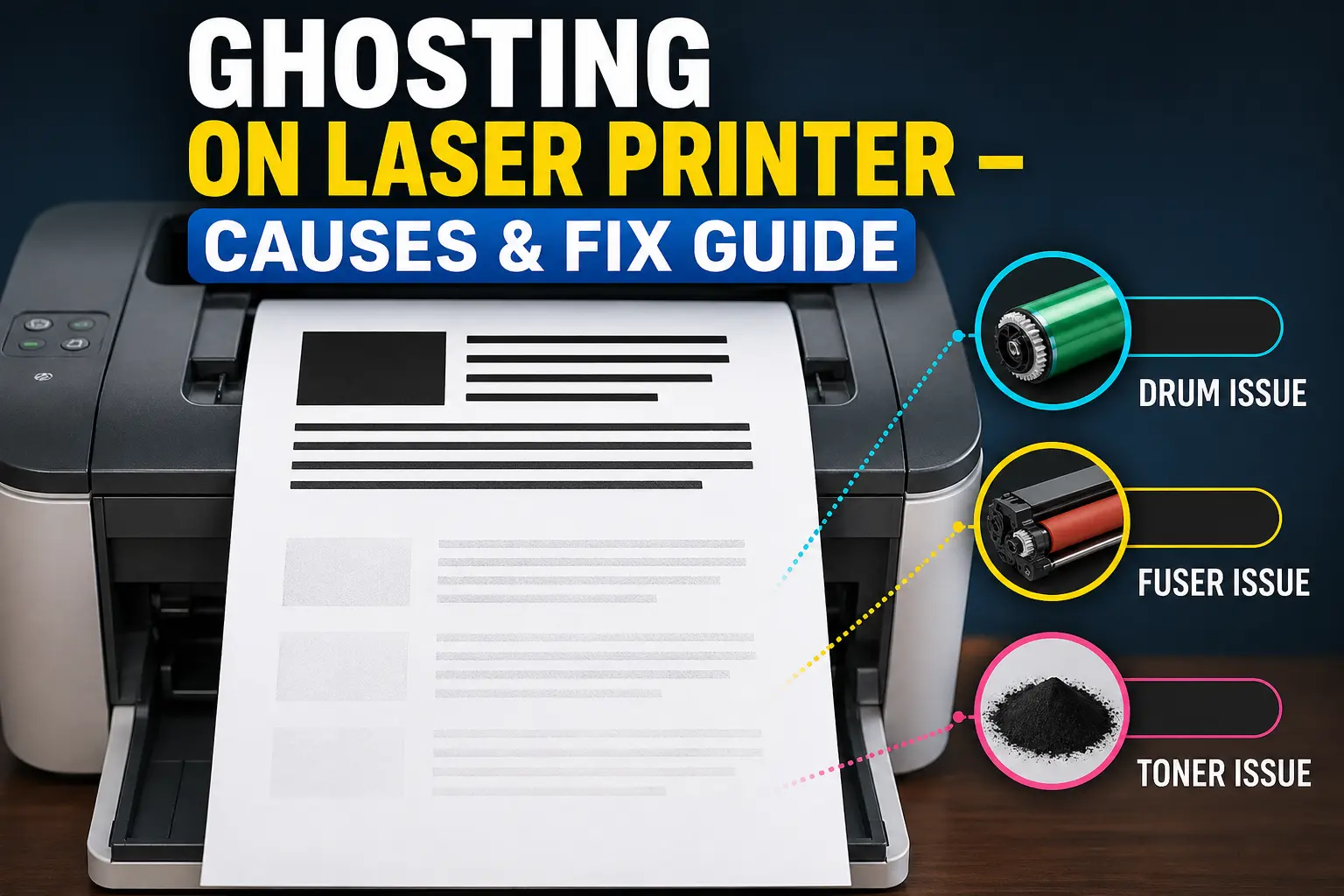
Ghosting on a laser printer is a print defect where faint repeated images appear on the page due to drum, toner, or fuser issues. You hit print expecting a clean page—but instead, a faint copy of the same text shows up like a shadow. This issue is known as ghosting on laser printer, and it can be really frustrating, especially when you’re in a hurry. Many people assume their printer is broken at this point, but in most cases, it’s a problem that can be fixed.
Ghosting usually occurs when key components inside the printer—such as the toner, drum, or fuser—aren’t working properly. Because of this, a light duplicate image keeps repeating on the page. At first, it may not seem serious, but if ignored, it can turn into a regular printing issue that keeps getting worse.
In this guide, I’ll explain the real causes, simple fixes you can try at home, and easy ways to stop it from happening again. No heavy technical language—just clear and practical steps you can actually use.
What is Ghosting in a Laser Printer? (Simple Explanation)
Ghosting in a laser printer is when your page shows a faint, repeated copy of text or images that should not be there. It looks like the printer “remembers” the print and repeats it in a lighter form. In simple terms, a shadow or duplicate version of the original print appears on the page, usually caused by issues in the drum, toner, or fuser.
From my experience working around printers, I’ve seen users panic at this stage a lot. They print an important document, and suddenly, there is a second faded version of the same text below it. It feels annoying and a bit confusing, too.
Ghosting Meaning in Easy Words
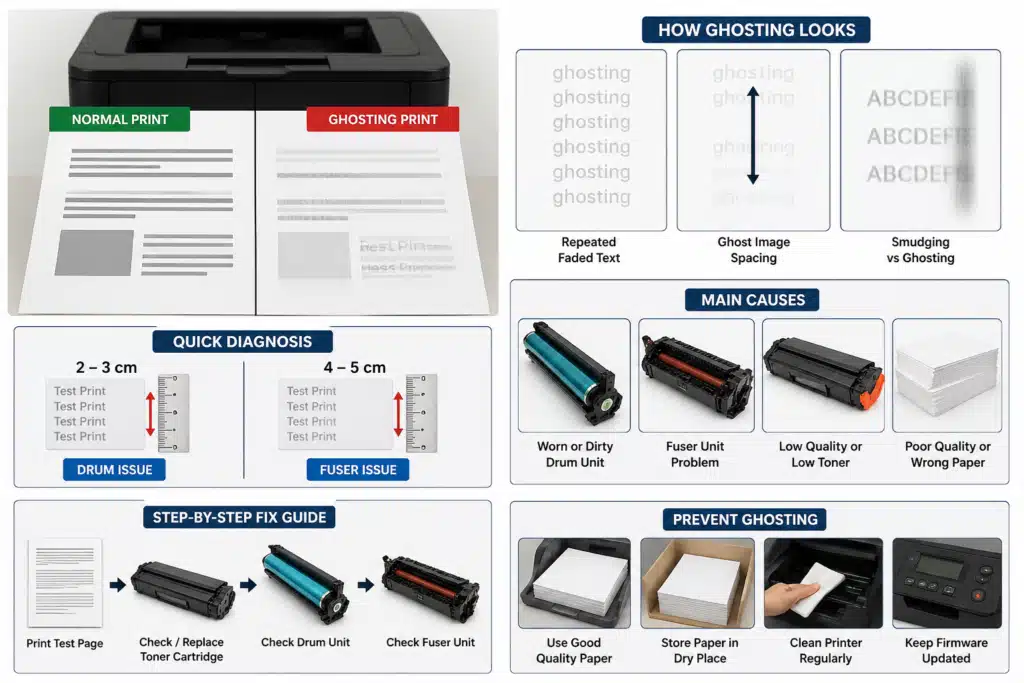
Ghosting simply means a faint repeated print on the same page. The original text prints normally, but a lighter copy appears again after a small gap. This faint copy is what we call a ghost image.
In simple words:
- First print is clear
- The second print is weak and faded
- That weak repeat is the ghost
This usually happens inside a laser printer when leftover toner or heat is not handled properly by internal parts like the drum or fuser. The printer tries to print normally, but something inside is not resetting correctly, so the ghost appears again.
Sometimes users even confuse it with blank pages or smudging, but ghosting is different because the repeat looks structured and follows the original print.
Real-Life Example of Ghost Printing
Let’s make it simple.
Imagine you print your name on paper:
“Ali”
Now, below it, you see:
“Ali” again, but very light, like a shadow.
That shadow copy is the ghost.
It feels like the printer is echoing your print. I remember once checking a small office printer where every invoice had a faint repeated line. The staff thought the printer was “haunted” (yes, they actually said that), but it was just a worn drum unit causing the issue.
This kind of ghost usually shows up when the toner or fuser inside the printer is not working properly. It doesn’t fully clear the previous image, so a light repeat stays behind.
Why It Happens in Laser Printers
Now let’s talk about the real reason behind it—but in a simple way.
A laser printer works using a mix of toner, heat, and moving parts like the drum and roller. When you print, the drum first forms the image, then toner sticks to it, and finally, the fuser melts it onto the paper.
The problem starts when one of these steps does not reset properly.
Here are the main reasons:
- The drum unit may still hold leftover toner after printing
- The fuser may not heat evenly, so the toner is not fixed properly
- The toner cartridge may release uneven powder
- The roller inside may carry a faint copy forward
When this happens, the printer does not fully “clean” the image cycle. So the same pattern comes back as a ghost on the page.
In some cases, I’ve noticed older printers (even brands like Samsung models in offices) show this problem more often when they are not maintained properly. It is not always a major fault, but ignoring it can make the printing worse over time.
The good thing is—once you understand it, ghosting becomes much easier to fix.
How Ghost Printing on a Laser Printer Looks (With Clear Signs)
When a printer starts acting strange, the first thing people notice is the output. Ghosting does not always scream “big problem,” but it quietly shows up through changes in print quality. And honestly, this is where most users get confused. They see something odd but can’t clearly explain it. Let’s make it simple so you can spot it quickly before it gets worse.
From real-world experience, I’ve seen many users ignore early signs. Later, the printer starts ghosting badly, and they think it is completely broken. It usually is not that serious, but yes, it does need attention.
Common Signs of Ghosting
Ghosting does not always look obvious at first. It slowly shows up in print quality, and if you don’t notice it early, it can turn into a bigger printing issue.
Repeated faded text
You print something, and then a lighter copy of the same text appears again below it. It looks like a weak shadow of the original. This is one of the most common signs of ghosting in a printer.
Equal spacing between repeats
Another clear sign is the pattern. The repeated text appears at a fixed distance every time. It does not move randomly. This usually points toward toner or drum-related behavior inside the printer.
Difference Between Ghosting, Smudging & Double Printing
This is where people usually get confused, so let’s break it down simply:
| Issue Type | What It Looks Like | Simple Cause |
| Ghosting | Faint repeated print | Residual toner or heat issue |
| Smudging | Blurry or messy print | The toner was not fixed properly |
| Double Printing | Two clear copies | Software or settings error |
Now here is the real-world truth I’ve noticed:
Many users blame the printer immediately, but sometimes it is just the settings. Other times, yes, it is a faulty internal part like the drum or roller.
In some color laser printers, ghosting becomes more visible because multiple layers of toner are involved. If one layer misbehaves, the print quality drops quickly.
So if your print quality suddenly feels off, don’t rush—check the pattern first.
Positive vs Negative Ghosting (Quick Insight)
Ghosting does not always look the same. It comes in two simple types:
Positive Ghosting (Dark Repeat)
- The repeated image looks darker
- It feels like toner is being reused incorrectly
- Often linked to drum or toner imbalance
Negative Ghosting (Light Repeat)
- The repeated image is very faint
- It looks washed out
- Usually linked to heat or fuser roller issues
Sometimes, a faulty fuser roller inside the fuser unit can make this worse. I’ve seen cases where users ignored it, and the problem slowly got worse until full service was needed.
And honestly, this is one of my pet peeves—small issues are often ignored until they turn into expensive repairs. A little attention early can save a lot of trouble later.
Quick Diagnosis – Find the Cause of Ghosting Fast
When ghosting shows up, most people panic and start changing random parts. I’ve seen this many times, and honestly, it wastes both time and money. The smart way is to diagnose first. Once you understand the pattern, you can quickly figure out what’s inside the printer that’s causing the issue.
This section will help you do exactly that in a simple way, even if you are not technical.
If Your Print Looks Like This → Problem is This
Sometimes the printer gives clear clues. You just need to match the symptom with the cause:
- Faint repeated text below the main print → Drum or toner issue
- Dark repeated shadow → Fuser overheating problem
- Uneven faded areas → Toner cartridge problem
- Lines repeating at the same gap → Drum rotation issue
- Printed image looks doubled → Wrong printer settings or print job error
A small tip from real experience: don’t rush to change parts. I’ve seen users replace perfectly good parts just because they guessed wrong. That’s where frustration starts.
Also, if you are using an HP printer, check the printer settings first. Sometimes, wrong settings create confusion that looks like ghosting, but it is not a hardware issue at all.
Distance Trick to Identify a Faulty Part
This is one of the easiest tricks technicians use. I like this method because it saves time and avoids unnecessary repair costs.
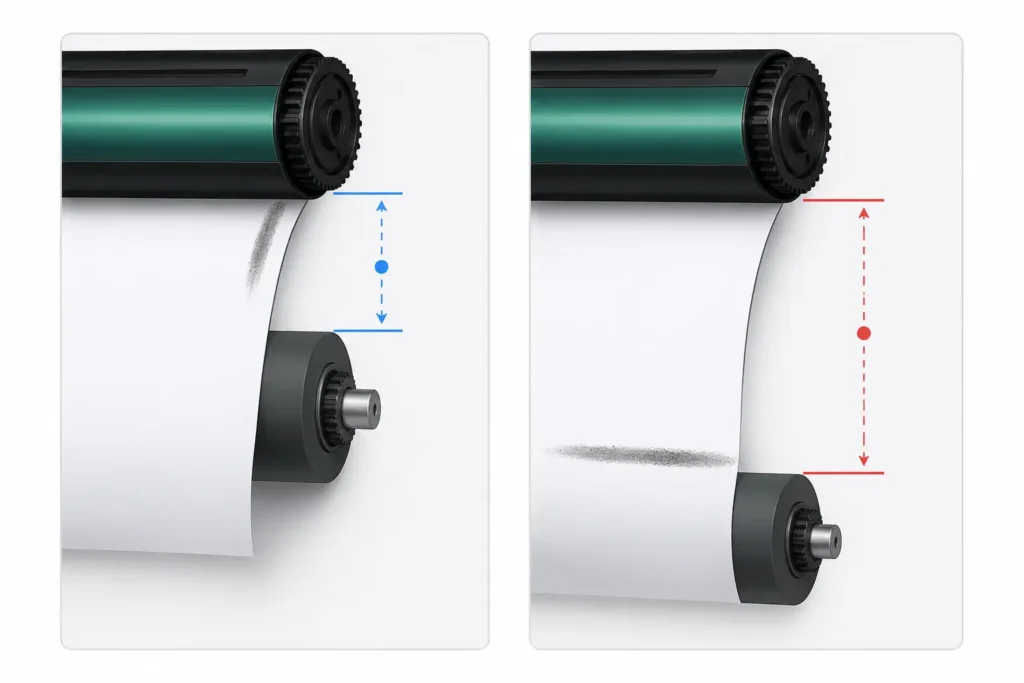
Measure the gap between repeated ghost marks:
- 2–3 cm gap → Drum problem
- 4–5 cm gap → Fuser issue
Now here’s something interesting. The drum handles imaging inside the printer, and when it wears out, it repeats the image too soon. On the other hand, the fuser deals with heat. If it fails, the toner does not stick properly, and ghosting becomes more visible.
In some cases, the issue can even come from using the wrong type of paper. Poor-quality paper can disturb how toner settles on the surface, which makes ghosting worse over time.
Test Page Method (Internal vs External Issue)
Before opening the printer, run a simple test page. It quickly shows where the problem is coming from.
- Print a test page directly from the printer
- Compare it with your normal printed pages
Now check the result:
- If ghosting appears on the test page, → internal printer issue
- If the test page is clean → the problem is outside (files, printer settings, or print jobs)
Sometimes people keep changing printer settings without testing first. It honestly wastes time and makes things more confusing.
Also, check the type of paper you are using. Using pre-printed sheets can sometimes cause light shadows or ghost marks on new prints.
If the issue still continues after these checks, a part like the toner or drum may need to be replaced.
Main Causes of Ghosting on Laser Printers (Complete Breakdown)
Ghosting does not happen for just one reason. In real work, I’ve seen it come from different parts of the printer, and honestly, it can be frustrating when users blame only one thing. The truth is simple—inside a laser printer, many parts work together, and if even one part fails, ghosting can start appearing.
Let’s break it down in a very simple way.

Drum Unit Problems (Most Common Cause)
The drum unit is one of the most important parts inside a printer. It handles the imaging process, so even a small issue can affect everything.
Worn-out drum lifecycle
Over time, the drum loses its ability to hold and clean images properly. When this happens, faint repeats start appearing on pages. Many users don’t realize this and keep printing, thinking it will go away. But in reality, the drum keeps getting weaker.
Dirty or damaged drum surface
Dust, scratches, or even small toner buildup can disturb printing. I’ve seen cases where simple cleaning helps, but if the damage is serious, the drum must be replaced. This is one of those situations where delaying repair only makes print quality worse.
Fuser Unit Issues (Heat-Related Ghosting)
The fuser unit is responsible for heat and pressure. It melts toner powder onto the paper. If this process fails, ghosting can appear quickly.
Overheating problem
Sometimes the fuser becomes too hot and causes toner to stick incorrectly. The printer prints, but the image repeats faintly. This often confuses users because everything looks normal at first.
Toner sticking to the roller
Inside the fuser, a roller helps transfer heat. If toner sticks to it, the same pattern can repeat again and again. I find this issue frustrating because it often comes from poor maintenance or low-quality parts.
Toner Cartridge Problems
Toner plays a big role in print quality. If it is not working properly, ghosting can easily appear.
Low or uneven toner
When toner runs low, it spreads unevenly on the page. This leads to faint repeated marks. Many users ignore this and think the printer is broken, but often it is just an empty or unbalanced cartridge.
Low-quality or incompatible toner
Using cheap or incorrect toner is a common mistake. I’ve seen this many times, and it always causes trouble. Even trusted brands like Samsung toner can perform poorly if the wrong model is used. The toner powder must match the printer exactly.
High Voltage Power Supply Issues
This part sounds technical, but it is simple. The printer needs stable power to charge internal parts during printing.
If the power supply becomes weak or unstable, the printer cannot properly complete the fusing process. This leads to uneven printing and ghosting. In my experience, users rarely check this, but technicians always include it in the diagnosis.
Sometimes, even a Lexmark or similar printer model shows this issue when power fluctuations happen frequently.
Paper Quality & Environmental Factors
Paper is often ignored, but it plays a big role in printing problems.
Wrong paper type
Using low-quality or unsuitable paper can disturb toner bonding. Even good printers struggle if the paper is not appropriate.
Bond paper usually gives stable results, while cheap paper can create uneven prints.
Humidity & static electricity
High moisture in the air can affect toner transfer. Static can also pull toner in the wrong direction, causing faint ghost marks. I’ve seen this happen in offices where paper is not stored properly.
A simple lint-free cloth can help clean dust around the paper tray area, which improves stability.
Overheating During Long Print Jobs
When a printer works for a long time without rest, it starts heating up. This affects internal parts like the drum and fuser.
The printer may still work, but print quality gradually drops. Ghosting becomes more visible after heavy print runs. I always tell users to give their printer small breaks. It’s simple, but it really helps.
Using Pre-Printed Paper
This is a small but important issue. When you print on already printed sheets, the heat from the printer can react with old ink.
The result is faint shadows or repeated marks. The printer itself is not always faulty here—the problem comes from paper interaction during the printing process.
Always check the user manual before using special paper types. It often explains which sheets are safe.
Step-by-Step Guide to Fix Ghosting on Laser Printer (Beginner Friendly)
Fixing ghosting does not need advanced skills. I’ve worked around office equipment for years, and one thing I’ve learned is simple—most printer problems get worse only when people guess instead of following a clear process. So let’s go step by step and keep it easy.

Step 1 – Print a Test Page
Start with a test page from the printer itself. This helps you see whether the ghosting is coming from inside the machine or from your computer.
If the test page also shows a ghost image, then the issue is inside the printer. This is where real troubleshooting begins. If it looks clean, the problem may be in files or settings instead.
I always suggest this first because skipping it often leads people in the wrong direction.
Step 2 – Replace or Check Toner Cartridge
Next, check the toner cartridge. Low or uneven toner can easily cause ghosting.
Sometimes using a fresh toner can instantly improve print quality. I’ve seen cases where users thought the printer was broken, but it was just an old cartridge producing uneven toner in patches.
Also, make sure the toner is compatible with your printer model. Mixing the wrong parts in office equipment always leads to frustration later.
Step 3 – Inspect the Drum Unit
Now check the imaging drum. This part handles the actual image formation.
If the drum is worn or dirty, it can repeat the previous print faintly on the next page. This is a classic drum issue.
In many cases, replacing the drum is the only way to resolve the issue. I’ve seen people delay this step, hoping it will fix itself, but honestly, it rarely does.
Even older printers, like an old Samsung model, often show this issue when the drum becomes weak.
Step 4 – Check the Fuser Unit
The fuser unit uses heat to bond toner onto paper. If it is not working properly, ghosting appears repeatedly.
A faulty fuser can cause toner to stick and repeat the previous print. This is where many users get confused because everything looks fine, but the print quality is still bad.
Sometimes the transfer belt inside also affects this process, especially in heavier machines.
Step 5 – Use Correct Paper Type
Paper plays a bigger role than most people think.
Using the wrong paper type can disturb toner bonding and cause light repeats or shadows. I’ve seen this happen when people use cheap or mixed paper in busy offices.
Also, avoid using pre-printed paper unless the printer supports it. Pre-printed paper can react with heat and create faint marks from previous prints.
Always stick to the recommended paper size and quality. It really makes a difference.
Step 6 – Let the Printer Cool Down
If the printer runs for too long, heat builds up inside. This can affect both the drum and fuser.
I’ve seen users print hundreds of pages without a break and then complain about ghosting. The printer is not a machine that should be pushed nonstop.
Give it time to cool down. It helps reduce stress on internal parts and improves print stability.
Step 7 – Check Power Supply Stability
Unstable power can disturb internal charging inside the printer. This may lead to uneven prints or repeated patterns.
Make sure the printer is connected to a stable power source. Avoid loose plugs or fluctuating voltage. This step is often ignored, but it can quietly create long-term printing issues.
Pro Tip (Expert Insight)
Here’s something I’ve learned after years of working with office equipment—always follow the order.
Start with simple checks like test pages, then move toward parts like toner, drum, and fuser. Don’t jump randomly.
Most people try replacing parts first, which leads to unnecessary cost. But following the proper order saves money and avoids confusion.
This structured approach not only helps in troubleshooting but also builds a clear understanding of how ghosting happens in a printer.
How to Prevent Ghost Printing on a Laser Printer (Long-Term Tips)
Ghosting can be avoided if you follow a few simple habits in daily use. Small mistakes like using poor-quality paper or cheap toner often create bigger printing issues later. From experience, I’ve seen printers start working properly again just by fixing these basic things. The goal is simple—protect print quality before problems start.
Key Factors Explained
Use 75–90 GSM good-quality paper
Paper that is too thin or rough does not hold toner properly. This can lead to faded or repeated prints. Good-quality paper provides a stable surface, so the toner sticks evenly and cleanly.
Keep paper in low humidity
If paper absorbs moisture from the air, it slightly changes shape and texture. This affects printing and can cause faint ghost marks. Dry storage helps the printer work smoothly without unexpected print issues.
Use a reliable toner cartridge
Cheap toner often has uneven powder or poor composition. This can reduce print quality and create repeated faint images. A good toner keeps output sharp and consistent.
Clean the printer regularly
Dust slowly builds up inside the printer and affects the rollers and internal parts. Regular cleaning keeps everything smooth and reduces the chances of ghosting or streaks.
Avoid continuous heavy printing
Printing too many pages at once heats up internal parts. This heat can reduce performance and affect print quality. Giving the printer short breaks helps it stay stable and last longer.
When to Replace Parts or the Printer (Simple Cost Guide)
Sometimes ghosting or print issues do not go away even after cleaning or basic fixes. At that point, it means one or more parts inside the printer are worn out. I’ve seen many users keep trying small repairs again and again, and honestly, it only increases frustration and cost. The smart step is to understand when a part has reached its limit and needs replacement.
Simple Breakdown
| Situation | What You Should Do |
| The drum unit is worn | Replace the drum unit |
| The fuser is not heating properly | Replace or repair the fuser |
| Toner gives light or uneven print | Replace the toner cartridge |
| Multiple issues appear together | Check the repair vs replace option |
| The printer is old and keeps failing | Consider buying a new printer |
When You Should Take Action
If the drum unit is worn, it stops creating clear images, so replacement is often the only real fix. When the fuser is weak, toner does not stick properly, and prints look faded or repeated. A weak toner cartridge also affects output and should be replaced quickly.
If more than one part starts failing, repair costs can increase, and replacing the printer may become a better option. For very old printers that keep causing problems, a new one often provides a smoother and more stress-free experience.
Ghosting Issues in Popular Printer Brands
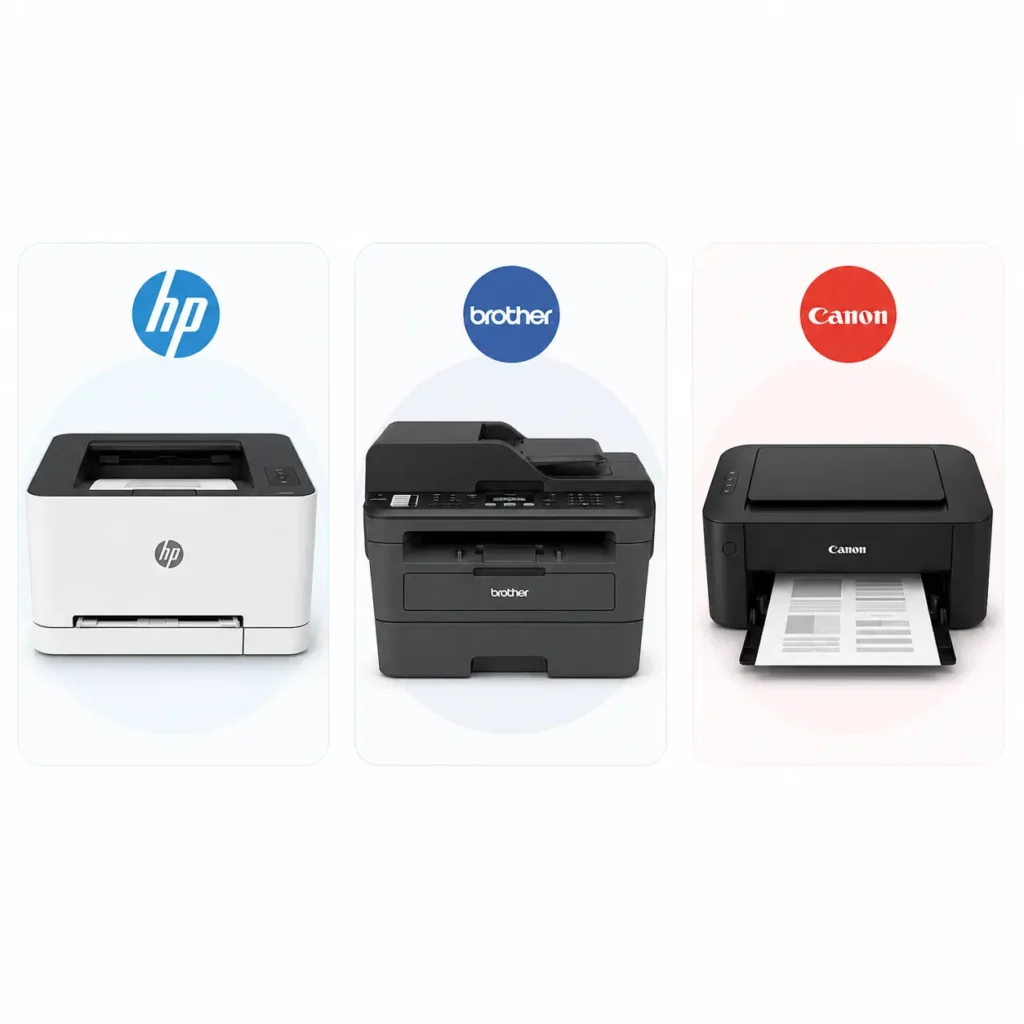
Ghosting can appear in almost any printer brand. From my experience working with different office setups, the issue is usually not the brand itself, but how the printer is used, maintained, and configured. Small mistakes like wrong paper choice or old cartridges often trigger this problem. Let’s simply look at common brand-specific cases.
HP Laser Printer Ghosting Problem
HP printers often show ghosting when toner levels drop or when settings are not correct. Sometimes, excess toner inside the system can leave faint repeated marks on the page. I’ve also seen cases where incorrect paper settings or using thin paper affect print quality. Even humidity levels in the room can quietly impact results. Most HP ghosting issues improve after using a new toner and adjusting basic settings.
Brother Printer Ghosting Issue
Brother printers usually perform well, but ghosting can happen if the toner cartridge becomes weak or uneven. Duplex printing settings, if not managed properly, can also create faint repeats. I’ve noticed users often think the printer is faulty, but in reality, it is usually a setup or maintenance issue. Regular cleaning and proper paper use usually fix the problem quickly.
Canon Laser Printer Ghosting
Canon printers may show ghosting when internal parts collect toner residue or wear out over time. Sometimes, incorrect CMYK handling or low-quality toner causes repeated faint images. I’ve seen this in office environments where printers run heavy daily jobs without proper cleaning. With proper care and stable maintenance, Canon printers usually return to smooth, clean printing without issues.
Why Fixing Ghosting Matters (Cost & Waste Insight)
Ghosting is not just a small print problem. It slowly increases your cost, wastes supplies, and affects daily work. I’ve seen many users ignore it at first, thinking it is minor, but later they end up spending more on toner and paper. Even simple print jobs become stressful when pages keep coming out unclear or repeated.
Key Impact Breakdown (Explained Simply)
| Area | What Happens When Ghosting Is Ignored |
| Printing Cost | You keep reprinting pages, so toner and paper get wasted quickly |
| Work Efficiency | Work slows down because documents are not clear and need reprints |
| Printer Health | Extra pressure on the drum and internal parts reduces printer life |
| Waste | More paper and toner are thrown away unnecessarily |
| Environment | Increased waste adds to pollution and landfill load |
Conclusion
Ghosting on a laser printer may look like a big problem, but most of the time it starts from small issues like toner, drum, paper, or heat inside the printer. I’ve seen many users worry a lot at first, but once they follow simple checks, the issue becomes much easier to handle. The key is not to ignore early signs because they always get worse with time.
In real use, I remember one office where people kept reprinting documents for days, thinking the printer was “broken forever.” In the end, it was just a worn part and wrong paper use. Once fixed, everything went back to normal printing without stress.
So the simple lesson is this: take care of your printer early, follow basic maintenance, and don’t guess randomly. A little attention can save money, reduce waste, and keep your printing smooth for a long time.
Frequently Asked Questions
What are the top-rated toner cartridges that reduce ghosting in laser printers?
Original toner cartridges from brands like HP, Brother, and Canon usually work best. They provide stable toner flow and better print quality, which helps reduce ghosting. I’ve seen clear improvement when users switch from cheap toner to original ones.
Which printer maintenance services specialize in fixing ghosting on laser printers?
Look for service centers that specialize in laser printers. They check parts like the drum, fuser, and rollers. In most cases, they fix ghosting by cleaning or replacing worn parts.
Why does my office laser printer show ghosting lines?
Ghosting lines usually appear due to a worn drum, fuser issues, or uneven toner. It often happens in offices where printers run heavy daily jobs without proper maintenance.
Are there any replacement parts available that help eliminate ghosting on laser printers?
Yes, common parts include the drum unit, toner cartridge, and fuser. Replacing the faulty part usually fixes the issue and restores normal print quality.
Where to buy replacement parts for laser printer ghosting?
You can buy them from official brand stores, trusted online shops, or authorized dealers. Original parts are always better because they reduce the chances of repeat problems.

Willis C. Mathes
I’m Willis C. Mathes With hands-on experience and technical knowledge of printers, I dive deep into printer reviews, troubleshooting, and tips, ensuring you get the most out of your printing investment.