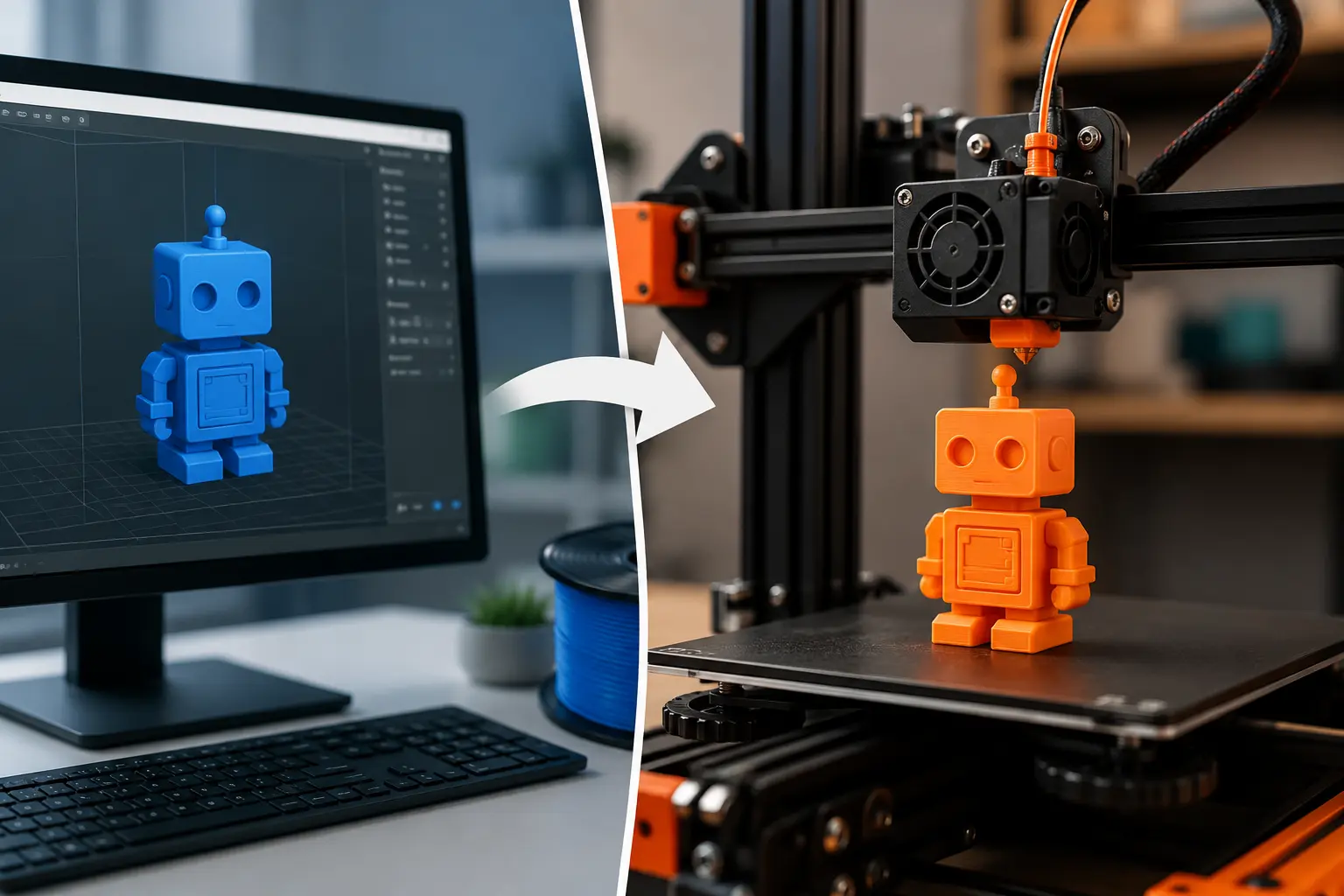
3D printing is no longer just for engineers or big companies—it’s becoming something anyone can learn. The global 3D printing market is already worth billions and growing fast every year, which means more people are learning to use a 3D printer at home, in schools, and even in small businesses. I’ve seen this shift myself—just a few years ago, people were confused even hearing the term “3D printing,” and now beginners are buying their first 3D printer and making useful things like phone stands, tools, or custom parts.
What makes this exciting is how simple it has become. You don’t need to be an expert in CAD or design anymore. You can download a ready-made 3D model, open it in a slicer, and turn it into a real object using filament like PLA or, on some printers, resin. The whole printing process may sound technical at first, but once you understand the basics—like how the nozzle melts material and builds your design layer by layer—it starts to feel natural.
Still, I’ll be honest… many guides online either make it look too easy or too complicated. That’s frustrating, especially for beginners who just want clear steps without confusion. That’s exactly why this guide exists—to help you understand how to use a 3D printer in a simple, real way, without hiding the small mistakes or challenges that happen at the start.
What Is a 3D Printer? (Simple Explanation for Beginners)
A 3D printer is a smart machine that turns a digital design into a real object by building it layer by layer. Unlike a CNC machine that cuts material away, this one adds material slowly to create the shape. You usually start with an STL file, which is a simple file that tells the printer what to make.
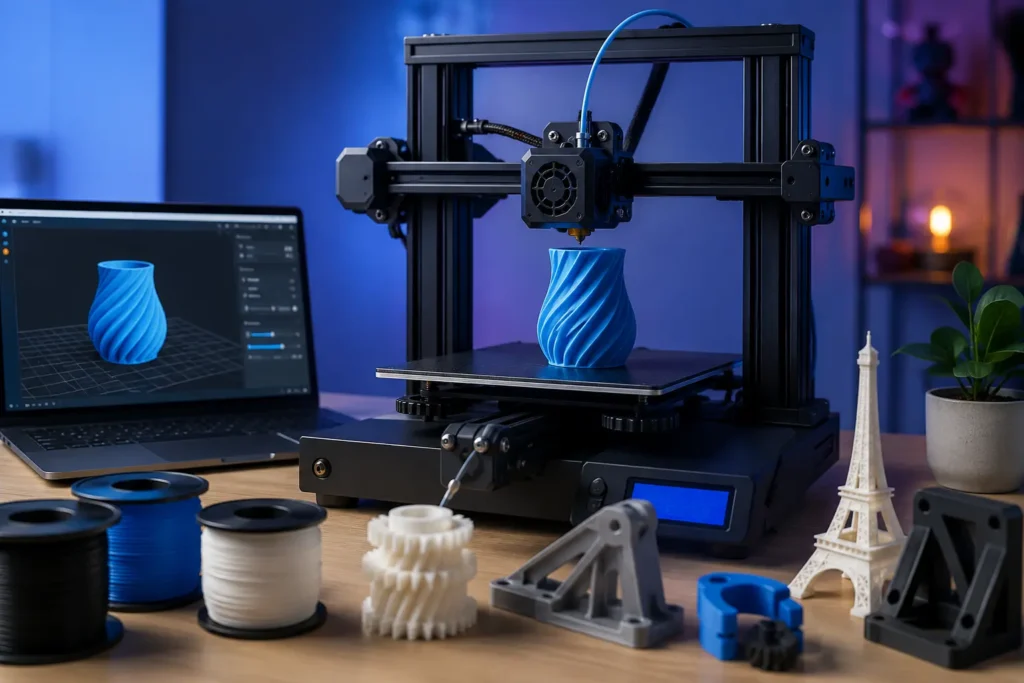
In real life, you can 3D print useful items like phone stands, small tools, or even a quick prototype for a business idea. That’s why more people are learning this skill. But I’ll be honest—this is where many beginners get confused. They expect perfect results from day one. In reality, the machine needs the right setup, and your settings affect the final print quality.
How 3D Printing Works in Real Life
The process is simple when you break it down.
First, you design something using CAD or download an STL file online. Then you open it in Slicer software, which helps you slice the design into thin layers. After that, you send the file to the machine using a USB or memory card.
The printer heats materials like PLA, PETG, or ASA, melts them, and pushes them through the nozzle. This layer-by-layer method is called the printing process.
Here’s a clear view:
| Step | What Happens |
| 1 | Create or download an STL file |
| 2 | Prepare it in the slicer software |
| 3 | Transfer via USB |
| 4 | Start the printing process |
| 5 | Do simple post-processing (like removing supports) |
Now, a small reality check—things can go wrong. Poor adhesion, wrong temperature, or bad calibration can ruin a print. I’ve seen this happen many times, and honestly, it frustrates beginners. But it’s normal and fixable.
Why FDM Printers Are Best for Beginners?
If you’re new, start with an FDM printer. It’s the easiest and most beginner-friendly option.
FDM printers use filament, which is simple to handle compared to liquid resin. They are affordable, safer, and easier to learn. You don’t need complex setups, and you can quickly understand how the machine works.
Here’s a quick comparison:
| Feature | FDM Printer | Resin Printer |
| Ease of Use | Easy | More complex |
| Materials | PLA, PETG, ASA | Resin |
| Safety | Safer | Needs ventilation |
| Print Quality | Good | Very detailed |
One thing I always tell beginners—don’t chase perfect print quality in the beginning. Focus on learning the basics like adhesion, settings, and how your machine behaves. Once you understand these, better results will come naturally.
Simple 3D Printing Workflow (From Idea to Final Object)
If you feel confused about where to start, you’re not alone—I felt the same at the beginning. Many guides overcomplicate things, which honestly annoys me a bit. The truth is, the 3D printing process is simple when you break it into steps. This short 3D printing guide will help you learn how to use a printer without stress.
Think of it like this: you take an idea, prepare it, and let the machine build it layer by layer. That’s the core of additive manufacturing. Once you understand this flow, it becomes much easier to start 3D printing with confidence.
Design or Download a 3D Model
Every print starts with a design. You can create your own using simple tools or download ready-made files online. These files are the base of all 3D printing basics.
Most beginners don’t design at first—and that’s completely fine. I always suggest starting with ready-made models. It saves time and builds confidence.
Slice the Model into Layers
Now comes an important step. You take your model and open it in software that prepares it for printing. This is where the model gets divided into thin layers.
This step controls how your object will be printed. It may sound technical, but with practice, it becomes easy. This is where the real 3D printing technology starts working behind the scenes.
Set Up the Printer
Before printing, you need to prepare your printer. Load the material, check the surface, and make sure everything is ready.
Different types of 3D printers use different materials. For example:
- Filament printers are easier for beginners
- Resin 3D printing gives more detail but needs more care
I’ve seen many beginners skip this step—and then wonder why their print fails. Set up matters more than people think.
Print the Object
Now the exciting part begins. The printer starts building your object layer by layer. This is the real magic of additive manufacturing.
It can take time depending on the size. Some prints take hours, and yes—it can test your patience. I still remember watching my first print like it was a movie.
Remove and Finish the Print
Once printing is done, you carefully remove the object. Sometimes, small supports need to be removed. This step is called finishing.
This is also where you see your final result. A clean finish feels satisfying—I take pride in a smooth output because it shows the effort behind it.
Here’s a quick summary for clarity:
| Step | What You Do |
| 1 | Get or create a design |
| 2 | Prepare it in software |
| 3 | Set up the printer |
| 4 | Start printing |
| 5 | Remove and finish |
This simple guide for beginners covers the full journey. Whether you’re using basic printers or exploring advanced options like metal 3D printing or resin 3D printing, the workflow stays mostly the same.
And one small tip—I really care about this—don’t rush the process. Good results come from patience, not speed.
How to Use a 3D Printer Step by Step (Beginner-Friendly Guide)
Let’s get real for a second—this is the part most beginners struggle with. Not because it’s hard, but because many guides skip small details. And honestly, that’s my biggest pet peeve. People deserve clear steps, not confusion.
This section will show you exactly how to use 3D printers in a simple, practical way. I’ve kept it beginner-friendly, so you don’t feel lost at any step.
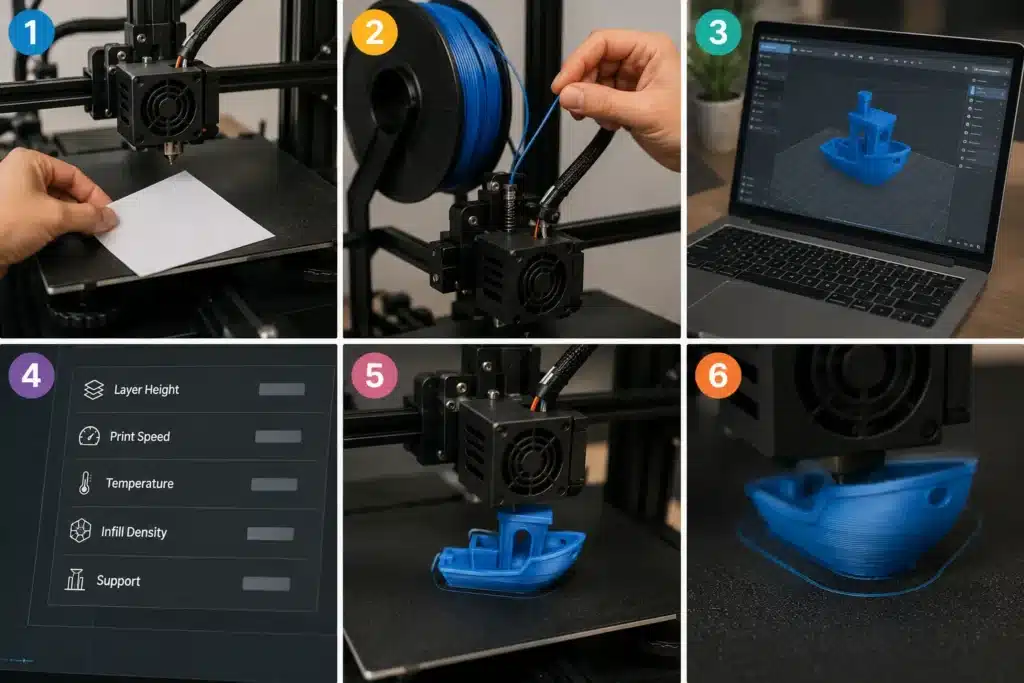
Step 1: Set Up Your Printer Properly (Bed Leveling + Basics)
Before you start printing, you need to prepare the printer’s base. This is called bed leveling.
If the bed is not level, your print won’t stick—simple as that. I’ve seen people blame the machine, but the real issue was the setup.
Make sure:
- The bed is clean
- The nozzle is at the correct distance
- The extruder moves smoothly
Many desktop 3D printers, like the popular Ender series, make this easier, but you still need to check it manually.
Step 2: Load Filament Correctly
Now load your material into the extruder. This step looks easy, but small mistakes here can ruin everything.
Push the filament gently until it reaches the nozzle. If it doesn’t flow smoothly, stop and check.
I always tell beginners—don’t force it. A stuck extruder can lead to bigger problems later.
Step 3: Prepare Your File in Slicer Software
This is where your design becomes printable.
Open your file in slicing software (also called print preparation software). This tool converts your model into G-code, which your printer understands.
If you create your own designs using CAD software or even parametric CAD, this step becomes even more important.
No G-code, no print—it’s that simple.
Step 4: Apply Basic Print Settings (Overview Only)
Now adjust basic slicer settings. Don’t overthink this part.
Focus on:
- Layer height (quality vs. speed)
- Print speed (faster is not always better)
- Temperature settings
Here’s a quick guide:
| Setting | What It Does |
| Layer Height | Controls detail level |
| Print Speed | Affects time & quality |
| Temperature | Helps material flow |
Many beginners try to change everything at once—that’s a mistake. Keep it simple at the start.
Step 5: Start Your First Print
Now comes the exciting moment—hit print and watch your machine work.
The printer follows the G-code and starts building your object layer by layer. This is where everything comes together.
Whether you’re using basic models or advanced setups like multi-material printing or even resin printing, the process starts the same way.
I still remember my first print—it wasn’t perfect, but it felt amazing.
Step 6: Watch the First Layer Carefully
This step is more important than people think.
If the first layer sticks well, your print has a high chance of success. If not, it will likely fail.
Watch for:
- Smooth lines
- Proper sticking
- No gaps or lifting
If something looks wrong, stop the print. I know it feels frustrating, but it saves time and material.
Here’s a quick step summary:
| Step | Action |
| 1 | Level the bed |
| 2 | Load filament |
| 3 | Create G-code |
| 4 | Adjust settings |
| 5 | Start printing |
| 6 | Check first layer |
One honest tip before you move on—don’t rush. I’ve seen people try to get perfect results on day one, and it rarely works. Take your time, learn your machine, and improve step by step. That’s how you get better results with the right 3D printing approach.
How to Use a 3D Printer for Beginners: Your First Print Experience
Your first 3D print is exciting—but also a bit confusing, honestly. I remember expecting a perfect result, and then… it came out slightly rough. That’s normal. Every printer type, especially FDM printers based on fused deposition modeling, needs a little learning time.
The truth is simple: your first experience is not about perfection. It’s about understanding the printing procedure, how the machine works, and how settings affect the result. Take your time, select the right setup, and don’t rush.
What Your First 3D Print Will Actually Look Like
Let’s be real—your first print may not look perfect.
You might see:
- Slight rough edges
- Uneven layers
- Small gaps
Even if you use software like Cura and follow the steps carefully, results can still vary. That’s because every material and setting behaves differently.
I know it feels a bit frustrating at first—but this is how you learn. Even simple prints teach you a lot.
Why First Prints Often Fail (Normal Issues)
Here’s something many guides don’t say clearly—failures are normal.
Your print can fail because of:
- Poor bed setup
- Weak adhesion
- Wrong temperature
- Using the wrong range of materials
Even if the printer runs fine, small setup mistakes can ruin the result.
Also, beginners often underestimate print times. Some prints take hours, not minutes. And features like remote printing sound helpful, but they still need proper setup.
I always feel a bit annoyed when people say, “Just press print.” It’s not that simple—but it’s not hard either once you understand it.
Good Print vs Bad Print (Simple Signs)
Knowing the difference helps you improve faster.
| Feature | Good Print | Bad Print |
| Surface | Smooth | Rough |
| Shape | Accurate | Warped |
| Adhesion | Sticks well | Lifts off |
| Detail | Clear | Messy |
A good print shows your setup is working well. A bad one just means something needs fixing—not failure.
One honest tip—I really care about this—don’t chase perfect results too early. Focus on learning how your machine behaves. With time, your prints will improve, and that’s where real progress happens.
3D Printer Settings Explained in Simple Words (No Confusion)
Let’s keep this simple. 3D printer settings decide how your object will look, how strong it will be, and how long it will take to finish. Most beginners get confused here, and honestly, I understand why—it looks technical at first. But once you break it down, it becomes very easy to manage, especially when you are working with filament or resin on modern printers like entry-level models. Even a small mistake in settings can affect your final result, so learning this part is really important if you want smooth digital designs to turn into real objects without frustration.
Key Factors You Must Understand
- Layer height: Controls smoothness vs. speed of the print
- Infill: Decides the strength of your object
- Print speed: Fast printing can reduce quality, while slow printing improves detail
- Temperature: Affects how well the material melts and sticks
- Material type: PLA, PETG, or other thermoplastic materials behave differently
- Adhesion: The first layer sticking properly is critical for success
- File format: Using correct formats like 3MF helps avoid errors
- Purpose of print: Whether you are making functional prototypes or simple models
- Machine setup: Proper calibration ensures stable printing on all filament printers
- Software settings: Correct slicer setup ensures a clean printing process output
7 Common 3D Printing Mistakes Beginners Make (And How to Fix Them Fast)
When you first print something, mistakes will happen. I say this with full honesty from experience. Even with modern printing-accessible machines, beginners still face issues because they don’t yet know how small settings affect results. I’ve seen people get excited about complex designs, send files through a USB drive, and then feel frustrated when the print fails. That’s normal. The goal is not perfection—it’s learning how to find the right fix quickly so your print is complete without stress.
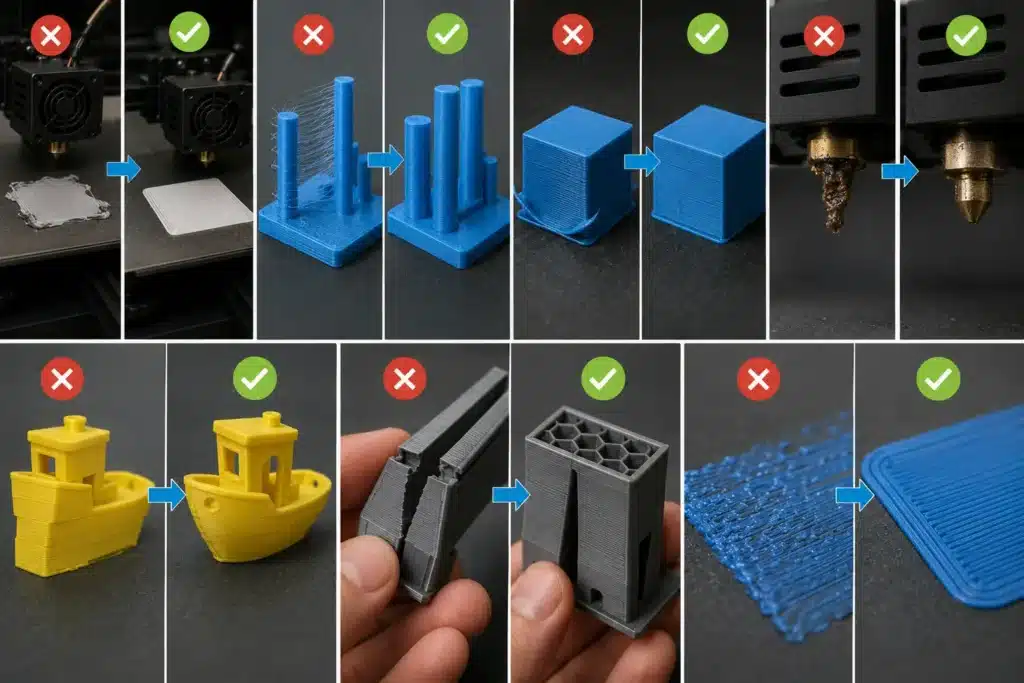
Filament Not Sticking to Bed
This is the most common issue. The first layer refuses to stick, and the print fails early.
It usually happens because the bed is not clean or properly leveled. Sometimes, the temperature is also incorrect.
Fix it by:
- Cleaning the bed surface
- Re-leveling the printer
- Adjusting first layer height
I’ve seen beginners lose confidence here, but trust me—it’s an easy fix once you understand it.
Stringing Issue
Stringing looks like thin spider webs between parts of your print. It’s annoying, I agree. It makes even good specific applications look messy.
Fix it by:
- Lowering the temperature slightly
- Adjusting retraction settings
- Slowing travel speed
This happens often when using certain exotic materials, so don’t panic.
Warping Problem
Warping means the edges of the print lift from the bed. This can ruin even complex designs.
Fix it by:
- Improving bed adhesion
- Using proper cooling settings
- Keeping the room temperature stable
I personally dislike this issue because it wastes time and material, especially when you are excited to finish a project.
Nozzle Clogging
The nozzle gets blocked, and nothing comes out.
Fix it by:
- Cleaning the nozzle regularly
- Using good-quality filament
- Running a cold pull method
This is one of those problems that makes beginners think the printer is broken, but it’s usually just a maintenance issue.
Layer Shifting
Layers move out of alignment, making the print look crooked.
Fix it by:
- Tightening belts
- Checking motor movement
- Slightly reducing print speed
Sometimes it happens when the machine gets bumped. It’s frustrating, but fixable.
Weak Prints
Your object breaks easily after finishing. This is common when settings are not balanced.
Fix it by:
- Increasing infill
- Checking temperature settings
- Using the correct filament type
Weak prints often happen when people rush settings after downloading files from a USB drive without adjusting anything.
Messy First Layer
The first layer looks uneven or rough. This is a critical warning sign.
Fix it by:
- Rechecking bed leveling
- Slowing the first layer speed
- Ensuring proper nozzle height
If the first layer is bad, everything else will fail. I always tell beginners: respect the first layer—it decides everything.
Why 3D Printing Is Slow (And How Long Prints Actually Take)
3D printing feels slow because the machine builds objects layer by layer instead of making them all at once. This careful printing process takes time, especially when you want good quality and strong results. I know beginners often feel impatient here—I’ve seen it many times—but slowing down is actually what gives clean and accurate prints. A small object may finish in an hour or two, while larger or more detailed parts can take several hours or even overnight, depending on settings, material, and design. The truth is simple: speed and quality always balance each other in 3D printing, so you need to understand what affects time before expecting fast results.
What Affects Print Time (How to Estimate & Speed It Up Safely)
| Factor | Effect on Print Time | Simple Explanation |
| Model size | Increases time | Bigger object = more layers to build |
| Layer height | Some materials print more slowly than others | More detail means more layers |
| Print speed | Higher speed reduces time | But too fast can reduce quality |
| Infill level | High infill increases time | More strength takes more material and time |
| Material type | Can affect speed | But going too fast can reduce quality |
These same factors also help you estimate print time before starting. Most slicer software shows an approximate duration after you load your file, so always check it before you begin. If you want to speed things up safely, increase print speed slightly, reduce infill for simple objects, or use thicker layers when detail is not important.
I’ve personally seen beginners rush speed too much and ruin prints—that’s a common mistake and honestly a bit frustrating because it wastes both time and material. The best approach is balance: let the machine work steadily, and you’ll get reliable results without stress.
How Much It Actually Costs to Use a 3D Printer (Real Example)
The cost of 3D printing is not too high, but it depends on how you use your 3D printer. Many beginners think it is expensive, but in real life, it is mostly controlled by material usage, mistakes, and print size. I’ve seen people waste money only because they didn’t plan properly before they print something. If you understand the basics, you can keep costs low and still get good results. It’s not just about the machine—it’s about smart usage and avoiding waste.
Filament Cost Per Print
Filament is the main cost because every object uses material. Small prints use less, while big or complex designs use more. PLA is usually cheaper, while special materials increase the cost.
| Print Type | Cost Level |
| Small object | Low |
| Medium object | Medium |
| Large object | High |
So the more you use 3D printing, the more you understand how material usage affects cost.
Electricity Usage
Electricity cost is usually low, but long printing increases usage. A short print may cost very little, but overnight printing uses more power. Still, it is not a big expense compared to the material cost.
Cost of Failed Prints
This is where beginners lose money. Failed prints waste filament and time. It often happens due to wrong settings, poor adhesion, or mistakes in setup. I find this part a bit frustrating because most failures are avoidable with basic care and attention.
Beginner Budget Example
A beginner can start 3D printing with a small budget if they manage materials properly and avoid mistakes.
- Filament: main cost
- Electricity: low
- Failed prints: depends on the learning stage
- Maintenance: occasional
So overall, it stays affordable if you learn step by step and avoid wasting prints while experimenting.
Quick Checklist Before You Start Printing
Before you start your 3d printer, always do a quick check. I’ve seen many beginners rush and then waste time because of small mistakes. Honestly, it can be frustrating when a simple issue ruins a full 3d print, so this checklist helps you avoid that.
Make sure the bed is level so the first layer sticks properly. Check that the filament is loaded correctly and flowing smoothly. Clean the nozzle so nothing blocks the material. Confirm your model file is correct and properly sliced. Also, review slicer settings like layer height, speed, and material type. Lastly, ensure the printer is stable before starting.
I always feel a bit concerned when people skip these steps because most failures happen here, not during printing. A 2-minute check can save hours of trouble and give you a much smoother printing experience.
Before You Start: Avoid These Common 3D Printer Buying Mistakes
Before starting 3D printing, choosing the right 3D printer is very important. I’ve seen many beginners get excited, buy the wrong machine, and then struggle with poor print quality. Honestly, it’s frustrating because a simple mistake at this stage can make learning harder than it should be. If you want smooth results and less stress, take a little time before buying.
Choosing the Wrong Type of Printer
Many beginners pick a printer without knowing the difference between basic and advanced models. Some machines are made for easy learning, while others are better for complex work.
If you are new, always choose a simple 3D printer that supports basic 3D print tasks. I’ve seen people get stuck with advanced machines they can’t even set up properly—that’s where most frustration starts.
Ignoring Important Features
Another mistake is ignoring key features just to save money. This often leads to problems later.
| Feature | Why It Matters |
| Bed leveling | Helps prints stick properly |
| Print speed control | Balances time and quality |
| Filament support | Allows more material options |
| Build size | Controls what you can print |
I always feel a bit annoyed when beginners skip this part because they later complain about failures. A good machine makes learning 3D printing much easier and more enjoyable.
Real-World Uses of 3D Printing (Why This Skill Matters)
3D printing is used in many real-life areas, not just at home. People use a 3D printer for simple home and DIY items like phone stands, hooks, and repairs when they print something useful instead of buying it. Small businesses also use it to make products, test ideas, and create prototypes quickly, which helps them save money and grow faster. In industries, it goes even further—healthcare uses it for custom medical parts, automotive companies test complex designs, and engineers build functional prototypes before final production. Honestly, I feel proud when I see how this technology helps real people, but I also get a bit frustrated when it is shown as “just a hobby,” because it is actually a powerful, real-world tool.
Key Factors Behind Its Real-World Use
- Home DIY problem-solving and repairs
- Fast prototyping for small businesses
- Cost-saving product development
- Medical and healthcare customization
- Automotive and engineering testing
- Ability to create functional prototypes quickly
- Support for complex designs before mass production
Conclusion
3D printing is no longer something complicated or limited to experts—it is becoming a practical skill that anyone can learn with a little time and practice. From simple home items to business prototypes and even industrial use, its real-world applications are growing every day. Yes, there are challenges like settings, failures, and a learning curve, but that is a normal part of the journey.
The main thing to remember is this: don’t rush for perfect results in the beginning. Focus on understanding your printer, learning from mistakes, and improving step by step. Once you get the basics right, everything starts to feel easier and more enjoyable.
In the end, 3D printing is not just about making objects—it is about turning ideas into reality. And that’s what makes this skill truly valuable for the future.
Frequently Asked Questions
Which 3D printer brands offer the easiest software for beginners?
Brands like Creality, Prusa, and Anycubic are known for beginner-friendly software. Their slicer tools are simple, so new users can start printing without confusion.
Where can I find free downloadable 3D models for printing?
You can find free models on websites like Thingiverse, Printables, and MyMiniFactory. These platforms offer ready-to-use files for easy printing at home.
How do I prepare a digital model for printing using slicing software?
You import the 3D model into Slicer software, adjust the size and settings, and then convert it into G-code. This file tells the printer how to build the object layer by layer.
How do I troubleshoot common 3D printing errors?
Check basics first, like bed leveling, filament flow, and temperature settings. Most issues, like stringing or poor adhesion, come from small setup mistakes.
How do I set up a 3D printer for the first time?
Start by assembling the printer, leveling the bed, and loading filament. Then run a simple test print to confirm everything is working correctly.
What are the essential steps for setting up a new FDM printer?
Unbox and assemble the machine, calibrate the bed, load filament, and install slicer software. After that, do a test print to ensure smooth operation.

Willis C. Mathes
I’m Willis C. Mathes With hands-on experience and technical knowledge of printers, I dive deep into printer reviews, troubleshooting, and tips, ensuring you get the most out of your printing investment.