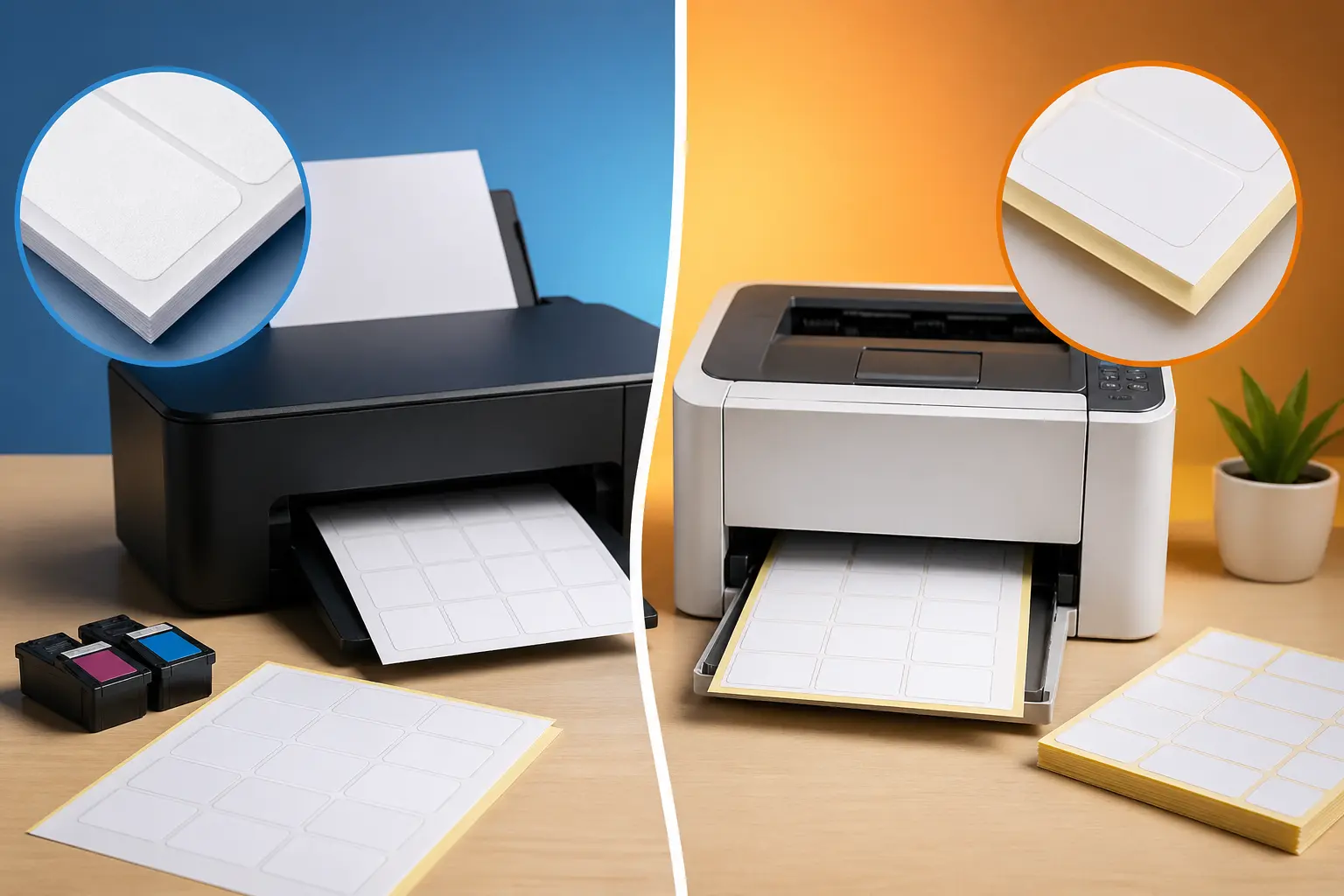
If you have ever stood in front of your printer thinking, “Can I use inkjet labels in laser printer just this once?” — you are not alone. I’ve been there too, especially when you’re in a rush and just need to print something quickly. It feels like a small shortcut, like it shouldn’t matter that much… but it actually does.
Printers may look simple from the outside, but inside, they work very differently. Laser printers use heat and toner to print, while inkjet labels are designed to absorb liquid ink. That small difference can cause bigger problems than most people expect. I’ve seen cases where people tried it once, and the result was not just poor print quality but also sticky residue inside the machine. And honestly, fixing that is frustrating and sometimes expensive.
What makes this even more important is how common label printing has become. The global label printing market is worth over $48 billion, and millions of people use labels every day for home, office, and business work. But here’s a small pet peeve of mine — many guides online just say “don’t do it” without explaining why. That doesn’t really help anyone.
So in this guide, I’ll explain everything in a simple way. You’ll understand what actually happens inside the printer, why this mistake can cause damage, and what you should do instead to stay safe.
Quick Answer: Can You Use Inkjet Labels in a Laser Printer?
Short answer: No, you should not use inkjet labels in a laser printer.
Inkjet labels are designed for inkjet printers that use liquid ink, whereas laser printers use toner and heat. This difference is very important because the printing process is completely different.
When you use inkjet labels in a laser printer, the heat inside the machine can affect the adhesive and the label surface. The label may curl, shift, or cause feeding problems. In some cases, it can also lead to a paper jam, which interrupts your work and wastes time. I’ve seen this happen in office setups where one wrong sheet slowed everything down, and honestly, it’s frustrating because it could have been avoided so easily.
The simple truth is this: laser printers are designed for laser labels that can handle heat and toner properly. Inkjet labels are not built for that environment, so the result is usually poor performance or printing issues.
Here’s a quick view:
| Feature | Inkjet Labels | Laser Labels |
| Printer type | Inkjet printer | Laser printer |
| Printing method | Liquid ink | Toner + heat |
| Heat resistance | Low | High |
So, if you want smooth printing and better print quality, always use the correct label type for your printer.
From my experience working with print setups, I strongly recommend choosing the right label from the start. It saves time, money, and a lot of frustration later.
What Happens Inside a Laser Printer When You Use Inkjet Labels (Heat Explained)
When people try to use inkjet labels in a laser printer, the problem starts inside the machine, not outside. It may look like a normal print job, but the internal process is very different. And honestly, this is the part most guides skip, which is a bit frustrating because this is where real damage can begin.
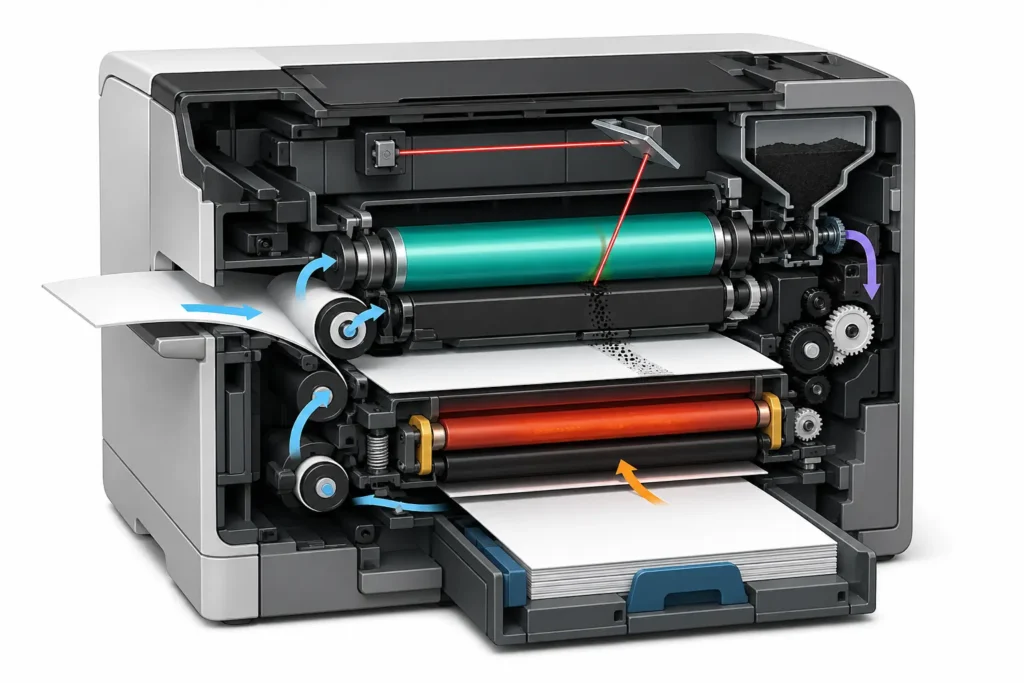
Inkjet labels are designed for inkjet printers, where ink simply sits and dries on the surface. A laser printer works in a completely different way. It uses toner and heat to bond the print onto the label. So when the wrong label goes inside, the system does not react well.
How the Laser Printer Fuser Works
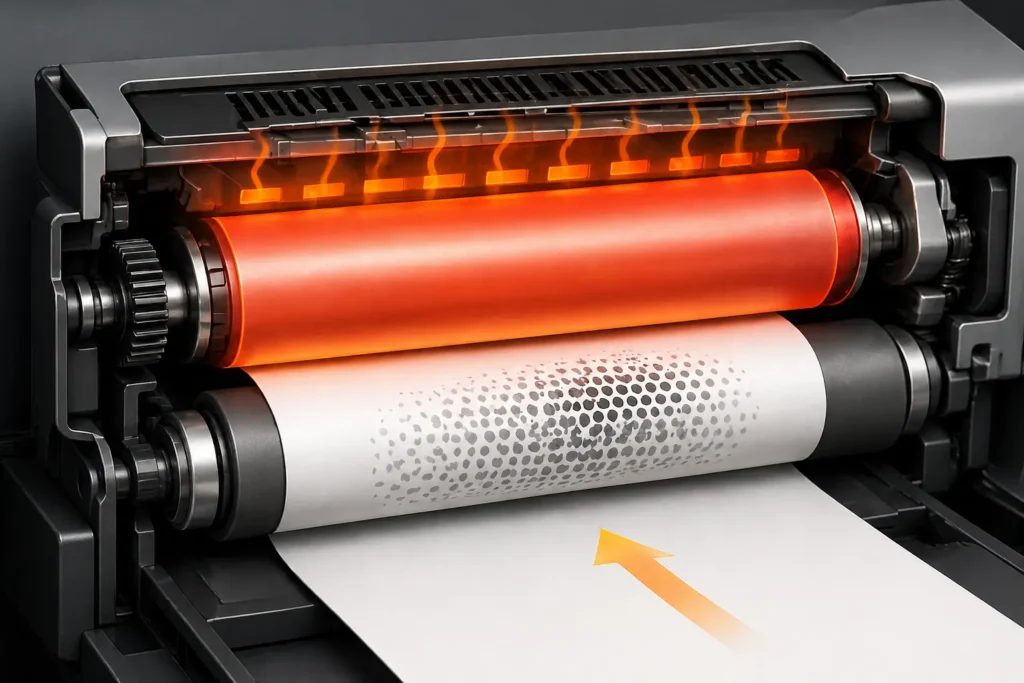
Inside a laser printer, there is a key part called the fuser. This part uses heat and pressure to melt toner onto the label so it becomes permanent.
The fuser works like a hot roller system. It presses the toner into the surface so the print does not come off easily. That is why laser labels are made to handle this process properly.
Inkjet labels are not built for this kind of treatment, so they struggle inside the system.
Fuser Temperature (Up to 200°C Explained)
The heat from a laser printer can go up to 200°C during printing. That is extremely high for paper-based materials.
Laser labels are designed to withstand this heat. Inkjet labels are not.
This is where problems start. When users ignore this difference, they often face poor results. I always recommend checking the label type before printing because it avoids unnecessary damage and frustration.
What Happens to Inkjet Label Coating Under Heat
Inkjet labels are made to absorb liquid ink. The surface is designed for inkjet printers, not heat-based systems.
When heat from a laser printer hits the surface, the coating can react poorly. The toner may not bond properly, and the surface may become unstable.
This often leads to weak or uneven printing results. That is why I recommend using proper laser labels if you want clean and reliable output.
How Adhesive Melts and Causes Internal Damage
This is where the real issue happens.
Inkjet labels use an adhesive that is not always heat-resistant. When exposed to laser printer heat, the adhesive can soften. Once that happens, it may spread or shift inside the printer.
This can cause feeding issues or even a small jam. I’ve seen this happen in busy offices, and it always slows work down. It’s one of those avoidable problems that honestly feels unnecessary.
Laser labels are designed to handle this heat properly, which is why I strongly recommend using the correct type for your printer.
Inkjet vs Laser Labels: Key Differences You Must Know
Before choosing between inkjet labels and laser labels, you really need to understand one simple truth: they are built for completely different printing systems. I’ve seen many users mix them up, and honestly, it always leads to confusion and wasted sheets. It’s one of those small mistakes that turns into a big printing headache.
Let’s break it down in a simple, real-world way.
Surface Coating (Ink Absorption vs Toner Bonding)
The surface is the first major difference.
Inkjet labels are made to absorb liquid ink. When you print with an inkjet printer, the ink spreads on the label surface and dries naturally. This helps create smooth and colorful output.
Laser labels work in a totally different way. Laser printers use heat to fuse toner onto the surface. The toner does not soak in—it melts and sticks firmly.
This is where problems begin. Inkjet labels are not designed for heat-based printing systems. So when people try to mix them, the surface cannot handle the process properly.
In simple words, the printing result depends completely on how the surface reacts, and that reaction is not the same at all.
Adhesive Type (Rubber vs Acrylic)
Now let’s talk about adhesive, which many users ignore.
Inkjet labels usually come with a softer adhesive. It is made to stick properly without needing heat. This works well in inkjet printers where there is no thermal stress.
Laser labels often use a stronger acrylic-based adhesive. This is important because printers use heat to fuse toner, and the label must stay stable during that process.
Inkjet labels are not designed for this heat environment. That is why using the wrong type can cause shifting or weak sticking during printing.
I recommend always checking the adhesive type before printing. It may sound small, but it prevents many printing issues.
Heat Resistance Comparison
Heat is the biggest factor here.
Laser printers produce heat to fuse toner. That heat is necessary for the printing process, but it also creates risk if the wrong material is used.
Inkjet labels cannot handle high heat well. When exposed to heat from a laser printer, the material may soften or react in unexpected ways.
Laser labels are built for this. They are designed to withstand heat during printing without breaking or deforming.
To keep it simple:
- Inkjet printer = ink-based, no heat
- Laser printer = toner + heat system
This difference is why label selection matters so much.
Even when users test quickly without thinking, problems can appear. That is why I always recommend doing a small test before running full printing jobs.
Print Quality and Durability Differences
Now let’s talk about results, because this is where users notice the difference first.
Inkjet labels can produce good results when used correctly in an inkjet printer. The ink spreads smoothly and gives soft, colorful output.
But in a laser printer, the situation changes. The toner may not bond properly, and the result can look uneven or weak.
Laser labels are designed for stronger output. The toner sticks firmly and gives sharp, long-lasting results.
Here is a simple comparison:
| Feature | Inkjet Labels | Laser Labels |
| Printing system | Inkjet printer | Laser printer |
| Print method | Liquid ink | Toner + heat |
| Durability | Medium | High |
| Surface behavior | Absorbs ink | Bonds toner |
| Heat handling | Low | High |
From practical experience, I’ve seen users waste entire label sheets just because they didn’t match the label type with the printer. And yes, I strongly recommend testing first before printing in bulk—it saves both time and frustration.
Can I Use Avery Inkjet Labels in a Laser Printer?
This is a question many people ask, especially when they already have Avery labels at home or in the office. I understand the confusion because Avery is a trusted brand, and it feels like everything under the same brand should work together. But in real printing work, that is not how it works.
Inkjet labels and laser labels are built for different printing systems. Inkjet labels are made for inkjet printers, where liquid ink is used. Laser printers are different—they use toner and heat to produce print results. So when people try to mix them, problems can start quickly.
What Avery Officially Recommends
Avery clearly separates its products based on printer type. Inkjet labels are only meant for inkjet printers, while laser labels are designed for laser printers.
The main reason is simple. Laser printers use heat generated inside the machine to melt toner onto the surface. This process needs special materials that are designed to handle that heat. Inkjet labels are not made for this kind of pressure or temperature.
So Avery does not recommend using inkjet labels in a laser printer. I always agree with this because it protects both print results and your printer.
From experience, I’ve seen users try to save time by ignoring this, but it usually ends up wasting more time later.
What Happens If You Try It Anyway
If you use inkjet labels in a laser printer, the results are usually not stable.
First, the toner may not stick properly to the label surface. You may notice weak or uneven print results. Second, the heat inside the printer can affect the adhesive, causing it to soften slightly. This can lead to feeding issues or curling during printing.
In some cases, it may even cause a small jam, especially during repeated use. I’ve seen this happen in office settings where people rush printing jobs, and honestly, it slows everything down at the worst moment.
Even though printer systems like Canon and others are built with smart settings, they still rely on using the correct label type for safe operation.
So yes, it might work once, but it is not reliable or safe for regular use.
Are There Any Safe Avery Alternatives?
Yes, and this is the safer and smarter option.
Avery produces laser labels that are specifically designed for laser printers. These labels are made to handle heat and allow toner to bond properly. That means cleaner print results and fewer risks during printing.
Here is a simple comparison:
| Label Type | Printer Type | Result |
| Avery inkjet labels | Inkjet printer | Proper ink absorption |
| Avery laser labels | Laser printer | Strong toner bonding |
| Wrong usage | Not compatible | Poor results + risk |
Laser labels are designed to handle heat and pressure inside the printer, which is why they perform better and stay stable.
From my experience, I always recommend checking the label type before printing. It only takes a few seconds, but it prevents waste, frustration, and printer issues later.
Can You Use Inkjet Labels in a Laser Printer in an Emergency? (Real Truth)
This is a situation many people face in offices or home setups. You run out of laser labels, and only inkjet labels are available. In that moment, it feels tempting to just “use inkjet labels in a laser printer once” and finish the job. I understand that urgency, but let’s talk honestly about what really happens.
Laser printers produce heat inside the machine to melt toner onto the label surface. Inkjet labels are not specifically designed for this process. So even in an emergency, there is always some level of risk involved.
Real-Life Scenario: “I Tried It Once…”
I’ve seen this happen many times in small offices.
Someone runs out of laser labels and finds only inkjet labels in stock. They think, “It’s just a quick print, nothing will go wrong.” The first sheet prints and looks fine. That gives a false sense of safety.
But after a few more prints, issues start to appear. The toner may not stick evenly, and the label surface may not hold properly. Sometimes, the adhesive starts reacting slightly to the heat inside the laser printer.
I always feel a bit concerned in these situations because the problem usually starts small but can turn into wasted sheets or printer stress later.
One-Sheet vs Bulk Printing Risk
There is a big difference between printing a single sheet and printing in bulk.
One sheet may pass through without immediate issues. But bulk printing increases the risk because the machine keeps repeating the same heat cycle on an incompatible material.
| Printing Type | Risk Level | Result |
| One sheet | Lower risk | May print normally, but still not safe |
| Few sheets | Medium risk | Slight print quality issues may appear |
| Bulk printing | High risk | Feeding issues or weak adhesion |
Inkjet labels are not built for laser systems, so the more you print, the higher the chance of problems.
When It Might Work (But Still Risky)
In rare cases, inkjet labels may pass through a laser printer and produce usable output. This usually happens with simple designs or low ink coverage.
But even then, it is not truly safe. Inkjet labels are designed for inkjet printers, where ink is absorbed into the surface. Laser printers work differently, using toner and heat inside the machine.
Because of this difference, the material is not fully stable under laser conditions. The adhesion may weaken slightly, even if it is not visible right away.
So yes, it may work in an emergency, but it is never something I recommend for regular or important printing. Choosing proper laser labels is always the safer and more reliable option.
Can Using the Wrong Labels Damage Your Laser Printer? (Risks + Cost Breakdown)
Using the wrong labels in a laser printer can slowly create serious problems. Many people think it is harmless, but in real printing work, even small mistakes can affect the machine. A laser printer is built with specific specifications and standards, so when you use inkjet labels instead of proper laser labels, the system is forced to work in a way it is not designed for. Over time, this can affect heat handling, internal movement, and overall performance. I’ve seen cases where users ignored compatibility and only realized the damage when the printer started acting strangely. Honestly, it’s frustrating because it is completely avoidable with the right choice.
| Risk Area | What Happens | Possible Result |
| Fuser Damage | The heat inside the printer is affected by the wrong label material | Expensive repair or part replacement |
| Roller Wear | The inkjet label surface may not move smoothly through the printer | Paper feeding issues or uneven printing |
| Internal Build-up | The adhesive may react to heat and stick to the inside parts | Reduced performance and higher maintenance needs |
| Long-Term Use | Repeated use of wrong labels stresses the system | Shorter printer lifespan and poor print quality |
Used Inkjet Labels in a Laser Printer by Mistake? Do This Now
If you accidentally used inkjet labels in a laser printer, don’t panic. It happens more often than people admit, especially in busy offices where someone just grabs the wrong pack of mailing labels. I’ve seen this situation many times, and honestly, the key is to act fast instead of continuing the print job.
When inkjet or laser materials are mixed incorrectly, the heat inside the printer can react with the label surface. So the first step is always to stop and check everything carefully.
Stop Printing Immediately
The first thing you must do is stop printing right away. Do not continue the job, even if the first page looks fine.
Laser printers are built for specific label types. If you keep going, the risk increases. The printer settings or software will not fully protect you if the wrong material is already inside.
I always recommend pausing immediately because I’ve seen small mistakes turn into bigger feeding issues just from “one more print.”
Check for Stuck Labels Inside
Next, open the printer and check inside the paper path.
Sometimes a label may peel or stick slightly due to the heat inside the machine. This is more common when inkjet labels are used in a laser system by mistake.
Look carefully around rollers and trays. Do not force anything. Even a small leftover piece can affect future prints or cause uneven feeding.
Take your time here—this step can save your printer from bigger damage.
How to Clean Adhesive Safely?
If you notice sticky areas, clean them gently.
Use a soft, dry cloth first. Avoid harsh chemicals or sharp tools. Adhesive can remain when the label is not properly handled by laser heat or when the material is not meant for laser printing.
Go slow and be careful around internal parts. I’ve seen users rush this step, and it usually creates more problems than it solves.
If the residue is light, simple cleaning is enough. If it is heavy, it’s better to stop and reassess before continuing.
When to Call a Technician
If your printer starts showing repeated issues like feeding problems, strange noises, or poor print output, it’s time to call a technician.
This is especially important for office printers that handle daily work. A professional can safely inspect rollers and internal parts without causing damage.
From experience, I strongly recommend not delaying this step. Small issues can become expensive repairs if ignored. And honestly, I’ve seen this too many times—people try to fix it themselves and end up making it worse.
Getting help early keeps your printer safe and your work running smoothly.
How to Check If Your Labels Are Inkjet or Laser (Before Printing)
Before you print, it is very important to know what type of label you are using. I’ve seen many users face printing problems just because they didn’t check this simple thing. Honestly, it’s a small step, but it saves a lot of stress later. Inkjet and laser labels may look similar, but they are not the same at all. One is made for ink, the other for toner and heat.
Let’s go through easy ways to identify them before you print.
Packaging Labels and Symbols to Look For
The easiest way is to check the packaging first. Most label boxes clearly mention whether they are inkjet or laser compatible.
Look for words like:
- Inkjet printer only
- Laser printer compatible
- Laser labels
- Inkjet labels
Manufacturers like Avery and Brother always print clear instructions on the box. I always recommend reading this carefully because it prevents confusion.
There is also a simple symbol system. Some boxes show a small printer icon or text that indicates the correct type. It may seem small, but it is very important.
I’ve seen people rush and ignore packaging details, and then they end up using the wrong labels. That’s one of my pet peeves in printing work—it’s such an avoidable mistake.
Texture and Surface Feel Test
If the packaging is missing or unclear, you can also check the label texture.
Inkjet labels usually feel more absorbent and slightly softer. They are designed so ink can spread and stay on the surface. Laser labels feel smoother and slightly more coated because they are made to handle toner and heat.
This difference matters because inkjet labels are built for ink absorption, while laser labels are made for heat-based printing.
Now, this is not a perfect test, but it helps when you are stuck and need a quick idea. I always recommend using packaging information first, and this method only as a backup.
From experience, guessing by touch is better than nothing, but it should never replace proper checking.
Brand Clues (Avery, Brother, etc.)
Brands also help a lot in identifying label type.
Companies like Avery and Brother clearly separate their products into inkjet labels and laser labels. They design each product based on printer compatibility, so mixing them is not recommended.
For example:
- Avery inkjet labels → made only for inkjet printers
- Avery laser labels → designed for laser printers
- Brother labels → clearly marked for printer type
I often recommend sticking to trusted brands because they reduce confusion. These brands test their products carefully, so users don’t have to guess.
Still, I always remind people: even a trusted brand can have different product types. So check the label type, not just the brand name.
Simple Comparison Table
| Check Method | What to Look For | Reliability |
| Packaging text | Inkjet or laser mention | High |
| Surface feel | Soft vs coated surface | Medium |
| Brand guide | Avery, Brother instructions | High |
From real experience, I can say this clearly: most printing issues start because people skip this simple check. It takes only a few seconds, but it protects your printer and saves your print results from going wrong.
Safe Label Printing Tips to Avoid Printer Damage
Printing labels safely is not complicated, but it does require a few careful habits. Many printing problems happen not because of the printer, but because people rush and ignore basic steps. I’ve seen this in offices and home setups where users try to save time but end up wasting sheets or even facing printer issues. The simple truth is that if you match the right label type, handle sheets properly, and use your printer correctly, you can avoid most problems before they even start. I always recommend taking a few extra seconds before printing—it really protects your printer and gives better results in the long run.
Key Factors
- Always match label type with printer (inkjet vs laser)
- Use the manual feed tray for better control and alignment
- Avoid old, damaged, or partially used label sheets
- Store labels in a cool, dry, and flat place
- Always do a quick test print before bulk printing
What Labels Should You Use Instead in a Laser Printer?
The best choice for a laser printer is always laser-compatible labels because they are specially made to handle heat and toner inside the machine. These labels give stable print results, better adhesion, and reduce the risk of damage. Inkjet labels, on the other hand, are only meant for inkjet printers, where ink is absorbed into the surface. For bulk or business-level printing, many users also prefer thermal label printers because they work without ink or toner and are faster for large jobs. I always recommend choosing the right label type based on your printer because it saves time, improves print quality, and protects your machine from unnecessary issues.
| Label Type | Best For | Printing Method | Safety in Laser Printer | Result |
| Laser-compatible labels | Office, shipping, product labels | Toner + heat | Safe and recommended | Sharp and durable prints |
| Inkjet labels | Home or inkjet printing | Liquid ink | Not safe for laser printers | Risk of poor output or damage |
| Thermal labels | Bulk printing, e-commerce | Direct heat printing | Not used in laser printers | Fast, no ink required |
Conclusion
The clear answer is no—you should not use inkjet labels in a laser printer. Even if it looks like it works once, the risk is still there. Laser printers use heat and toner, and inkjet labels are not designed for that process. Over time, this can affect print results and may even lead to internal issues like sticking or feeding problems. I’ve seen users try it in a hurry, and later they regret it because the small shortcut turns into wasted sheets and avoidable stress.
The main risk is simple: inkjet labels cannot handle the heat and pressure inside a laser printer. That is why problems like weak printing, label shifting, or even minor jams can happen. It may not damage your printer immediately, but repeated use increases the chance of wear and issues.
If you want safe and clean results, always choose laser-compatible labels. They are designed for toner bonding and high heat, so they give stable print quality and protect your printer in the long run. I always recommend this option because it saves both time and repair costs, and honestly, it just keeps your printing work smooth and stress-free.
Frequently Asked Questions (FAQs)
What happens if I put inkjet labels in a laser printer?
If you put inkjet labels in a laser printer, the heat can affect the adhesive and may lead to curling or even a minor jam. It may not damage the printer immediately, but repeated use increases the risk of internal issues.
Can inkjet labels melt inside a laser printer?
Inkjet labels can soften under the heat inside a laser printer, but they usually do not fully melt. However, the adhesive may react, which can cause sticking problems inside the machine.
Are inkjet labels compatible with laser printing technology?
Inkjet labels are not compatible with laser printing technology because they are designed for liquid ink, not toner and heat-based printing systems. For reliable results, always match the label type with your printer.

Willis C. Mathes
I’m Willis C. Mathes With hands-on experience and technical knowledge of printers, I dive deep into printer reviews, troubleshooting, and tips, ensuring you get the most out of your printing investment.