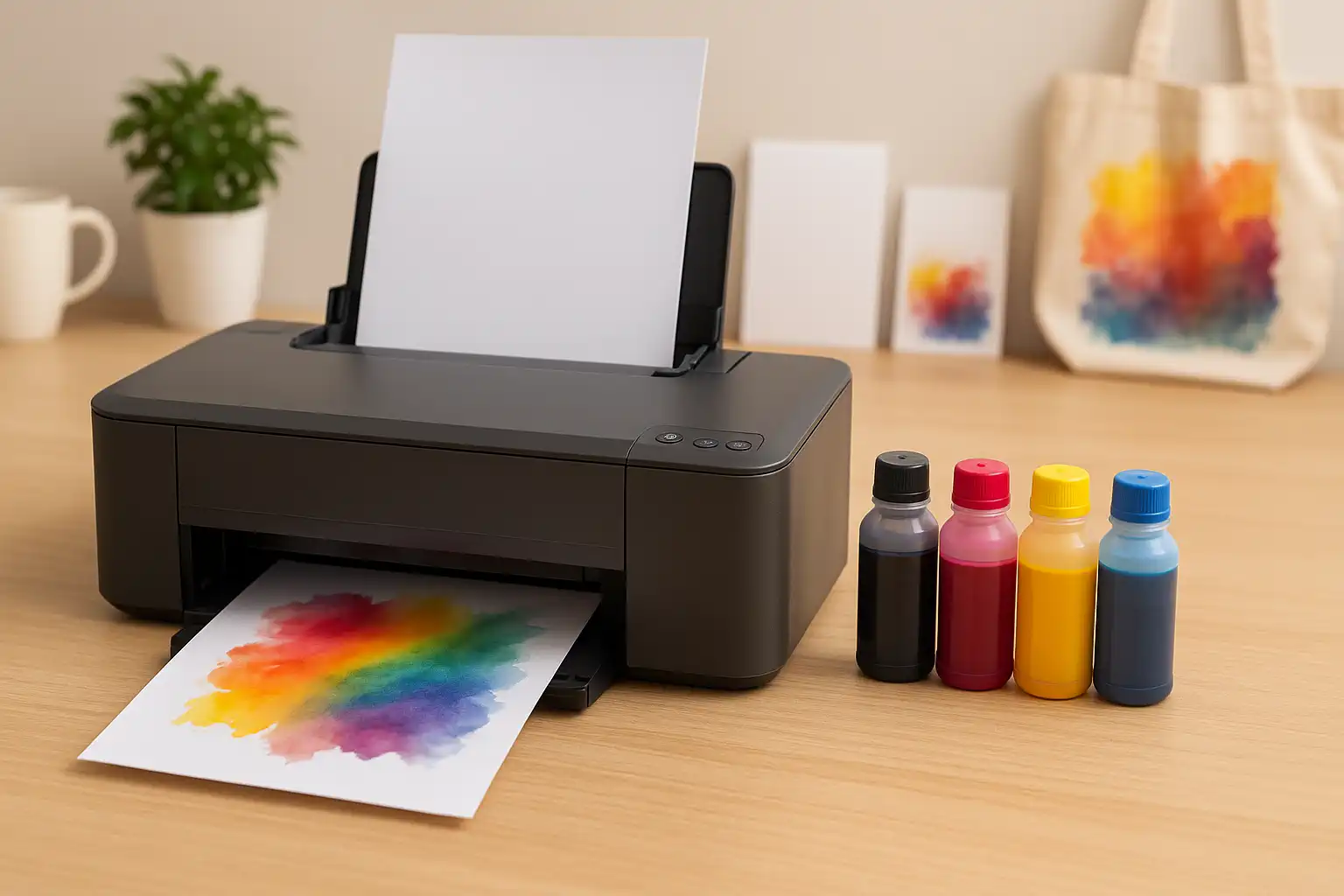
Can I use an inkjet printer for sublimation? It’s a common question—and an important one. Many people buy a regular inkjet printer hoping to start sublimation printing, only to face problems like poor print quality, clogged nozzles, or wasted money. Not all printers are made for sublimation; using the wrong one can cause big headaches. This article will break down the differences in the dye sublimation printing process, clear up the confusion, and help you avoid costly mistakes. Sublimation printing is growing quickly around the world. The global dye sublimation ink market was valued at around USD 974 million in 2024 and is expected to grow rapidly in the coming years. This shows how popular this printing method has become for both small businesses and personal use.
1. Can Any Inkjet Printer Be Used for Sublimation?
No, you can’t use just any inkjet printer for sublimation. It only works with printers that have Micro Piezo printheads, like most Epson models. These printers handle sublimation ink properly and give good results. Printers from brands like HP or Canon use heat-based technology, which doesn’t work well with sublimation ink. In fact, using sublimation ink in them can even damage the printer. Because of this, more people are now choosing the right printers from the start. Today, over 220,000 online sellers globally use sublimation printing for custom products like t-shirts, mugs, and gifts.
Let’s explain why that happens and what makes a printer suitable for sublimation printing.
What Makes a Printer Sublimation-Ready?
Not every inkjet printer can handle sublimation ink, which requires a unique dye sublimation printing method to achieve high-quality transfer results. This process uses heat to change dye-based ink into gas as part of the heat transfer process, which is a key part of dye sublimation printing and differs greatly from how regular inkjet printers spray liquid ink onto paper.
Sublimation works best with Micro Piezo printheads, which control ink using pressure instead of heat. These heads control the fine particles in high dye and ensure accurate distribution.
Main points: You can’t use printers with a thermal pressure head for sublimation, like many HP inkjet and Canon models. Heat-based printheads can damage sublimation ink or stop it from working properly.
The Truth About Inkjet vs. Sublimation Compatibility
You might think you can convert any inkjet printer to a sublimation printer, but that’s false. Only certain models—especially Epson inkjet printers—can convert. That’s because Epson printers use Micro Piezo technology, making them compatible with sublimation ink.
If the printer isn’t designed for this type of ink, your prints simply won’t come out right.
Understanding the Role of Printhead Technology
The printhead is one of the most important parts of any printer. In dye sublimation printing, the sublimation dye needs to be pushed onto paper with extreme accuracy. Micro Piezo printheads do this by using pressure, not heat. In general, inkjet printers use two technologies: thermal and piezoelectric. Thermal printers use heat, which can interfere with sublimation ink, while piezoelectric printers use pressure, making them the correct choice for sublimation printing.
On the other hand, thermal print heads, common in regular inkjet printers, use heat to push the ink. That might sound fine, but that heat causes problems with sublimation ink. It may clog the nozzles, ruin the ink flow, or damage your printer’s ink system.
To print well with sublimation paper, your printer needs the right technology.
2. Why can’t Use Regular Inkjet Ink?
If you plan to use sublimation for printing, remember this: you cannot use regular ink. Sublimation ink is different from the ink used in a regular inkjet printer. Let’s explore why using regular ink and sublimation together is bad.
Sublimation Ink vs. Regular Ink: What’s the Difference?
This special ink is designed to turn into gas when heated, which is what makes the process work. It is made for the sublimation process. The ink becomes vapour and bonds with the material’s surface as a substrate, including items. This process is what makes sublimation unique. When heated, the ink turns into gas and permanently bonds with polyester or coated surfaces, unlike regular ink which only sits on top.
On the other hand, manufacturers make regular inkjet ink sit on top of the paper. It doesn’t turn into gas and won’t stick properly to polyester materials or coated surfaces during the heat transfer process.
Key Point: Regular ink simply doesn’t work for sublimation transfers. This means your prints may look faded, wash off, or not appear.
Using Regular Ink Will Ruin Sublimation Results
If you try to use regular ink on sublimation paper, it won’t work. You’ll likely get blurry images, weak colours, or nothing after using the heat press. That’s because regular ink doesn’t stick to the material during sublimation transfer.
Regular ink can leave a sticky residue. It may also damage your print head and clog the printer’s ink system.
Mixing Regular Ink and Sublimation Ink? A Big Mistake
Switching from regular ink to sublimation ink in the same printer can be a big problem. You cannot do this without cleaning the printer first. Mixing ink and sublimation types can lead to bad print quality or clogs in the printhead.
Once you use regular ink, your printer is no longer pure. To convert a printer to sublimation, ensure it has never used regular ink. Clean it using professional methods to remove all old ink if it has.
Why Sublimation Ink Needs Its Own Printer
You need a printer that works well with sublimation ink. Good options are Epson Ecotank printers or professional dye-sub printers. These printers are either made specifically for sublimation or can be safely converted.
If you try to print sublimation paper with a regular printer, you will waste ink and might ruin the printer. The ink in the system must be pure sublimation ink. It should not mix with regular inkjet ink.
Summary:
- Sublimation ink and regular ink are completely different.
- Regular inkjet printers are not built to handle sublimation printing.
- Mixing both inks can destroy your print head and clog your ink system.
- Begin with a new printer or one not used with regular ink. This ensures the safe use of sublimation ink.
| Feature | Regular Inkjet Printer | Sublimation Printer |
|---|---|---|
| Ink Type | Regular liquid ink | Sublimation dye ink |
| Printing Method | Sprays ink on paper | Uses a heat transfer process |
| Compatibility | Not suitable for sublimation | Fully compatible |
| Print Results | Faded or washes off | Permanent and vibrant |
| Best Use | Documents and photos | T-shirts, mugs, and products |
3. What Happens If You Use the Wrong Printer?
Not every printer can serve for sublimation. Using the wrong printer, like a regular inkjet, can cause problems. This may waste your time, money, and even damage your equipment. In many cases, using the wrong printer can also void your warranty. Once a printer is converted or damaged by the wrong ink, it usually cannot be used as a normal inkjet printer again. Let’s break down what happens when the printer for sublimation isn’t suitable.
Your Printer Won’t Print on Sublimation Paper Properly
You’ll first notice that your printer doesn’t print on sublimation paper as it should. The regular ink will remain on the surface and may smudge or fail to transfer correctly. The sublimation process uses sublimation ink. It turns into gas and bonds with the material.
If you use a thermal print head, like in many HP or Canon printers, it is not designed for dye sublimation.
You Could Damage the Print Head
Using sublimation ink in the wrong printers, like those with thermal pressure heads, can create major problems.Because sublimation relies on heat, using the wrong ink can permanently damage the printhead. In some cases, it may stop working perfectly.
That’s why experts recommend Epson inkjet printers with piezo technology. These printers have micro piezo heads. They can use sublimation ink without burning it.
You’ll Waste Ink, Paper, and Time
Trying to print sublimation on the wrong type of printer will waste a lot of resources. You could waste ink cartridges and sublimation paper. Then, you might still get a print that looks dull, incomplete, or even blank after heat pressing.
To get good results, you need either a dedicated sublimation printer or a compatible inkjet printer that has been properly converted.
Your Sublimation Transfer Won’t Work
Even if the design looks okay when printed, the real problem occurs when using a heat press. A regular printer can’t make sublimation ink stick to the substrate, so no real transfer occurs. The result? Faded colours, patchy areas, poor transfer quality, or completely failed printing results.
This can ruin t-shirts, mugs, or other blanks that you’re using with dye sublimation paper.
Using the Wrong Printer Voids Conversion Potential
You can’t use it for sublimation once you fill a regular inkjet printer with regular ink. Cleaning it is tough and doesn’t always work. This means that even if the printer can sublimate, your ink choice may stop you from later changing it to a sublimation printer.
✅ Quick Recap:
- You cannot use printers for sublimation if they aren’t built.
- Wrong printers can’t use sublimation ink. The printing will be inaccurate on sublimation paper.
- The print head can get damaged or clogged.
- You will waste time, ink, and resources.
- Your sublimation transfer may not work at all.
4. Which Inkjet Printers Can Be Converted for Sublimation?
Not all inkjet printers can be converted into sublimation printers. You must ensure the printer has the right printing technology to use sublimation ink. In this section, we’ll look at which printers can be converted. We’ll also discuss the ones to avoid and the best choices for beginners.
Piezo Print Head vs. Thermal Print Head
The type of print head your printer uses is the most important factor.
- Epson printers use piezo print heads that can spray sublimation ink without heat.
- Thermal print heads in HP and many Canon printers heat the ink before it’s pushed out. This process doesn’t work with dye sublimation ink.
Printers with thermal print heads can’t be used for sublimation. They will either clog or get damaged.
✅ If you want to convert a printer to a sublimation printer, it must use piezo technology.
Best Epson Printers to Convert for Sublimation
Epson inkjet printers are popular for sublimation printing. They use piezo technology and are easy to find.
Some good models that are suitable for sublimation include:
- Epson EcoTank Series, like the ET-2800, ET-2720, and ET-15000, has refillable ink tanks. This feature is perfect for sublimation ink.
- Epson WorkForce Series printers can work with sublimation. But, they often use ink cartridges, which can be harder to convert.
When buying a new Epson printer, ensure no one has filled it with regular ink. A splitter-ni write is best for sublimation use.
Printers You Should Avoid
- HP inkjet printers – use thermal print heads and cannot be used for sublimation.
- Canon printers – Most of these also use thermal technology.
- Any printer that has used regular inkjet ink should be fully flushed out. This can be risky.
Once a printer has used regular ink, it’s hard to switch to sublimation ink without contamination.
Ink System: Tanks vs. Cartridges
Choose an inkjet printer with ink tanks instead of cartridges for sublimation printing. Why?
- Tanks are easy to refill with pure sublimation ink.
- Cartridges are often hard to clean and can waste ink.
Avoid using third-party cartridges unless someone has created them specifically for sublimation.
New or Used Printer?
If you use sublimation, always start with a new printer that has never been used with regular ink. Even tiny bits of old ink can blend with sublimation ink. This can change your sublimation transfer.
✅ Quick Recap:
- Use Epson printers with piezo print heads.
- Avoid HP and most Canon printers.
- Go for EcoTank models with refillable tanks.
- Never use a printer that has already used regular ink.
- Check for printer ink compatibility before converting.
Choosing the right printer ensures better ink compatibility, smoother workflow, and more reliable sublimation results.
5. Best Printers for Sublimation Printing
Choosing the right printer is crucial for getting high-quality sublimation results. Here are some of the best printers for beginners and professionals alike.
| Printer Model | Type | Notes | Best For |
|---|---|---|---|
| Epson EcoTank ET-2800 | Inkjet | Refillable tanks, easy to convert | Beginners, home use |
| Epson EcoTank ET-15000 | Inkjet | Wide-format, refillable | Advanced hobbyists, larger prints |
| Epson WorkForce WF-7720 | Inkjet | Cartridge-based, piezo print head | Intermediate users |
| Sawgrass SG500 | Sublimation printer | Plug-and-play, professional | Commercial use, reliable quality |
Always check if the printer is new or has never been used with regular ink. Using a previously used printer may contaminate the system and affect your sublimation prints.
6. Cost of Converting or Buying a Sublimation Printer
Understanding the costs upfront can save you from surprises. Whether you’re converting a regular inkjet printer or buying a ready-made sublimation printer, there are several expenses to consider. This section breaks down all the costs so you know exactly what to budget before starting your sublimation printing journey.
Converting a Regular Inkjet Printer (Budget-Friendly Option)
Converting a regular inkjet printer is a good way to start sublimation without spending too much. If you already have an Epson EcoTank printer, you can replace the regular ink with sublimation ink and start printing your designs. But not every printer can be converted, and using the wrong one can damage it. You’ll also need the right paper, ink, and some optional tools to make printing easier.
Factors to consider when converting:
- Printer type: Must have Micro Piezo print heads (common in Epson EcoTank).
- Ink history: Never used regular ink; old ink can ruin sublimation prints.
- Sublimation ink: Must match your printer model and be pure dye-sub ink.
- Paper: Use sublimation transfer paper, not regular paper.
- Optional tools: Cleaning kits, Continuous Ink Supply System (CISS) for easier refills.
Buying a Ready-Made Sublimation Printer (Professional Option)
If you plan to print regularly or start a small business, a ready-made sublimation printer is the easiest and safest choice. Printers like Sawgrass are made for dye-sublimation, so your prints come out clear and consistent. They’re ready to use right away, and you don’t have to worry about converting old printers or dealing with leftover ink. Although they cost more upfront, they usually include warranties and support, which can save you headaches and mistakes.
Extra Tools & Costs
Even with the right printer and ink, you’ll need a few extra tools to get good results. A heat press is essential for transferring designs onto t-shirts, mugs, or other items. Simple protective gear like gloves and heat tape keeps you safe and helps designs stay in place. Things like maintenance tools and protective paper also help your printer last longer and prevent smudges.
Tips to Save Money
You don’t have to spend a fortune when starting. Try small kits first to practice and avoid wasting materials. Buying sublimation paper in bulk lowers your cost per print, and refillable ink tanks are cheaper than cartridges over time. Just make sure never to mix regular ink with sublimation ink, or you risk clogging your printer and ruining prints.
Estimated Costs for Sublimation Printing
This table shows the typical costs for printers, consumables, and tools you’ll need to start sublimation printing, whether using a ready-made printer or a converted inkjet.
| Category | Item | Estimated Cost | Notes |
|---|---|---|---|
| Printer | Sawgrass SG500 | $500–$700 | Plug-and-play, professional quality. |
| Printer | Sawgrass SG1000 | $1,000–$1,200 | For larger formats or commercial use. |
| Converted Inkjet | Epson EcoTank (converted) | $200–$500 | Budget-friendly option; must have Micro Piezo heads. |
| Consumables | Sublimation Paper | $15–$30 per pack | Compatible with Sawgrass or converted printers. |
| Consumables | Sublimation Ink Refills | $40–$80 | Use manufacturer-recommended dye-sub ink. |
| Tools | Heat Press Machine | $200–$400 | Needed for t-shirts, mugs, and other surfaces. |
| Tools | Gloves & Heat Tape | $10–$30 | Protect hands and keep transfers in place. |
| Tools | Protective Paper | $5–$15 | Prevents smudging or ink bleed. |
| Tools | Maintenance Tools | $10–$50 | For printer longevity and smooth prints. |
7. What to Do Before Converting an Inkjet Printer
Before converting a regular inkjet printer for sublimation printing, follow these key steps. Starting right leads to better and longer-lasting prints, prevents damage, and ensures consistent sublimation results. Here’s what you should do, step by step.
1. Start with a Brand-New Printer
If you use sublimation, always start with a new printer that has never used original or regular ink. It’s tough to clean and switch back once someone fills a printer with ink or dye not meant for sublimation.
Some printers won’t work if they have thermal print heads. You also can’t use them with dye-based or pigment ink.
We recommend using a certain Epson EcoTank model, which is compatible and easy to work with.
2. Check the Print Head Technology
Only piezo print head inkjet printers can convert to use sublimation ink. Skip HP and Canon printers that use thermal heads. They will not work with sublimation ink.
Most Epsons are safe. Many users also recommend Epson EcoTank models for sublimation printing.
3. Install Sublimation Ink Immediately
When setting up the printer for the first time, fill it only with pure sublimation ink. Don’t let original ink enter the system, or it will ruin the process.
If your printer supports it, you can use a CISS(Continuous Ink Supply System). A continuous ink system makes refilling easier and avoids wasting ink.
Avoid 3rd party cartridges unless they are made specifically for sublimation.
4. Load the Right Paper
For the best results, always use sublimation transfer paper or sublimation printing paper. Don’t use regular paper. These special papers hold sublimation ink until a heat press transfers it.
Most printers can handle different paper types, but not all of them work for sublimation.
5. Understand the Sublimation Process
When you print with sublimation, you use heat to transfer ink onto a surface. Print the photograph with a dye-sub printer. Then, use a heat press to apply it to a substrate, like a mug, T-shirt, or plate. For the best dye sublimation results, begin with a clean and precise setup. Do it right from the beginning.
6. Consider a Pre-Built Sublimation Printer
You can buy a dye-sublimation printer instead of converting one yourself. Sawgrass offers great options built to handle dye-sub printing from day one.
They cost more than DIY options, but they are reliable. They come with warranties and provide professional results.
7. Match the Ink and Printer Compatibility
Each printer has its own ink system, so using the correct sublimation ink for your model is important. Always follow the manufacturer’s guide, whether it’s a CISS, inktanks, or cartridges.
It depends on your printer type, so ensure everything matches. This includes sublimation ink and transfer paper.
8. Final Checks and Test Prints
After setting everything up:
- Do a few test prints using sublimation transfer paper.
- Check if the ink is flowing well.
- Make sure there are no streaks or lines.
- Then, do a heat press to confirm that the transfer works.
This step ensures you are completely ready to begin your sublimation printing journey.
8. Common Mistakes Beginners Make
Jumping into sublimation printing is exciting! But many beginners trip up and waste time, money, and materials. Knowing what not to do is as important as knowing what to do. Let’s go over the most common slip-ups and how to avoid them.
1. Using a Printer That’s Not Compatible
Many people try to replace HP printers and other inkjet models with thermal heads, but these printers can’t be used for sublimation. Only printers that use piezo print heads, like some Epson models, or sublimation printers like Sawgrass, will work.
If unsure, see if the printer supports dye sublimation printing or can be changed to use sublimation ink.
2. Filling the Printer with Regular Ink First
One big mistake is using original or dye-based ink in a new printer. Trying to switch to sublimation ink later can cause problems. Once a printer is filled with non-sublimation ink, the system is contaminated and often unusable for dye-sub printing.
Always use sublimation ink from the start if you use sublimation.
3. Using Regular Paper Instead of Sublimation Transfer Paper
New users often try printing with sublimation on regular paper, thinking it’s the same. But regular paper doesn’t hold or transfer ink correctly. For best results, always use sublimation transfer paper or sublimation printing paper, which is designed to work with heat and produce durable prints.
4. Skipping Test Prints and Calibration
Not testing your printer setup is a common rookie move. Before printing on t-shirts or mugs, always run a test print on sublimation paper to check for issues like banding or colour misalignment. Calibration is even more important if you’re using a converted inkjet printer for sublimation printing.
5. Not Matching Ink and Printer Type
All inks aren’t made equal. Using cheap 3rd party ink or mismatched systems can damage your printer and ruin your prints. Some beginners buy CISS (Continuous Ink Supply Systems) that don’t fit their printer, or use ink not made for sublimation.
We strongly recommend using ink that’s made for your specific model — whether it’s Sawgrass, Epson, or another dye sub printer.
6. Using the Wrong Heat Press Settings
Even if you print the image perfectly, poor heat press technique can ruin everything. Beginners often use too much or too little time, heat, or pressure. The printing process depends on precise heat transfer, so always follow recommended settings for your substrate (like t-shirts, mugs, etc.).
7. Ignoring the “Use It or Lose It” Rule
Sublimation ink can clog the print head if the printer isn’t used regularly. A great tip is to print something small each week. This helps keep the ink flowing, especially with continuous ink systems or modified printers.
8. Not Asking Questions
Finally, it is a mistake not to learn from others. Always read frequently asked questions, join forums, and ask for advice before you start. It will save you time and avoid expensive errors.
9. Should You Use a Converted Printer or a Ready-Made Sublimation Printer?
If you’re starting with sublimation printing, one big question is whether to convert a regular inkjet printer or buy a ready-made sublimation printer. Both options have pros and cons, and the right choice often depends on the type of work you plan to do.
Let’s break it down:
Converted Printers (Budget-Friendly But Tricky)
Many beginners convert regular inkjet printers into sublimation printers using sublimation ink instead of the manufacturer’s original ink. This is a cheaper option, especially if you already own an Epson EcoTank or similar model compatible with sublimation ink.
✅ Pros:
- Affordable upfront cost
- Ideal for experimenting or learning
- Easier to refill using continuous ink systems
❌ Cons:
- Can be messy if not done correctly
- May void warranty
- Printers can print poorly if not cleaned or maintained
- Colour accuracy may suffer
- Not all printers are suitable for sublimation, especially those with thermal print heads, like most HP printers.
Keep in mind: once a printer is converted to be used for sublimation, you cannot go back to regular ink. Also, not all printers can be converted — printers cannot be used for sublimation unless they use piezo print heads, like Epsons.
Ready-Made Sublimation Printers (Best for Serious Users)
Ready-made sublimation printers, such as those by Sawgrass or professional dye sublimation models, are made specifically for sublimation from the start. These are great for high-quality, durable prints and professional results.
✅ Pros:
- Plug-and-play setup
- Calibrated for colour accuracy
- No need to modify or risk the printer
- Better for large or commercial-level jobs
- Reliable printing process with fewer errors
❌ Cons:
- Higher initial cost
- Ink or dye refills can be more expensive
- Might not be ideal for hobbyists with small workloads
These printers are often used with sublimation printing paper, dye sublimation paper, and sublimation transfer paper to achieve the best transfer results using a heat press.
Things to Consider Before Choosing
Ask yourself:
- Are you going to use sublimation regularly or occasionally?
- Do you need dye-sub printers for commercial use?
- Can you handle basic maintenance and setup?
- Is colour accuracy critical for your business or personal use?
- Do you prefer using CISS or 3rd party inks to save money?
If you’re starting and want to learn, a converted printer might work. But if you want reliable results, a sublimation printer like Sawgrass is a better long-term option. Sublimation printing is widely used in industries like fashion and custom merchandise. The textile and apparel sector alone accounts for nearly 47% of the market, showing how important this printing method has become worldwide.
Conclusion:
Not all inkjet printers can be used for sublimation, especially HP printers with thermal print heads, which cannot be used for this process. If you want to use sublimation, pick models like some Epson printers. They have micro piezo technology, making them better for sublimation. You can also convert them to work with sublimation ink.
Avoid mixing original ink with dye-sub inks—this can clog your print head. Always clean old ink before using pure sublimation ink. Always choose sublimation transfer paper or sublimation printing paper. Regular paper won’t give you the best, most durable prints.
For easy results, think about a Sawgrass dye sublimation printer. It’s designed for sublimation and works well with continuous ink systems (CISS). In the end, printers can print stunning designs, depending on your chosen type.
Frequantly Ask Question
1. Can you use a regular inkjet printer for sublimation at home?
No, regular inkjet printers are not designed for sublimation. Only compatible printers like Epson with Micro Piezo technology can work.
2. Can any Epson inkjet printer be used for sublimation?
No, only Epson inkjet printers with Micro Piezo print heads can be converted for sublimation. Others, like those with thermal heads, cannot be used.
3. What printers can be turned into a sublimation printer?
Epson EcoTank printers are the most commonly converted to be used for sublimation. Make sure the printer is new and unused with regular ink.
4. What kind of ink do you need for sublimation?
You need dye sublimation ink, not regular inkjet ink. It’s specially designed for sublimation printing and works with heat transfer.
5. What is the best sublimation printer for home use?
The Sawgrass SG500 is a great choice. It offers professional dye sublimation, simple setup, and is designed just for sublimation. Epson EcoTank models are a great budget-friendly option.