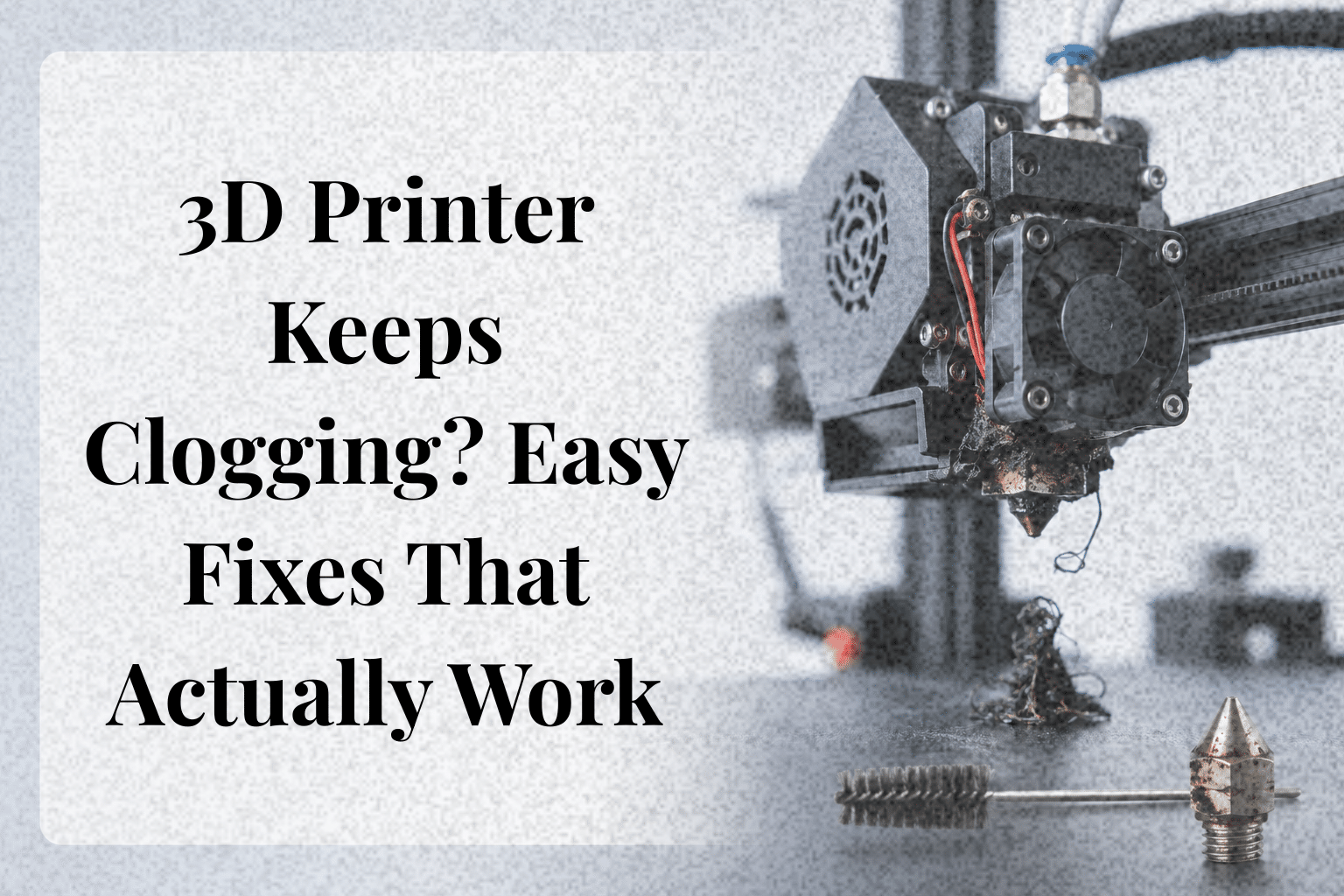
Nothing is more frustrating than starting a print only to find your 3D printer keeps clogging halfway through. Many users clean the nozzle again and again, but the real cause is often a hidden issue like wet filament, incorrect print settings, or a hotend problem. If the root cause isn’t fixed, the clogs will keep coming back. This guide explains why your 3D printer keeps clogging, how to identify the real cause, and the best ways to fix and prevent the problem for reliable, hassle-free printing.
Why Does My 3D Printer Keep Clogging?
When a 3D printer keeps clogging, it usually points to a deeper issue rather than simple bad luck. A quick clean might get the machine working again, but if the same problem returns after a few prints, something else needs attention. That is why repeatedly cleaning the nozzle often becomes a temporary fix instead of a permanent solution.
Think of it this way. If a kitchen sink keeps blocking, removing the water doesn’t solve the real problem. The blockage comes back until the actual cause is fixed. The same idea applies to 3D printing. A clog can happen because of poor-quality filament, incorrect print settings, worn components, or even a small issue that develops over time.
During long print jobs, these small problems often build up gradually. For example, a spool that has absorbed moisture may print well at first but begin causing inconsistent material flow later in the print. In another situation, a slightly worn nozzle may handle simple models without trouble but struggle during detailed prints that require steady extrusion. Experienced makers often find that recurring clogs are caused by a combination of settings, filament condition, and hotend performance rather than a single faulty component.
This matters because clogging is one of the most common reasons prints fail. As desktop 3D printer use continues to grow worldwide, reliable printing has become more important than ever. Industry reports also show that failed prints remain a common challenge, especially for new users, with blocked material flow being one of the leading causes of interrupted prints. Rather than treating every blockage as the same problem, it helps to identify the real source first.
The sections below explain the most common reasons a printer keeps clogging and show practical ways to stop the issue from coming back instead of fixing it over and over again.
Quick Troubleshooting Guide for a 3D Printer That Keeps Clogging
When a 3D printer keeps clogging, the fastest way to solve the problem is to identify the symptom before replacing parts or changing settings. A printer that stops extruding halfway through a print often has a different cause than one that does not extrude anything at all. Spending a minute on a quick diagnosis can save a lot of time and help avoid unnecessary repairs.
Use this table as a starting point before trying the detailed fixes covered later in this guide.
| Symptom | Possible Cause | Recommended Fix |
|---|---|---|
| Clicking sound from the extruder | Partial blockage | Heat the nozzle and perform a cold pull |
| No material comes out | Complete blockage or hardened residue | Clean the nozzle and inspect the hot end |
| Gaps or weak layers | Wet filament or incorrect temperature settings | Dry the filament and adjust the settings |
| Stops printing midway | Heat buildup or cooling issue | Check the hot end fan and airflow |
| Rough surface finish | Dirty nozzle or low-quality filament | Clean the nozzle or switch to a better filament |
This quick check does not replace a full inspection, but it points readers in the right direction. Finding the real cause early often improves print quality and makes preventing clogs much easier.
What Causes a 3D Printer to Keep Clogging?
A recurring clog rarely has just one cause. In most cases, it develops because several small issues build up over time. One print may finish without trouble, while the next suddenly stops halfway through. That can be frustrating, especially when the nozzle was cleaned just before starting. The good news is that once the real cause is identified, the problem is usually much easier to fix.
Filament Issues
The condition of the filament has a bigger impact than most people expect. If it absorbs moisture from the air, tiny pockets of steam can form during printing, making the material flow uneven. This weak extrusion can leave gaps or eventually block the nozzle.
Low-quality filament can also create problems. Some spools have inconsistent diameters or small impurities that leave residue behind as they melt. Over time, that buildup can reduce smooth material flow and lead to clogs.
Dust is another overlooked issue. A spool left uncovered for weeks can collect fine particles that travel through the printer and slowly collect inside the nozzle. It seems like a small thing, but it happens more often than expected.
Incorrect Print Settings
Incorrect temperature settings are another common reason for repeated clogs. If the nozzle temperature is too low, the material may not melt completely. If it is too high, leftover plastic can burn and leave hardened residue inside the nozzle.
Printing too fast can create a similar problem. The hot end may not melt the material quickly enough, causing inconsistent flow. Excessive retraction can also pull softened material into cooler areas, where it hardens and blocks the path.
Hotend and Extruder Problems
Sometimes the issue has nothing to do with the filament or slicer profile. Heat creep can soften material before it reaches the melting zone, making it stick where it should move freely. A worn nozzle, damaged PTFE tube, failing cooling fan, or worn extruder gear can all reduce smooth feeding and lead to clogs.
When troubleshooting, experienced users usually check the simplest causes first before replacing parts. A damp spool or incorrect setting is far easier to fix than installing a new component, and in plenty of cases, that is all it takes to get reliable prints again.
How to Fix a 3D Printer That Keeps Clogging
Once the root cause has been identified, fixing the problem becomes much easier. There is no need to replace every part right away. In most cases, a few simple checks are enough to resolve a recurring nozzle clog and get the printer working again. The steps below are arranged from the easiest fix to the most advanced, making the troubleshooting process faster and less frustrating.
| Step | What to Check | Why It Matters |
|---|---|---|
| 1 | Check the filament | Wet or unsuitable filament can interrupt material flow. |
| 2 | Clean the nozzle | Removes burnt plastic and other buildup. |
| 3 | Perform a cold pull | Clears hidden debris from inside the nozzle. |
| 4 | Inspect the PTFE tube | A damaged tube can restrict movement. |
| 5 | Check hotend cooling | Poor cooling may cause heat creep. |
| 6 | Replace worn parts | Worn components can cause repeated problems. |
Start by checking the filament. Many hobbyists assume the nozzle is at fault, only to discover later that a damp spool of filament was causing the inconsistent extrusion. If the spool has absorbed moisture or is the wrong filament type for the current settings, printing problems can appear without warning. For example, PLA usually prints at a lower temperature than PETG, while TPU needs slower print speeds because of its flexible nature.
Next, clean the nozzle. Even a small amount of burnt material can grow into a stubborn nozzle clog after several prints. If normal cleaning does not help, perform a cold pull. This method removes leftover debris that regular cleaning may miss.
It is also worth inspecting the PTFE tube for wear, deformation, or internal damage. A worn or deformed tube can increase friction, making the filament harder to feed. If the problem continues, check the cooling fan around the 3D printer nozzle. Weak airflow can allow heat to travel upward, softening the material too early.
If the problem persists, examine the nozzle and other components for signs of wear. After hundreds of printing hours or after frequent use with abrasive materials, replacing a worn part is often a smarter choice than trying to repair it again. There is no need to disassemble the entire printer unless simpler solutions have already been ruled out.
Why Your 3D Printer Keeps Clogging Even After Cleaning
If the printer keeps clogging after cleaning, the nozzle may not be the real problem. In most cases, a hidden issue causes the blockage to return after a few prints.
In some cases, a small amount of melted plastic remains inside the nozzle and gradually restricts material flow. A small amount of melted plastic can remain inside the nozzle, restricting filament flow over time. The print may start normally but fail later as the blockage grows.
Heat creep is another frequent cause. It occurs when heat moves above the melting zone, softening the filament too early. The material sticks inside the PTFE (Teflon) tube instead of feeding smoothly, making repeated clogs more likely.
Print settings can also play a role. A printing temperature that is too low or excessive retraction may increase the risk of clogs, especially during long prints. If the issue started after changing slicer settings, checking those values is a smart first step.
Finally, inspect the hot end and cooling fan. Worn components or weak cooling can affect the entire printing process. In some cases, replacing a damaged fan or using cleaning filament solves the problem without replacing the nozzle.
Instead of cleaning the nozzle again and again, inspect the whole system. That simple approach often prevents the same clog from coming back.
Best Print Settings to Prevent Nozzle Clogs
The right print settings can make a big difference in reducing clogs. Even a clean printer can struggle if the temperature, retraction, or print speed is not matched to the filament being used. Small adjustments often improve reliability and reduce downtime.
Recommended Temperature by Filament
Different materials melt at different temperatures. Printing at too low a temperature can restrict material flow, while excessive heat may leave burnt plastic inside the nozzle.
| Filament | Recommended Temperature |
|---|---|
| PLA | 200–220°C |
| PETG | 230–250°C |
| TPU | 220–240°C |
| ABS | 240–260°C |
These ranges are a good starting point, but checking the filament manufacturer’s recommendations is always safest, as filament quality can vary between brands.
Retraction Settings
Retraction helps reduce stringing, but too much of it can pull softened plastic into cooler areas of the hotend. That increases the chance of a blockage. If a printer suddenly starts clogging after changing the slicer profile, reducing the retraction distance slightly is often worth testing first.
Print Speed and Flow Rate
Printing too fast does not always save time. If the nozzle cannot melt material quickly enough, it may struggle to keep a steady flow. For abrasive filaments, using a hardened steel nozzle can also improve durability. Some users even switch to 0.6 mm or 0.8 mm nozzles when printing filled materials because the wider opening is less likely to clog.
Testing one setting at a time makes it easier to find the real cause of the problem. This simple approach helps produce high-quality prints while reducing the risk of repeated nozzle clogs.
Which Filaments Are Most Likely to Cause Clogs?
Not every filament behaves the same way. Some materials melt smoothly, while others need extra care to avoid clogging. Choosing the right settings and storing filament correctly can make a noticeable difference.
| Filament | Clog Risk | Why It Happens | Prevention Tip |
|---|---|---|---|
| PLA | Medium | Heat creep or moisture | Store in dry conditions and use the recommended temperature. |
| PETG | Medium | Sticky material can leave buildup | Lower print speed if needed and clean the nozzle regularly. |
| ABS | Low | Burnt plastic from high-temperature printing | Use the correct temperature and avoid overheating. |
| TPU | High | Flexible material feeds slowly | Print at a slower speed with gentle retraction. |
| Nylon | High | Absorbs moisture quickly | Store in airtight containers with silica gel. |
| Wood Fill | Very High | Small wood particles can block the nozzle | Use a larger nozzle and inspect it at regular intervals. |
| Carbon Fiber | Medium | Abrasive fibers wear the nozzle over time | Use a hardened nozzle for longer life. |
PLA is the most common filament for beginners, but it can still clog if it absorbs moisture or if the printer is not cooled properly. PETG is another common filament that prints well, although its sticky nature sometimes leaves small deposits behind.
Filled materials, such as wood and carbon fiber, deserve extra attention. Even a tiny speck of debris can restrict material flow, especially with smaller nozzles. Before loading new filament, trimming the filament end and checking for dust can help prevent problems.
If a blockage does occur, a thin needle may clear minor debris, but repeated clogs usually point to a setup issue rather than the filament alone. Treating filament as part of a regular maintenance guide helps keep prints reliable over time.
When Cleaning Isn’t Enough: Parts That May Need Replacement
If the nozzle keeps clogging after repeated cleaning, the problem may be a worn component rather than leftover debris. Replacing the faulty part is often faster than spending more time unclogging the same issue.
| Part | When to Replace |
|---|---|
| Nozzle | Worn or damaged nozzle tip |
| PTFE Tube | Burnt, loose, or deformed |
| Heat Break | Frequent heat creep |
| Cooling Fan | Weak airflow or failure |
| Extruder Gear | Worn teeth or filament slipping |
A worn nozzle tip can affect material flow, while a damaged PTFE tube or heat break may cause repeated jams. These are common causes of recurring clogging that are easy to overlook.
If the printer is an Ender 3 or another Creality model, checking the cooling fan and updating the firmware can also help before replacing expensive parts.
Think of replacement as preventive maintenance. A small upgrade at the right time can keep the printer clog-free and reduce future print failures.
Simple Maintenance Tips to Prevent Future Clogs
A few minutes of maintenance can save hours of failed printing. One of the most common problems faced by FDM printer users is waiting until a clog appears before checking the printer. Regular care helps catch small issues before they become expensive repairs.
For example, burnt plastic, or char, can slowly build up inside the nozzle after frequent high temperature printing. If left untreated, it may restrict material flow and become one of the hidden causes of nozzle blockage. A quick inspection and cleaning at regular intervals can prevent this.
Simple Maintenance Checklist
| Task | Recommended Frequency |
|---|---|
| Cleaning a clogged nozzle | When extrusion becomes inconsistent |
| Inspect the nozzle and PTFE tube | Every month |
| Check cooling fan | Every month |
| Replace worn-out parts | As needed |
| Clean dust from the printer | Every few weeks |
This simple routine keeps an FDM printer running smoothly and reduces unexpected print failures. Spending a few minutes on maintenance is much easier than troubleshooting repeated clogs during an important print.
Conclusion
If a 3D printer keeps clogging, repeatedly cleaning the nozzle is rarely the complete solution. The real cause could be a wet filament, incorrect print settings, heat creep, or a worn component that needs attention. Taking a step-by-step approach makes troubleshooting much easier and helps avoid unnecessary part replacements.
Regular maintenance, proper filament storage, and the right printing settings can prevent most clogging problems before they start. When a clog does happen, identifying the root cause instead of guessing usually leads to a faster and longer-lasting fix.
With the tips and troubleshooting steps in this guide, users can keep their 3D printer running smoothly, reduce failed prints, and enjoy more reliable printing on every project.
Frequently Asked Questions
How to clean a clogged 3d printer nozzle effectively?
Heat the nozzle to the filament’s printing temperature, then use a cleaning needle or perform a cold pull to remove trapped debris. If the clog remains, remove the nozzle and clean it thoroughly before reinstalling it.
How to troubleshoot a constantly clogging extruder?
Check the filament for moisture, inspect the nozzle and PTFE tube for damage, and verify that your print temperature and retraction settings are correct. Also, make sure the hotend cooling fan is working properly to prevent heat creep.
What temperature settings prevent filament jams?
Use the temperature range recommended by the filament manufacturer, as printing too hot or too cold can cause jams. Fine-tune the temperature in small increments until the filament extrudes smoothly and consistently.

Willis C. Mathes
About the Author
Willis C. Mathes is a technical writer focused on 3D printing workflows, printer setup, and troubleshooting. His content is based on practical research into FDM and resin printing systems, slicer optimization, filament handling, and common beginner printing problems.
He regularly covers topics related to printer performance, calibration, maintenance, and beginner-friendly 3D printing setups.