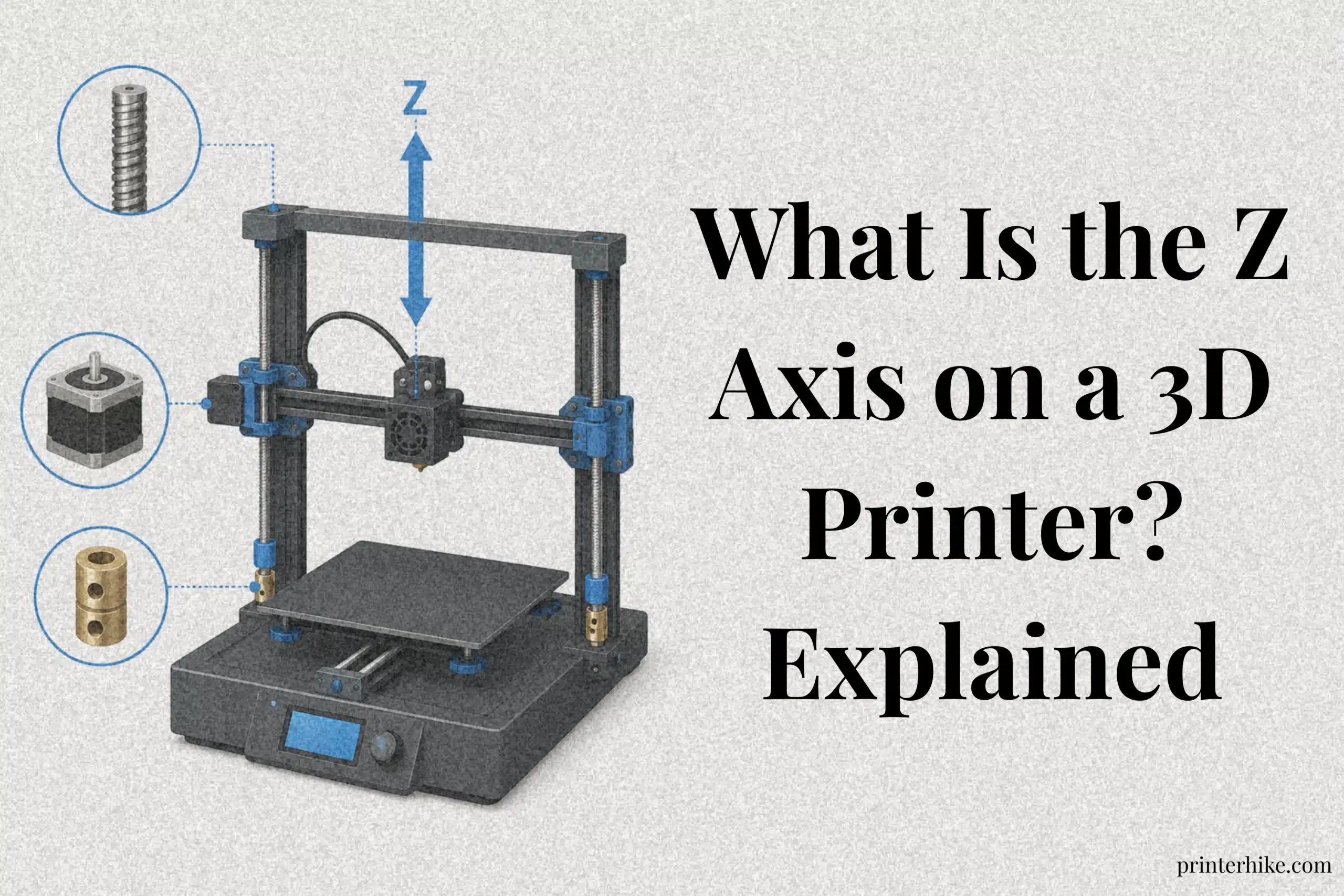
What is the Z axis on a 3D printer? It is the axis responsible for vertical movement, allowing a 3D printer to build objects layer by layer. While the X and Y axes control horizontal movement, the Z axis determines the height and accuracy of a print. Understanding how it works can help improve print quality and solve common printing issues. In this guide, you’ll learn what the Z-axis is, how it functions, the components behind it, and how to keep it properly calibrated for dependable print performance.
Understanding the Role of the Z Axis in a 3D Printer
Height control in a 3D printer is handled through a dedicated vertical movement system that builds objects layer by layer. While the X axis moves left to right and the Y axis moves front to back, the Z axis controls vertical movement. It allows the machine to build a model layer by layer, gradually creating the final shape from the bottom up.
Understanding what the Z-axis is on a 3D printer is important because it directly affects print accuracy and surface quality. Every time a layer is completed, the printer adjusts upward by a small distance based on the selected layer height. This process continues until the entire object is finished. Even a small positioning error can affect the appearance and dimensions of the final part.
What Does the Z Axis Control?
Layer placement height is managed through vertical movement, ensuring each new layer is positioned at the correct level. Depending on the printer’s design, it may move the print head, the bed, or both. Its primary role is to keep each layer aligned correctly throughout the printing process.
Why the Z Axis Matters in 3D Printing
The z-axis plays a major role in producing clean and predictable print quality. Precise vertical positioning produces smoother surfaces, stronger layer bonding, and better dimensional accuracy. If the Z-axis is not calibrated correctly, issues such as uneven layers, visible lines, and poor print quality can occur. For this reason, it is one of the most important systems in any modern 3d printer.
How the Z-Axis Works During Printing
During printing, the machine adjusts its vertical position after each completed layer to continue building the model upward. While the x and y-axes handle horizontal direction, the Z-axis manages vertical positioning. This coordinated process allows a 3D printer to create solid objects one thin layer at a time.
Modern machines use precise positioning systems to ensure every layer is placed at the correct level. Even a small error can affect the final result. During routine testing, users often notice that smooth vertical motion leads to cleaner surfaces and more accurate dimensions. That is one reason why proper z-axis calibration receives so much attention in the 3D printing community.
How the Z Axis Builds Layers
A 3D model is created by stacking hundreds or even thousands of thin layers. After one layer is completed, the printer makes a small adjustment before starting the next one. This repeated action gradually builds the full shape.
For example, a small decorative figure may contain several hundred layers, while a tall prototype can require far more. The accuracy of each step directly affects the final height and appearance of the finished piece. When everything is adjusted correctly, layers blend together smoothly and create a cleaner finish.
The Relationship Between Layer Height and Z Movement
Layer height determines how far the printer moves vertically after each layer. A smaller layer height usually produces finer detail but increases printing time. A larger setting can speed up production but may make layer lines easier to see.
| Layer Height | Typical Result |
|---|---|
| 0.10 mm | High detail |
| 0.20 mm | Balanced quality and speed |
| 0.30 mm | Faster printing |
Even a slight change in layer settings can influence surface quality and dimensional accuracy.
How Stepper Motors Move the Z Axis
Stepper motors control the movement of the Z-axis with very small and precise increments. They work with lead screws to convert rotational motion into controlled vertical travel.
This level of control is important when setting the z offset during setup. Whether printing with standard filament or resin, accurate motor movement helps maintain consistent layer placement from the first layer to the last.
Parts That Make the Z-Axis Move
Smooth vertical movement relies on multiple mechanical parts working together with precision. If even one component becomes loose or worn, print quality can suffer. During routine maintenance on desktop machines, users often discover that small alignment issues can lead to visible layer defects. That can be frustrating, especially after a long print job.
Each component has a specific role. Some parts provide lifting power, while others keep movement straight and stable. Together, they help maintain the precision needed to build a three-dimensional model layer by layer.
Lead Screws
Lead screws are threaded rods that convert rotational motion into vertical travel. When the motor turns the screw, the connected assembly moves up or down in a controlled manner.
Most consumer printers use lead screws because they offer excellent precision and can hold position without slipping. Common lead values include 2 mm, 4 mm, and 8 mm per revolution. This accuracy helps maintain consistent layer placement throughout a print.
Z-Axis Motors
Z-axis motors provide the force needed to lift the printer’s movable components. These motors follow a command sent by the printer’s firmware and rotate in tiny increments to achieve accurate positioning.
The motor must work smoothly because even a slight positioning error can affect the final result. Proper motor alignment is also important when users calibrate a machine for better accuracy.
Couplers
Couplers connect the motor shaft to the lead screw. Their job is simple but important. They transfer rotational force while helping absorb minor alignment differences between connected components.
A damaged coupler can create unwanted vibrations, which may appear as repeating lines on printed surfaces.
Linear Rails and Guide Rods
Linear rails and guide rods keep the Z-axis moving in a straight path. Without them, the assembly could shift sideways and reduce accuracy.
They also help maintain consistent depth and alignment as the printer moves upward during operation.
Anti-Backlash Nuts
Anti-backlash nuts reduce unwanted play between the lead screw and the nut assembly. This helps improve positioning accuracy and keeps the first layer and later layers more consistent.
When properly adjusted, these small components contribute to cleaner surfaces and more reliable print results.
Z-Axis vs X-Axis vs Y-Axis: What’s the Difference?
Every 3D printer uses three main axes to create a model accurately. Each axis controls movement in a different direction, and together they determine where material is placed during printing. Understanding these directions helps users troubleshoot problems, improve quality, and choose better print settings.
A simple way to think about it is this: the X axis controls width, the Y axis controls depth, and the Z axis controls height. If one axis is not working correctly, the final result may show visible defects or dimensional errors.
X Axis
The X-axis controls side-to-side movement. It allows the print head to travel from left to right across the build area.
In most machines, the extruder moves along the X-axis while depositing material. Accurate X-axis motion is important for maintaining correct dimensions and smooth surface details.
Y Axis
The Y-axis controls front-to-back travel. Depending on the printer design, either the print platform or the print head moves in this direction.
This movement helps define the depth of a model. If the Y-axis loses alignment, prints may appear stretched or shifted. Even a small adjustment can improve accuracy and overall appearance.
Z Axis
Vertical movement is handled through this axis, allowing the printer to build height throughout the printing process. Unlike the other two directions, it is responsible for building the model vertically.
After each layer is completed, the printer moves a specific distance, often measured in mm, before beginning the next layer. This movement directly affects layer quality and final height. If the Z-axis is set too high or too low, issues such as poor bed adhesion, uneven layers, or surface defects can occur.
Comparison Table
| Axis | Direction | Main Purpose |
|---|---|---|
| X Axis | Left to Right | Controls width |
| Y Axis | Front to Back | Controls depth |
| Z Axis | Up and Down | Controls height |
When all three axes work together correctly, they create the precise positioning needed for high-quality prints. Even small errors in one direction can cause frustration, while correct adjustment helps produce cleaner and more reliable results.
Z-Axis Layer Height and Vertical Resolution Explained
Layer height and vertical resolution are two of the biggest factors affecting the appearance of a finished 3D model. They determine how smooth the surface looks, how much detail is visible, and how long the printing process takes. Interestingly, a small change in settings can create a noticeable difference in quality.
When preparing a file for printing, users often focus on speed first. Then, after seeing visible layer lines, they realize that layer height deserves just as much attention. Finding the right balance between detail and efficiency is one of the most important parts of successful printing.
What Is Layer Height?
Layer height is the thickness of each printed layer. It is usually measured in fractions of a millimeter and determines how much the printer moves upward after completing a layer.
A smaller setting creates finer details and smoother surfaces. A larger setting speeds up production but can make layer lines easier to see. The selected value directly affects the final appearance of the model.
Standard Layer Heights for FDM Printers
Most FDM printers operate within a common range of layer heights.
| Layer Height | Typical Use |
|---|---|
| 0.10 mm | High-detail models |
| 0.20 mm | Balanced quality and speed |
| 0.30 mm | Faster functional prints |
In practical testing, 0.20 mm is often chosen because it offers a good compromise between quality and print time.
How Layer Height Affects Print Quality
A lower layer height can create smoother surfaces and sharper details. For example, tabletop miniatures and display models are often printed at 0.10 mm layer height to capture fine details. Functional items such as tool holders, brackets, and storage clips are commonly printed at 0.20 mm because it provides a good balance between print quality and production speed. For example, a wall-mounted cable holder printed at 0.20 mm often finishes several hours faster than the same model printed at 0.10 mm, while still maintaining enough strength and appearance for everyday use. A higher setting reduces printing time but may make layer lines more visible.
The initial layers are especially important because they establish the foundation for the rest of the model. If the print bed is not leveled correctly, even excellent settings may struggle to produce clean results.
Understanding Z-Axis Resolution
Z-axis resolution refers to how precisely the printer can position itself vertically. Good Z-axis calibration helps maintain consistent layer placement and improves dimensional accuracy.
The printer’s motors, lead screws, and software work together to control these tiny movements. When properly adjusted, they help create cleaner surfaces and more predictable results from top to bottom.
What Is Z Offset on a 3D Printer?
Z offset is the setting that controls the distance between the nozzle and the build surface when a print begins. It tells the printer where the nozzle should start before laying down the first layer. Although it seems like a small adjustment, it plays a major role in print success.
Why Z Offset Matters
A correct Z offset helps create a strong first layer. Many users notice this during first-layer testing. If the nozzle is too high, the filament may not stick to the build plate. After a small Z-offset adjustment, the same print often starts successfully and produces a much cleaner foundation. which acts as the foundation of the entire model. If the nozzle starts too high, the material may not stick properly. If it starts too low, the material can become overly compressed and create surface defects.
From practical experience, users often find that a few minutes spent adjusting the Z offset can prevent hours of failed printing. A properly tuned setting improves layer adhesion, dimensional accuracy, and overall print quality.
Signs of Incorrect Z Offset
Several warning signs can indicate that the setting needs adjustment.
| Symptom | Likely Cause |
|---|---|
| The filament does not stick | Nozzle too high |
| Gaps between lines | Offset set too high |
| Rough or squashed layers | Nozzle too low |
| Failed print start | Incorrect nozzle distance |
Finding the Correct Z Offset
The best way to find the correct setting is through small test prints. The nozzle should be close enough for good adhesion but not so close that it drags through the material. When adjusted correctly, the first layer appears smooth, evenly bonded, and consistent across the build surface. That solid start gives the rest of the print the best chance of success.
How to Calibrate Your 3D Printer’s Z Axis
Proper Z-axis calibration helps a printer produce accurate layer heights, smoother surfaces, and better first-layer adhesion. Even a high-end machine can struggle if the Z axis is not adjusted correctly. Fortunately, the process is usually straightforward and only takes a few minutes.
A well-calibrated Z axis helps prevent common issues such as uneven layers, poor adhesion, and inconsistent dimensions. During routine maintenance, experienced users often check Z-axis settings before starting an important project. It may seem like a small step, but it can save a great deal of time and material later.
Home the Printer
The first step is to home the printer. This tells the machine to move to its reference position before calibration begins.
Most printers have a menu option that automatically homes all axes. Once completed, the printer knows its starting point and can make accurate positioning adjustments.
Level the Bed
After homing, the build plate should be leveled. An uneven surface can create adhesion problems and make calibration less accurate.
A common method involves placing a sheet of paper between the nozzle and the bed. The paper should slide with slight resistance at multiple points across the surface.
Adjust the Z Offset
Once the bed is level, the Z offset can be fine-tuned. This setting controls the distance between the nozzle and the build surface at the start of printing.
If the nozzle sits too high, material may not stick properly. If it sits too low, the material may become overly compressed. Small adjustments often produce the best results.
Test the First Layer
The final step is printing a simple first-layer test pattern. This allows users to check adhesion and line consistency across the surface.
| First-Layer Appearance | What It Means |
|---|---|
| Smooth and even | Calibration is correct |
| Gaps between lines | Nozzle too high |
| Excessively squished lines | Nozzle too low |
A clean first layer is usually a strong sign that the Z-axis is calibrated correctly and ready for reliable printing.
How the Z-Axis Affects Print Accuracy and Print Height?
Accurate vertical movement is essential for maintaining the correct dimensions and surface quality of a printed object. Every time a new layer is added, the printer must move vertically by an exact distance. If that movement is even slightly incorrect, the error can build up throughout the print and affect the final result.
Why Accurate Z Movement Matters
Accurate Z-axis movement helps ensure that each layer is placed exactly where it should be. This improves dimensional accuracy, layer bonding, and overall reliability. For instance, a 3D-printed electronics enclosure requires accurate Z-axis movement so the lid, screw holes, and internal supports fit together correctly. Even small height variations can affect the final assembly. For example, when printing a functional part such as a mounting bracket or enclosure, even a small height error can cause fitting problems. Consistent movement helps the finished model more closely match the original design.
How Z-Axis Errors Affect Tall Prints
Z-axis issues are often more noticeable on taller models. A minor positioning error may seem insignificant at first, but after hundreds of layers, it can become visible as uneven dimensions or surface defects. This is why users frequently check calibration before starting large projects. A few minutes of preparation can prevent hours of wasted printing time.
The Link Between Z Accuracy and Surface Quality
Smooth surfaces depend on consistent layer placement. When the Z-axis moves correctly, layers stack evenly and create a cleaner finish. Poor calibration can lead to rough textures, visible banding, and inconsistent layer lines.
| Z-Axis Performance | Result |
|---|---|
| Accurate movement | Smooth surface finish |
| Minor errors | Visible layer lines |
| Poor calibration | Banding and rough textures |
A properly adjusted Z-axis helps create stronger, cleaner, and more professional-looking prints.
Common Z-Axis Problems and Fixes
Even a properly maintained 3D printer can develop Z-axis issues that affect print quality and accuracy. Most problems are easy to identify and fix with basic maintenance.
Z-Banding
Z-banding appears as repeating horizontal lines on printed surfaces. It is often caused by bent lead screws, loose couplers, or alignment issues.
Z Binding
Z binding occurs when the Z-axis does not move smoothly. Dust buildup, poor lubrication, or misaligned components are common causes.
Incorrect Z Offset
A Z offset that is too high can cause poor bed adhesion, while a setting that is too low may create squashed first layers and surface defects.
Common Z-Axis Issues
| Problem | Common Cause | Solution |
|---|---|---|
| Z-Banding | Bent lead screw | Check alignment |
| Z Binding | Dirt or friction | Clean and lubricate |
| Incorrect Z Offset | Wrong nozzle height | Recalibrate offset |
| Uneven Layers | Loose components | Tighten and adjust |
Regular inspection and calibration help maintain smooth Z-axis movement and improve print consistency.
Not all 3D printers use the same Z-axis design. Some machines rely on a single Z-axis setup, while others use a dual Z-axis system. Both approaches can produce good results, but they differ in stability, accuracy, and long-term performance.
The choice often depends on the size of the printer and the type of projects being produced. For small desktop machines, a single setup is usually enough. Larger printers, however, often benefit from additional support. It is one of those details that may not seem important at first, yet it can make a noticeable difference over time.
Single Z-Axis Setup
A single Z-axis setup uses one lead screw and one motor to control vertical movement. This design is common in entry-level and budget-friendly printers because it is simple and cost-effective.
For smaller prints, a single Z-axis can perform very well. However, as the gantry becomes wider or heavier, one side may receive less support. This can sometimes lead to slight alignment issues, especially after extended use.
Dual Z-Axis Setup
A dual Z-axis setup uses two lead screws and supports the gantry from both sides. Some printers use two motors, while others connect both screws through a synchronized mechanism.
This design helps keep the gantry level during operation. Users printing taller objects often appreciate the added stability because it reduces the chance of uneven layer placement. In testing environments, dual systems generally provide more consistent results on larger machines.
Which One Is Better?
The answer depends on the intended use.
| Feature | Single Z Axis | Dual Z Axis |
|---|---|---|
| Cost | Lower | Higher |
| Complexity | Simple | More advanced |
| Stability | Good for small printers | Better for large printers |
| Tall Print Performance | Acceptable | More consistent |
For compact printers and everyday projects, a single Z-axis is often sufficient. For larger builds and users seeking maximum consistency, a dual Z-axis system is usually the stronger choice.
Z-Axis Systems Used in Different Types of 3D Printers
Different printer technologies use unique methods to achieve vertical movement and layer positioning. Although every machine uses the Z-axis to create height, the hardware and motion system can vary. Understanding these designs helps users choose the right printer and better understand how vertical movement affects print quality.
FDM Printers
FDM printers are the most common machines used by hobbyists and small businesses. Most rely on lead screws and stepper motors to move the gantry or build platform vertically. After each layer is completed, the printer adjusts the Z-axis before continuing. This design is simple, reliable, and easy to maintain.
CoreXY Printers
CoreXY printers are built for speed. Their X and Y movements use belts, while the Z-axis is usually controlled by lead screws. This setup allows fast horizontal motion while maintaining accurate layer placement. Larger CoreXY machines often use dual Z-axis systems for extra stability.
Delta Printers
Delta printers use three vertical towers that work together to position the nozzle. Instead of moving on traditional rails, the printer coordinates all three arms simultaneously. This creates smooth motion and can produce impressive printing speeds, though calibration requires more attention.
Resin Printers
Resin printers use a different approach. The build platform slowly lifts after each cured layer, allowing the model to form gradually. These machines are known for exceptional detail and are often used for miniatures, jewelry, and dental applications.
| Printer Type | Z-Axis Design | Main Benefit |
|---|---|---|
| FDM | Lead screw | Reliable and affordable |
| CoreXY | Lead screw + fast XY motion | High-speed printing |
| Delta | Three synchronized towers | Smooth movement |
| Resin | Lifting build platform | Excellent detail |
Z-Axis Maintenance Tips
Regular Z-axis maintenance helps keep a 3D printer accurate, reliable, and free from common printing defects. Dust, dried lubricant, and loose hardware can slowly affect performance, leading to uneven layers or rough surface finishes. A simple maintenance routine does not take long, yet it can prevent frustrating print failures and extend the life of important components. Checking the system once a month is usually enough for most hobby and professional users.
| Maintenance Task | Why It Matters | Recommended Frequency |
|---|---|---|
| Clean Lead Screws | Removes dust and debris that can affect movement | Monthly |
| Lubricate Moving Parts | Reduces friction and wear | Every 2–3 Months |
| Check Alignment | Helps maintain smooth and accurate motion | Monthly |
| Tighten Loose Components | Prevents vibration-related issues | Monthly |
Conclusion
Every successful print depends on precise vertical positioning, which allows layers to stack correctly from the first layer to the last. A properly functioning Z-axis helps create smoother surfaces, stronger layer bonding, and more accurate dimensions. Components such as lead screws, motors, couplers, and guide rails all work together to maintain consistent movement throughout the printing process.
Understanding Z offset, layer height, calibration, and routine maintenance can help prevent common issues like Z wobble, uneven layers, and poor first-layer adhesion. Whether a printer uses a single or dual Z-axis system, keeping it properly adjusted is essential for reliable performance.
By learning how the Z-axis works and taking a few simple maintenance steps, users can improve print quality, reduce failed prints, and achieve more consistent results. In short, the Z-axis plays a major role in turning a digital design into a successful finished model.
Frequently Asked Questions
Which 3D printers offer the most precise Z-axis control?
Industrial SLA, MSLA, and professional FDM printers usually provide the most precise Z-axis control. These machines are designed to achieve finer layer heights and better vertical accuracy for detailed models.
What are common causes of Z-banding in 3D prints?
Common causes of Z-banding include bent lead screws, loose couplers, misaligned guide rods, worn bearings, and incorrect calibration. These issues can create visible horizontal lines across the surface of a print.
What is the primary function of the Z-axis in additive manufacturing?
The Z-axis controls vertical movement during the printing process. It adjusts the position after each layer, allowing the model to be built gradually from the bottom to the top.

Willis C. Mathes
About the Author
Willis C. Mathes is a technical writer focused on 3D printing workflows, printer setup, and troubleshooting. His content is based on practical research into FDM and resin printing systems, slicer optimization, filament handling, and common beginner printing problems.
He regularly covers topics related to printer performance, calibration, maintenance, and beginner-friendly 3D printing setups.